
Getting Started with Custom Field Populator for BigCommerce
What it does
Custom Field Populator is a BigCommerce app for managing product custom fields at scale. It opens inside your BigCommerce control panel. With it you can:
- Edit the custom fields on one product, or on many products at once, in the Product Fields Editor.
- Keep a master list of your custom fields and push a field onto every product.
- Write Custom Field Rules that put the right fields on products automatically, including new products as they're created.
- Import and export custom fields as a spreadsheet.
- Schedule imports and updates, with an optional automatic revert.
- Back up and restore your custom fields with Snapshots.
- Find and fix duplicate, similar and mis-cased field names with Clean Up (Premium).
Before you start
- A BigCommerce store you can install apps on.
- A payment card. A card is needed during setup even when a free trial applies.
Step-by-step
-
Install. Install Custom Field Populator from the BigCommerce App Marketplace. The app opens inside your BigCommerce control panel.
-
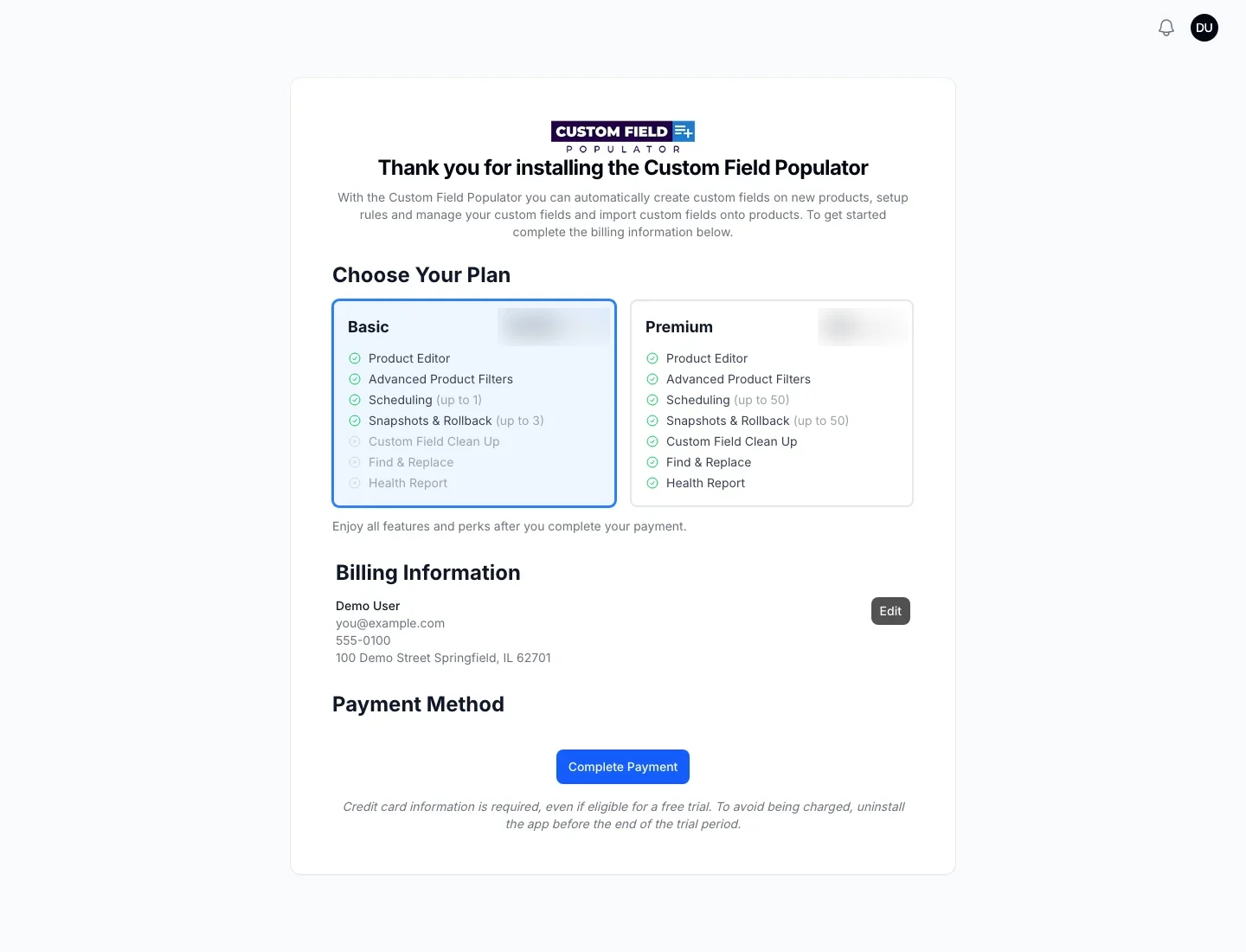
Complete the setup screen. The first time you open the app there's a short setup screen:
- Choose Your Plan: pick Basic or Premium. Each card lists what's included.
- Billing Information: check your name, email and address, and use Edit to correct anything.
- Payment Method: enter a card and click Complete Payment.
Note
A card is required even when a free trial applies. To avoid being charged, cancel before the trial ends. See Plans and billing.
-
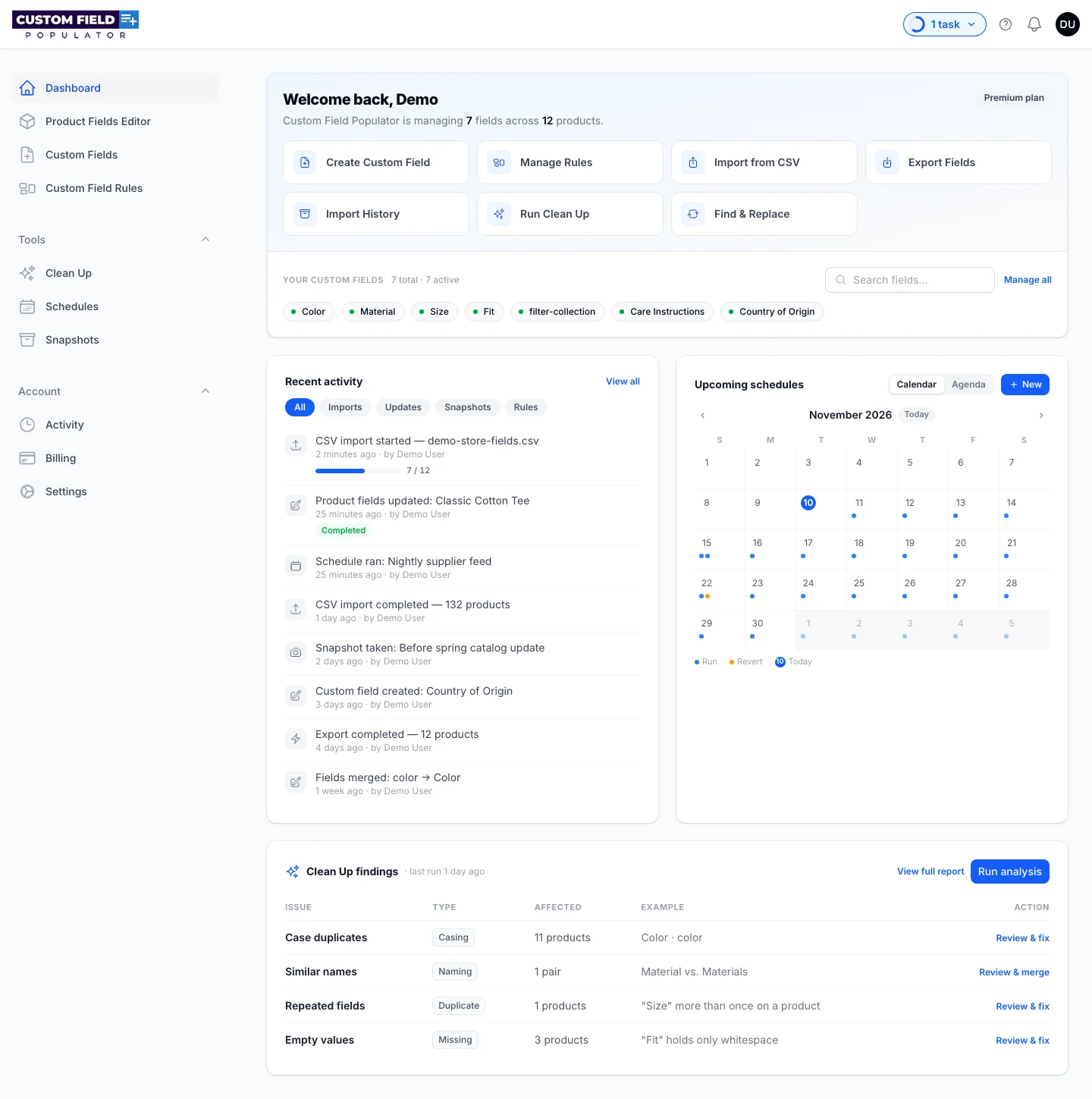
Start on the Dashboard. After setup you land on the Dashboard. Your store's existing custom fields were imported automatically when you installed the app, so they're already there. The app also creates a rule named Default in Custom Field Rules.
Reference
Plans at a glance
There are two plans, Basic and Premium. Anything your plan doesn't include is hidden or shown with an upgrade prompt.
| Feature | What it does | Basic | Premium |
|---|---|---|---|
| Product Fields Editor | Select products and edit their custom fields directly, without an import. | ✓ | ✓ |
| Advanced Product Filters | Filter the product list with conditions and turn them into Custom Field Rules. | ✓ | ✓ |
| Scheduling | Schedule custom field imports and rule-based updates. | 1 active schedule | 50 active schedules |
| Snapshots & Rollback | Back up custom fields before bulk changes and restore them. | 3 snapshots, 7-day history | 50 snapshots, 30-day history |
| Custom Field Clean Up | Find and fix duplicate, similar and mis-cased custom fields. | — | ✓ |
| Find & Replace | Find and replace custom field values across products. | — | ✓ |
| Health Report | A weekly email of new custom field issues in your store. | — | ✓ |
Current prices are shown inside the app on Billing → Change Plan. Upgrades take effect straight away; downgrades take effect at the end of your billing period. See Plans and billing.
The menu
| Menu item | What it's for |
|---|---|
| Dashboard | A summary, quick actions and live widgets. |
| Product Fields Editor | Edit fields on one product or many. See Product Fields Editor. |
| Custom Fields | The master list of your fields. See Managing custom fields. |
| Custom Field Rules | Put fields on products automatically. See Custom Field Rules. |
| Tools → Clean Up | Fix duplicate and messy fields (Premium). See Clean Up and Find & Replace. |
| Tools → Schedules | Run imports and updates on a timetable. See Schedules. |
| Tools → Snapshots | Back up and restore your fields. See Snapshots and restoring. |
| Account → Activity | A log of everything that happens in the app. See Activity and background tasks. |
| Account → Billing | Your plan, card and billing history. See Plans and billing. |
| Account → Settings | Automation options and your store timezone. See Settings. |
In the top bar, the ? icon opens this help site, the Tasks pill shows live progress of background jobs, and the bell shows notifications, such as a finished export.
The Dashboard
Welcome card. How many fields and products the app is managing, and your plan badge. Quick action tiles jump straight to common tasks:
- Create Custom Field: opens the Custom Fields page.
- Manage Rules: opens Custom Field Rules.
- Import from CSV: opens the import wizard.
- Export Fields: opens the export wizard.
- Import History: your recent imports.
- Run Clean Up and Find & Replace: open the Clean Up page. These two tiles show on Premium only.
Your custom fields. A searchable directory of your fields. Type in Search fields… to filter, and click a field to open it. A green dot means the field is active; gray means inactive. Manage all opens the full Custom Fields list.
Widgets:
- Recent activity: the latest actions in your store, with filter buttons (All, Imports, Updates, Snapshots, Rules). Running jobs show a live progress bar, and a finished export shows a Download export link for 7 days. View all opens the Activity page.
- Upcoming schedules: a calendar or agenda of upcoming schedule runs and automatic reverts, with a New button to create a schedule.
- Clean Up findings: what the last analysis found. On Basic it shows real findings from your store, with fixes locked behind Unlock Clean Up, so you can see what Premium would tidy up.
Next:
Questions? Click the ? icon in the app's top bar, or email us at help@yourstorewizards.com.