
Clean Up and Find & Replace for BigCommerce
What it does
Clean Up scans your products' custom fields and lists what needs tidying: the same field in different capitalisation ("Color" and "color"), names that look like typos of each other, a field repeated on one product, and blank values. You fix each one with a click, and can turn a fix into a cleanup rule so the problem doesn't come back. Find & Replace changes a value everywhere it's used.
A snapshot is taken before every fix, so each one can be reverted.
Before you start
- Clean Up, Find & Replace and the weekly Health Report are part of the Premium plan. On Basic, the page shows what a scan found in your store, with the fixes locked. See Plans and billing.
- Open Tools → Clean Up from the sidebar.
Step-by-step
-
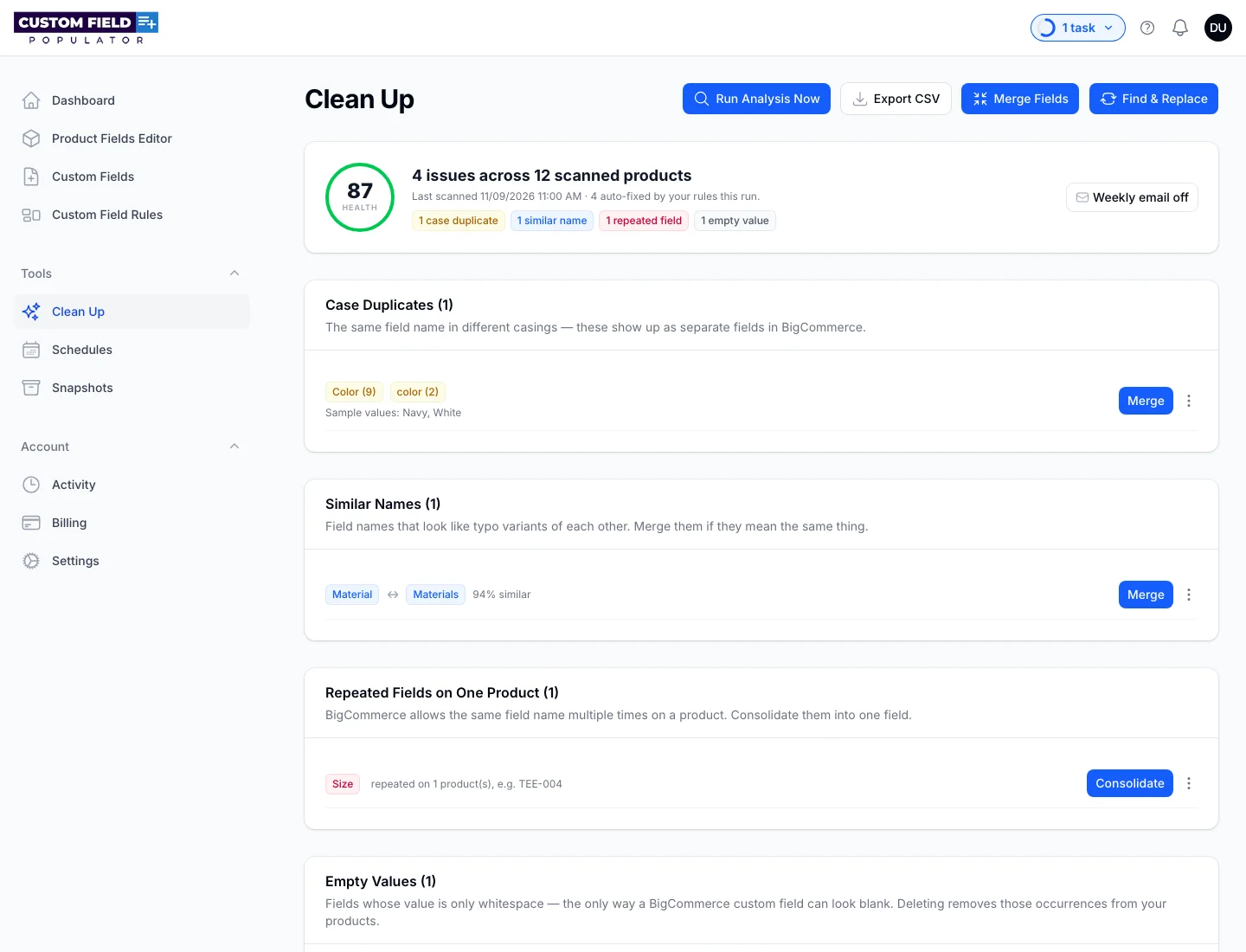
Run Analysis Now. Click Run Analysis Now to scan your catalog. A scan also runs automatically every week. The header shows a Health score ring, which improves as you resolve findings, when the store was last scanned, and how many issues your cleanup rules fixed automatically on that run. Export CSV downloads the full report.
-
Review the findings. Findings are grouped into four types (see The four finding types below). Every finding offers:
- View Products: the exact products and values affected, with its own CSV export.
- Ignore: hide the finding from counts and future scans until you Unignore it.
- Create Rule (Case Duplicates and Similar Names): turn the fix into a cleanup rule so it can't come back.
-
Apply a fix. Use the finding's button, such as Merge or Rename All. When you Merge or Rename All, you can tick Also create a rule so this is fixed automatically next time. A snapshot is taken, then the changes run in the background. If an issue you cleaned up comes back, its row is marked as recurred.
Merge any fields
Merge Fields at the top of the page combines any fields into one; they don't need similar names. Pick the fields, choose which name to keep, and decide what happens when a product has more than one value: keep the winning field's value, or combine the values with a delimiter.
Find & Replace
Click Find & Replace to replace values on every product's copy of a field. Choose the field, choose whether to match when the Value equals or the Value contains your text, then enter Find and Replace with. A snapshot is taken first.
Undo a cleanup
Each completed fix keeps a Revert button that restores the snapshot taken before it ran. The Previously Cleaned Up section lists fixes from earlier scans, so you can revert those too, until their snapshot expires. See Snapshots and restoring.
Cleanup Rules
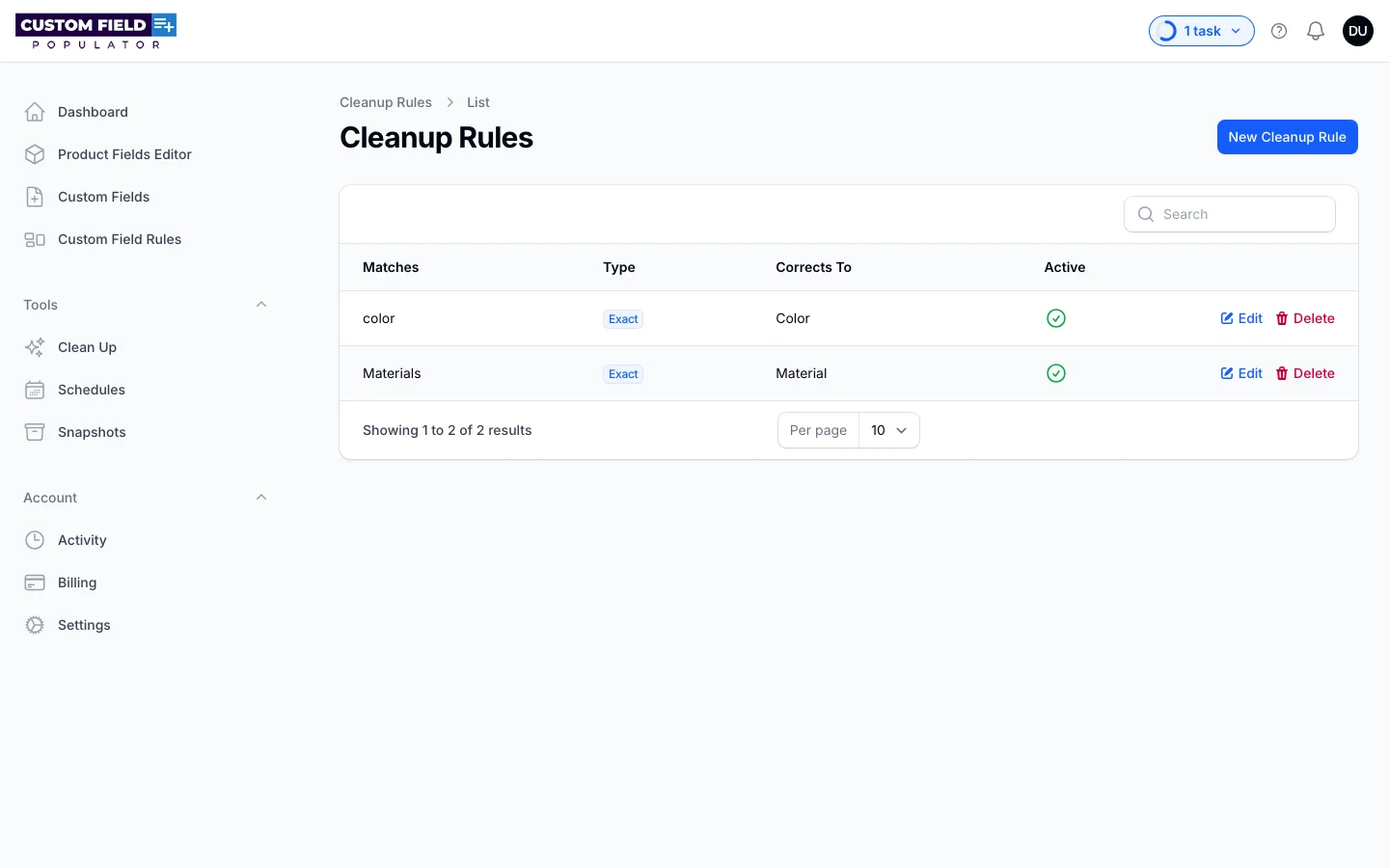
The Cleanup Rules table at the bottom of the page holds your rules for correcting field names and values. Click New Cleanup Rule to add one. They're applied automatically on every scan and import, so new products come out right. Each rule has:
- Match: Field name equals (any casing) or Field name matches pattern (* wildcard).
- Field name / pattern: for example
colororcolo*. - Correct to: the correct name, for example
Color. - Value corrections (optional): pairs of When the value is → Change it to.
- An Active switch.
Rules also run when BigCommerce sends us new products, and during imports and scheduled imports that have Apply my cleanup rules turned on.
Weekly Health Report email
Click Weekly email off / Weekly email on at the top of the Clean Up page to switch the report on or off. When it's on, every Monday you get a Custom Field Health Report email for your store: how many products and fields were scanned, what's new since the last report, what your rules fixed automatically, and a CSV listing every issue with the products it affects.
Reference
The four finding types
| Finding | What it means | Fix |
|---|---|---|
| Case Duplicates | The same field name in different capitalisation. These show up as separate fields in BigCommerce. | Merge or Rename All |
| Similar Names | Field names that look like typo variants of each other. | Merge, if they mean the same thing |
| Repeated Fields on One Product | BigCommerce allows the same field name more than once on a product. | Consolidate into one field, keeping the first value or combining the values with a delimiter |
| Empty Values | Fields whose value is only spaces, the only way a BigCommerce custom field can look blank. | Delete Empty Values removes them from your products |