
Managing Custom Fields for BigCommerce
Quick info
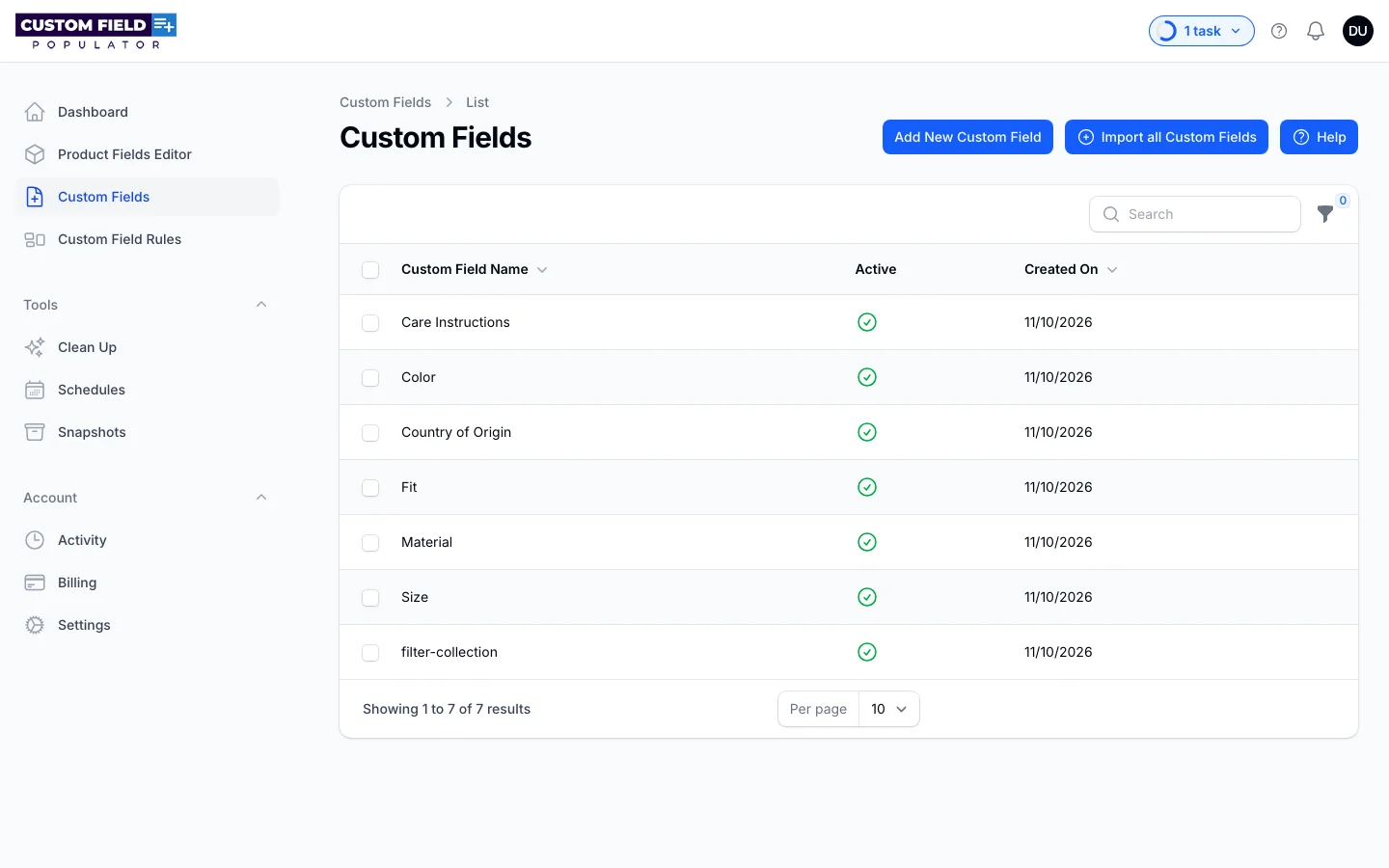
The Custom Fields page is the master list of the custom fields the app manages for your store. Create fields, give them default values, push them onto every product, or delete them.
What it does
Custom Fields lists every custom field Custom Field Populator manages for your store. From here you create new fields, set a default value, add a field to every product at once, connect a field to your Custom Field Rules, and delete fields you no longer want.
Before you start
- Open Custom Fields from the sidebar.
- Your store's existing custom fields are imported automatically when you install the app, so they're already in the list.
Step-by-step
Create a field
-
Add New Custom Field. Click Add New Custom Field.
-
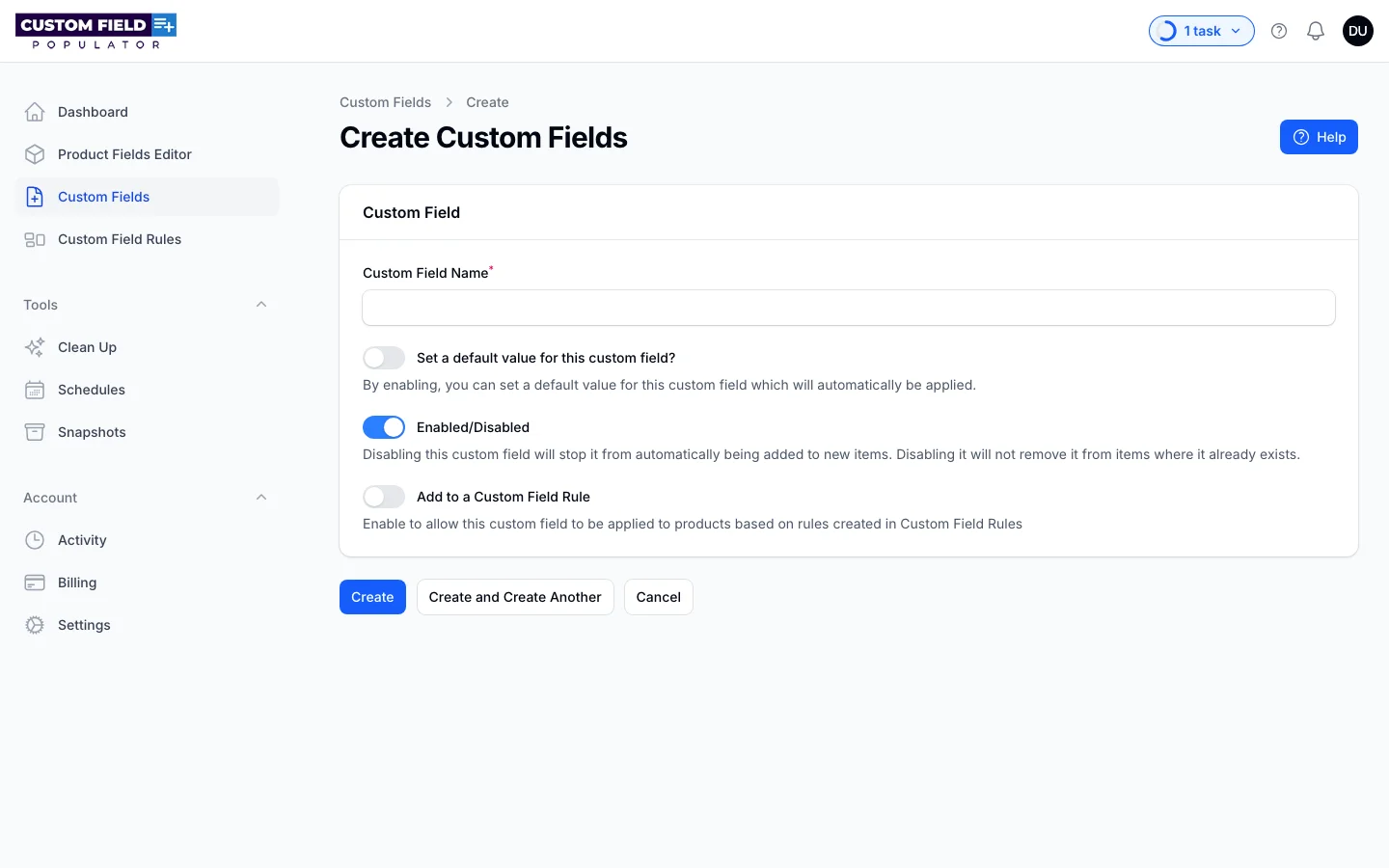
Fill in the form.
- Custom Field Name: must be unique in your store.
- Set a default value for this custom field?: turn this on to enter a Default Custom Field Value that's applied automatically. Leave it off if the field has no default.
- Enabled/Disabled: a disabled field is no longer added to new products automatically. Disabling it doesn't remove it from products that already have it.
- Add to a Custom Field Rule: turn this on to let rules apply the field, then choose the rule or rules.
-
Save. Click Create, or Create and Create Another to add more fields straight away.
Other actions
| Action | Where | What it does |
|---|---|---|
| Import all Custom Fields | List page | Re-imports all custom fields from your BigCommerce store into the app. This happens automatically at install, so you only need it to re-sync, for example after creating fields directly in BigCommerce. |
| Add Custom Field to all Products | Create and edit pages | Pushes this field onto every product now. |
| Delete Custom Field | Edit page | Removes the field from every product and from your store. |
| Delete Custom Fields | Bulk action on the list | Removes the selected fields from every product and from your store. |
The list can be searched by name and filtered by whether a field is active.
Warning
Deleting a field removes it from every product in your store. A snapshot is taken first, so you can bring the field back from Tools → Snapshots while that snapshot is still available. See Snapshots and restoring.
Related:
- Custom Field Rules
- Settings (the store-wide default value and adding fields to new products)