
Custom Field Rules for BigCommerce
What it does
A Custom Field Rule says which custom fields go on which products. Apply it to every product, or only to products that match conditions such as brand, category or price. Rules can run on new products as they're created and back-fill the products you already have, so matching products always get the right fields without manual work.
Before you start
- Create the custom fields the rule will use. See Managing custom fields.
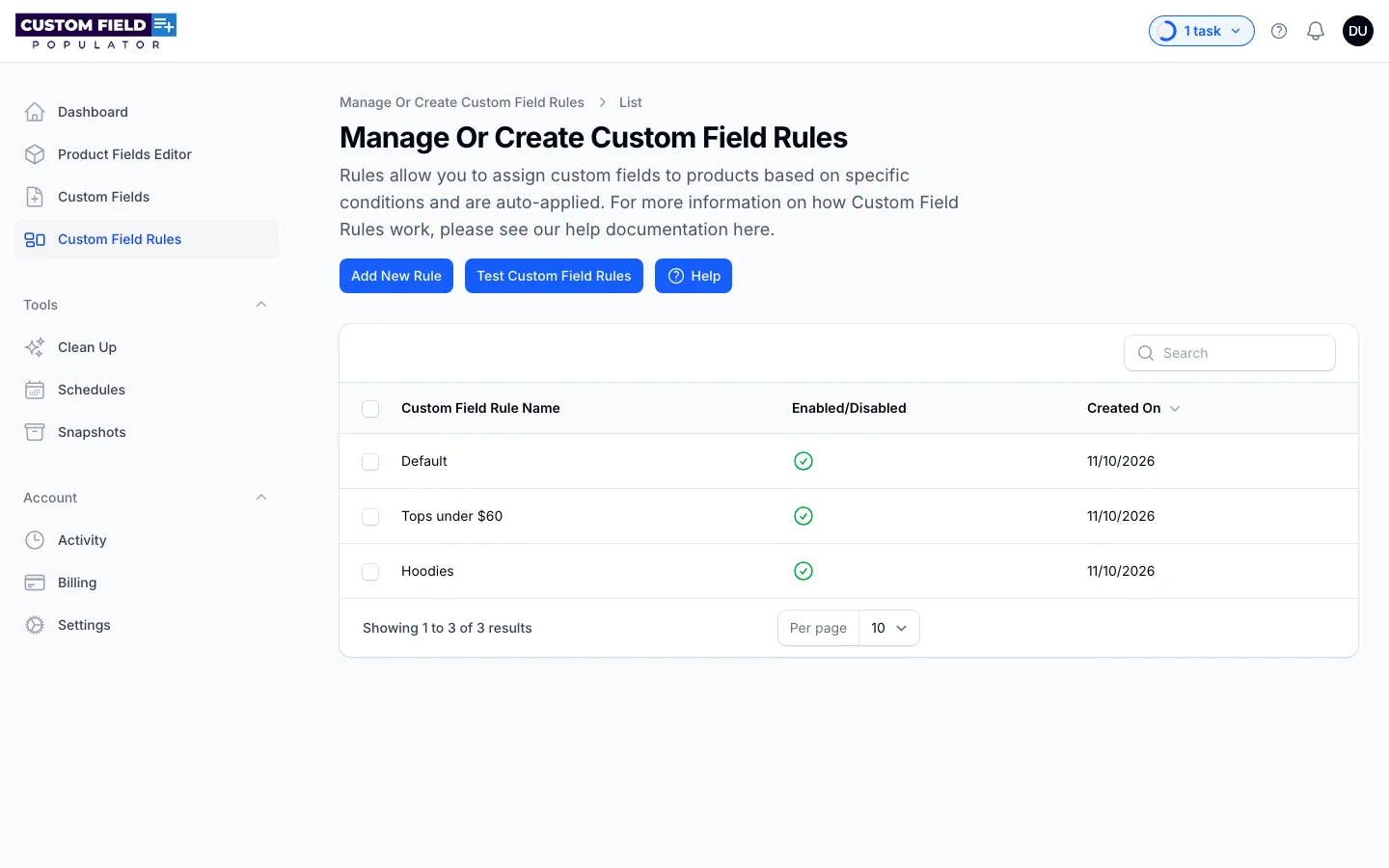
- Open Custom Field Rules from the sidebar. A rule named Default is created when you install the app.
Step-by-step
-
Add New Rule. Click Add New Rule.
-
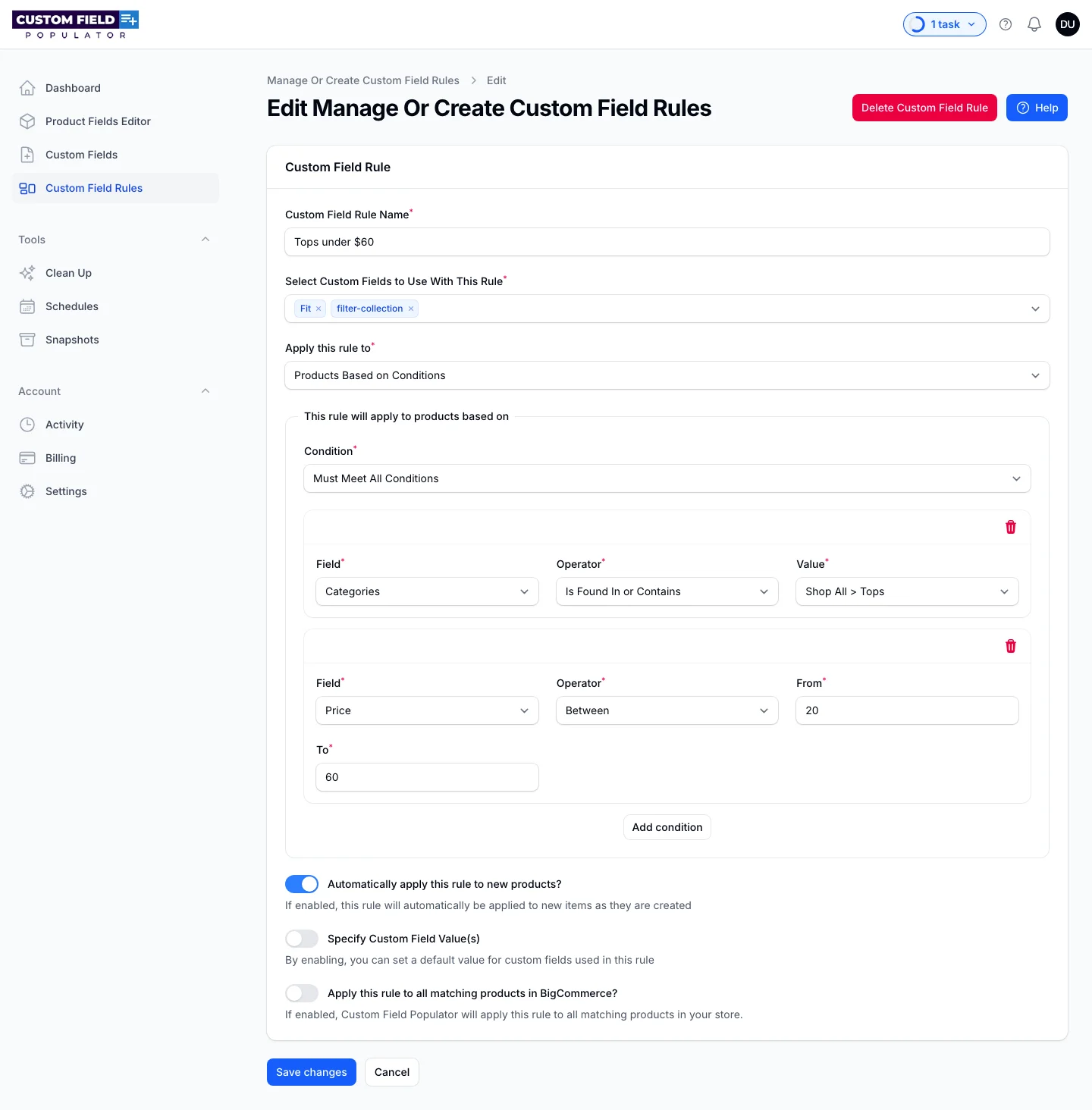
Custom Field Rule Name. Give the rule a name.
-
Select Custom Fields to Use With This Rule. Choose the fields the rule applies.
-
Apply this rule to. Choose On All Products, or Products Based on Conditions. With conditions, choose Must Meet All Conditions or Must Meet Any Condition, then click Add condition for each one. Conditions use the same fields as the Product Fields Editor's advanced filters.
-
Automatically apply this rule to new products? Turn this on to apply the rule to new products as they're created.
-
Specify Custom Field Value(s). Optionally set values for the fields in this rule.
-
Apply this rule to all matching products in BigCommerce? Turn this on to apply the rule to every matching product in your store now. It runs in the background; watch its progress in the Tasks tray.
-
Save. Click Create.
Tip
Found the right products in the Product Fields Editor? Use Create from filters → Create Custom Field Rule there to start a rule with those filter conditions already filled in.
Reference
When rules run
- When a product is created: as long as Automatically Add Custom Fields to New Items is on in Settings, every active rule is checked against the new product.
- When you save a rule with Apply this rule to all matching products in BigCommerce? on: it back-fills your existing catalog.
- During exports: you can limit an export to the products a rule matches. See Exporting custom fields.
Testing your rules
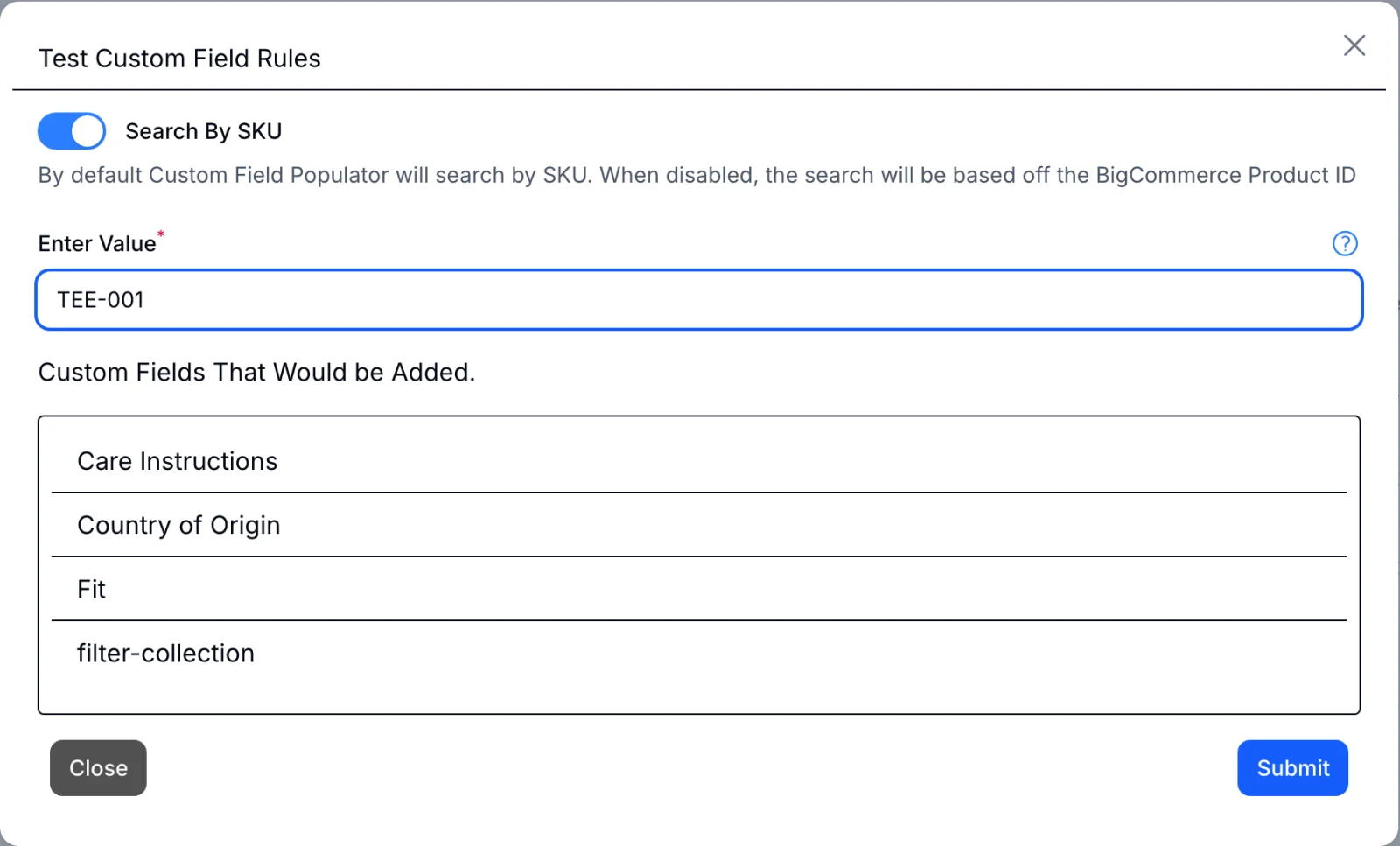
Click Test Custom Field Rules on the list page. Enter a SKU (or turn off Search By SKU to enter a BigCommerce Product ID) and the tester shows which custom fields your rules would put on that product.
To remove a rule, open it and click Delete Custom Field Rule.