
Exporting Custom Fields for BigCommerce
What it does
The export wizard builds a spreadsheet of your products' custom fields: the product identifier column, then one column per active custom field. It's ready to edit and import again.
Step-by-step
Open the wizard from the Dashboard with Export Fields.
-
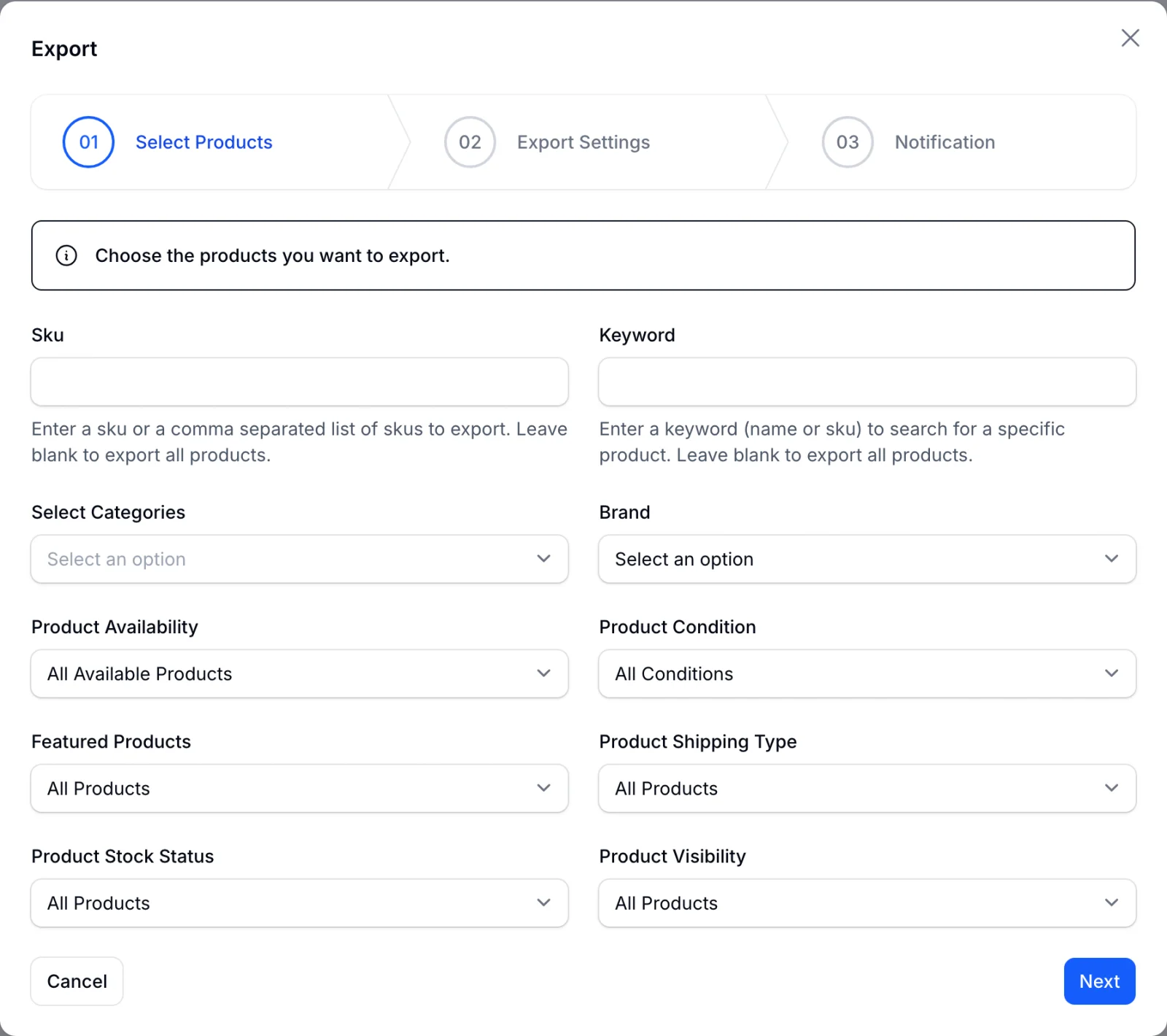
Select Products. Leave everything blank to export all products, or narrow it by SKU list, keyword, categories, brand, availability, condition, featured, shipping type, stock status or visibility.
-
Export Settings.
- Choose CSV or TXT (Tab Delimited).
- Optionally export only the products a Custom Field Rule matches.
- Optionally turn on Export Product ID Instead of SKU.
- Optionally turn on Merge Fields With the Same Name (see Products with the same field more than once below).
-
Notification. Enter the email address to send the file to.
The export runs in the background; watch it in the Tasks tray. When it's done, you can download the file from three places, so a missing email never leaves you without it:
- Email: sent to the address you entered, with a Download button.
- Notifications: the bell icon in the top bar shows an Export Complete notification with a Download button. Everyone on your store's team sees it.
- Activity: the Export Completed entry on the Activity page, and in the Dashboard's Recent activity, has a Download link.
Download links work for 7 days; the bell notification itself clears sooner, after a few days, so use the email or Activity link after that. After 7 days the file is removed; run a new export if you need it again. Each export is its own file, so an older link always downloads the export it was made for.
Reference
Products with the same field more than once
A product can hold the same custom field name more than once (for example two filter-collection fields, Petite and Pave).
- By default, each value gets its own column under the same header, so that field appears as two or more columns. Products with fewer values leave the extra columns blank.
- Merge Fields With the Same Name puts all of a product's values for that field in one column instead, separated by commas (
Petite, Pave).
Either way, an import writes one value per field. A default export with repeated columns is refused by the import until you remove the extra columns, or turn on Merge Columns With the Same Name in the import, which writes the combined text into a single field.