
Importing Custom Fields from a CSV for BigCommerce
What it does
The import wizard reads a spreadsheet and writes its values to your products' custom fields. Each row is a product and each column is a custom field. Run it now, later, or on a repeating schedule, and get an email when it's done.
Before you start
- Your file is a comma-separated
.csvor a tab-delimited.txt. The first row must be a header row. - The first column is named
product identifierand holds each product's SKU, or its BigCommerce Product ID. See CSV file format below.
Tip
The easiest way to get a correctly formatted file is to export your custom fields first. The export file is the import template: edit it and upload it again.
Step-by-step
Open the wizard from the Dashboard with Import from CSV. It has three steps: Upload, Schedule and Notify.
-
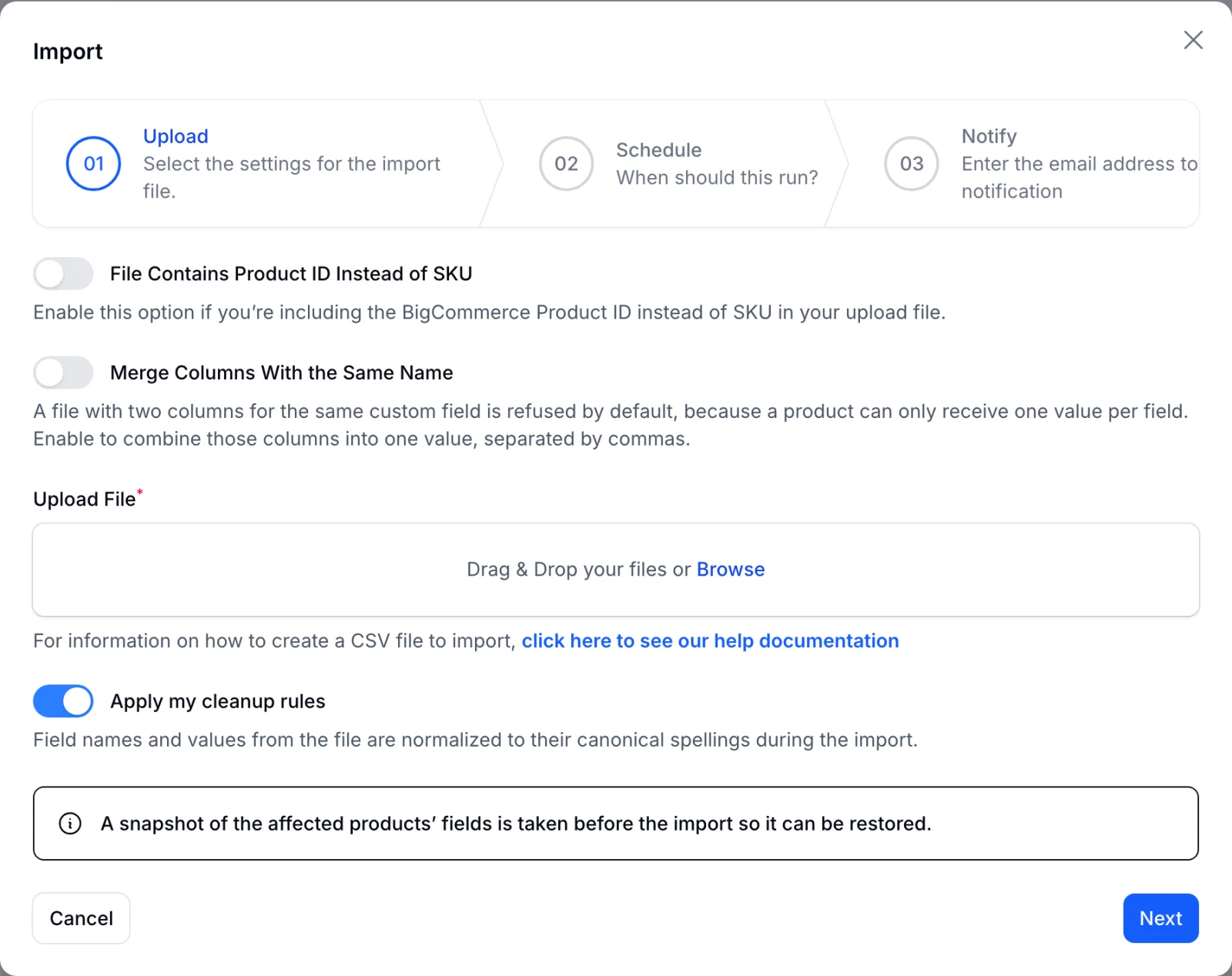
Upload.
- File Contains Product ID Instead of SKU: leave this off to match products by SKU (the default). Turn it on if your identifier column holds BigCommerce Product IDs.
- Merge Columns With the Same Name: off by default. A product holds one value per custom field, so a file with two columns for the same field is refused. Turn this on to combine those columns instead: their non-blank cells are joined into one value, separated by commas (
PetiteandPavebecomePetite, Pave). - Upload File: choose your file.
- Apply my cleanup rules: shown when you have Clean Up with active cleanup rules. Field names and values from the file are corrected to their proper spellings as they're imported. See Clean Up and Find & Replace.
If your plan includes Snapshots, a note confirms that a snapshot of the affected products' fields is taken before the import, so it can be restored.
-
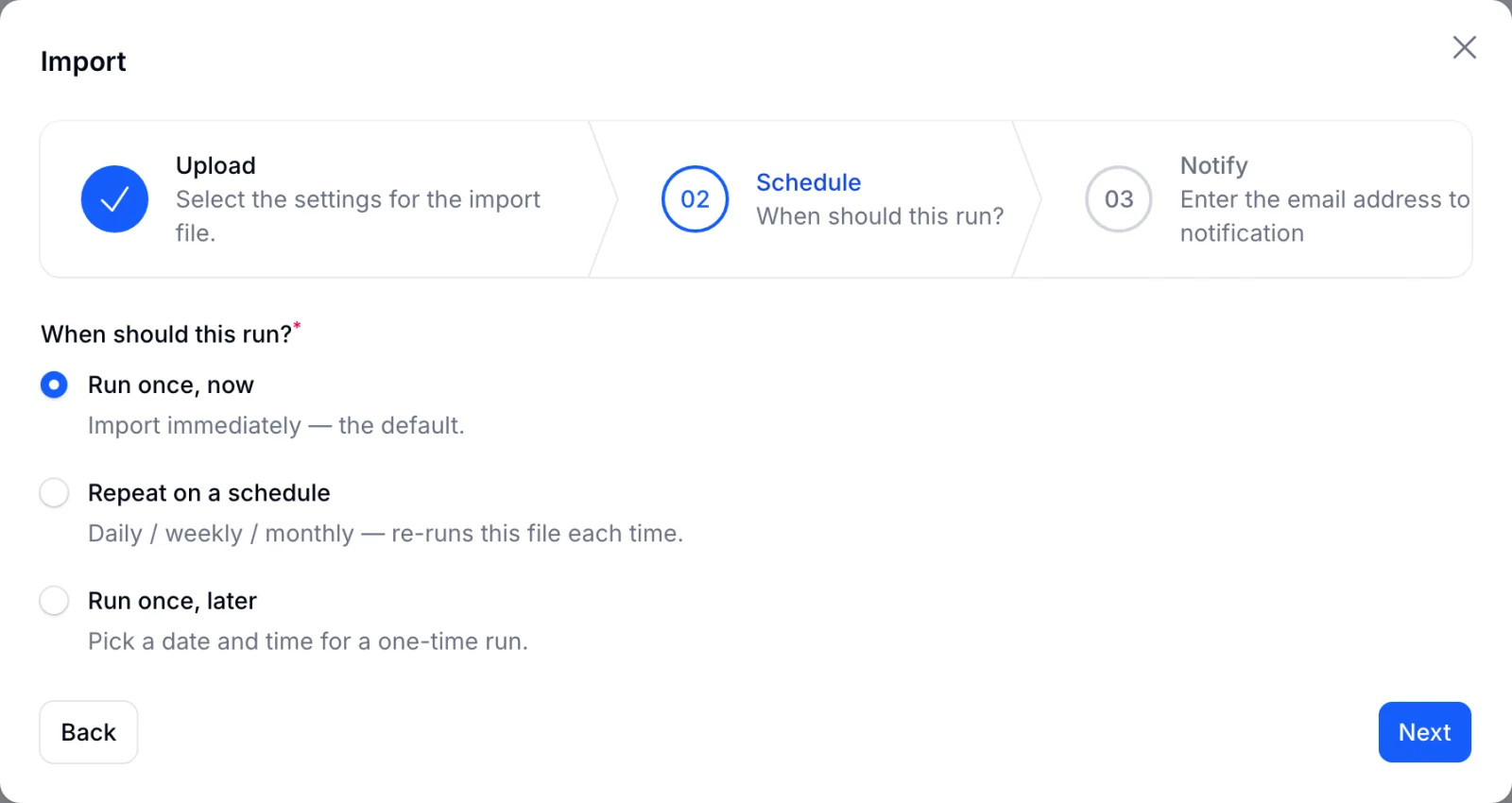
Schedule. Choose when the import runs:
- Run once, now: import straight away (the default).
- Repeat on a schedule: re-run this file daily, weekly or monthly. Set Repeats, Every, the days of the week, a start date and time, an optional Until date, and the timezone.
- Run once, later: pick a date and time for a single run.
- Revert at (optional): for a repeating or later import, with Snapshots: pick a time when the previous values are restored automatically and the schedule completes. Handy for temporary changes such as a sale.
Scheduled options need a free schedule slot on your plan. If you've used them all, the options are disabled, with a link to upgrade or pause a schedule. Scheduled imports appear on the Schedules page.
-
Notify. Enter the email address that should get the completion notice (it starts as your own). When the import finishes you get an email, with a Download Errors link if any rows failed.
Import History
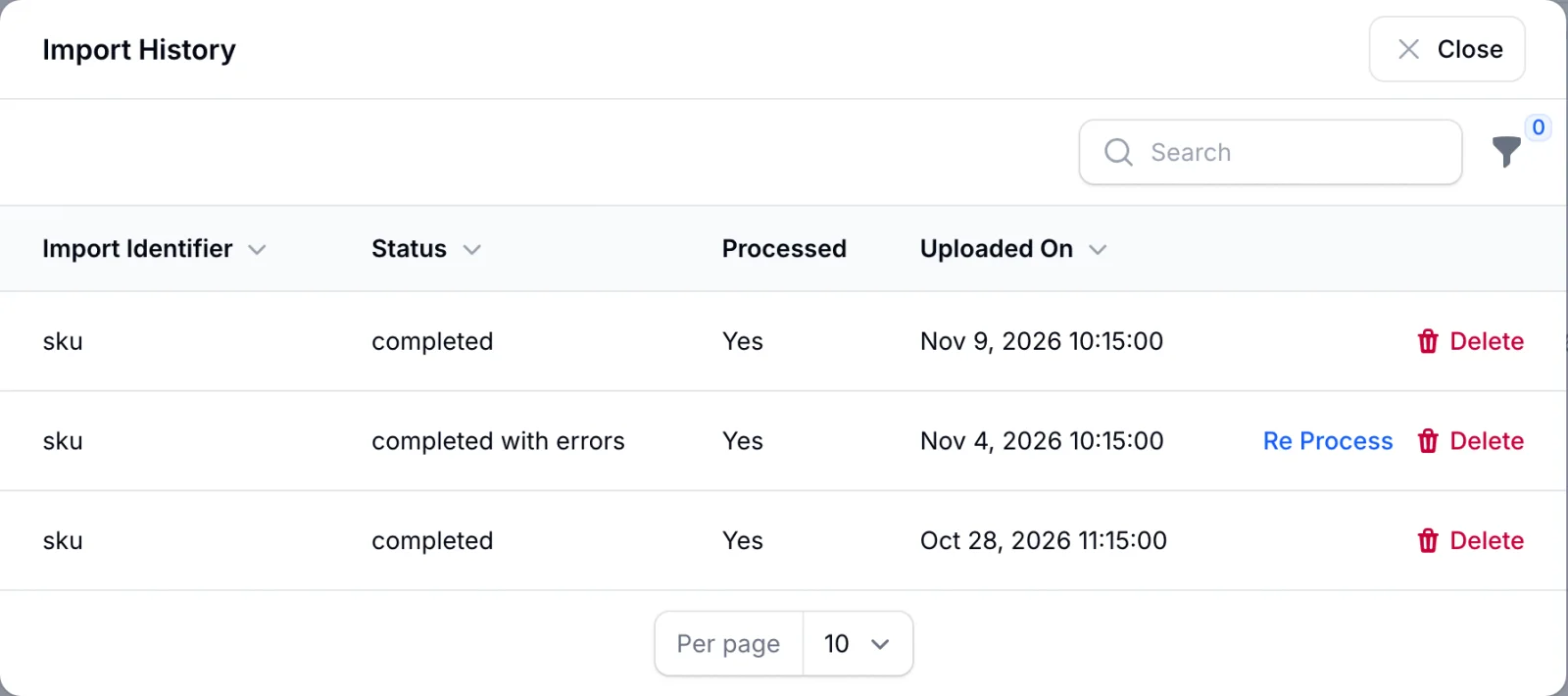
Dashboard → Import History lists your imports from the last 30 days with their status. Download Errors gets the failed rows of an import, and Re Process runs it again after you've fixed your store data. You can filter by status and delete entries.
Reference
CSV file format
| product identifier | Color | Material |
|---|---|---|
| SKU-001 | Blue | Cotton |
| SKU-002 | Red | |
| SKU-003 | [DELETE] | Wool |
product identifieris required and must be the name of the identifier column (capital letters don't matter). It holds each product's SKU, or its BigCommerce Product ID if you turned on File Contains Product ID Instead of SKU. SKU matching is case-sensitive.- Every other column is a custom field, with the header as the field name. If the field doesn't exist yet, the import creates it, so adding a column is how you add a new field.
- Cell values become that product's value for the field.
- A blank cell is skipped: it doesn't clear an existing value.
[DELETE]removes that custom field from the product.
- Duplicate column headers are refused unless you turn on Merge Columns With the Same Name, which combines them into one comma-separated value. If a field needs several values, put them in one column.
- Character encoding is detected and converted automatically, so files saved from common spreadsheet tools import cleanly.
If some products hold the same field more than once, see Exporting custom fields for how those export and import.
Having trouble? See Troubleshooting and FAQ.