
Schedules for BigCommerce
Quick info
Run custom field work on a timetable, either a recurring import from a file, a web address or a Google Sheet, or a one-time update to matching products, with an optional automatic revert.
What it does
Schedules do custom field work for you on a timetable: recurring imports from a supplier feed, or one-off updates that set field values on matching products. They suit sales, seasonal content and supplier feeds. With Revert at, the previous values come back automatically when you're done: set the sale badge on Friday and have it removed on Monday morning.
Before you start
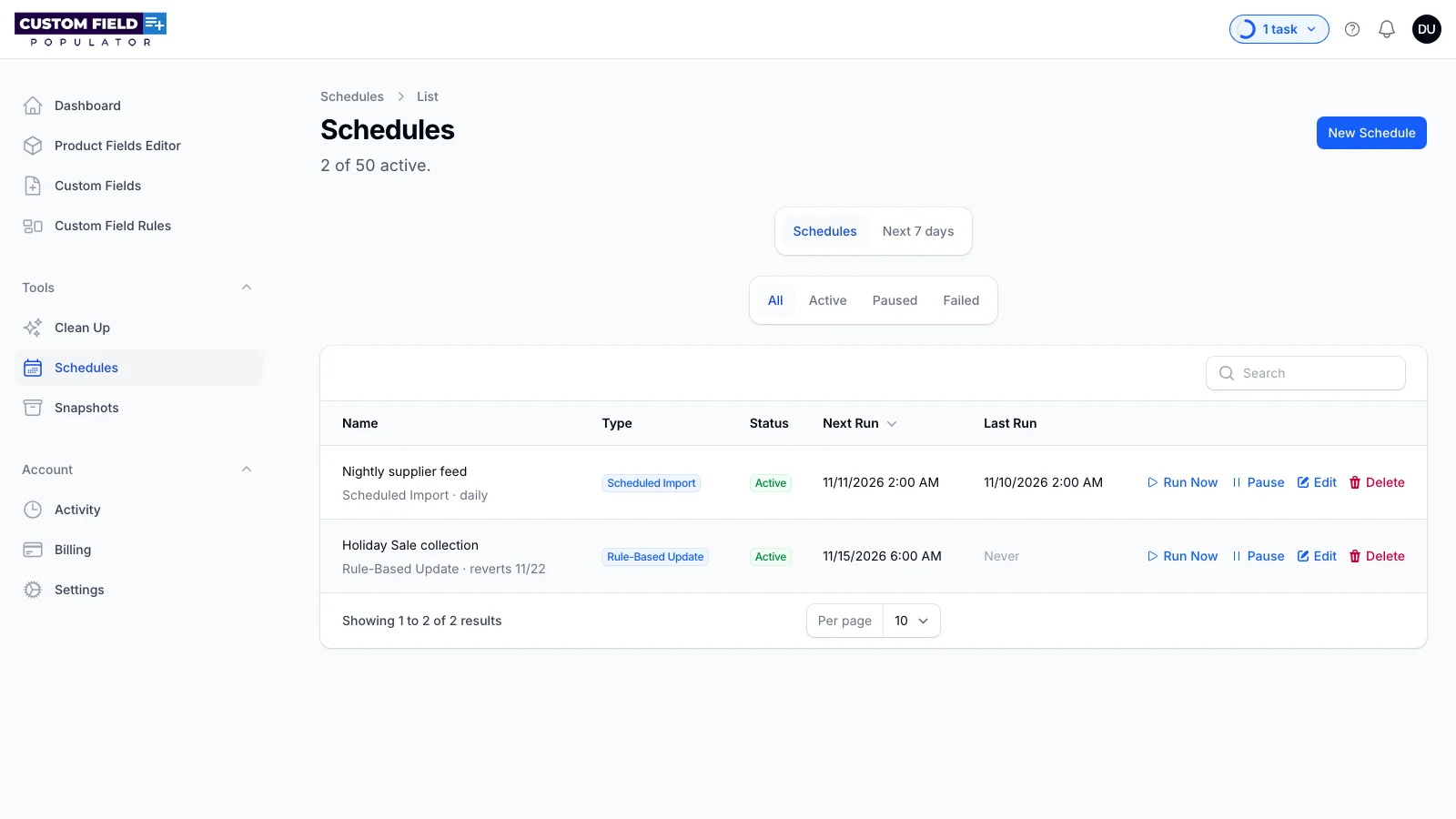
- Your plan sets how many schedules can be active at once: Basic 1, Premium 50. The line under the page title shows your usage, for example "2 of 50 active." At the limit, the create button disappears until you pause or delete a schedule, or upgrade.
- Revert at needs Snapshots, which both plans include.
- Open Tools → Schedules from the sidebar.
Step-by-step
- New Schedule. Click New Schedule and choose a Type. The type can't be changed later.
- Set it up. Fill in the settings for the type (see Schedule types below).
- Revert at (optional). Pick a time to restore the previous values. A snapshot of the affected products' fields is taken before each run, and at this time the previous values are restored automatically.
- Create. Click Create. The schedule appears in the list.
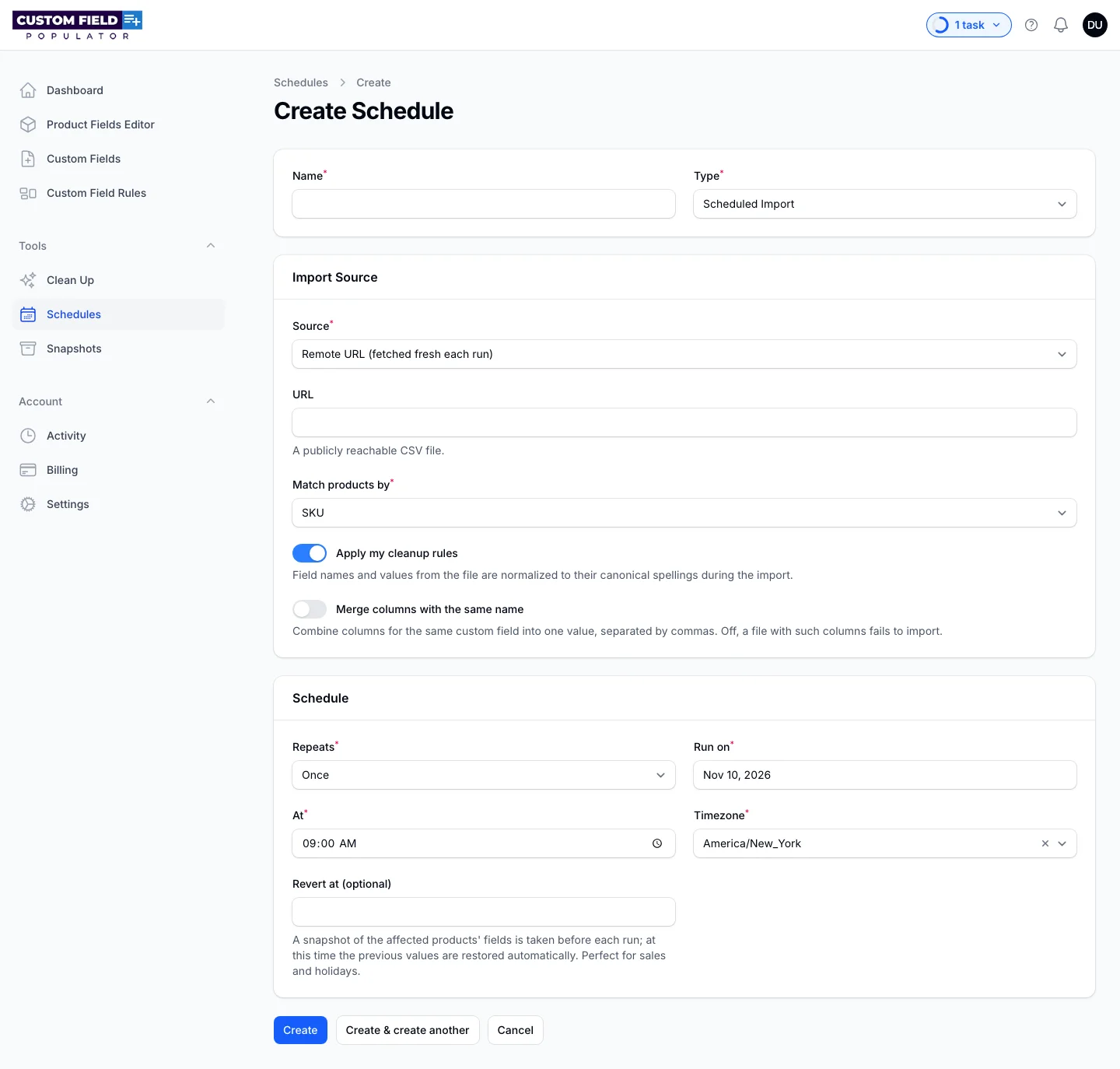
You can also start a schedule from the Product Fields Editor's advanced filters with Create from filters → Create Schedule, or from the import wizard's Schedule step.
The list
- Status tabs: All, Active, Paused and Failed.
- Next 7 days: a timeline of every upcoming run and automatic revert, grouped by day.
- Row actions: Run Now (run straight away), Pause, Resume, Edit and Delete. Resuming checks your schedule limit first.
Reference
Schedule types
Scheduled Import re-runs an import on a schedule.
| Setting | What it means |
|---|---|
| Source | An Uploaded file (re-run each time), a Remote URL (a publicly reachable CSV, fetched fresh each run), or a Google Sheet (paste the sheet's link; the sheet must be shared as "Anyone with the link"). |
| Match products by | SKU or Product ID. |
| Apply my cleanup rules | Corrects field names and values with your cleanup rules, as in the import wizard. Shown when you have Clean Up with active rules. |
| Merge columns with the same name | As in the import wizard: off, a file with duplicate columns fails to import; on, those columns are combined into one comma-separated value. |
| Repeats | Once, Daily, Weekly (pick the days) or Monthly, with a start date, time, optional end date and timezone (your store's timezone to start with). |
The file follows the same format as a normal import. See Importing custom fields from a CSV.
Rule-Based Update is a one-time update that sets field values on matching products.
| Setting | What it means |
|---|---|
| Which Products | All products, or only products matching conditions (the same conditions as the Product Fields Editor's advanced filters). |
| Field Values | The field names and values to set on matching products when the schedule runs. |