
Activity and Background Tasks for BigCommerce
What it does
Most bulk work in Custom Field Populator runs in the background, so you can keep working. The Tasks pill shows what's running right now. The Activity page keeps a full log of what happened in your store's app: imports, exports, field changes, cleanups, schedule runs, snapshot restores, billing changes and more.
Step-by-step
Check the Activity log
-
Open Activity. Open Account → Activity from the sidebar, or click View all in the Dashboard's Recent activity.
-
Find an entry. Each entry shows When, Type, Description, Status (with live progress for running jobs) and the User who did it. Filter by Type to find what you're looking for.
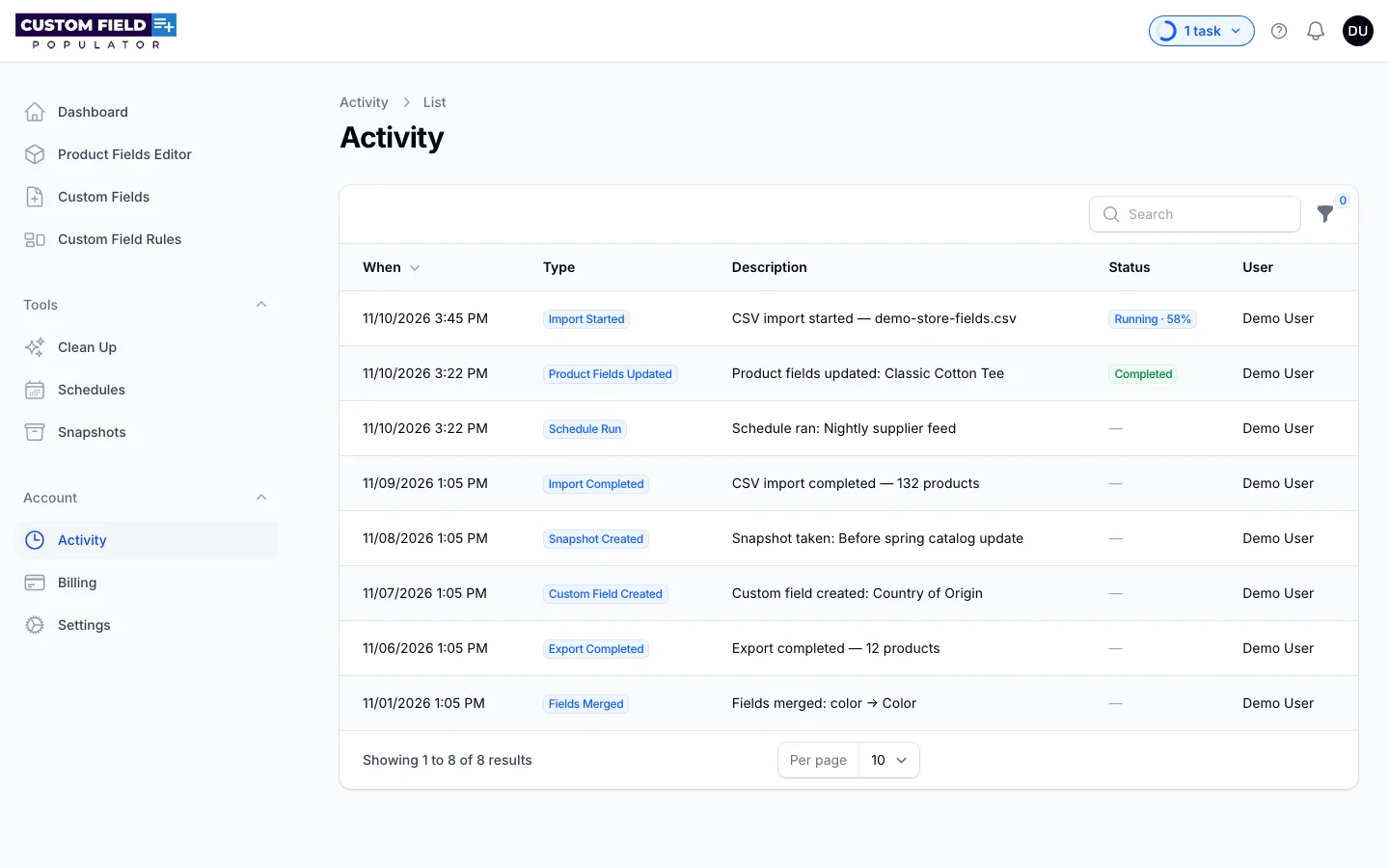
Export Completed entries keep a Download link for 7 days, so you can fetch an export here even if the email never arrived. Filter by Export Completed to find your recent exports.
Watch background tasks
-
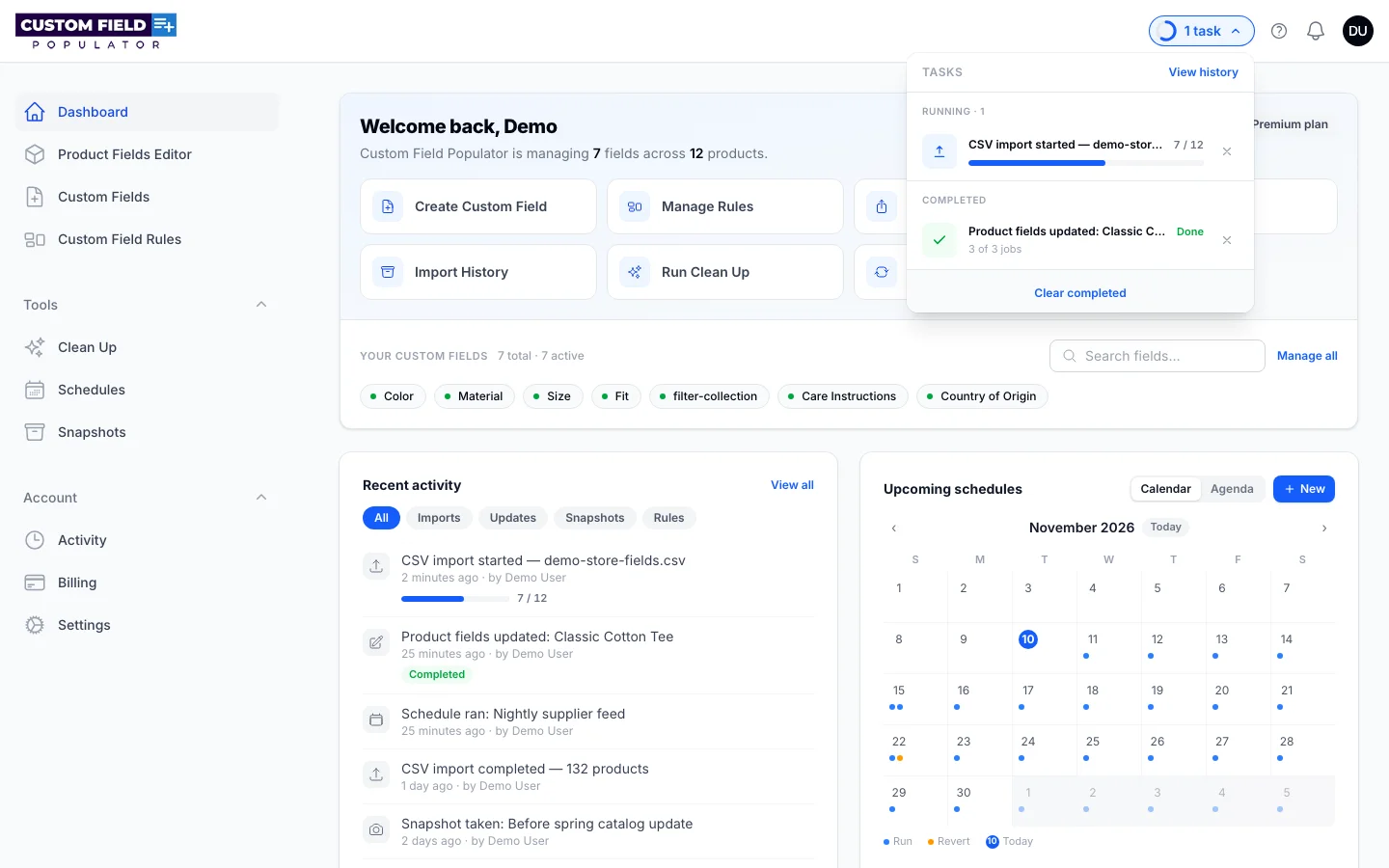
Open the Tasks pill. While jobs run, the Tasks pill in the top bar shows a progress ring and the number of tasks. Open it to see each task's progress bar.
-
Manage the list.
- ✕ Cancel stops a running task. Changes it has already made are not undone.
- Completed tasks stay listed for 24 hours. Dismiss removes one; Clear completed removes them all.
- View history opens the Activity page.