
Import Products for Shopify
What it does
Import Products reads a CSV or Excel file with one row per variant. Each row is matched to a variant by its Variant SKU, and the row updates two things:
- the variant: price, compare-at price, cost, barcode, weight, taxable, shipping, inventory;
- the variant's product: title, description, vendor, type, tags, status, SEO, collections.
Blank cells are never sent, so an import can be as narrow as you like: a file with just Variant SKU and Variant Price only changes prices. This tool never deletes anything.
That's the point of the tool: Shopify's built-in importer matches rows by handle and can't update by SKU. If your source of truth (an ERP, supplier feed or warehouse system) works by SKU, this tool takes that file directly.
With Create New Products & Variants turned on, rows whose SKU doesn't exist create something new. When the row's Handle (or Title, if you don't use handles) matches an existing product, the row is added to that product as a new variant; otherwise the rows become a new product, with options, variants, images, inventory and collections.
The file format is the one Export Products produces, so the easiest workflow is: export, edit the file, import it again. The import runs in the background, and rows that fail are listed in an errors file.
Use it when:
- Your ERP or supplier feed works by SKU and you want to bring product data into Shopify without mapping everything to handles first.
- You exported your products, edited them in a spreadsheet, and want to send the changes back.
- You're making a bulk content pass: titles, descriptions, SEO fields, vendors, types or tags across many products.
- You're creating many products at once, including products with several variants and options.
- You're adding new variants to existing products: a new size, flavor or pack count.
- You want to add products to collections in bulk with a Collections column.
For price-only or stock-only jobs, the Price Updater and Inventory Updater are simpler.
Before you start
- Your Shopify store must be connected to your account.
- Your file needs a header row. Only the columns you want to import need to be there.
- Updates are matched by Variant SKU. SKUs should be unique in your store: a SKU on more than one variant is reported as an error rather than guessed at. A row with no SKU can still update product fields if its Handle matches an existing product.
- Product columns can repeat on every row. When several rows belong to the same product, the first filled-in value in each column is used.
- A filled-in Tags cell replaces all of the product's tags. Include the full tag list, not just the new tags.
- Image columns add images; they never remove or replace any. Cells with Shopify CDN links (which is what an export contains) are skipped, so importing an exported file again never duplicates images. Put an image's own web address in an image column to add it. To upload a zip of images, use the Bulk Image Uploader.
- If you're importing an Inventory Qty column, pick the Inventory Location it applies to. If you don't pick one, your store's primary location is used.
- Use a CSV or Excel (.xlsx) file, or a link to a CSV file or Google Sheet. Older .xls files aren't supported.
Step-by-step
-
Open Import Products. Choose the Import Products tool.
-
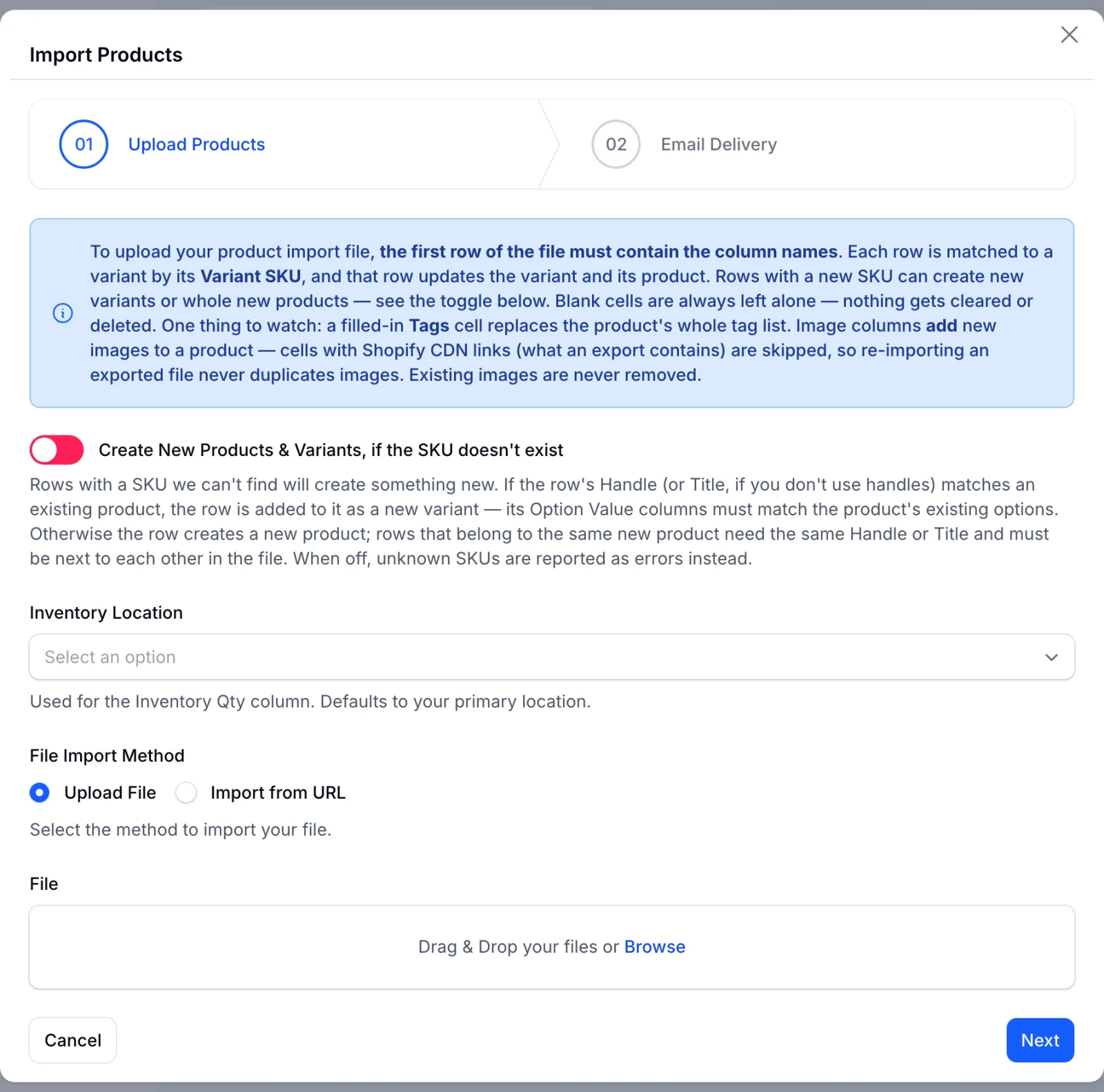
Upload Products. Decide whether to turn on Create New Products & Variants, if the SKU doesn't exist. It's off by default, so unknown SKUs are reported as errors. Pick an Inventory Location if you're importing quantities. Then choose Upload File or Import from URL and add your file.
-
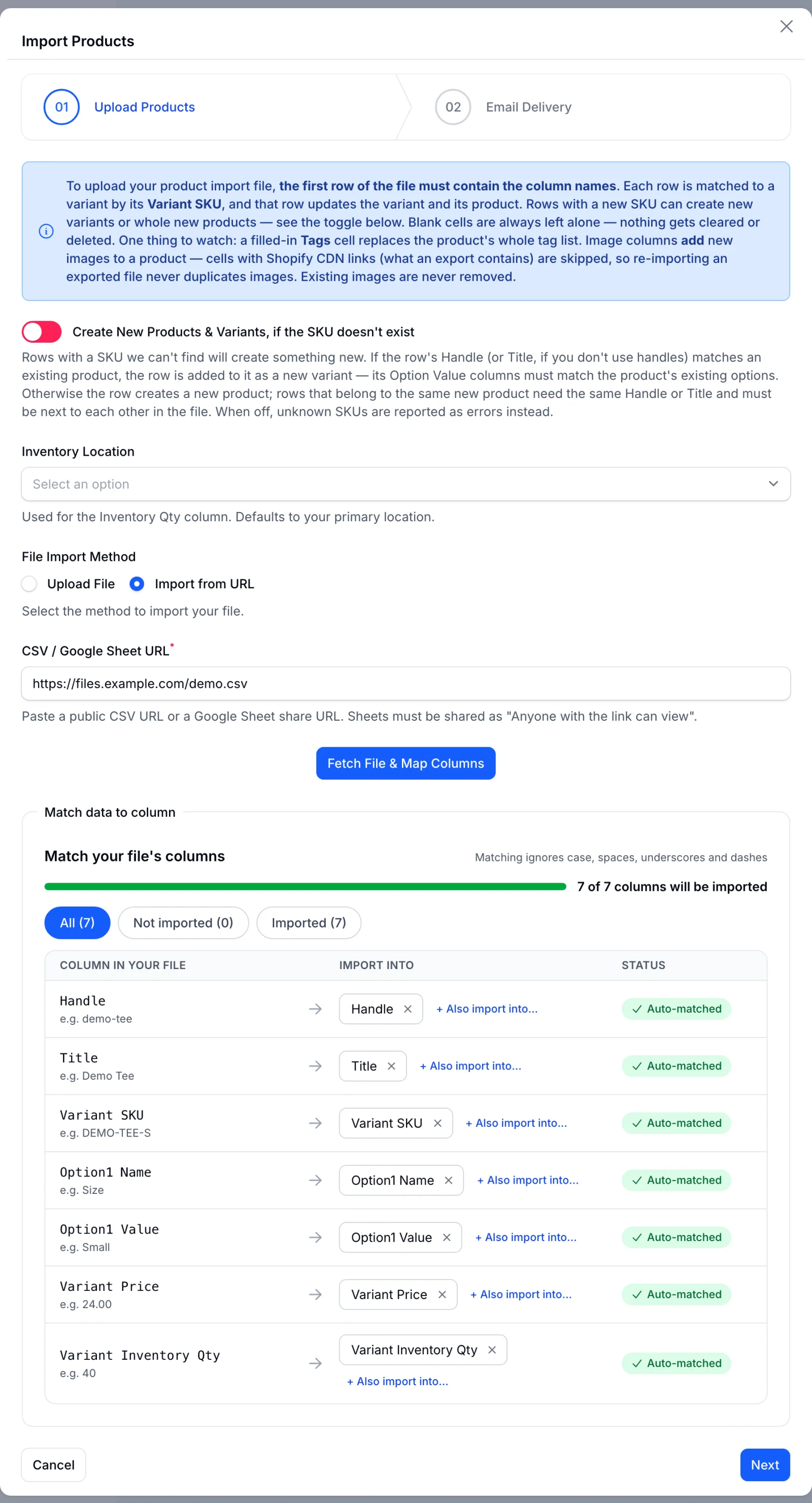
Match your file's columns. Columns from an Export Products file are matched for you; adjust any that aren't. Choose Don't import this column for anything you don't want to import.
-
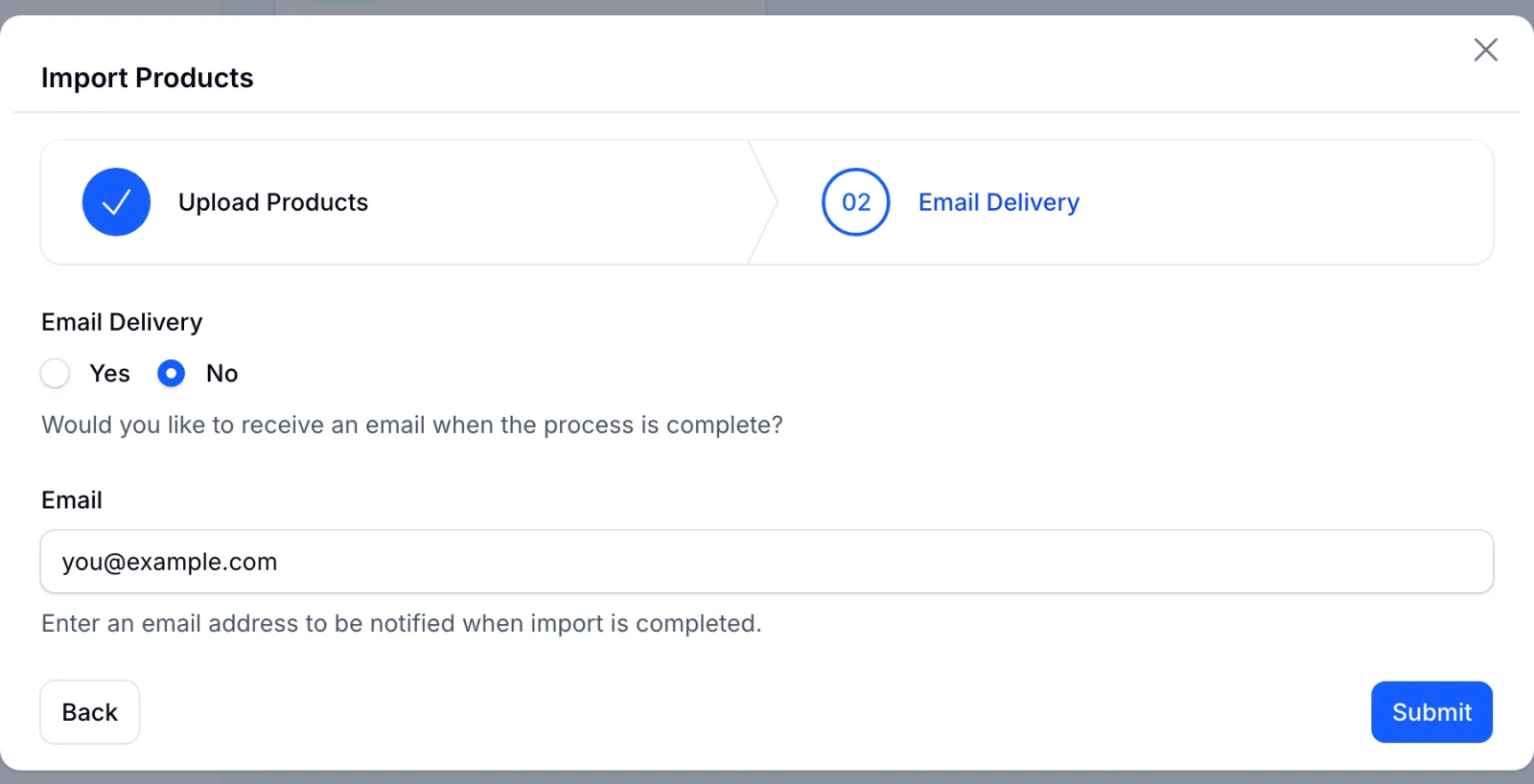
Email Delivery. Choose Yes to get an email when the import finishes; your account email is filled in.
-
Submit. You'll see "Import has been Queued". The import runs in the background, so you can leave the page.
-
Check the result. If any rows failed, choose Download Errors on the notification (or in the email). The errors file gives the reason for each failure.
Reference
The columns match Export Products. These rules are specific to importing.
What happens to each row
| Row | What happens |
|---|---|
| SKU exists on one variant | Updates that variant, and its product from the product-level columns. |
| SKU exists on several variants | Error: there's no safe way to know which one you meant. Make the SKU unique in Shopify first. |
| SKU doesn't exist | Error, unless Create New Products & Variants is on. Then, if the row's Handle (or Title, with no handle) matches an existing product, the row becomes a new variant of it; otherwise it becomes part of a new product. |
| No SKU, Handle matches a product | Updates just that product's product-level fields. |
| No SKU, Handle matches nothing | With Create New Products & Variants on, creates a new product. Otherwise an error. |
| No SKU, no Handle, Title matches a product | With Create New Products & Variants on, updates that product's product-level fields. Otherwise an error. |
SKUs, handles, titles and collection titles are matched ignoring upper and lower case.
Creating new variants on existing products
- A row with a new SKU joins the product its Handle points at, or, with no handle, the product whose Title matches.
- The row's Option Name and Option Value columns must name an option the product already has (for example
Size/XLon a product with a Size option). A new option value is fine; a brand-new option can't be added by import, so add it in the Shopify admin first. - Variant Inventory Qty is set when the variant is created (at the selected Inventory Location), and a Variant Image web address is added and assigned as it is on updates.
- Watch your SKUs: with the toggle on, a mistyped SKU on a row whose handle or title matches a product creates an extra variant instead of updating the one you meant.
Creating new products
- Rows for the same new product are grouped by Handle, or by Title if you don't use a Handle column, and must be next to each other in the file. A new product is only created when that handle or title doesn't already exist on the store; otherwise the rows become new variants of the existing product (see above).
- Title is required for a new product. Handle is optional: when it's blank, Shopify makes one from the title ("Black Sunglasses" becomes
black-sunglasses). - Products with several variants need Option Name and Option Value columns, so each row describes a different variant (for example
Size/Small). Up to 100 variant rows per new product.
Product-level columns
Read from any row of the product; the first filled-in value wins.
| Column | Notes |
|---|---|
| Handle | Optional. Groups rows when creating, and lets a row with no SKU update a product's fields. |
| Title | The product name. Required when creating. |
| Body (HTML) | The product description, as HTML. |
| Vendor / Type | The product's vendor and product type. |
| Tags | Separated by commas. Replaces the product's full tag list. |
| Status | active, draft or archived (also a, d or archive). |
| SEO Title / SEO Description | The search engine listing fields. |
| Collections | Collection titles, separated by commas. Products are added to these collections, never removed from any. A title that doesn't exist on the store is reported as an error. |
| Image Src - 1…5 / Image Alt Text - 1…5 | Product images by web address. New addresses are added to the product's images; Shopify CDN links are skipped, and nothing is removed. |
Variant columns
| Column | Notes |
|---|---|
| Variant SKU | Matches the variant to update. Also saved on the variant when creating. |
| Option1–3 Name / Value | The product's options. Used when creating products and variants; existing variants aren't given new options. |
| Variant Price / Variant Compare At Price | Prices. |
| Cost per item | The variant's unit cost. |
| Variant Barcode | The barcode (ISBN, UPC, GTIN). |
| Variant Weight / Variant Weight Unit | Weight, with g, kg, lb or oz (words such as grams or pounds work too). Defaults to lb when a weight has no unit. |
| Variant Taxable / Variant Requires Shipping | TRUE or FALSE (yes or no also work). |
| Variant Inventory Tracked | TRUE or FALSE: whether Shopify tracks this variant's stock. |
| Variant Inventory Qty | A whole number. Sets the quantity at the selected Inventory Location. If the variant isn't tracked yet, tracking is turned on. |
| Variant Image | The variant's image by web address. A new address is added and assigned to the variant; Shopify CDN links are skipped. |
Note
An Export Products file has image columns 1 to 10. This import reads images 1 to 5; columns 6 to 10 are ignored.
Troubleshooting and FAQ
"SKU […] not found"
No variant with that SKU exists on the store. Turn on Create New Products & Variants if you meant to create it, or fix the SKU if it's a typo.
"SKU […] is not unique"
Shopify allows the same SKU on more than one variant, but this tool won't guess which one you meant. Make the SKU unique in your Shopify admin, then run those rows again.
An error about an option that doesn't exist, or an option value that doesn't match
A new-variant row's Option Name must match an option the product already has (its value can be new). You can't add a whole new option to an existing product by import; add it in the Shopify admin first, then run the row again.
A new variant appeared instead of an update (or a product got an extra variant)
With Create New Products & Variants on, a row whose SKU doesn't match anything, but whose Handle or Title matches a product, creates a new variant on it. If the SKU was a typo, delete the extra variant in the Shopify admin, fix the SKU and import again.
"No collection with the title […] exists on this store."
Collection names must match an existing collection's title. Create the collection first (or use Import Collections).
"Title is required to create a new product."
A new product needs a Title. Add one to the rows for that product.
My product's tags changed more than I expected
A filled-in Tags cell replaces the full tag list. Export first, and edit the Tags column so it always has every tag the product should keep.
Images didn't change on my existing products
Image columns skip Shopify CDN links, because those are the product's own exported images and adding them again would create duplicates. To add an image, put its original web address in an image column. Images are only ever added; remove images in the Shopify admin.
My file is too large
Your plan may limit how many rows you can import at once. If your file is over the limit, you'll see a message with your plan's maximum. Split the file, or upgrade your plan.
I got an API permission error
The connection to Shopify probably needs to be authorized again with write access. If it keeps happening, contact us from Contact Us in your dashboard and we'll help you fix it.