
Import Products for BigCommerce
What it does
Import Products updates your existing BigCommerce products, or adds new ones, from a single spreadsheet. Upload a CSV or Excel file, match its columns to product fields, and the tool applies the changes to your store.
Products are matched by their SKU: if the SKU exists, that product is updated; if it doesn't, you can choose to have a new product created. The work runs in the background, so you can close the page and get an email when it finishes.
Use it whenever you need to change many products at once instead of editing them one by one: prices, stock levels, descriptions, images, categories, or a batch of new products.
Before you start
- A BigCommerce store connected to Your Store Tools, with permission to manage products.
- A CSV or Excel (.xlsx) file, or a link to a CSV file or Google Sheet, whose first row has the column names. Older .xls files aren't supported.
- A SKU column, with a SKU on every row. The SKU is the product's own SKU, not a variant SKU.
Step-by-step
-
Open Import Products. Choose the tool for your BigCommerce store.
-
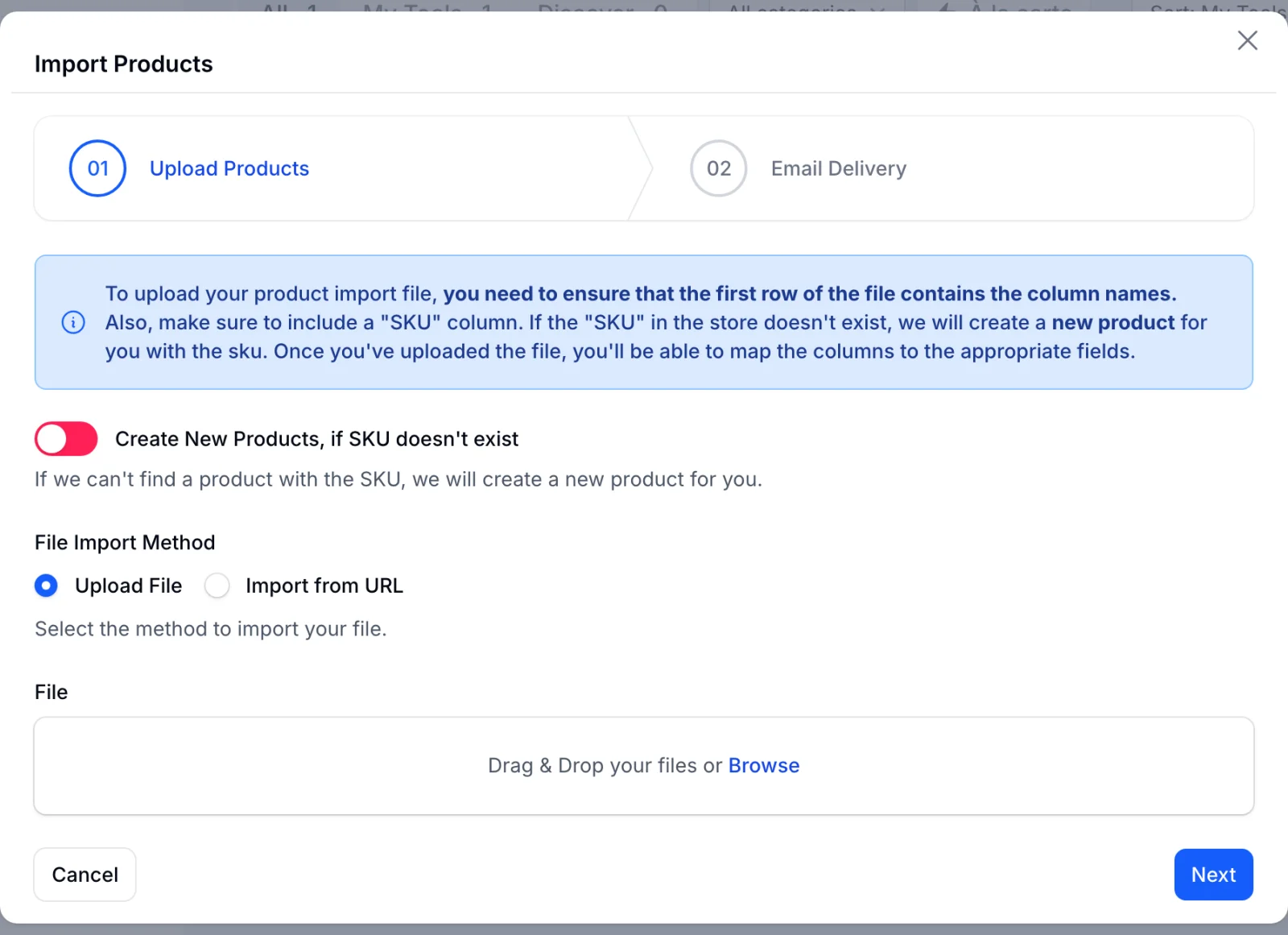
Upload Products. Decide whether to turn on Create New Products, if SKU doesn't exist. When it's on, SKUs not found in your store become new products. When it's off (the default), those rows are reported as errors. Then choose Upload File or Import from URL and add your file.
-
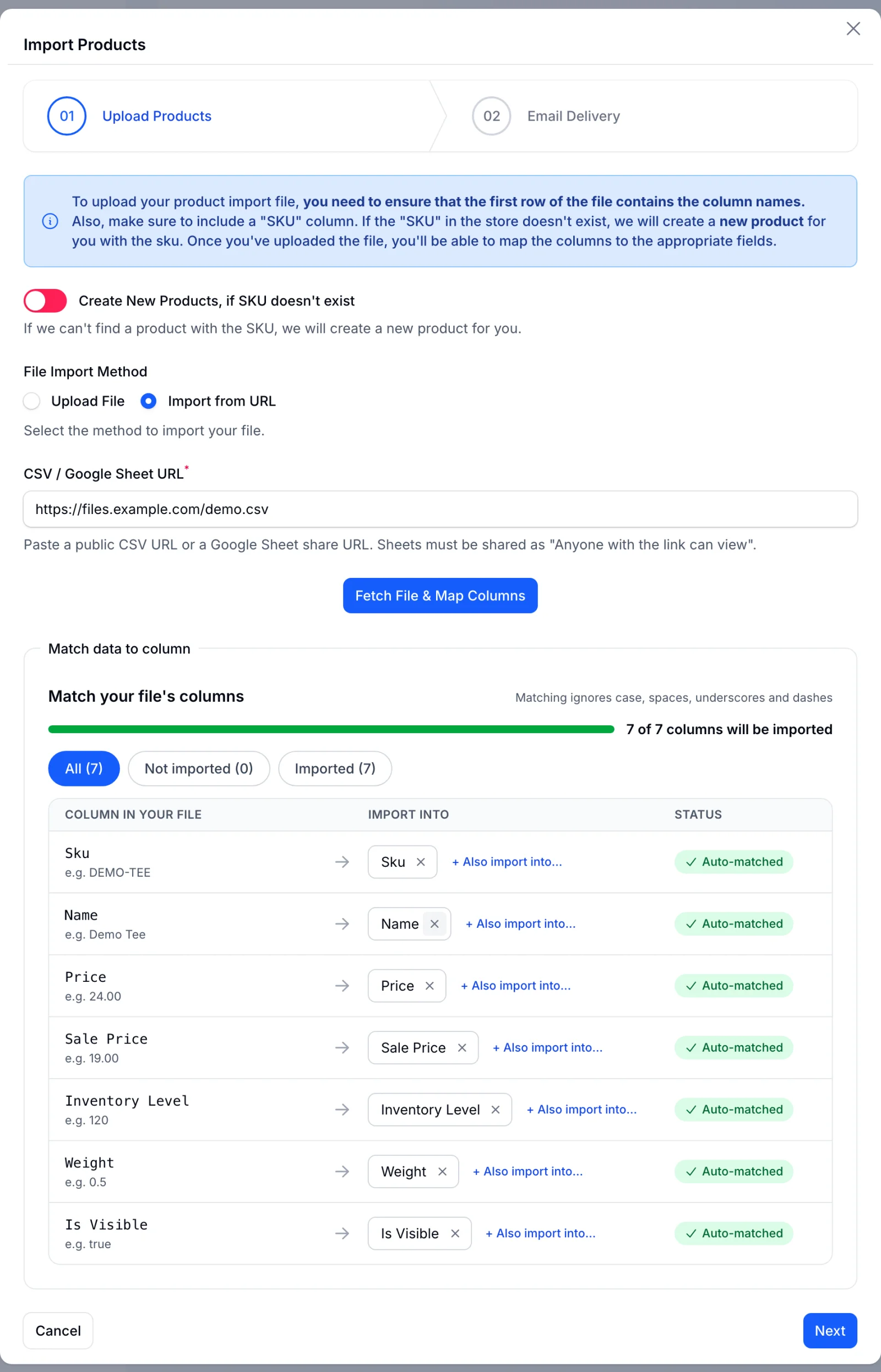
Match your file's columns. Every column in your file is listed with a sample value. Columns named like the fields are matched for you; pick the field for any that aren't, or choose Don't import this column. Columns you don't match are ignored. Sku must be matched.
-
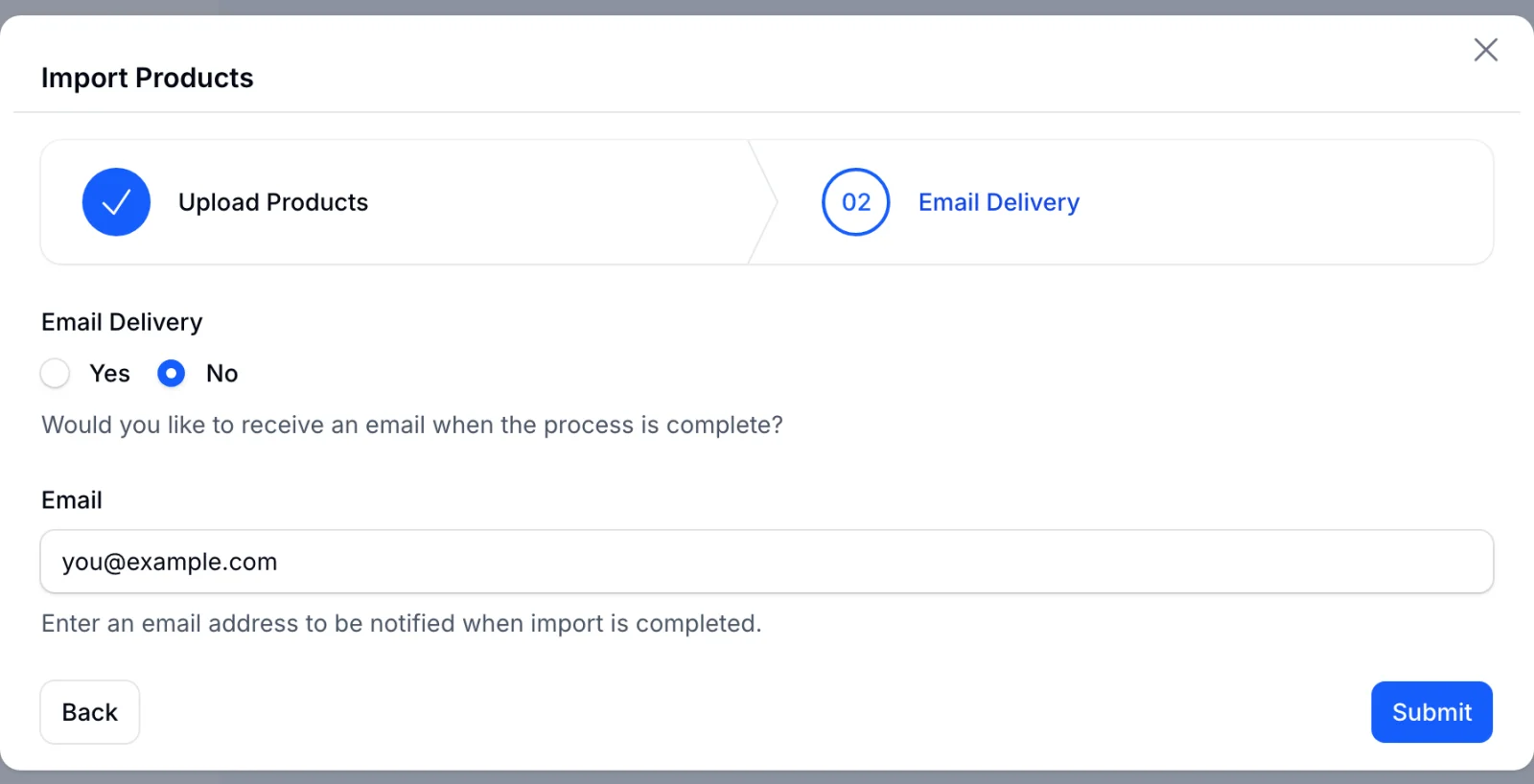
Email Delivery. Choose Yes to get an email when the import finishes, and check the email address.
-
Submit. You'll see "Import has been Queued". The import runs in the background. Rows that couldn't be imported are collected in an errors file (choose Download Errors on the notification or in the email) so you can fix them and upload them again.
Reference
Include only the columns you want to change, plus Sku. The most used fields:
| Field | Notes |
|---|---|
| Sku | Required. Matches an existing product or names a new one. Up to 255 characters. |
| Name | Up to 255 characters. |
| Price / Sale Price / Cost Price / Retail Price / Map Price | Numbers. |
| Type | physical or digital (also p or d). Used when creating a product; new products are physical unless you say otherwise. |
| Description | Text. |
| Upc | Up to 32 characters. |
| Mpn / Gtin / Bin Picking Number | Text. |
| Categories | Category IDs, separated by commas. These replace the product's current categories. |
| Channels | Channel IDs, separated by commas. The product is added to these channels; it isn't removed from others. |
| Brand | The brand name. Use Brand or Brand Id, not both. |
| Brand Id | The brand's ID number. |
| Related Products | Product IDs, separated by commas. |
| Product Image URL - 1…10 | The image's web address. Each image also has an optional Product Image ID and Product Image Alt column; an Image ID needs its matching URL. |
| Image used as the product thumbnail | The image number (1–10) to use as the thumbnail. |
| Video | A YouTube video ID. |
| Purchasability | available, disabled or preorder (also a, d or p). |
| Availability Description | Text. |
| Minimum / Maximum Purchase Quantity | Whole numbers. |
| Preorder Message / Preorder Release Date | Text. |
| Condition | new, used or refurbished (also n, u or r). |
| Weight | A number. New products without a weight get 0. |
| Width / Height / Depth | Numbers. |
| Fixed Cost Shipping Price | A number. |
| Inventory Level / Inventory Warning Level | Whole numbers. |
| Inventory Tracking | none, product or variant (also n, p or v). |
| Is Visible / Is Featured / Is Free Shipping / Is Condition Shown | Yes or no (true, false, 1, 0 and similar). |
| Show "Call for pricing" message instead of the price | Yes or no. Use with the Call for pricing Label column. |
| Tax Class Id / Product Tax Code | Tax settings. |
| Warranty | Text. |
| Sort Order | A whole number. |
| Page Title / Meta Keywords / Meta Description / Search Keywords | SEO fields. Meta Keywords are separated by commas. |
| Layout File | The template file for the product page. |
Clearing a value: put the word delete in a cell to empty that field on the product. This works for Description, Upc, Mpn, Gtin, Bin Picking Number, Product Tax Code, Warranty, Layout File, Availability Description, Preorder Message, Page Title, Meta Description, Search Keywords, Meta Keywords, Categories and Related Products. A blank cell leaves the current value as it is.
Troubleshooting and FAQ
A SKU was skipped because it "does not exist in Bigcommerce"
That SKU isn't in your store and Create New Products, if SKU doesn't exist was off. Turn it on and import again to create those products.
My file wasn't accepted, or the columns looked wrong
Make sure the very first row has the column names and that there's a SKU column.
An image didn't import
Image addresses must be valid and publicly reachable, and a Product Image ID needs its matching Product Image URL.
My file is too large
Your plan may limit how many rows you can import at once. If your file is over the limit, you'll see a message with your plan's maximum. Split the file, or upgrade your plan.
I got a permission or API error
The tool writes to your store through the BigCommerce API. If it keeps happening, contact us from Contact Us in your dashboard and we'll help you fix it.
Tip
Start from an Export Products file: its columns are already named the way this import matches them.