
Export Products for BigCommerce
What it does
Export Products pulls products out of your BigCommerce store into a downloadable spreadsheet. Export your whole catalog or narrow it down with filters (SKU, keyword, category, brand, availability and more), choose exactly which fields to include, and pick CSV or Excel. The export runs in the background, so you can leave the page while it works.
Use it to review or audit your products, share data with a supplier, back up your catalog, or prepare a file to edit and upload again with Import Products.
Before you start
- A BigCommerce store connected to Your Store Tools.
- Permission to read products on that store. The tool reads your catalog through the BigCommerce API.
- No upload file is needed. This tool creates the file for you.
Step-by-step
-
Open Export Products. Choose the Export Products tool for your BigCommerce store.
-
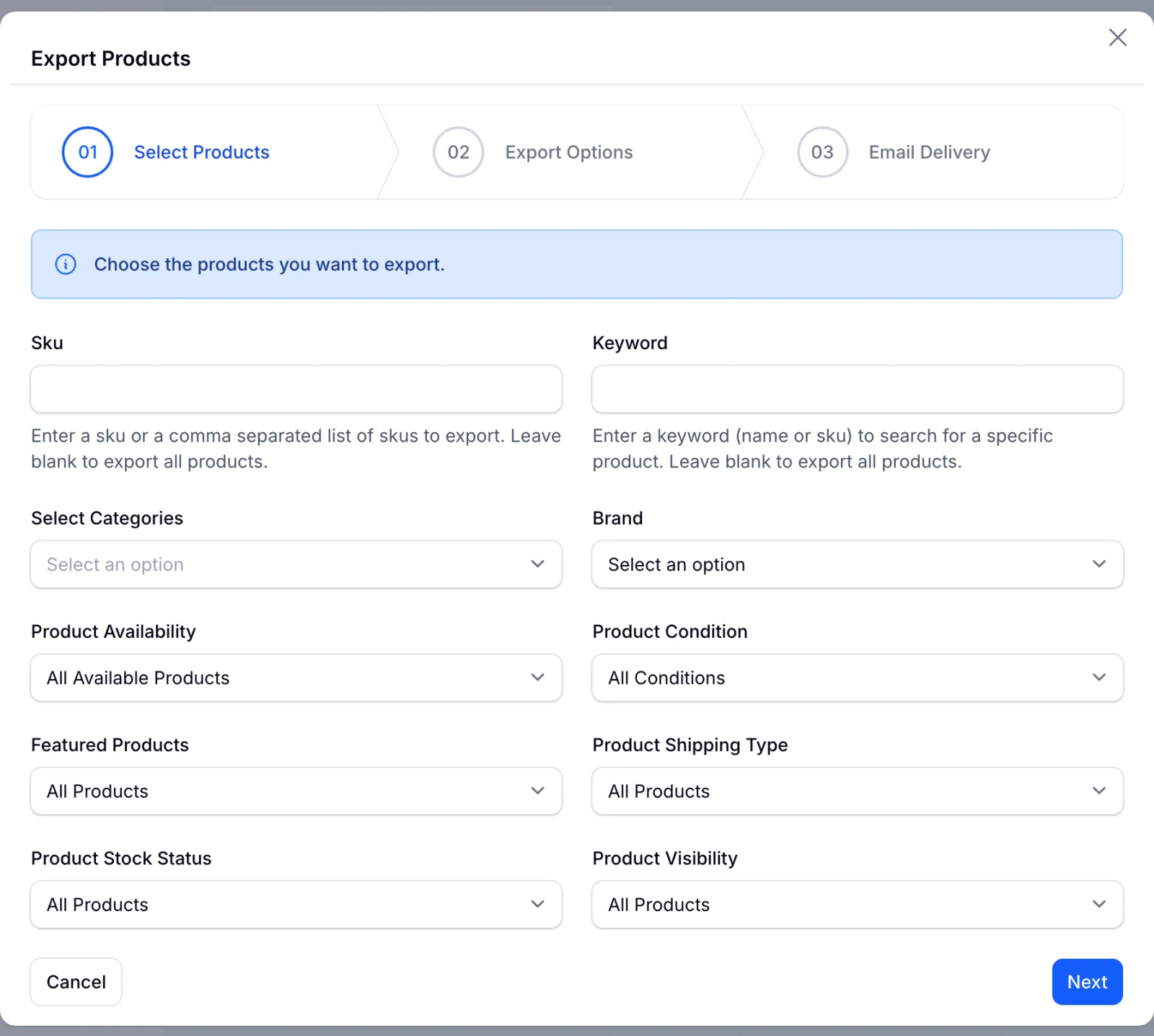
Select Products. Leave every filter blank to export all products, or narrow the export with any combination of:
- Sku: a single SKU, or a comma-separated list of SKUs.
- Keyword: search by product name or SKU.
- Select Categories, Brand and Select Storefront Channel.
- Product Availability (Available, Disabled or Preorder) and Product Condition (New, Refurbished or Used).
- Featured Products, Product Shipping Type (free or paid shipping), Product Stock Status (in stock or out of stock) and Product Visibility.
-
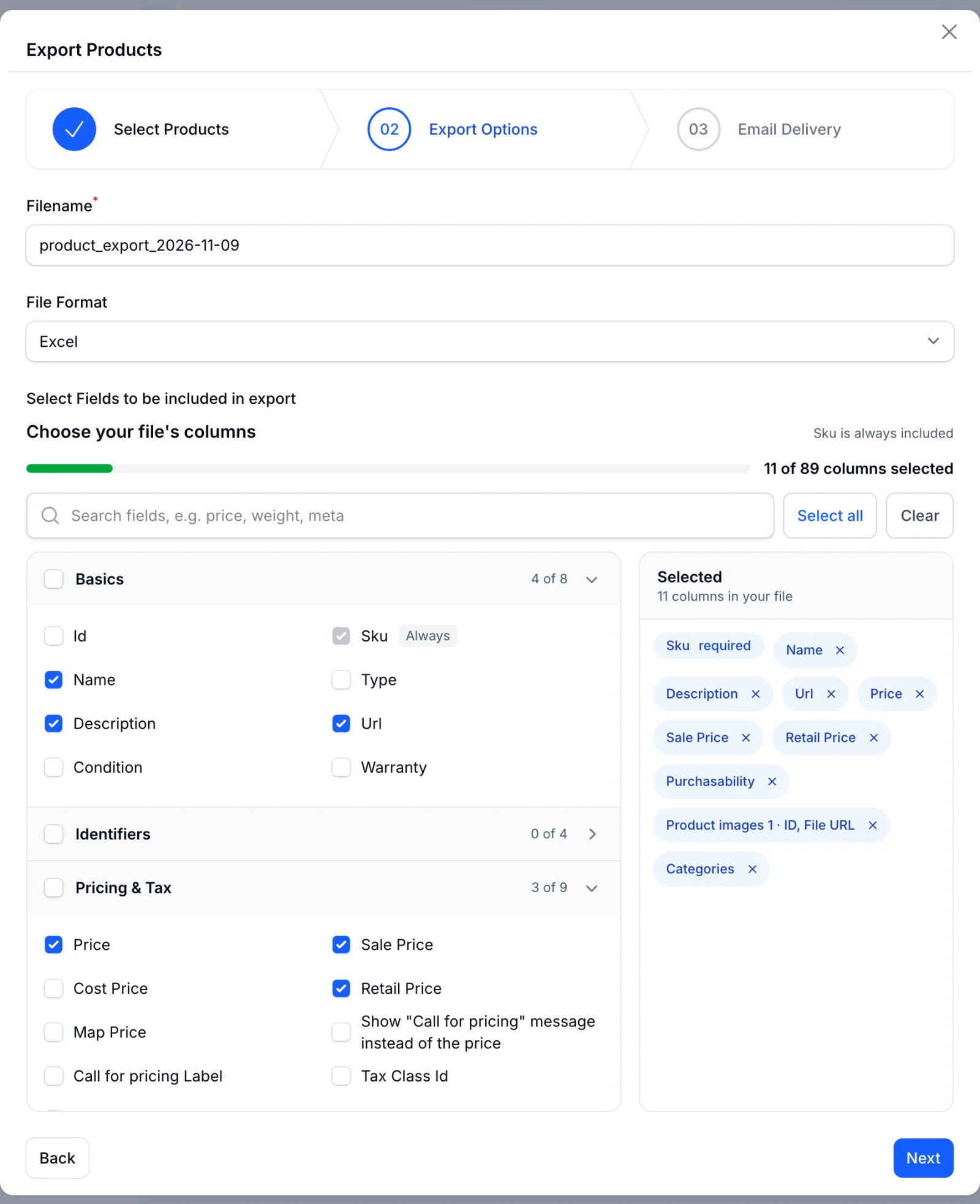
Export Options. Enter a Filename (a name with today's date is filled in for you) and choose the File Format: CSV or Excel. Then pick your columns under Select Fields to be included in export. Fields are grouped into sections (Basics, Identifiers, Pricing & Tax, Inventory & Purchasing, Shipping & Dimensions, Images & Video, and more) that you can search, open and select all at once. Product images are a single control: set how many Product images to include per row (up to 10) and choose ID, File URL and/or Alt text. Sku is always included.
-
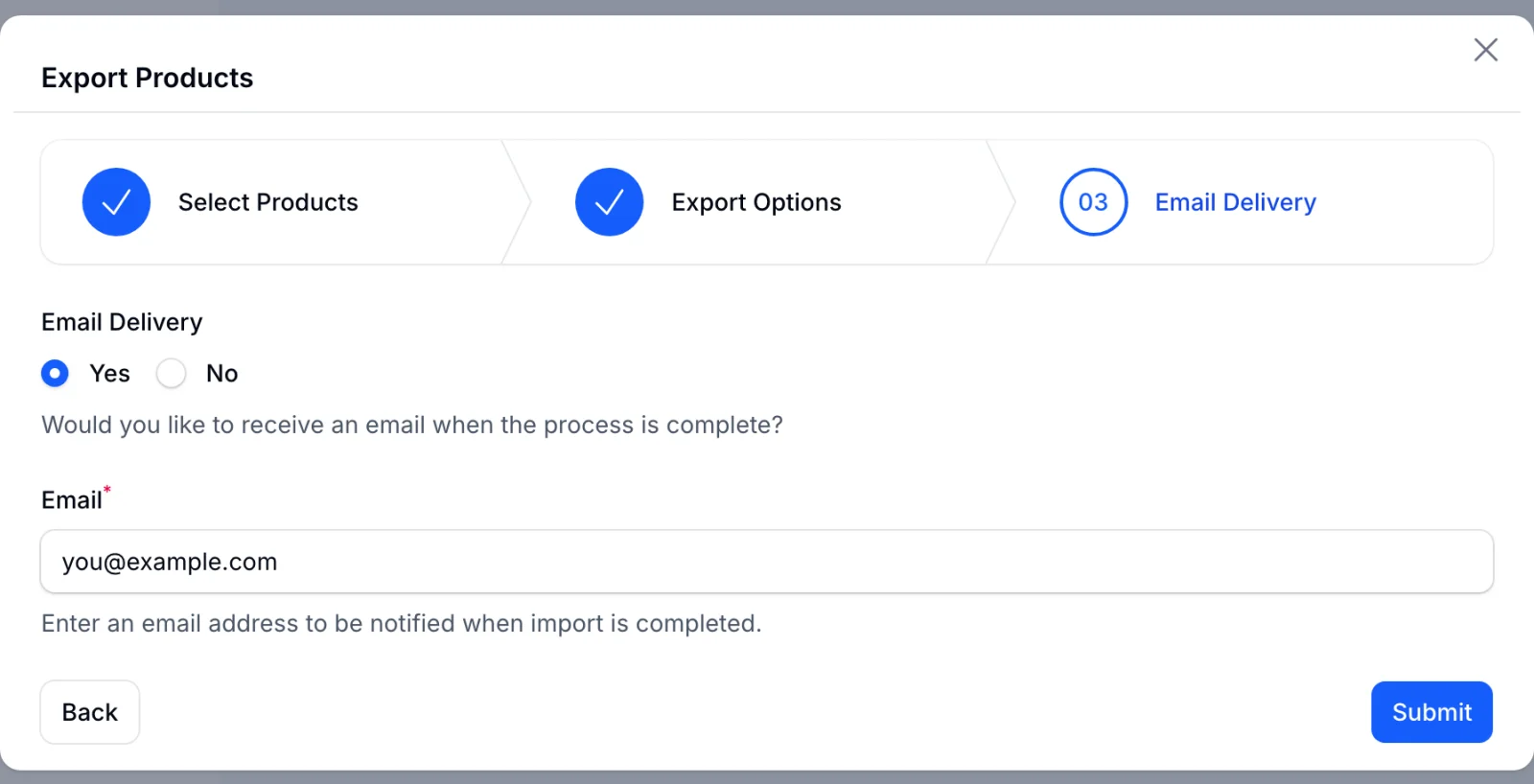
Email Delivery. The download link is emailed to you when the export finishes. Your account email is filled in; change it, or set Email Delivery to No if you don't want the email.
-
Submit. The export runs in the background. When it's finished, download the file from the tool, or from the link in the email.
Reference
File formats: CSV or Excel (.xlsx).
Selected by default: Sku, Name, Description, Price, Sale Price, Retail Price, Url, Product Image ID - 1, Product Image File - 1, Categories, Purchasability.
All the fields you can include: Id · Sku · Name · Upc · Mpn · Gtin · Bin Picking Number · Type · Description · Price · Sale Price · Cost Price · Retail Price · Map Price · Url · Product Image ID, File and Alt 1–10 · Image that is used as the product thumbnail · Video · Categories · Channels · Brand · Brand Id · Related Products · Purchasability · Availability Description · Minimum Purchase Quantity · Maximum Purchase Quantity · Preorder Message · Preorder Release Date · Remove pre-order status on this date · Show "Call for pricing" message instead of the price · Call for pricing Label · Condition · Weight · Width · Height · Depth · Tax Class Id · Product Tax Code · Warranty · Fixed Cost Shipping Price · Inventory Level · Inventory Warning Level · Inventory Tracking · Is Visible · Is Featured · Is Free Shipping · Is Condition Shown · Reviews Rating Sum · Reviews Count · Total Sold · View Count (Deprecated) · Sort Order · Layout File · Page Title · Meta Keywords · Meta Description · Search Keywords · Date Created · Date Modified.
In the file, each column's heading is the field's short name, such as sku, name, sale_price or image_id_1. The file is a good starting point for editing and re-importing with Import Products, where you match each column to a field.
Troubleshooting and FAQ
My export is empty or smaller than expected
Check your filters on the Select Products step. An SKU, keyword, category or status filter limits what's exported. Leave them all blank to export everything.
The stock status filter is greyed out
When you select one or more categories, Product Stock Status is turned off, because BigCommerce can't reliably combine a category filter with stock status. Clear the category filter to use it.
Large catalogs take a while
The export processes your products in the background and tells you when the file is ready. You don't need to keep the page open.
I got a permission or API error during the export
The tool reads your store through the BigCommerce API, so the connection needs permission to read products. If it keeps happening, contact us from Contact Us in your dashboard and we'll help you fix it.
Note
New to Your Store Tools? How tools work explains the steps every tool shares, including choosing your file's columns and email delivery.