
Creating your account and using the dashboard
What it does
The Your Store Tools dashboard at app.yourstoretools.com is where you connect your store, choose a plan, run your tools, manage your team and handle billing. It works for BigCommerce and Shopify stores.
This guide covers creating your account, connecting your store, the setup wizard, and the dashboard itself. For how the tools themselves work, see How our tools work.
Note
Using Shopify? You can also install Your Store Tools from the Shopify App Store and use it inside your Shopify admin, with no API credentials to copy. See The Shopify app.
Before you start
- BigCommerce: you need Store Owner access in BigCommerce to create the API account the tools use. See Create an API account in BigCommerce below.
- Shopify: you need your store's API credentials (Client ID, Client Secret and Access Token).
- If someone has already connected your store, don't create a new account: ask them to invite you. See Managing users.
Step-by-step
-
Create your login. Go to app.yourstoretools.com and choose to create a new account. Enter your Name, Email, Timezone and a Password, then confirm the password.
-
Setup Store Profile. The setup wizard opens. Choose your Platform (BigCommerce or Shopify) and fill in your store's details and API credentials (see Store Profile fields). We test the connection here; if the credentials are wrong you'll see an error and can fix them.
-
Setup Company Profile. Confirm your company and billing contact details: Name, Billing Email, Billing First Name, Billing Last Name, Address, City, State, Zip, Country and Phone. Many are filled in from your store. No payment details are asked for here.
-
Select Your Plan. Choose a plan, or choose Skip for now to continue and add only the tools you need à la carte.
-
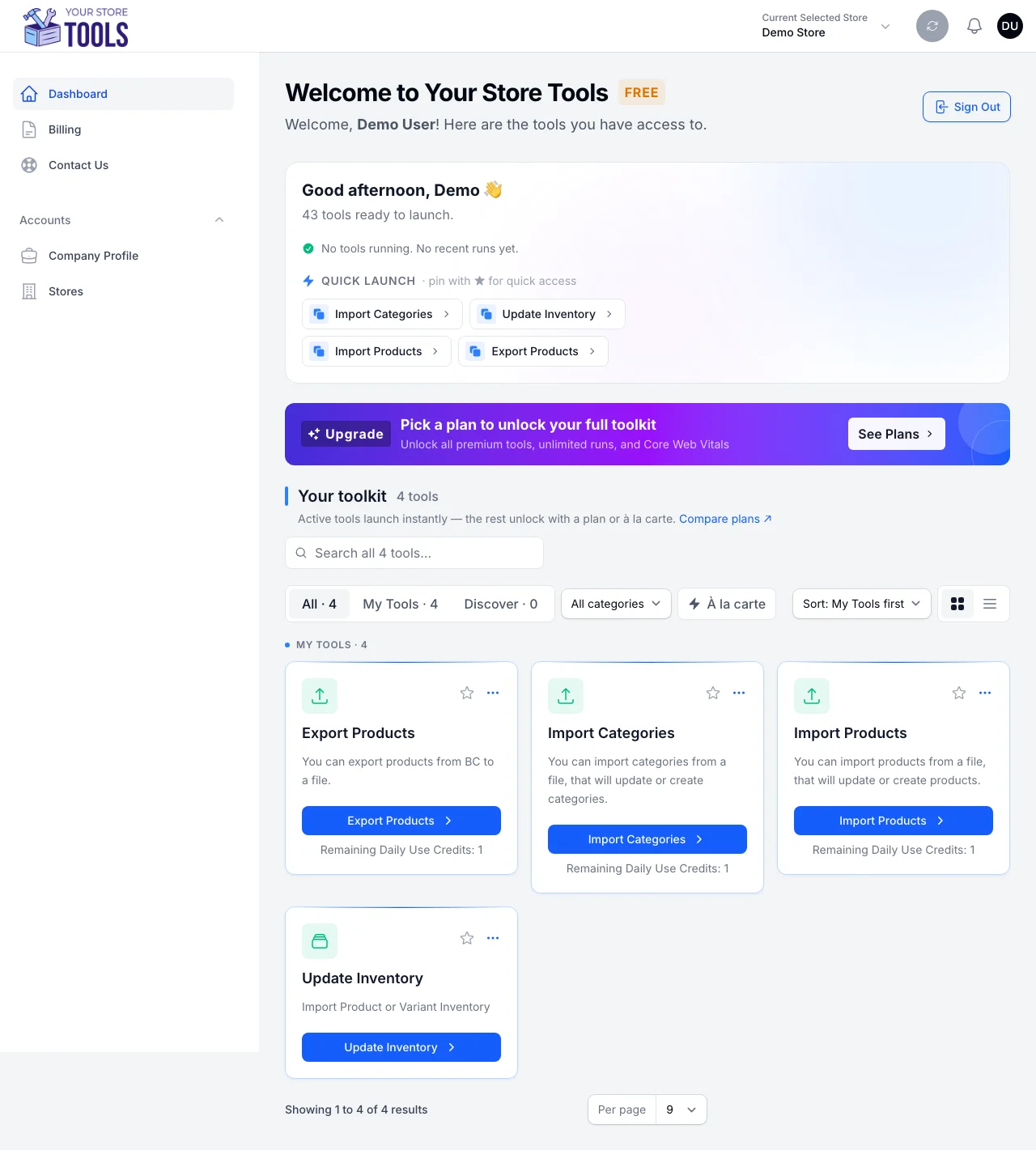
Use your dashboard. The dashboard opens on Welcome to Your Store Tools, with a Free or Paid Plan badge.
Reference
Create an API account in BigCommerce
-
In your BigCommerce control panel, go to Settings, scroll to API, and open Store-level API Accounts (older stores: API Accounts).
-
Choose + Create API Account, set Token Type to V2/V3 API Token, and give it a name such as "Your Store Tools".
-
Copy the API Path; you'll paste it into the Store Profile step.
-
Set the OAuth scopes. Leave everything at None except:
Scope Setting Used for Content Modify The 301 redirect tool. Customers Read-only Update Guest Orders. Information & settings Read-only Checking your store's API status, plan and whether it uses Multi-Storefront. Marketing Modify Bulk Coupon Creator. Orders Modify Update Guest Orders. Products Modify All tools except Bulk Coupon Creator. Sites & routes Read-only Multi-Storefront stores. Channel settings Read-only Multi-Storefront stores. Channel listings Read-only Multi-Storefront stores. -
Choose Save. BigCommerce shows your Client ID, Client Secret and Access Token once, and downloads them as a text file. Keep them somewhere safe and copy them into the Store Profile step.
Tip
Only using tools that read data? You can set Marketing to Read-only, but you'll need new API keys later if you start using a tool that changes promotions.
Store Profile fields
| Field | What to enter |
|---|---|
| Platform | BigCommerce or Shopify. |
| Store Name | Your store's name. |
| Store URL | Your storefront's web address. |
| API Path (BigCommerce) | The API Path from your BigCommerce API account. You can paste the whole path. |
| Host name (Shopify) | Your store's .myshopify.com name, without the .myshopify.com part. |
| Client ID | From your API account. |
| Client Secret | From your API account. |
| Access Token | From your API account. |
| Timezone | Your store's time zone, used for schedules and dates. |
The dashboard
- Good morning/afternoon/evening: how many tools are ready to launch, your recent runs, and Quick launch (or Pinned, once you pin tools with ★).
- Your toolkit: every tool for your platform, with All, My Tools and Discover tabs, a category list, an À la carte filter, sorting, search, and grid or list view. See How our tools work.
- Next billing: the date and price of your next charge, on paid plans.
The menu
| Item | What it's for |
|---|---|
| Dashboard | Your tools. |
| Billing | Your plan, payment card, upgrades and billing history. |
| CWV Monitor | Core Web Vitals reports for your storefront, if your plan includes it. |
| Contact Us | Send us a message. We respond within one business day. |
| Accounts → Company Profile | Your company and billing contact details. Store owners only. |
| Accounts → Stores | Your stores, their API credentials and their users. Store owners only. |
Your name at the top right opens My Profile, where you can change your name, email and password. The store menu at the top switches between your stores if you have more than one.
How we use your data
- Your store's data is used only to do what each tool is for, and isn't kept beyond the time needed to process it.
- Files you download aren't kept for more than 7 days.
- We don't have access to your customers' card details.
- We don't share, sell or rent your data, or use it for analytics.
- We only ask for the permissions the tools need.
See our privacy policy for more.
Troubleshooting and FAQ
"Store Already Exists"
The store is already registered with Your Store Tools. If you're a team member, ask the store owner to invite you. If you're the owner, or the message says the API credentials aren't valid, check your credentials and then use Contact Support on the message.
"API Connection Error"
We couldn't connect with the credentials you entered. Check the API Path (or Host name), Client ID, Client Secret and Access Token, and that the API account has the scopes listed above.
A tool says "Upgrade for access" or "Add à la carte"
It isn't part of your current plan. Add it à la carte from its card, or open Billing to change plans.
I'm getting API permission errors
Your API account is missing a scope a tool needs. Create a new API account in BigCommerce with the scopes above, then open Accounts → Stores, edit your store, paste the new Access Token, Client ID and Client Secret, and choose Save changes.
I didn't get my results email
Make sure Email Delivery was set to Yes on the tool's last step, check your spam folder and the address you entered, and check the tool's History.