
Adding, removing or changing user access
What it does
You can give other people access to your store in Your Store Tools, so they can run tools without sharing your login. Each person has their own login and a role:
- Store Owner: can do anything, including managing stores, users, the company profile and billing.
- Manager: can use the tools. Managers can read, create and update, but don't manage the account.
You manage users store by store, from Accounts → Stores in the menu. Only store owners see this.
Before you start
- You need to be signed in as a Store Owner.
- Have the person's name and email address ready.
Step-by-step
-
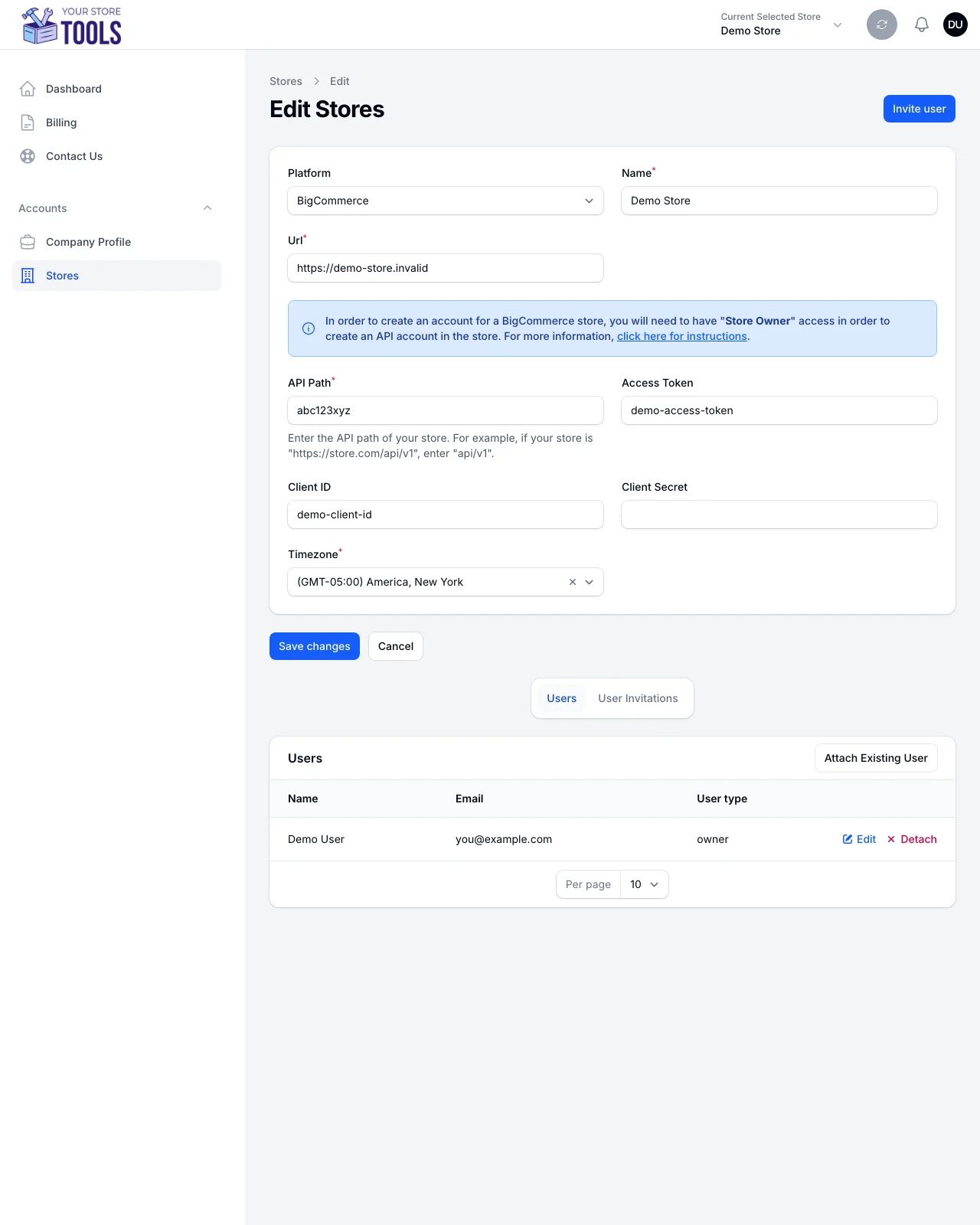
Open your store. In the menu, choose Accounts → Stores, then Edit on the store. Below the store's details are two tabs: Users (people with access) and User Invitations (invites not yet accepted).
-
Invite someone. Choose Invite user at the top of the page. Enter their Name and Email and choose a Role (Store Owner or Manager), then submit.
- If they don't have a Your Store Tools account yet, they get an email titled "Store Invitation" with an Accept Invitation button. It takes them to sign up with their name and email filled in. You'll see "User Invite has been sent."
- If they already have an account, they're added to the store straight away: "Existing User has been added to the store."
-
Add someone already in your company to another store. On the other store's Users tab, choose Attach Existing User, pick the person and their Role, and save.
-
Change someone's role or details. On the Users tab, choose Edit on their row. Change their User Type (Store Owner or Manager), name or email, and save.
-
Remove someone's access. On the Users tab, choose Detach on their row. They lose access to this store only; any other stores they're on aren't affected. Repeat on each store to remove them completely.
Reference
| Where | What you can do |
|---|---|
| Invite user (top of the store page) | Invite a new or existing person by email, with a role. |
| Users tab → Attach Existing User | Add someone from your company to this store. |
| Users tab → Edit | Change a person's User Type, name or email. |
| Users tab → Detach | Remove a person's access to this store. |
| User Invitations tab | See invites that haven't been accepted yet. Resend Invite sends the email again; delete an invite to cancel it. |
Troubleshooting and FAQ
"This user has already been invited to the store."
An invite to that email is already waiting. Check the User Invitations tab, where you can resend it.
"Invite not Sent. User already exists on the store."
That person already has access to this store. Find them on the Users tab.
My invitee didn't get the email
Check the email address on the User Invitations tab, ask them to look in their spam folder, then choose Resend Invite.
I don't see Accounts → Stores
Only store owners can manage users. Ask a store owner on your account to change your role, or to invite the person for you.
Can I remove someone from every store at once?
Detach them on each store's Users tab.