
Bulk Image Uploader for Shopify
What it does
Bulk Image Uploader adds many product images to your Shopify store at once, instead of uploading them one product at a time.
You upload two files:
- A ZIP file holding your image files.
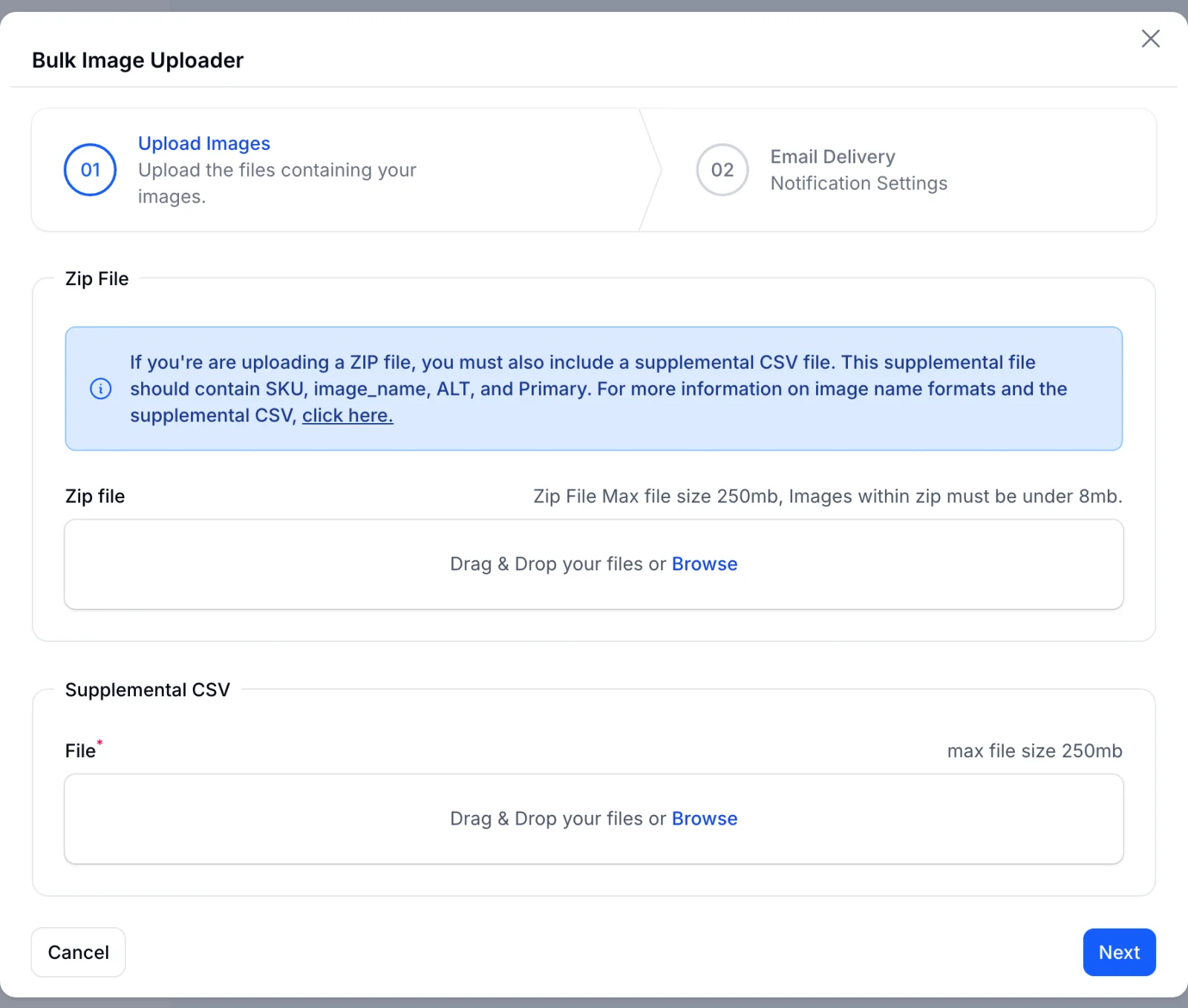
- A supplemental CSV (spreadsheet) with one row per image. It gives the variant SKU the image belongs to, its alt text, and whether it should be that variant's image.
The tool finds each image in the ZIP, matches the row's SKU to a variant in your store, and adds the image to that variant's product. A row marked as primary also sets the image as the variant's image. The work runs in the background.
Use it when:
- You're setting up a new store and need to load images for a large catalog.
- You've got a batch of new product photos to attach quickly.
- You want to set the image shown for many variants at once.
Before you start
- Put your images in one ZIP file, up to 250 MB. Keep each image under 8 MB.
- Use JPG, JPEG, PNG, GIF or WEBP images. Other files in the ZIP are ignored.
- Prepare your supplemental CSV with a row for every image (see the Reference). It can also be an Excel file, up to 250 MB.
- The SKUs in your CSV must match the SKUs on your Shopify variants exactly, including upper and lower case.
Step-by-step
-
Open Bulk Image Uploader. Choose the tool for your Shopify store.
-
Upload Images. Add your ZIP to the Zip File box and your spreadsheet to the Supplemental CSV box.
-
Match your file's columns. Once the CSV is added, match its columns to sku, image_name, alt and Primary Image.
-
Email Delivery. Choose Yes to get an email when the upload finishes; your email address is filled in. It's set to No to start with.
-
Submit. You'll see "Product Image Upload Started". The upload runs in the background, so you can leave the page.
Reference
The ZIP file
- A standard
.zipfile, up to 250 MB. Keep each image under 8 MB. - Only JPG, JPEG, PNG, GIF and WEBP files are used.
- Folders inside the ZIP don't matter: images are found by file name alone. Give every image a different file name; if two share a name, only one is used.
The supplemental CSV: one row per image. All four columns are required.
| Column | What it does |
|---|---|
sku |
The SKU of the variant the image belongs to. Must match exactly, including upper and lower case. |
image_name |
The file name of the image in your ZIP, such as shirt-front.jpg. Must match exactly, including the extension and upper and lower case. Use the file name only, not a folder path. |
alt |
The alt text set on the image. |
primary (Primary Image) |
true sets this image as the variant's image. Only true works (upper or lower case); yes or 1 are treated as not primary. |
How matching works:
- Each row's SKU is looked up among your store's variants.
- When the image and SKU both match, the image is added to that variant's product.
- A row with
primaryset totruealso makes the image the variant's image. The product's own featured image isn't changed. - Rows whose image isn't in the ZIP, or whose SKU isn't in your store, are skipped and reported.
Troubleshooting and FAQ
"Image not found in zip file"
The image_name in that row doesn't match a file in your ZIP. Check the spelling, the extension, and upper and lower case. Also check the image is a JPG, JPEG, PNG, GIF or WEBP file.
"Image was not processed, as sku was not found in the store"
No variant in your store has that SKU. Check it exists and is spelled the same way, including upper and lower case.
My image wasn't set as the variant's image
Check the primary column says true for that row. Other values, such as yes or 1, don't count.
My upload is still running
Uploads run in the background, and large ZIP files take longer. If you chose Yes for Email Delivery, you'll get an email when it's done.
I got a permission error
The connection to Shopify probably needs to be authorized again. If it keeps happening, contact us from Contact Us in your dashboard and we'll help you fix it.