
Download Product Images for BigCommerce
What it does
Download Product Images collects the images from your products and packages them into a single ZIP file. Grab images for your whole catalog, or narrow it down with filters (SKU, keyword, category, brand and more).
You can also include an optional CSV spreadsheet in the ZIP. It lists each product's ID, SKU and image files, so you can edit your images and then import them back into BigCommerce.
The download is built in the background. When it's ready, download the ZIP from the tool. A secure link is also emailed to you, unless you turn email delivery off.
Use it to:
- Keep a backup of all your product images.
- Pull photos down to edit or optimize them, then push them back up.
- Get images for one brand, category or set of SKUs instead of the whole catalog.
- Get just the main (primary) image for each product, or every image.
- Compress or resize every photo in the catalog to speed up your storefront.
- Add a new logo, watermark or background to every product photo when you rebrand.
- Hand your photos to an editor or agency and bring their edits back in one import.
Before you start
- Decide which products you want: everything, or a filtered set.
- If you'll upload edited images again, decide whether you want the re-import CSV, and have a place to host the edited images (such as your BigCommerce WebDAV folder).
- The download link is emailed to you when it's ready. Email delivery is on by default, with your account email filled in.
Step-by-step
-
Open Download Product Images. Choose the tool from your BigCommerce tools dashboard.
-
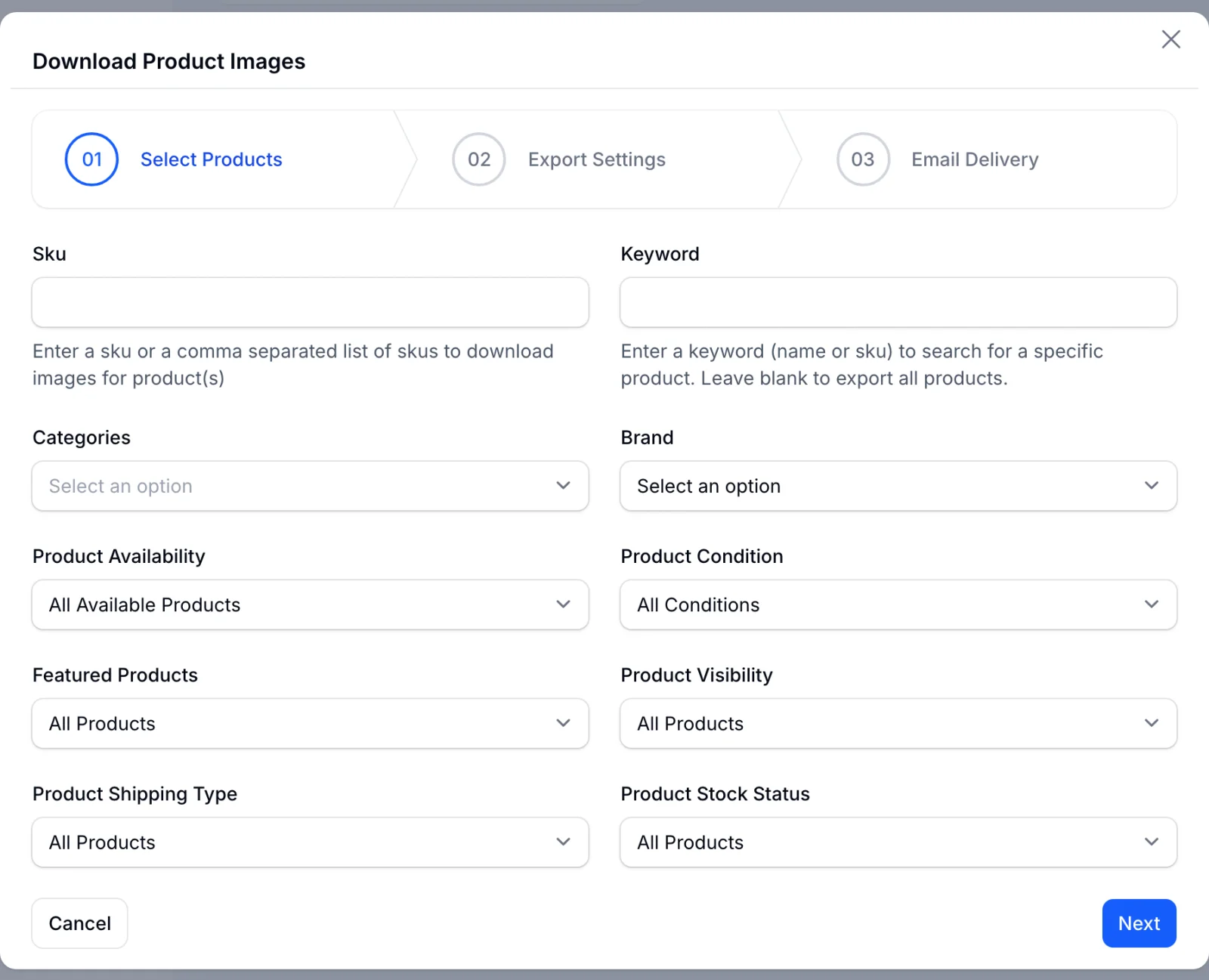
Select Products. Leave everything blank to download images for your whole catalog, or use any of the filters in the Reference to narrow it down.
-
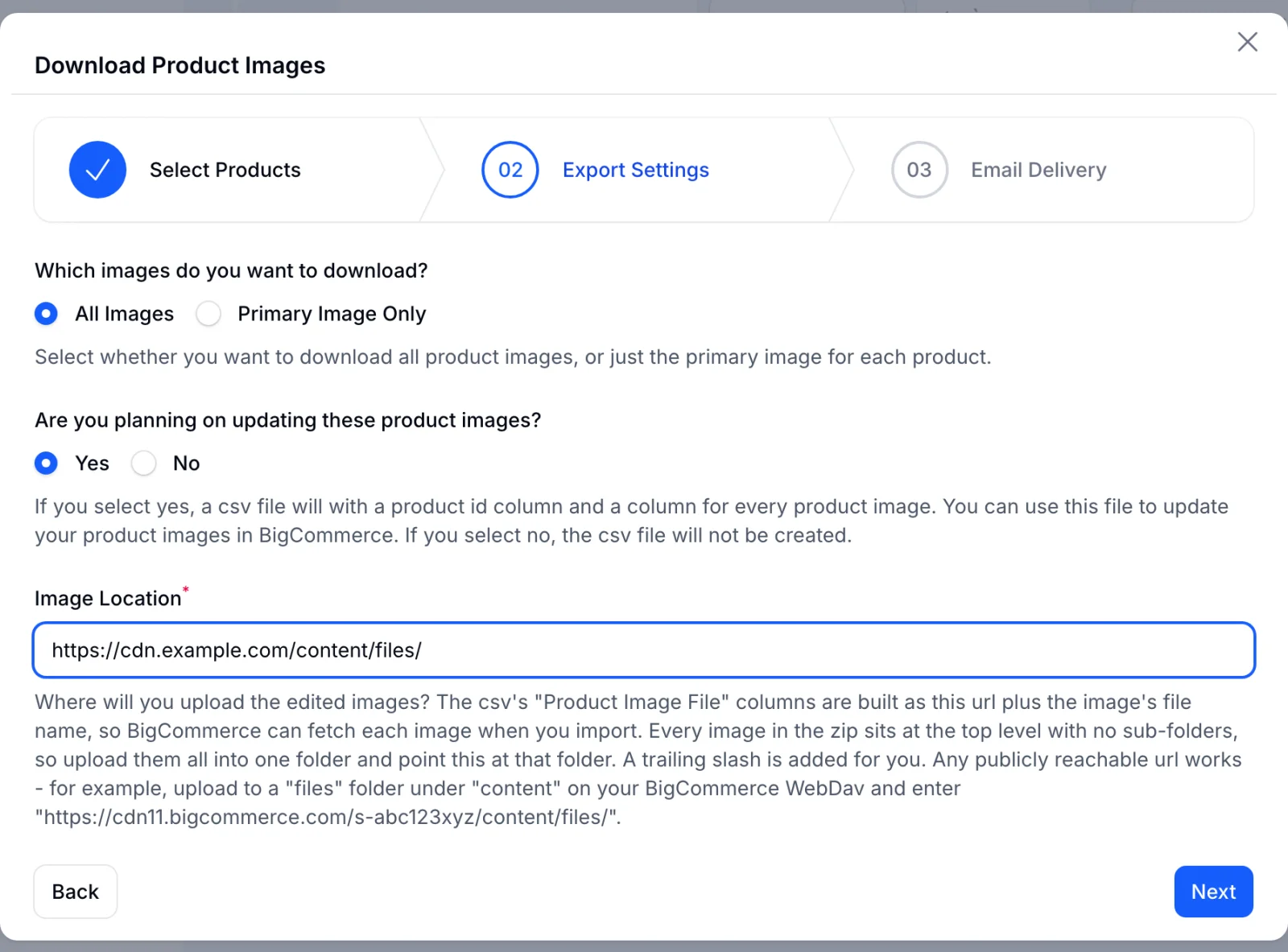
Export Settings. Choose:
- Which images do you want to download? All Images (the default) or Primary Image Only.
- Are you planning on updating these product images? No by default. Choose Yes to add the re-import CSV to the ZIP.
- Image Location (only when you choose Yes): the web address of the folder where your edited images will live. It's used to fill in the CSV's image file column.
-
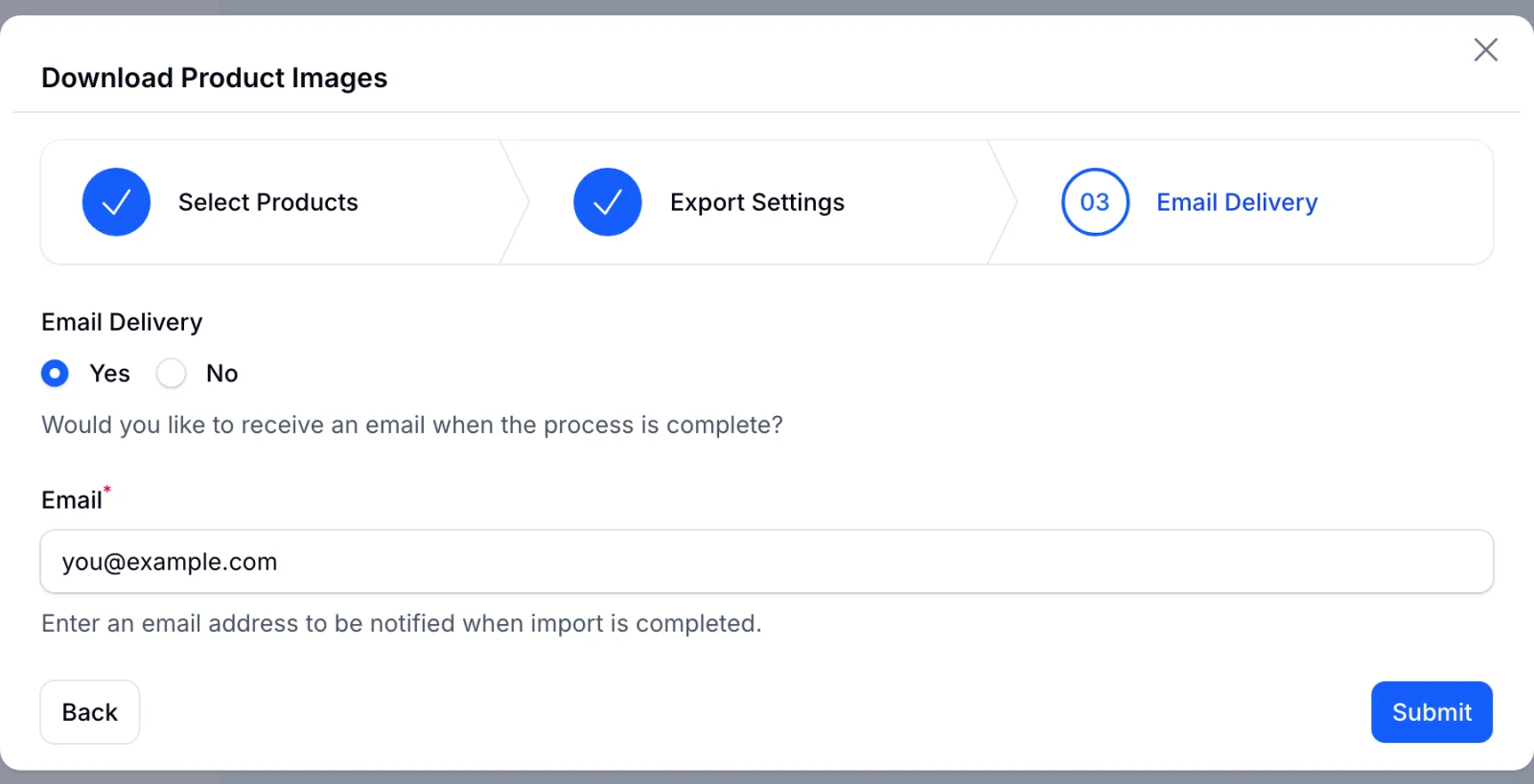
Email Delivery. It's set to Yes with your account email filled in. Change the address, or choose No if you don't want the link by email.
-
Submit. You'll see a confirmation that the download has started. The ZIP is put together in the background.
-
Download your ZIP. Download it from the tool when it's ready, or use the secure, time-limited link in the email.
Edit your product photos and put them back
The optional CSV is what makes the round trip possible. On its own, the ZIP is a flat folder of image files: nothing in it says which photo belongs to which product, or which position it has on that product. The CSV is that map. Each row has the product's id and sku, and for every image, its BigCommerce image ID paired with the address the edited file will live at.
- Run the tool with Are you planning on updating these product images? set to Yes, and set Image Location to the folder your edited images will live in.
- Edit the images in bulk on your computer: compress, resize, watermark, clean up backgrounds. Keep the file names exactly as they are, because the CSV points at them by name.
- Upload the whole folder, flat, to the location you entered: your BigCommerce WebDAV
content/files/folder, or any publicly reachable host or CDN. - Open Import Products, upload
product_images.csv, and match its Product Image ID and Product Image File columns to the matching image fields. Products are matched by SKU, BigCommerce fetches each image from its address, and the edited photos go back in the same positions.
Because Import Products asks you to match the columns yourself, the CSV's headings don't have to match anything exactly.
Choose No when you only want a copy of your current photos: a backup, an archive before a big change, or images to hand off somewhere else.
Reference
Filters on the Select Products step. Leave any of them blank to skip it.
| Filter | What it does |
|---|---|
| Sku | A single SKU, or a comma-separated list of SKUs. |
| Keyword | Search by product name or SKU. |
| Categories | One or more categories. |
| Brand | A single brand. |
| Select Storefront Channel | One or more storefront channels. Shown only if your store uses more than one storefront. |
| Product Availability | Available, Disabled or Preorder. |
| Product Condition | New, Refurbished or Used. |
| Featured Products | Featured or Not Featured. |
| Product Visibility | Visible or Not Visible. |
| Product Shipping Type | Free Shipping Products or Paid Shipping Products. |
| Product Stock Status | Out of Stock Products or In Stock Products. |
Export Settings
- Which images: All Images downloads every image on each matching product. Primary Image Only downloads just the main (thumbnail) image.
- Re-import CSV (Yes or No): with Yes, the ZIP also contains
product_images.csv, with a productidandskucolumn plus a pair of columns for each image (Product Image ID and Product Image File), for up to 10 images per product. If a product has more than ten images, all of them are still in the ZIP; only the first ten get columns in the CSV. - Image Location: the address of the folder where you'll upload your edited images. Each Product Image File value is this address plus the image's file name, so BigCommerce can fetch the image when you import. Every image in the ZIP sits at the top level, with no sub-folders, so upload them all into one folder and point this at it. A trailing slash is added for you. Any publicly reachable address works. For example, upload to the
filesfolder undercontenton your BigCommerce WebDAV, and enter that folder's public address. The field shows your store's own files address as a greyed-out example. Required when you choose Yes.
What you receive
- A ZIP file of the image files, named by their original file names. If two images share a name, the image's ID is added to one of them so neither is lost.
- If you chose Yes,
product_images.csvinside the same ZIP.
Troubleshooting and FAQ
A product is missing from the ZIP
Products with no images are skipped. Also check that your filters aren't leaving it out.
I only got one image per product
Primary Image Only on the Export Settings step downloads just the main image for each product. Run the tool again with All Images to get them all.
A product's CSV row stops at ten images
That's the CSV's column limit. The remaining images are still in the ZIP, and you can add extra columns to the spreadsheet yourself if you need them.
My download link expired
The link is secure and time-limited. Run the tool again to get a fresh download.
The image addresses in the CSV are wrong
The image file column is built from the Image Location you entered. Run the tool again with the address where you'll host the edited images.
I got a permission or API error
This tool reads your product and image data through the BigCommerce API. If it keeps happening, contact us from Contact Us in your dashboard and we'll help you fix it.
My large catalog is taking a while
Large stores take longer to put together. The job runs in the background and emails you when it's done, unless you turned Email Delivery off.
Note
New to Your Store Tools? How tools work explains the steps every tool shares.