
Import Collections for Shopify
What it does
Import Collections reads a CSV or Excel file and applies it to your Shopify collections. Each group of rows with the same Handle describes one collection: its core details on the first row, and one row per rule, manually added product, exclusion or sub-collection below it.
For every group, the tool:
- Updates the collection when the ID column is filled in, or when a collection with that handle already exists.
- Creates a new collection when the ID is blank and no collection has that handle, but only if Create New Collections is turned on for the upload.
- Deletes the collection when the Command column says
DELETE.
The file format is the one Export Collections produces, so the easiest workflow is: export, edit the file, import it again. The import runs in the background, and failed collections are listed in an errors file.
Use it when:
- You exported your collections, edited rules or details in a spreadsheet, and want to send the changes back.
- You're creating many collections at once: seasonal sets, brand pages, landing pages.
- You're copying collections to another store. The file refers to products by handle and SKU, so it works across stores.
- You need to clean up: delete a batch of old collections with
DELETEin the Command column.
Before you start
- Your Shopify store must be connected to your account.
- Your file needs a header row, and every row needs a Handle: the handle is what groups rows into collections. Keep each collection's rows next to each other in the file.
- Products are referred to by handle or SKU, never by ID. Products and collections you refer to must already exist in the store.
- Metafield columns need the matching metafield definition to exist on the store already.
- Rules replace, they don't merge. If a group has any rule or product rows, the collection's rules are replaced with exactly what's in the file. A group with only core fields (no rule rows) leaves the collection's rules alone.
- Use a CSV or Excel (.xlsx) file, or a link to a CSV file or Google Sheet. Older .xls files aren't supported.
Step-by-step
-
Open Import Collections. Choose the Import Collections tool.
-
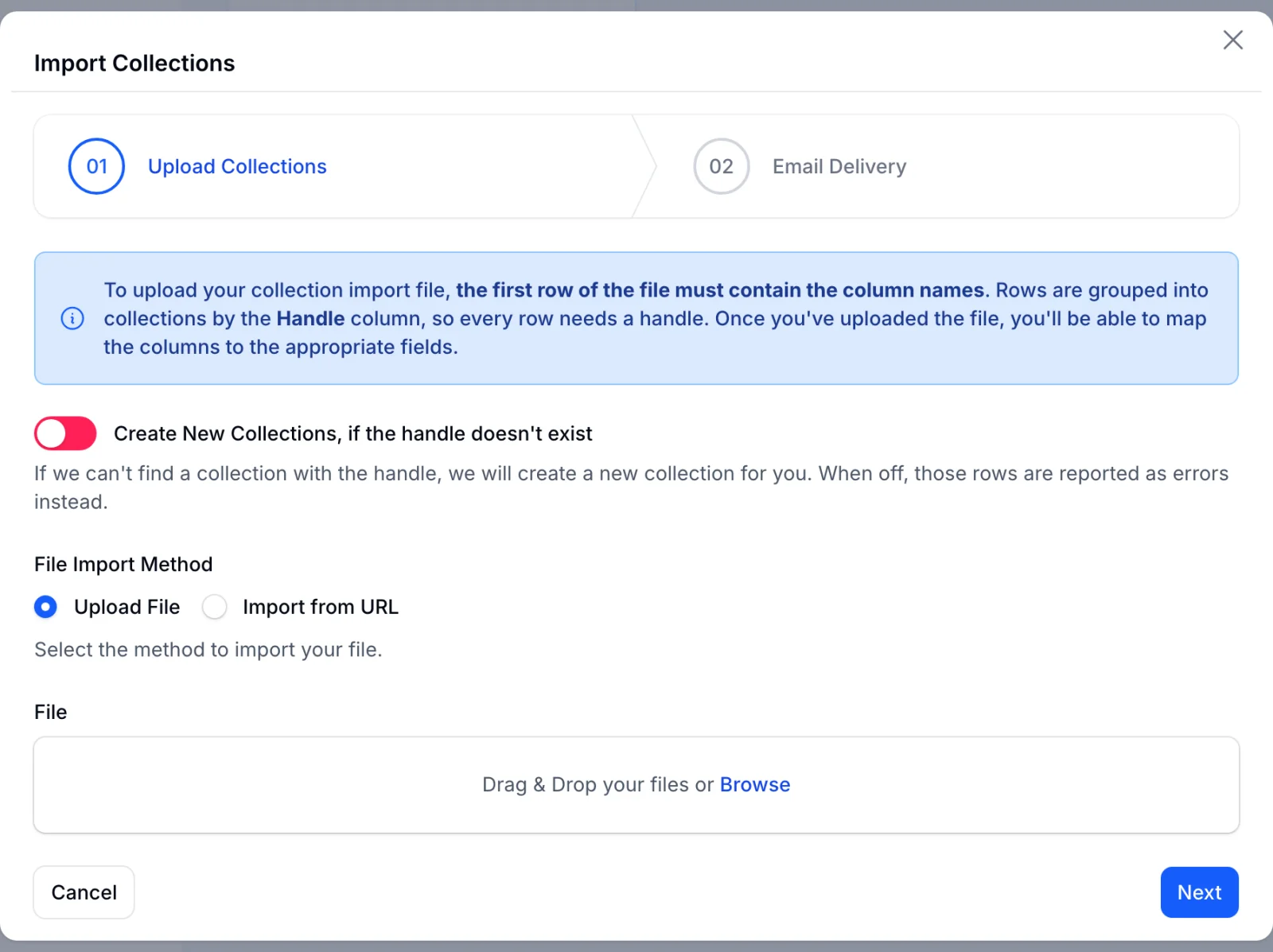
Upload Collections. Decide whether to turn on Create New Collections, if the handle doesn't exist. It's off by default, so the import only updates existing collections and reports unknown handles as errors. Then choose Upload File or Import from URL and add your file.
-
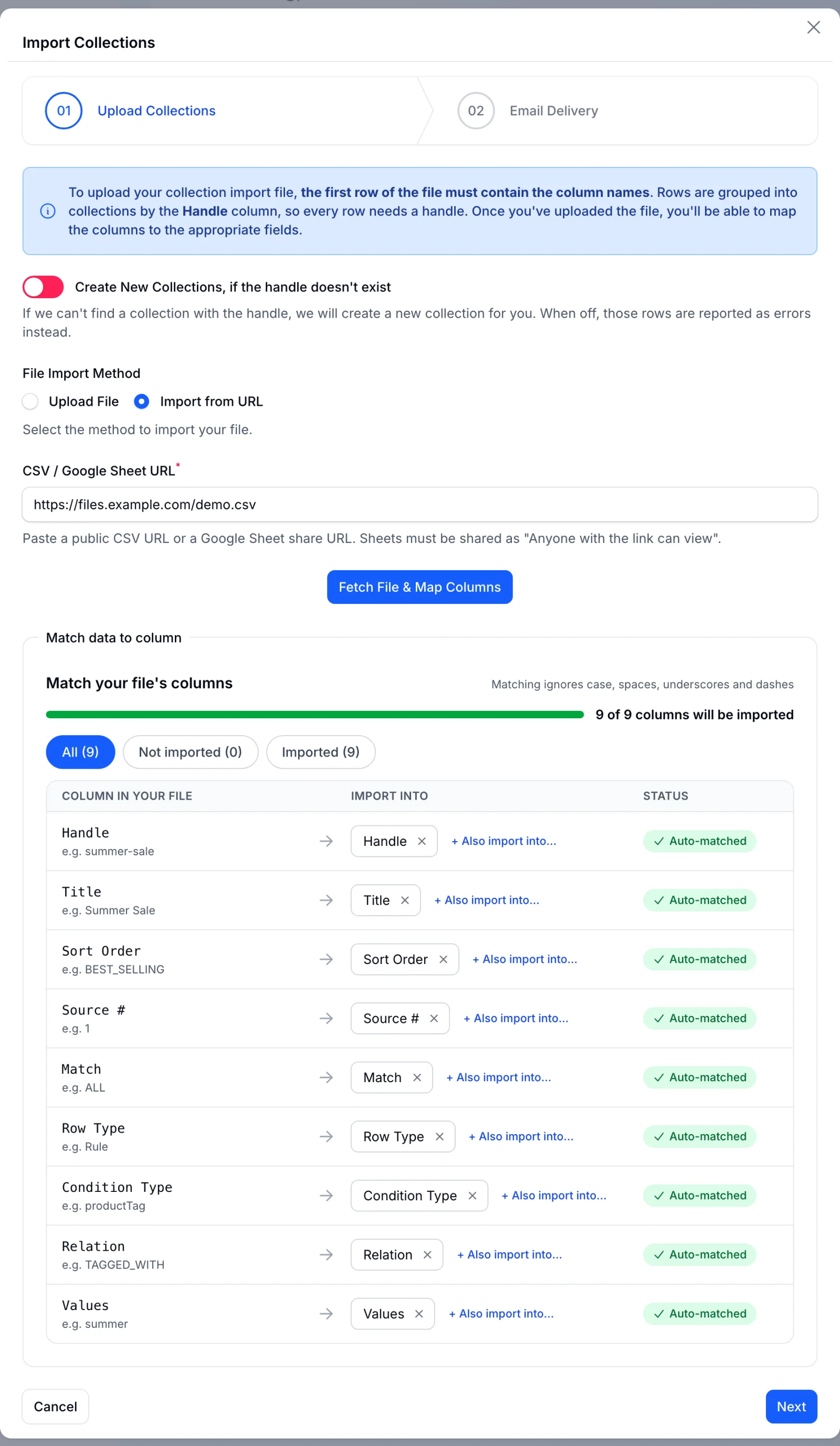
Match your file's columns. Columns from an Export Collections file are matched for you; adjust any that aren't.
- Handle must be matched.
- Match every
Metafield: namespace.keycolumn you want imported under Metafields.
-
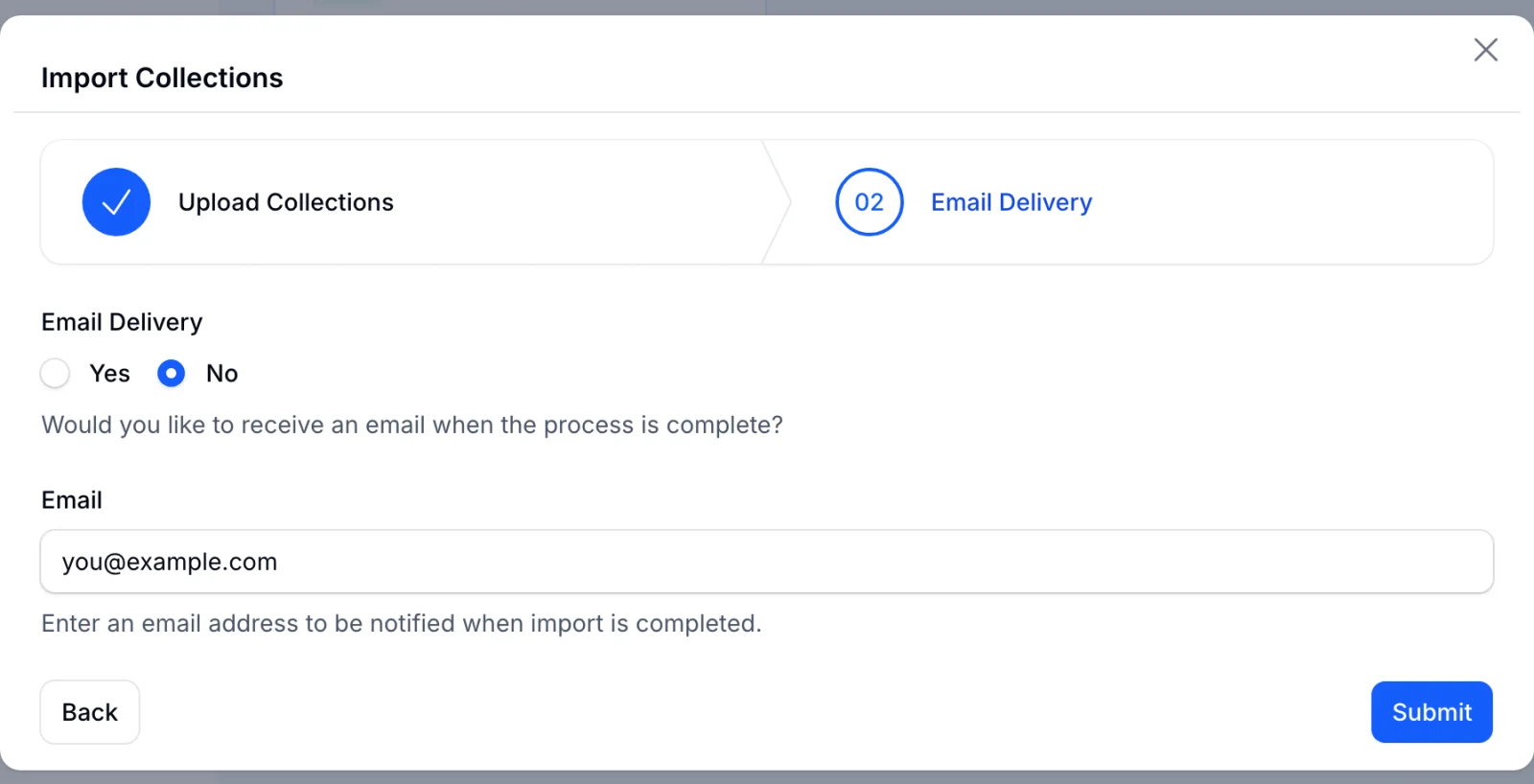
Email Delivery. Choose Yes to get an email when the import finishes; your account email is filled in.
-
Submit. You'll see "Import has been Queued". The import runs in the background, so you can leave the page.
-
Check the result. If any collections failed, choose Download Errors on the notification (or in the email). The errors file has one line per failed collection, with the reason.
Reference
The columns, row types and value formats are described in Export Collections. These rules are specific to importing.
Create, update, delete
| Situation | What happens |
|---|---|
| ID filled in | Updates that collection. The Handle column becomes the collection's handle, so you can rename a handle this way. Fails if the ID doesn't exist. |
| ID blank, handle exists | Updates the collection with that handle (upper and lower case don't matter). |
| ID blank, handle doesn't exist | Creates a new collection, only when Create New Collections is on; otherwise the collection is reported as an error. Title is required when creating. |
Command is DELETE |
Deletes the collection, matched by ID or handle. The other columns on the row are ignored. |
Blank cells and delete
- A blank core-field cell leaves that field as it is on an update.
- The word
deletein a cell clears the field. This works for Description, Theme Template, Image Src, SEO Title and SEO Description. - Published:
yes(ortrue,1,y) publishes the collection to your Online Store, any other value unpublishes it, and blank leaves it as it is. - Metafield cells: blank leaves the value as it is.
deleteisn't supported for metafield values; clear those in the Shopify admin.
Rules and sources
- Source # groups rows into sources; blank puts everything in source 1. Source Title is optional; a name is made up for you when it's blank.
- Match (
ANYorALL) is read from the first rule row of the source; on exclusion rows it sets the exclusion's match. - Values Match defaults to
ANYwhen blank, for conditions that use it. - Target defaults to Shopify's normal product-level matching; set
VARIANTSfor variant-level sources. - Exclusion rules support
productTag,productType,productVendorandproductCategory; Shopify doesn't allow other condition types as exclusions. - Exclude Collection rows: Shopify allows at most 5 excluded collections per source.
- A Sub-Collection source can't be mixed with rule or product rows; use a separate Source # for each.
- When Sort Order is
MANUAL, the order of the Product rows becomes the products' manual order in the collection.
Product identifiers
On Product and Exclude Product rows, the Values cell takes a product handle (red-hoodie) or a variant SKU (TOTE-1). Product IDs aren't accepted.
Text values are looked up as a handle first, then as a SKU. A value made only of digits (such as 36167) is looked up as a SKU. Anything that matches neither fails that collection with a clear error instead of being ignored.
What a SKU means depends on the source's Target: on a normal (PRODUCTS) source it identifies the product, and the whole product joins the collection. On a VARIANTS source it picks that exact variant.
Sub-Collection and Exclude Collection rows take a collection handle, or a collection ID.
Troubleshooting and FAQ
"No product or variant matches […] (looked up as handle and SKU)."
The identifier in a Product row doesn't exist in this store. Check for typos, or create the product first. For a value that's only digits, the message is "No variant with the SKU […] exists on this store."
"No collection matches the handle […]."
A Sub-Collection or Exclude Collection row refers to a collection that doesn't exist yet. Import or create that collection first, then run the failed rows again.
"No collection with this handle exists, and "Create New Collections" was turned off for this import."
Turn on Create New Collections, if the handle doesn't exist and import again, or fix the handle if it's a typo.
"Unsupported condition type …"
The row uses a condition this tool doesn't support yet (usually something Shopify added recently, exported with a long technical name). Remove or replace that rule row; the rest of the file imports normally.
"Unknown Row Type […]."
The Row Type column must be one of Rule, Exclude Rule, Product, Exclude Product, Exclude Collection, Sub-Collection or Shareable Source.
"No … metafield definition exists for [namespace.key] on this store."
Metafield rules and metafield value columns need the definition to exist on the store. Create it in Shopify (Settings → Custom data), then import again.
My collection's rules disappeared or changed more than I expected
Rule rows replace the collection's existing rules. If you only wanted to change core fields, leave out the rule rows: a group with only core fields never touches rules.
A "Shareable Source" row failed on another store
Shared sources belong to the store (and app) that created them, so their IDs don't exist on other stores. Remove that row when importing into a different store, and recreate the rules as normal Rule rows.
How do I fix the collections that failed?
The errors file lists each failed collection once, with the reason. Fix those collections' rows in your original file, and import just those groups again.
My file is too large
Your plan may limit how many rows you can import at once. If your file is over the limit, you'll see a message with your plan's maximum. Split the file, or upgrade your plan.
I got an API permission error
The connection to Shopify probably needs to be authorized again with write access. If it keeps happening, contact us from Contact Us in your dashboard and we'll help you fix it.