
Export Collections for Shopify
What it does
Export Collections pulls your Shopify collections into a CSV or Excel file. It captures everything that defines a collection: the core details (title, description, SEO, image, sort order, publish state), every rule (condition), every manually added product, exclusions, sub-collections and your collection metafields.
The file uses a multi-row format: rows are grouped by the collection's Handle. The first row of a group has the collection's core fields, and each rule, manual product or exclusion gets its own row below it. That makes the file easy to read and edit by hand (add a rule by inserting a row, or retag fifty collections with find-and-replace), and it feeds straight back into Import Collections.
The export runs in the background, and you get an email with a download link when it's ready.
Use it to:
- Keep a backup or snapshot of your collections and their rules.
- Bulk-edit collection rules in a spreadsheet and re-import them with Import Collections.
- Copy collections between stores, for example from a staging store to your live store. Products are identified by handle or SKU rather than by store-specific IDs.
- Build a review sheet of which collections are automated or manual, what conditions they use, and what they exclude.
Before you start
- Your Shopify store must be connected to your account.
- Decide what to export. Export all collections, or pick specific ones.
- Large hand-picked collections produce one row per product. If you only care about the rules, turn Include Manually Added Products off for a much smaller file.
- Check your email address. The finished file is emailed to you as a download link.
Step-by-step
-
Open Export Collections. Choose the Export Collections tool.
-
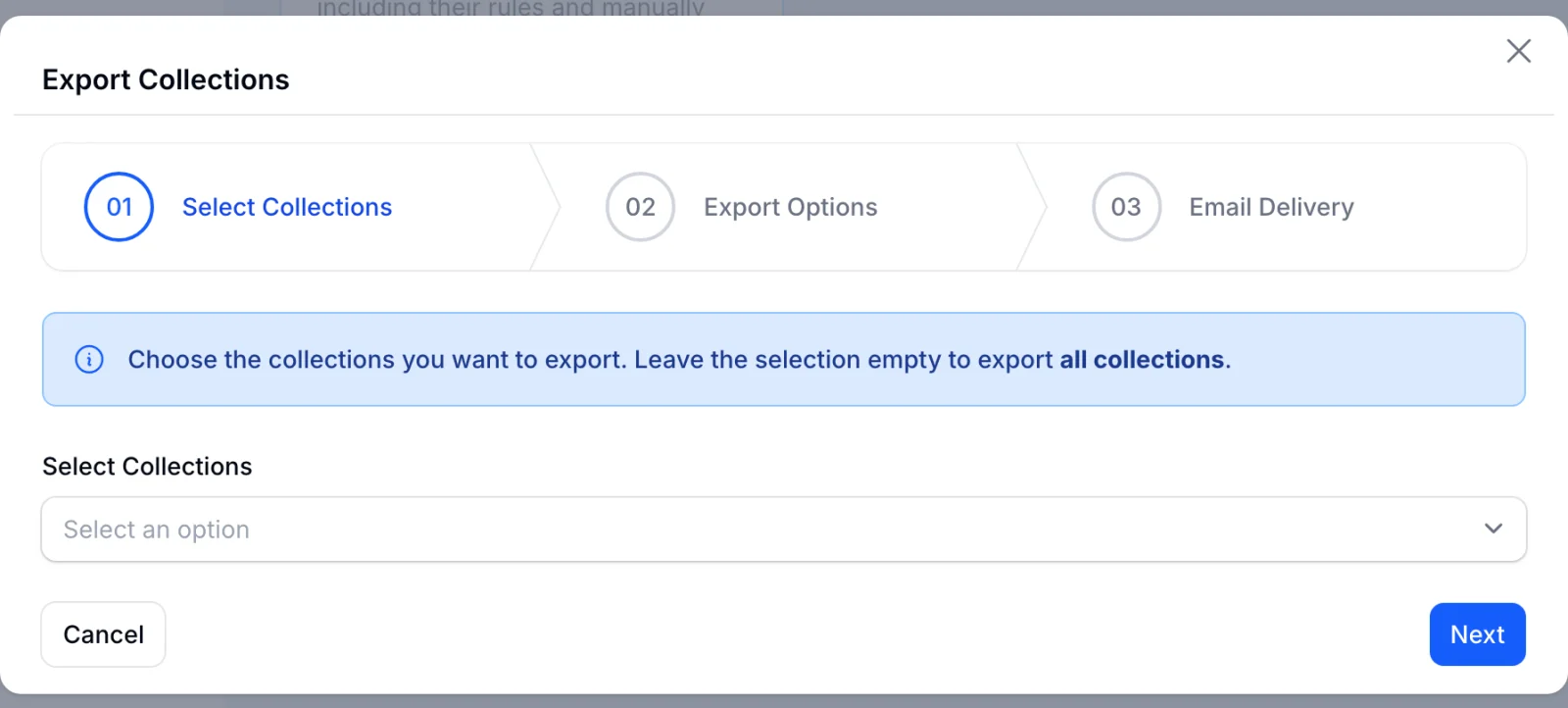
Select Collections. Choose specific collections, or leave the selection empty to export all collections.
-
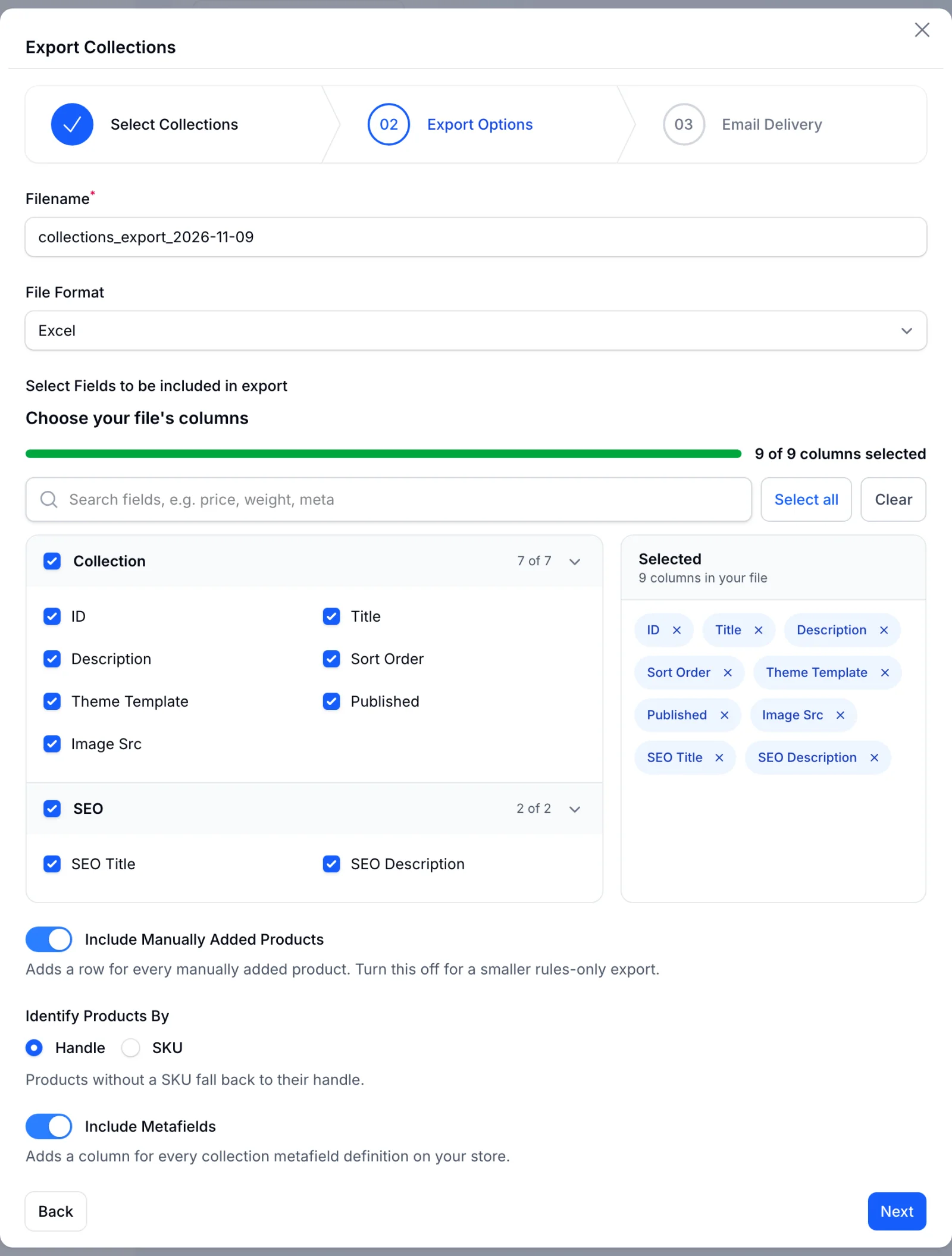
Export Options.
- Enter a Filename (a name with today's date is filled in for you).
- Choose a File Format: CSV or Excel.
- Pick your columns under Select Fields to be included in export. Fields are grouped into Collection and SEO sections that you can search and select all at once. Every field is selected by default.
- Include Manually Added Products: on by default. Adds a row for every manually added product, and for every manually excluded product. Turn it off for a rules-only export.
- Identify Products By: Handle (the default) or SKU. Shown when manually added products are included. It controls how those products are written; products without a SKU fall back to their handle.
- Include Metafields: on by default. Adds a column for every collection metafield definition on your store.
-
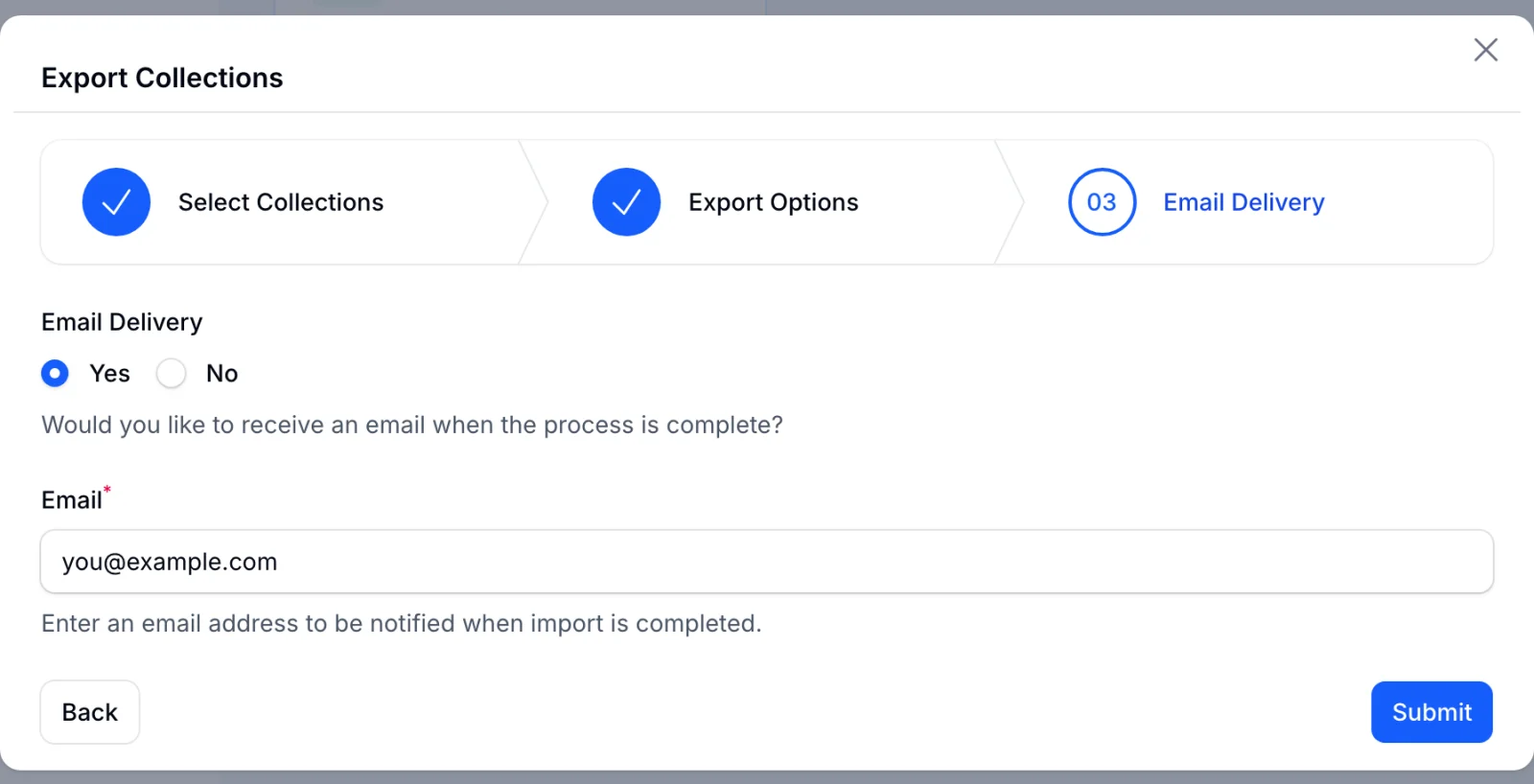
Email Delivery. The download link is emailed to you when the export finishes. Your account email is filled in; change it, or choose No if you don't want the email.
-
Start the export. It runs in the background.
-
Download your file. Download it from the tool when it finishes, or from the link in the email.
Reference
Rows are grouped by Handle. The first row of each group holds the collection's core fields; the rows below it describe the collection's rules and products.
A small example, a smart collection with two rules and one excluded product:
| Handle | Title | Source # | Match | Row Type | Condition Type | Relation | Values |
|---|---|---|---|---|---|---|---|
| summer-sale | Summer Sale | 1 | ALL | Rule | productTag | TAGGED_WITH | summer|beach |
| summer-sale | 1 | ALL | Rule | variantPrice | LESS_THAN | 50.00 USD | |
| summer-sale | 1 | Exclude Product | old-swimsuit |
Core columns (first row of each group)
| Column | Notes |
|---|---|
| ID | The collection's Shopify ID. |
| Handle | The collection's handle. This is what groups rows together, and it's on every row. |
| Command | Blank on export. Used by the import (DELETE deletes the collection). |
| Title | The collection name. |
| Description | The collection description, as HTML. |
| Sort Order | How products are ordered: BEST_SELLING, ALPHA_ASC, ALPHA_DESC, PRICE_ASC, PRICE_DESC, CREATED, CREATED_DESC, MOST_RELEVANT or MANUAL. |
| Theme Template | The alternate theme template assigned to the collection (the "Theme template" setting in the Shopify admin). Blank means the theme's default collection template. |
| Published | yes or no: whether the collection is published to your Online Store. Needs an extra Shopify permission (see the FAQ). |
| Image Src | Web address of the collection image. |
| SEO Title / SEO Description | The collection's search engine listing fields. |
| Metafield: namespace.key | One column per collection metafield definition, holding the value. |
Source and rule columns (every row)
Shopify collections are built from one or more sources. Most collections have a single source; Shopify's newer collections allow several, plus sub-collections and shared sources.
| Column | Notes |
|---|---|
| Source # | Groups rows into sources (usually 1). |
| Source Title | The source's name as shown in the Shopify admin. |
| Target | PRODUCTS (whole products) or VARIANTS (variant-level matching). |
| Match | ALL: a product must match every rule. ANY: matching one rule is enough. On exclusion rows, this is the exclusion's match setting. |
| Row Type | What the row is. See below. |
| Condition Type | The attribute a Rule tests. See below. |
| Relation | The comparison, for example EQUALS, TAGGED_WITH, CONTAINS, LESS_THAN, GREATER_THAN or STARTS_WITH. |
| Values Match | For rules with several values: ANY (matches one of the values) or ALL (must match all of them). |
| Values | The rule's value or values, the product identifier, or the referenced collections. Separate several values with a pipe (|). |
Row types
| Row Type | Meaning | The Values column holds |
|---|---|---|
| Rule | An automated condition that includes products. | The condition's value or values. |
| Product | A manually added product. | The product's handle, or the variant's SKU for variant-level picks. |
| Exclude Rule | A condition that excludes products (tag, type, vendor or category). | The condition's value or values. |
| Exclude Product | A manually excluded product. | The product's handle (or SKU, when identifying products by SKU). |
| Exclude Collection | Excludes everything in another collection. | The other collection's handle or handles. |
| Sub-Collection | The source takes its products from other collections. | The referenced collection handles, separated by pipes. |
| Shareable Source | A rule set shared across collections (created by an app). | The shared source's Shopify ID. |
How values are written
- Several values are separated by pipes:
summer|beach. - Prices include the currency:
50.00 USD. - Weights include the unit:
1.5 KILOGRAMS. - Categories use Shopify's taxonomy ID, with
+descendantswhen subcategories are included:gid://shopify/TaxonomyCategory/aa-5 +descendants. - Metafield rules name the definition in the Condition Type column:
Metafield: custom.material. - When a collection's sort order is
MANUAL, the order of the Product rows is the products' manual order.
Troubleshooting and FAQ
My export is huge
Hand-picked collections add a row per product. Turn Include Manually Added Products off if you only need the rules and core fields.
A rule shows a long technical Condition Type I don't recognize
Shopify occasionally adds new condition types. Ones this tool doesn't recognize yet are exported as they are, so nothing is lost, but they can't be re-imported until the tool is updated.
Why do Product rows show SKUs sometimes and handles other times?
By default, whole-product picks are written as the product's handle and variant-level picks as the variant's SKU. Set Identify Products By to SKU to write SKUs everywhere. The file only ever contains handles and SKUs, and anything without a SKU falls back to its product handle.
My export failed with an access-denied error mentioning "publishedOnPublication"
The Published field needs Shopify's publications permission, which your store's connection may not include yet. Published is selected by default, so untick it in the field list and the export runs without it.
I got an API permission error
This usually means the connection to Shopify needs to be authorized again. If it keeps happening, contact us from Contact Us in your dashboard and we'll help you fix it.
Note
New to Your Store Tools? How tools work explains the steps every tool shares, including choosing your file's columns and email delivery.