
Product Labels for BigCommerce
What it does
Product Labels places badges on products, shown on the product tile in search results and on category pages.
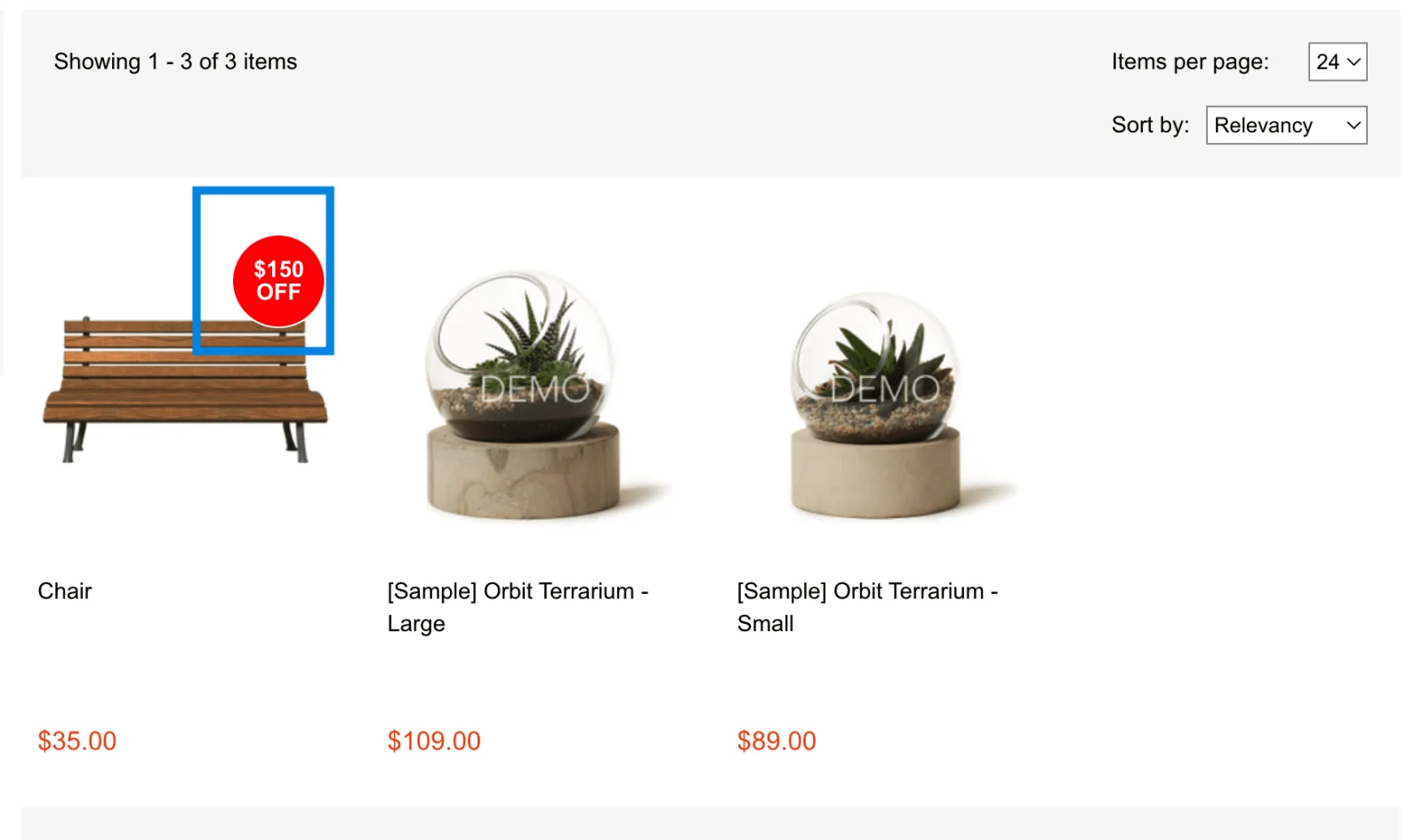
One of our developers installs Product Labels. After that, you control the labels yourself: the default look in your theme settings, and each product's label text (and any style changes) with a custom field.
Before you start
- Give Your Store Wizards access to your store so we can install Product Labels: Give Your Store Wizards access to your store.
Step-by-step
-
Open Page Builder. In your BigCommerce control panel, go to Storefront > Themes and click Customize. With multi-storefront, go to Channel Manager, choose the storefront Product Labels are installed on, and click Edit Theme. See Open Page Builder for screenshots.
-
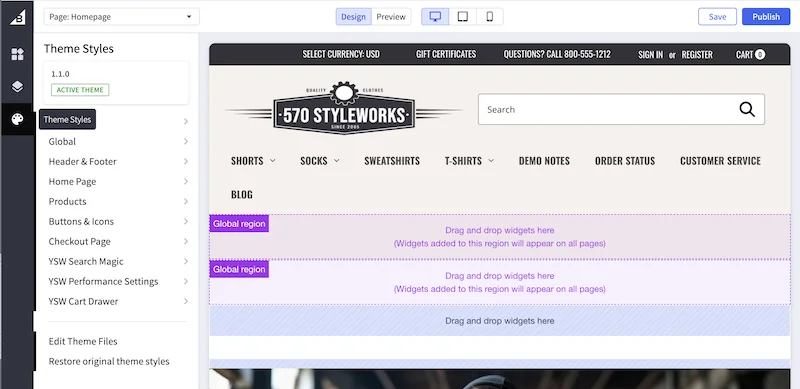
Theme Styles. In the Page Builder navigation bar, click the painter's palette icon to open the Theme Styles menu.
-
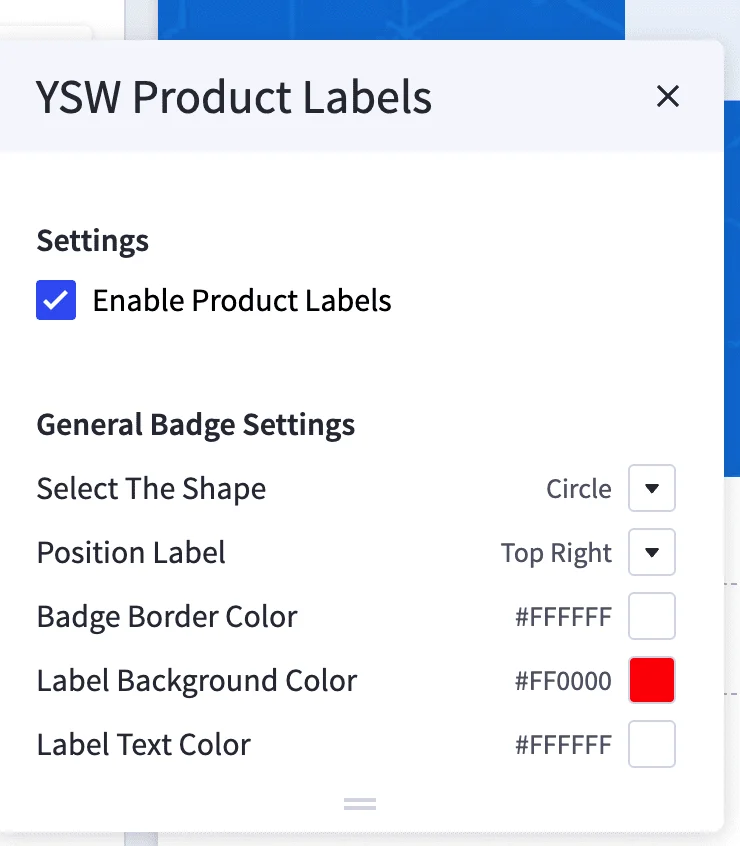
YSW Product Labels. Click YSW Product Labels and set the defaults for every label:
- Turn labels on or off (Enable Product Labels).
- The badge shape: pill or circle.
- Where the badge sits on the product, such as top left or top right.
- Badge border color.
- Label background color.
- Label text color.
You can override any of these for a single product with its custom field (next step).
-
Add a badge_options custom field to a product. In BigCommerce, open the product you want to label. In its Custom Fields area, add a custom field named
badge_optionsand enter its value (see The badge_options value). Save the product.
Reference
The badge_options value
The value sets the label's text, and can also override the default background color and shape. Separate the parts with the pipe character (|), in this order:
text to display|label background hex color|shape
Leave a part empty to use the default, but keep its pipe characters:
| You want | Value |
|---|---|
| Your text, default color and shape | text to display|| |
| Your text, a white background, default shape | text to display|#FFFFFF|| |
| Your text, default color, a pill-shaped badge | text to display||pill |
| Your text, a white background, a circle-shaped badge | text to display|#FFFFFF|circle |
Tip
To manage badge_options and your other custom fields across many products, use Custom Field Populator. It can apply fields automatically to new products, create fields with rules, and import or export them.
Search Magic
Product Labels work with Search Magic and show on product cards in its search results and category pages.
Search Magic updates once an hour when a product or category is created, updated or deleted. BigCommerce doesn't tell us when a product's custom field is added or changed, so a new or changed label appears after Search Magic's next hourly update.
Tip
To have Search Magic pick up the change sooner, add a space to the end of the product's description and save the product. Search Magic processes the update within a few moments.