
Cart Drawer for BigCommerce
What it does
Cart Drawer lets shoppers view and edit their cart in a quick slide-out on desktop, or a full-screen view on mobile. It shows a clear order summary, with buttons to go to checkout or keep shopping.
It can also show a promotion, such as a free-shipping countdown or a discount based on the order total, to encourage larger orders. You can turn the promotion on and off, so it works for both temporary and ongoing offers.
Before you start
- Give Your Store Wizards access to your store so we can install Cart Drawer: Give Your Store Wizards access to your store.
- To show a promotion, first set it up as an Automatic Promotion in BigCommerce.
Step-by-step
-
Open Page Builder. In your BigCommerce control panel, go to Storefront > Themes and click Customize. With multi-storefront, go to Channel Manager, choose the storefront Cart Drawer is installed on, and click Edit Theme. See Open Page Builder for screenshots.
-
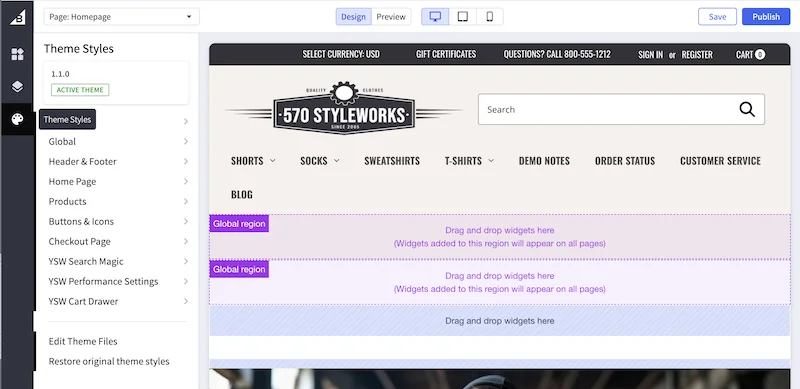
Theme Styles. In the Page Builder navigation bar, click the painter's palette icon to open the Theme Styles menu.
-
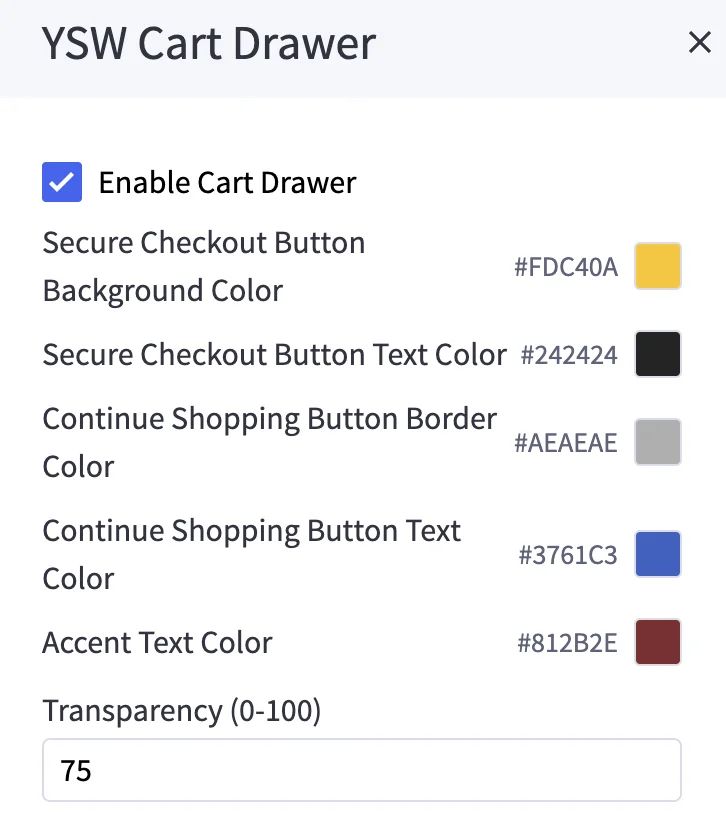
YSW Cart Drawer. Click YSW Cart Drawer to open its settings, tick Enable Cart Drawer, and set the colors and transparency (see Settings).
-
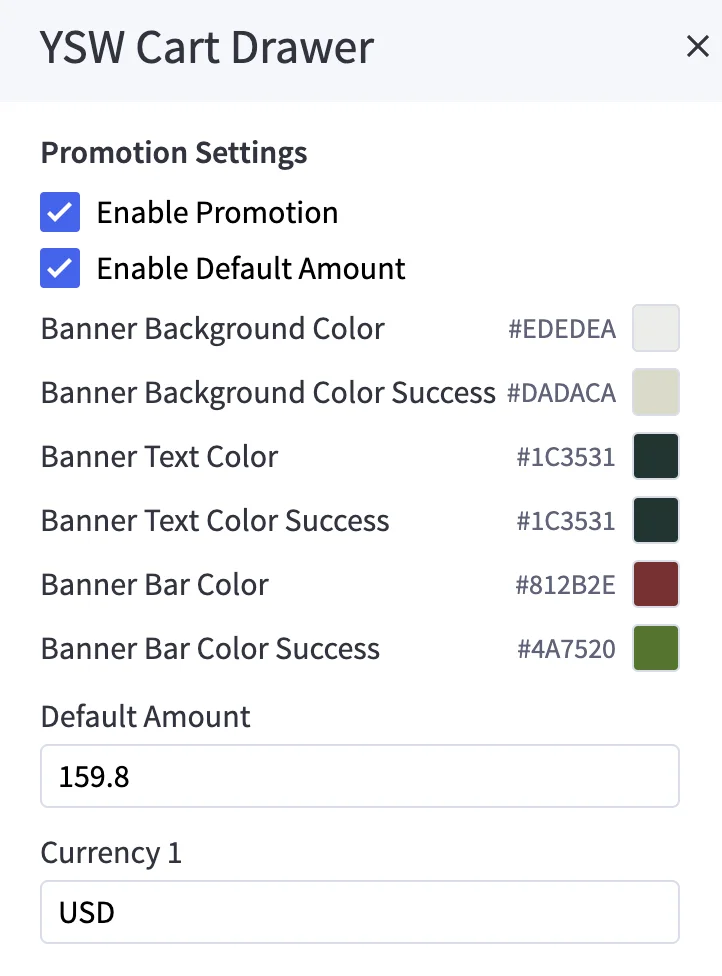
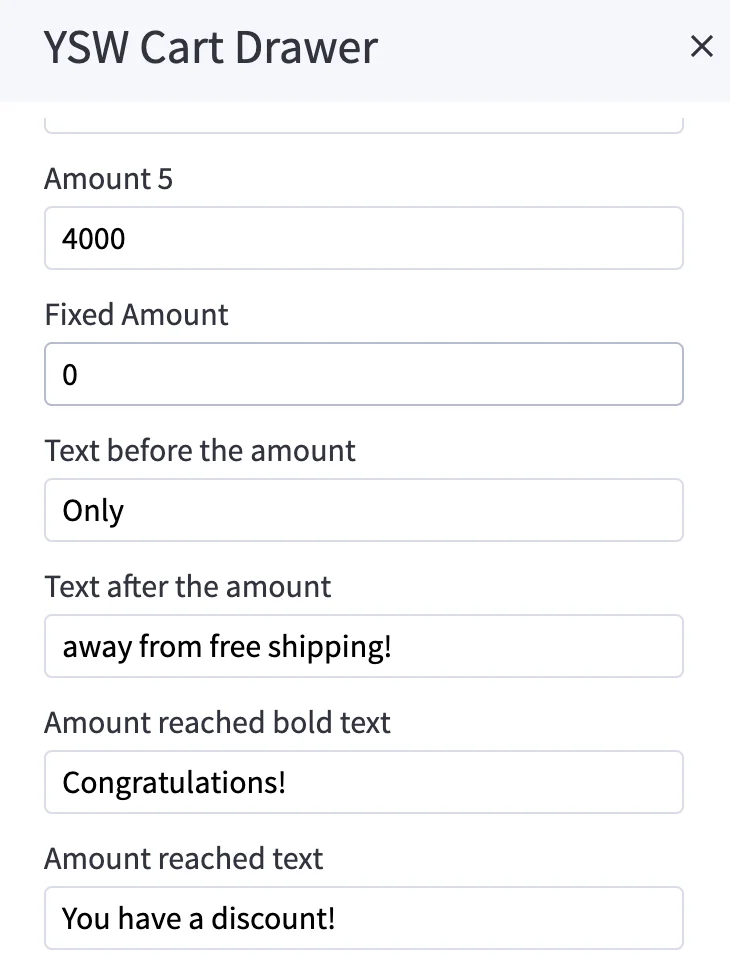
Promotion Settings. If you're using a promotion, tick Enable Promotion and fill in the promotion settings.
-
Save and Publish. Click Save at the top of Page Builder, then Publish when you're ready to make your changes live.
Note
Cart Drawer doesn't create promotions or apply coupon codes to orders. That is done by the promotion you set up in BigCommerce; Cart Drawer shows the shopper their progress towards it.
Settings
Cart Drawer
| Setting | What it does |
|---|---|
| Enable Cart Drawer | Turns Cart Drawer on. |
| Secure Checkout Button Background Color | Hex color of the background of the Secure Checkout button, which takes shoppers to checkout. |
| Secure Checkout Button Text Color | Hex color of the "Secure Checkout" text on that button. |
| Continue Shopping Button Border Color | Hex color of the Continue Shopping button's border. |
| Continue Shopping Button Text Color | Hex color of the "Continue Shopping" text on that button. |
| Accent Text Color | Hex color of the selling price of the item added to the cart and of the Grand Total. |
| Transparency | How dark the page behind the drawer is, from 0 (lightest) to 100 (darkest). We recommend 75. |
Promotion
| Setting | What it does |
|---|---|
| Enable Promotion | Turns the promotion banner on. |
| Enable Default Amount | Uses a default amount, in your store's default currency, that the order must reach for the promotion. Amounts in other currencies are set below. |
| Banner Background Color | Hex color of the banner area that holds the progress bar. |
| Banner Background Color Success | Hex color of the banner area once the progress bar reaches 100%. |
| Banner Text Color | Hex color of the text on the progress bar. |
| Banner Text Color Success | Hex color of the text on the progress bar once it reaches 100%. |
| Banner Bar Color | Hex color of the progress bar's indicator. |
| Banner Bar Color Success | Hex color of the progress bar's indicator once it reaches 100%. |
| Default Amount | The order total, in your store's default currency, the shopper must reach for the promotion. |
| Currency 1 through 5 | Up to five more currencies your store accepts, as a currency code such as USD, EUR or CAD. |
| Amount 1 through 5 | The order total the shopper must reach, in the currency with the same number. |
| Fixed Amount | The number of decimal places shown after the amount. Left blank, an amount of $34.99 is rounded up and shown as $35; enter 2 to show $34.99. |
| Text Before the Amount | For "Only $X away from free shipping!", enter "Only". |
| Text After the Amount | For "Only $X away from free shipping!", enter "away from free shipping!". |
| Amount Reached Bold Text | Bold text shown once the amount is reached. For "Congratulations! You have a discount!", enter "Congratulations!". |
| Amount Reached Text | Text shown after it once the amount is reached. For "Congratulations! You have a discount!", enter "You have a discount!". |