
MegaNav for BigCommerce
What it does
MegaNav is a navigation system for BigCommerce stores, created with store owners who manage large product catalogs. It's lightweight, mobile-optimized and fits in with your store's design. It's built from your BigCommerce categories, so it follows the category structure you already manage.
MegaNav has three groups of settings: global settings that apply to desktop and mobile, desktop settings and mobile settings.
Before you start
- Give Your Store Wizards access to your store so we can install MegaNav: Give Your Store Wizards access to your store.
Step-by-step
-
Open Page Builder. In your BigCommerce control panel, go to Storefront > Themes and click Customize. With multi-storefront, go to Channel Manager, choose the storefront MegaNav is installed on, and click Edit Theme. See Open Page Builder for screenshots.
-
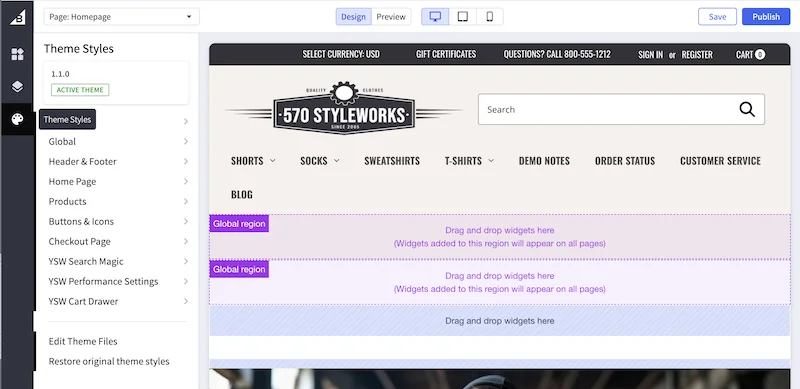
Theme Styles. In the Page Builder navigation bar, click the painter's palette icon to open the Theme Styles menu. You'll come back here for each group of settings.
-
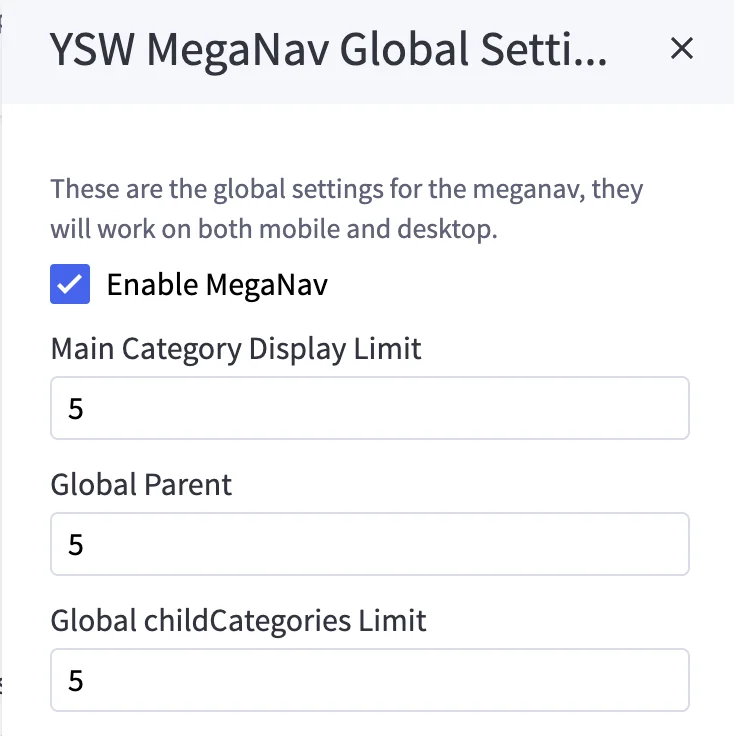
YSW MegaNav Global Settings. Click YSW MegaNav Global Settings and set the options that apply to both desktop and mobile (see Global settings).
-
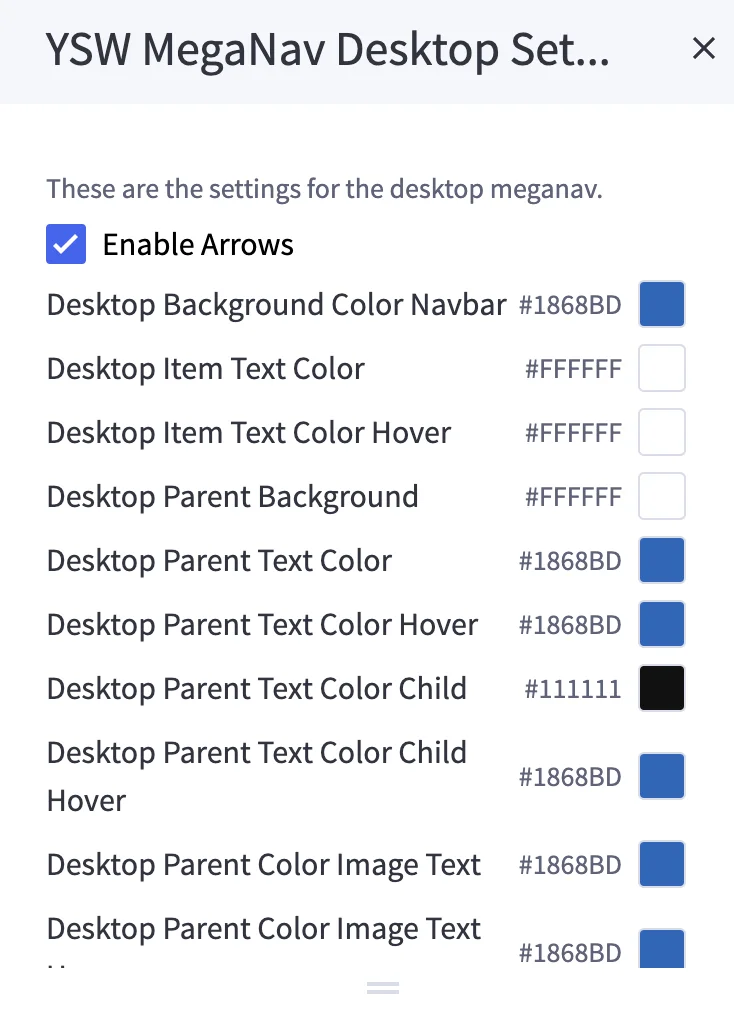
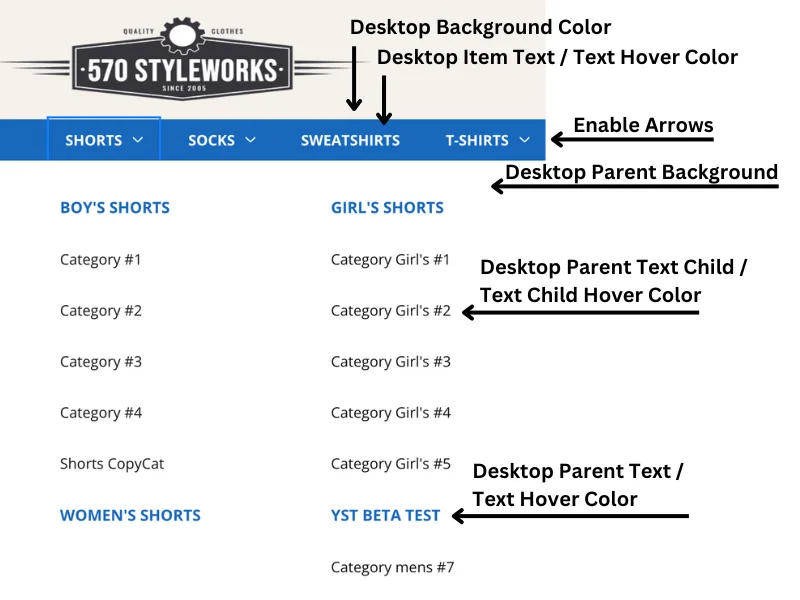
YSW MegaNav Desktop Settings. Back in Theme Styles, click YSW MegaNav Desktop Settings and set the desktop colors and banners (see Desktop settings).
-
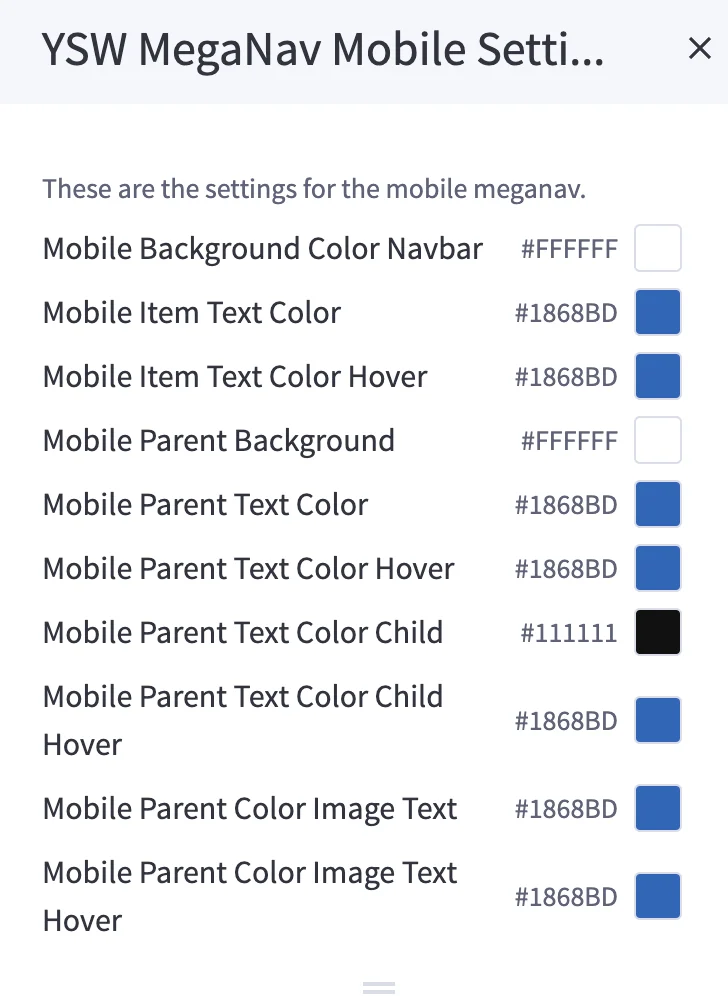
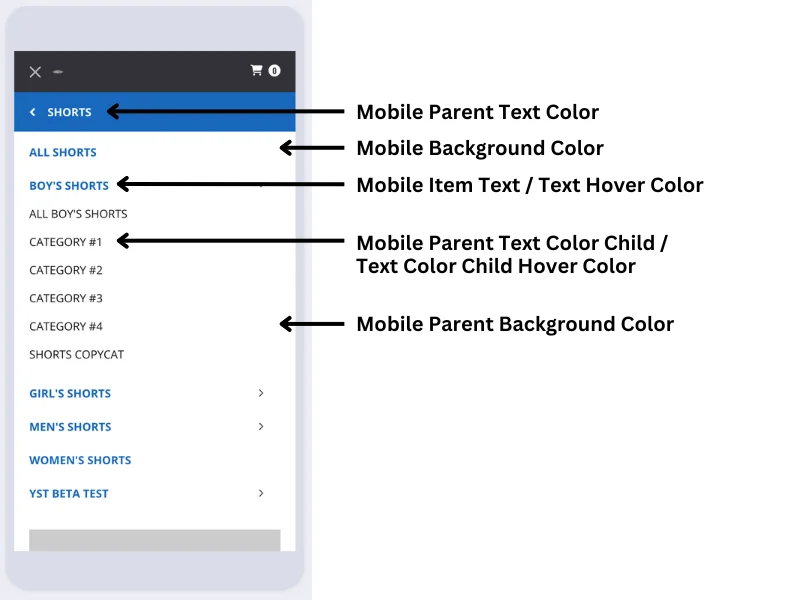
YSW MegaNav Mobile Settings. Back in Theme Styles, click YSW MegaNav Mobile Settings and set the mobile colors and icons (see Mobile settings).
-
Save and Publish. Click Save at the top of Page Builder, then Publish when you're ready to make your changes live.
Settings
Global settings
| Setting | What it does |
|---|---|
| Enable MegaNav | Turns MegaNav on or off on desktop and mobile. Turned off, your store uses its theme's default navigation. |
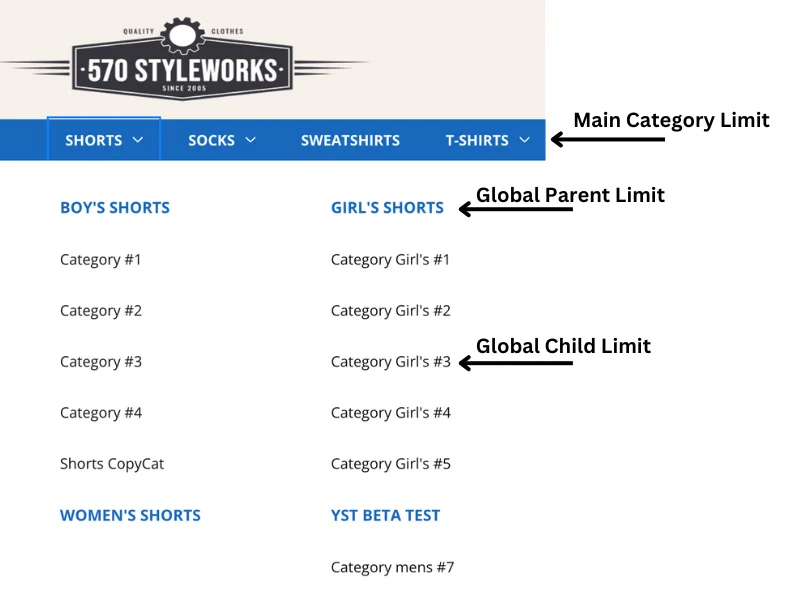
| Main Category Display Limit | How many categories show in the navigation bar. They appear in the order of your BigCommerce category setup. |
| Global Parent Display Limit | How many parent categories show under each main category. |
| Global Child Display Limit | How many child categories show under each parent category when a main category is expanded. |
Desktop settings
| Setting | What it does |
|---|---|
| Enable Arrows | Shows a down arrow next to each main category name, to show it can be expanded. |
| Desktop Background Color Navbar | Background color of the navigation bar. |
| Desktop Item Text Color | Hex color of the main category names on the navigation bar. |
| Desktop Item Text Color Hover | Hex color of the main category names when hovered over. |
| Desktop Parent Background | Hex color of the sub-menu background when the navigation bar is expanded. |
| Desktop Parent Text Color | Hex color of parent category names in the expanded menu. |
| Desktop Parent Text Color Hover | Hex color of parent category names when hovered over. |
| Desktop Parent Text Color Child | Hex color of child category names in the expanded menu. |
| Desktop Parent Text Color Child Hover | Hex color of child category names when hovered over. |
Desktop banners
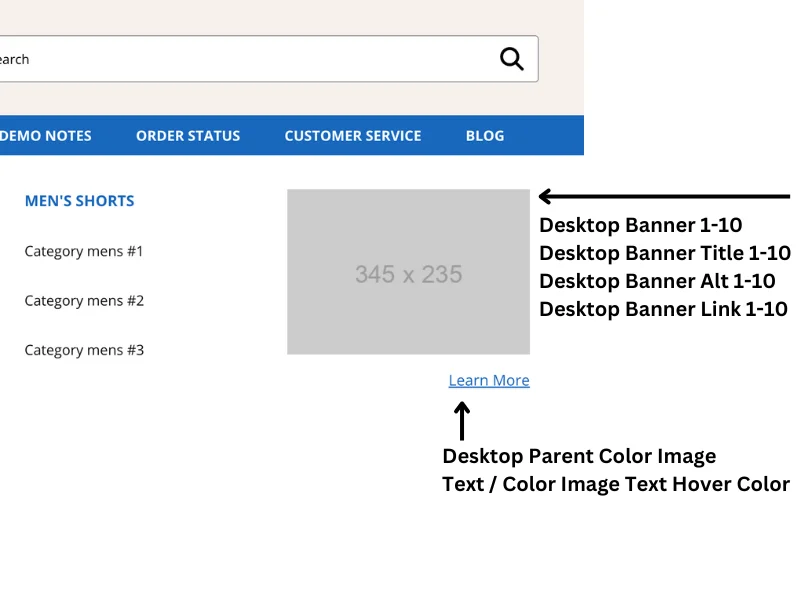
The expanded desktop menu can show an optional banner. There are 10 banner slots; more can be added when MegaNav is installed if you need them.
For each numbered setting, the number (1 to 10) matches the order of your categories in Products > Categories in BigCommerce.
| Setting | What it does |
|---|---|
| Desktop Parent Color Image Text | Hex color of the text under the banner. |
| Desktop Parent Color Image Text Hover | Hex color of the text under the banner when hovered over. |
| Desktop Banner 1 through 10 | The full URL of the banner image. We recommend 345 x 235. |
| Desktop Banner Title 1 through 10 | The text under the banner image, such as "Learn more". |
| Desktop Banner Alt 1 through 10 | The alt text for the banner image. |
| Desktop Banner Link 1 through 10 | The full URL the banner links to. |
Mobile settings
| Setting | What it does |
|---|---|
| Mobile Background Color Navbar | Background color of the navigation bar. |
| Mobile Item Text Color | Hex color of the main category names on the navigation bar. |
| Mobile Item Text Color Hover | Hex color of the main category names when hovered over. |
| Mobile Parent Background | Hex color of the sub-menu background when the navigation bar is expanded. |
| Mobile Parent Text Color | Hex color of parent category names in the expanded menu. |
| Mobile Parent Text Color Hover | Hex color of parent category names when hovered over. |
| Mobile Parent Text Color Child | Hex color of child category names in the expanded menu. |
| Mobile Parent Text Color Child Hover | Hex color of child category names when hovered over. |
Mobile icons
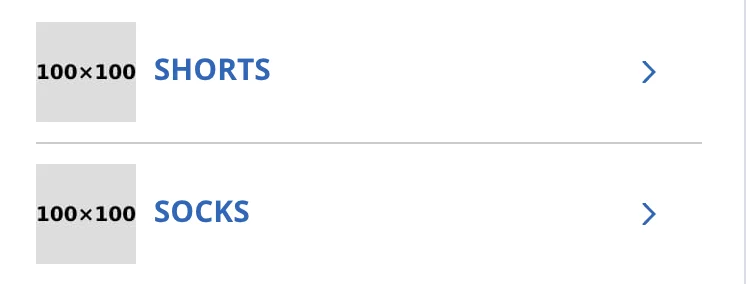
On mobile, MegaNav can show an optional 100 x 100 image to the left of each category name. There are 10 icon slots; more can be added when MegaNav is installed if you need them.
| Setting | What it does |
|---|---|
| Mobile Banner 1 through 10 | The full URL of the image. The number (1 to 10) matches the order of your categories in Products > Categories in BigCommerce. |