
Minimum Order Enforcer for BigCommerce
What it does
Minimum Order Enforcer (MOE) goes beyond BigCommerce's standard settings to let you set and enforce minimum order amounts. You set a minimum for each customer group. A shopper in that group who tries to check out below the minimum sees a message telling them how much they need to order.
Note
Minimum Order Enforcer isn't a self-install app. One of our developers installs it after you buy it.
Before you start
- Give Your Store Wizards access to your store so we can install Minimum Order Enforcer: Give Your Store Wizards access to your store.
- Find the ID of each customer group you want a minimum for (see How to find a Customer Group ID).
Step-by-step
-
Open Page Builder. In your BigCommerce control panel, go to Storefront > Themes and click Customize. With multi-storefront, go to Channel Manager, choose the storefront Minimum Order Enforcer is installed on, and click Edit Theme. See Open Page Builder for screenshots.
-
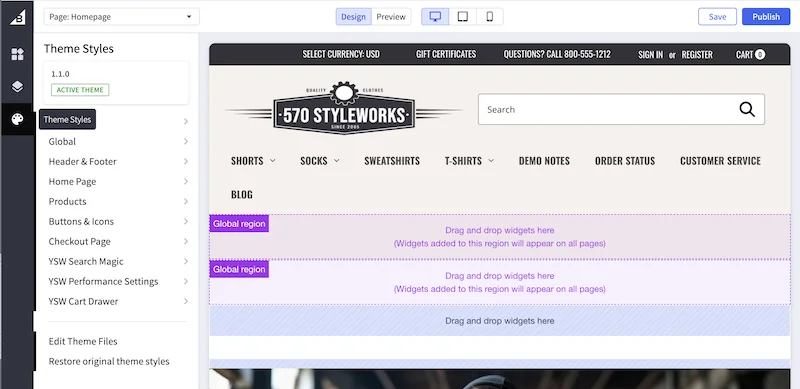
Theme Styles. In the Page Builder navigation bar, click the painter's palette icon to open the Theme Styles menu.
-
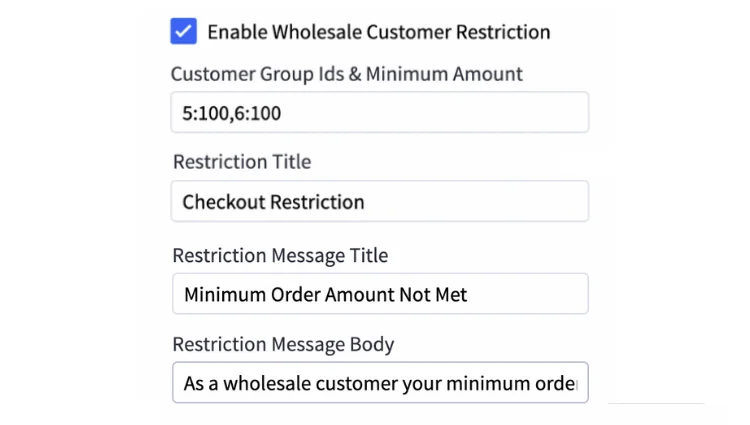
YSW Settings. Click YSW Settings to open the Minimum Order Enforcer settings. Tick Enable Wholesale Customer Restriction and fill in the settings below.
-
Save and Publish. Click Save at the top of Page Builder, then Publish when you're ready to make your changes live.
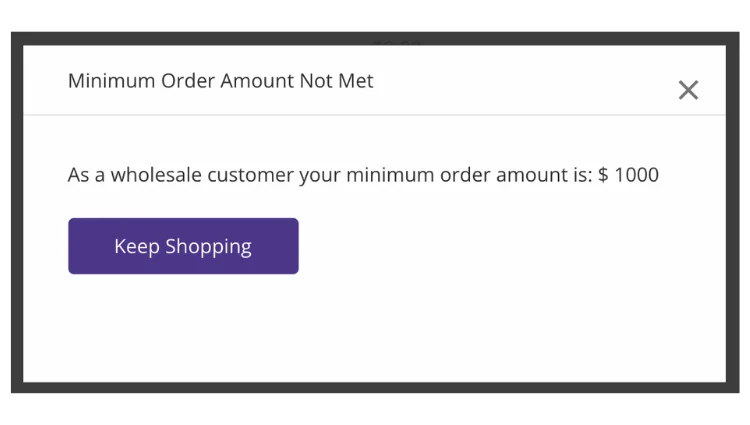
A shopper in a customer group who hasn't reached their minimum sees a message like this at checkout:
Settings
| Setting | What it does |
|---|---|
| Enable Wholesale Customer Restriction | Turns Minimum Order Enforcer on. |
| Customer Group IDs & Minimum Amount | The Customer Group ID, a colon (:), then the minimum order amount. Separate several groups with commas, for example 5:100,6:100. |
| Restriction Title | Customer-friendly heading for the checkout warning shown when the minimum isn't met. |
| Restriction Message | A friendly note telling the customer they need to reach their minimum to check out and qualify for their pricing. |
| Restriction Button Text | The text on the continue button. Most stores keep the default, "Keep Shopping". |
How to find a Customer Group ID
- In your BigCommerce control panel, go to Customers > Customer Groups.
- Click the customer group you need the ID for.
- Look at your browser's address bar. The ID is the number after
/groups/. Inhttps://store-example.mybigcommerce.com/manage/customers/groups/5/edit, the Customer Group ID is 5.