
Give Your Store Wizards Access to Your Store for BigCommerce
What it does
Store Features such as Cart Drawer, MegaNav, Minimum Order Enforcer and Options ToolTip are installed by one of our developers, not by you. To do that, we need a user account in your BigCommerce store. This guide shows you how to create that account and let us know it's ready.
Once a feature is installed, you change its settings yourself in BigCommerce's Page Builder. The last section of this guide shows you how to open it.
Step-by-step
-
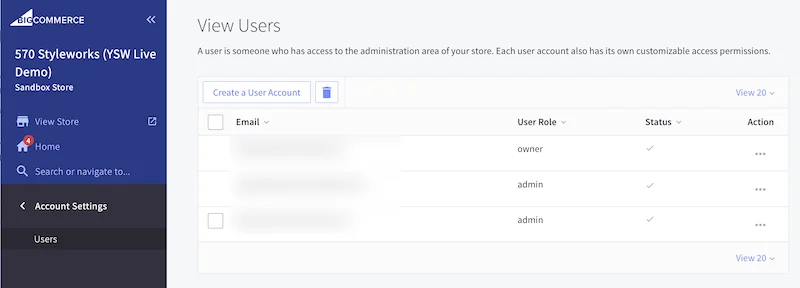
Account Settings > Users. Log in to your BigCommerce control panel and go to Account Settings > Users.
-
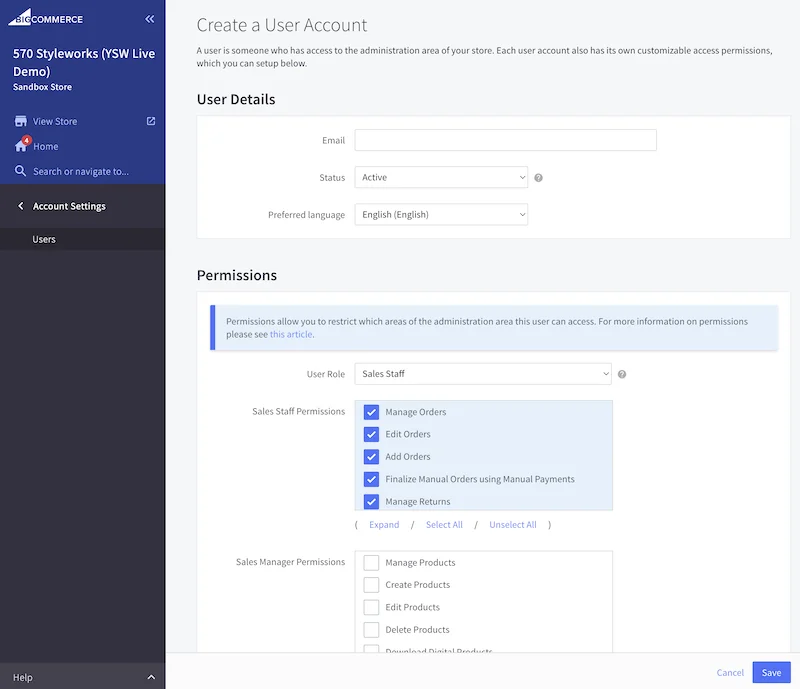
Create a User Account. Click Create a User Account.
-
User details and permissions. Enter the following:
- Email: help@yourstorewizards.com
- Status: Active
- Preferred language: English
- User Role: Custom
- Under System Admin Permissions, tick:
- Manage Settings
- Store Design
- Design Mode
- Use Script Manager
Click Save.
-
Let us know. Email us at help@yourstorewizards.com to say access has been granted and which feature you'd like installed. We'll then begin the installation.
Open Page Builder
Every Store Feature's settings live in BigCommerce's Page Builder. To open it, log in to your BigCommerce control panel and:
- If you don't have multi-storefront, go to Storefront > Themes and click Customize.
- If you have multi-storefront, go to Channel Manager, choose the storefront the feature is installed on, and click Edit Theme.
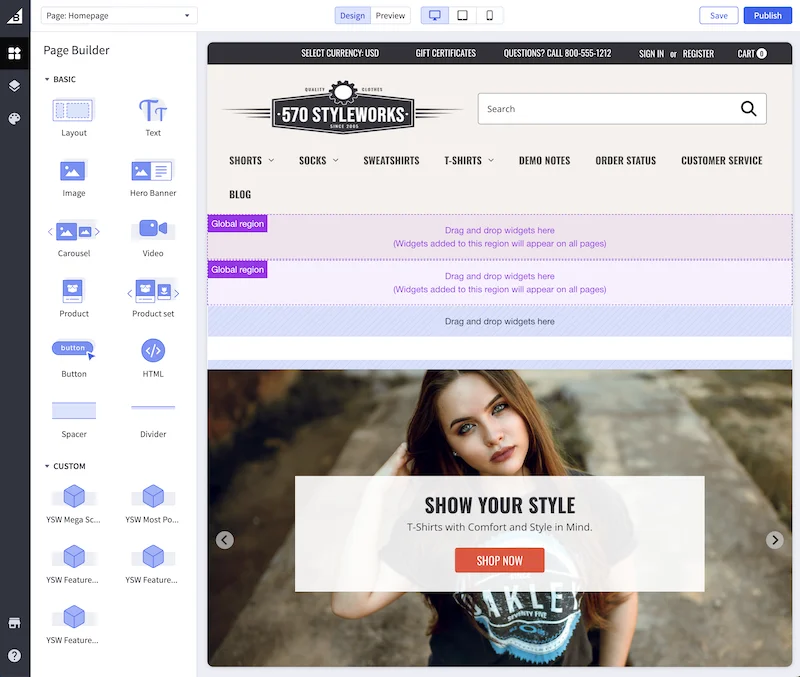
In the Page Builder navigation bar, click the painter's palette icon to open the Theme Styles menu. Each feature has its own entry there.
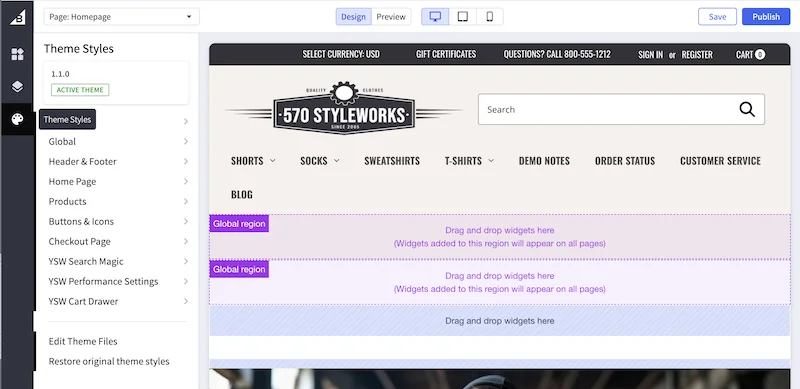
When you've made your changes, click Save at the top of Page Builder, then Publish when you're ready to make them live.