
Automatic Sorting and Settings in Magic Sorter for Shopify
What it does
Instead of running sorts by hand, Magic Sorter can re-sort your collections every day. The Settings page sets the store-wide default and the time it runs, and how the editor handles very large collections.
Step-by-step
-
Settings. In the left menu, open Settings.
-
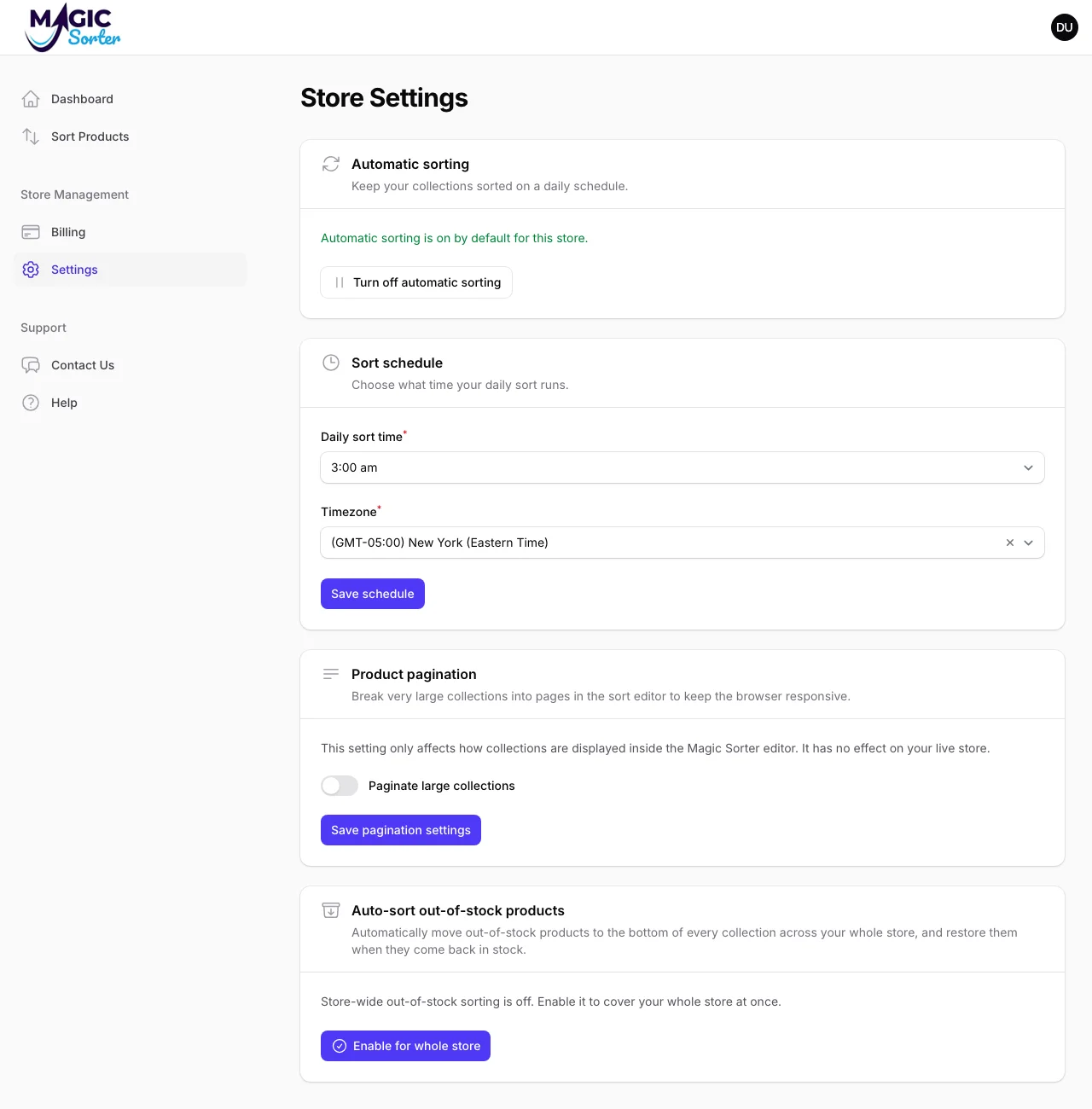
Automatic sorting. Click Turn on automatic sorting. Choose whether to turn it on for all your collections now, or just set it as the default that collections you haven't changed individually will follow. Click Turn on.
-
Sort schedule. Pick a Daily sort time and your Timezone, then click Save schedule.
Each day at that time, Magic Sorter re-sorts every collection that has automatic sorting on. It takes a backup first and updates your storefront within minutes.
You can see recent and upcoming runs in Activity & Schedule on your Dashboard, and undo a result with Restore last backup.
Settings
Automatic sorting
The store-wide default for whether collections are re-sorted daily. Turn off automatic sorting stops the daily re-sort; your collections keep their current order.
Per-collection control
Override the store default for any collection:
- in the Sort Editor, with Automatically keep this sorted on a schedule?, or
- in Sort Products, by ticking collections and using the Auto-sort: On / Off bulk action.
Sort schedule
The Daily sort time (the hour your automatic sorts run) and your Timezone. Save with Save schedule.
Product pagination
Splits very large collections into pages in the Sort Editor, to keep your browser responsive. It only affects the editor, not your live store.
| Setting | What it does |
|---|---|
| Paginate large collections | Turns pagination on. |
| Start paginating when a collection has more than this many products | Collections with fewer products load all at once; larger ones are paged. Default 2000. |
| Products per page | How many products each page of the editor shows. Default 200. |
Save with Save pagination settings.
Auto-sort out-of-stock products (Premium)
Keeps out-of-stock products at the bottom of every collection. See Out-of-stock products.
Troubleshooting and FAQ
The editor is slow on a huge collection
Turn on Paginate large collections and choose a threshold and page size that suit your catalog.
I don't like the result of an automatic sort
Use Restore last backup to undo it. See Backups and snapshots.