
The Sort Editor in Magic Sorter for Shopify
What it does
The Sort Editor is where you set how one collection is sorted. Its Sort & products tab holds the sort type, the sort rules for a custom sort, quick ways to reorder everything at once, and a grid of the collection's products you can drag into place.
Before you start
- Open the editor from Sort Products: click a collection, or its Edit Sort action.
Step-by-step
-
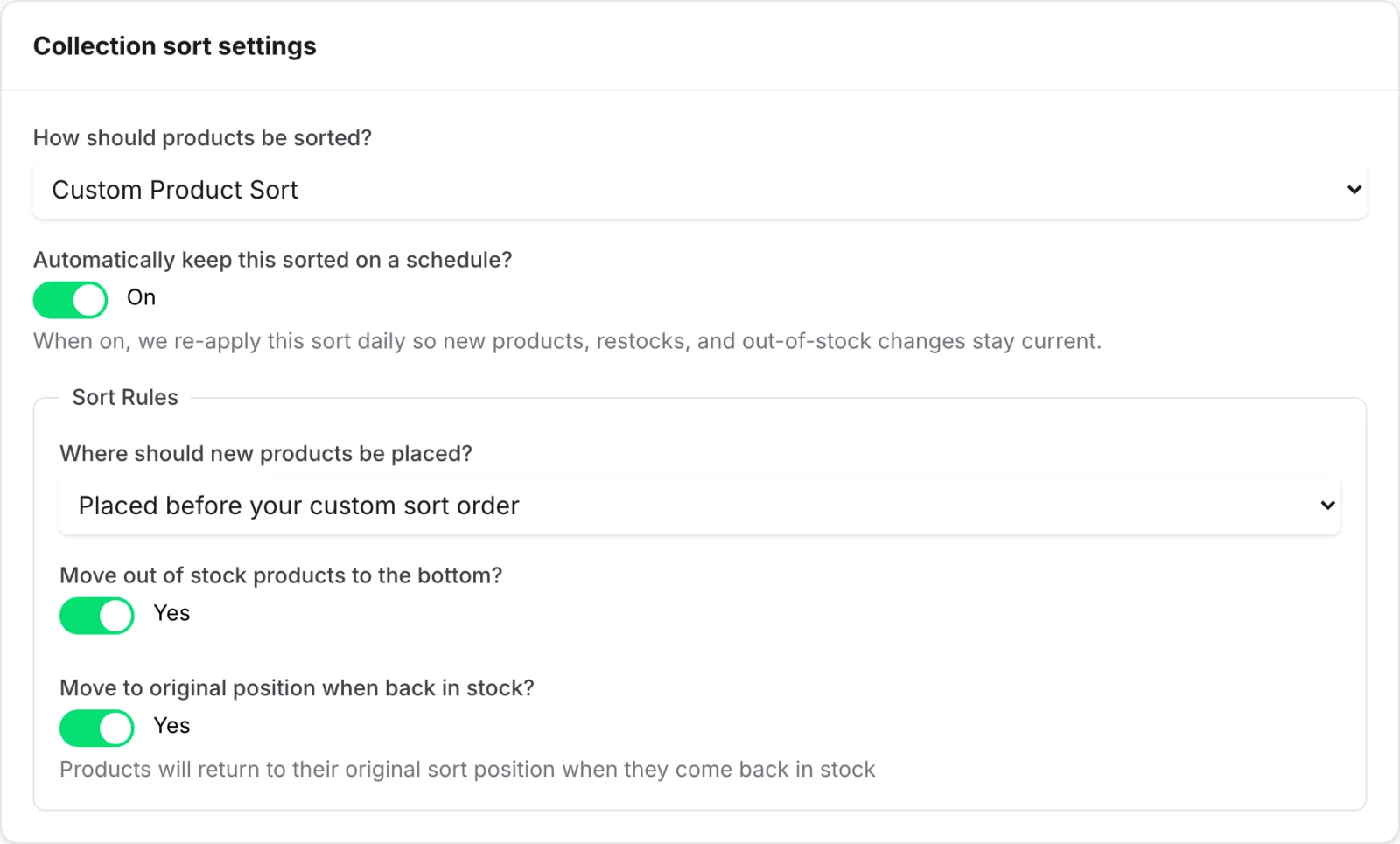
How should products be sorted? Choose Custom Product Sort to set the order yourself, or Property Sort to let Magic Sorter order products by a rule.
-
Set the options. For a property sort, pick the rule. For a custom sort, set the Sort Rules (see Settings).
-
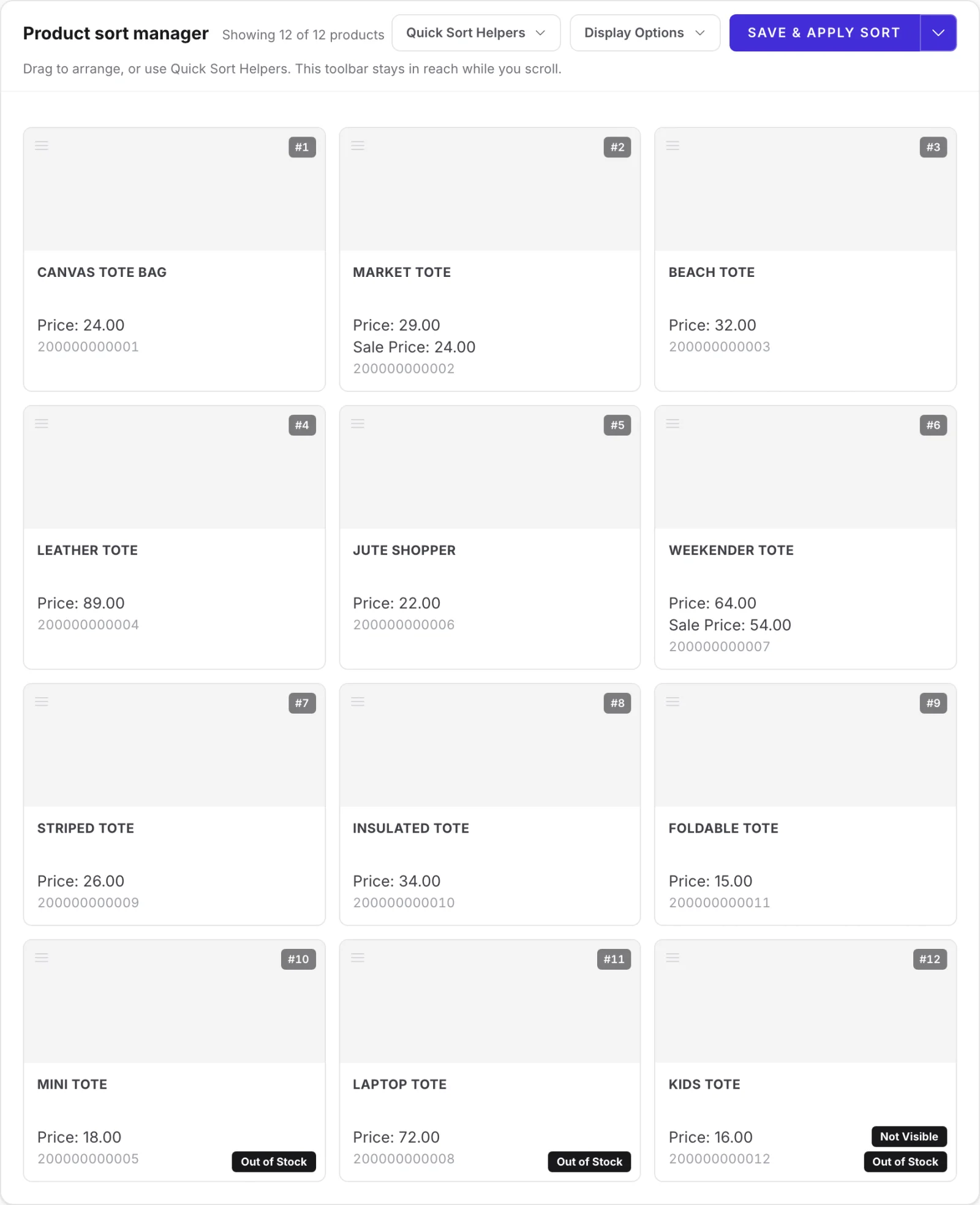
Arrange the products. For a custom sort, drag products into order in the Product sort manager grid, or use Quick Sort Helpers to reorder them all at once.
-
Save & apply sort. Click Save & apply sort. The order is queued and reaches your storefront within about a minute, and a backup is taken first.
To re-apply a collection's sort later without changing anything, click Run sort now at the top of the editor. It uses your current inventory, and a backup is taken first so you can undo it.
Settings
Sort type
- Custom Product Sort: you set the exact order by dragging.
- Property Sort: Magic Sorter orders products automatically by one of these rules, and re-applies it daily:
- Newest Products
- Oldest Products
- Name (A-Z)
- Name (Z-A)
- Price: Lowest to Highest
- Price: Highest to Lowest
- Inventory: Lowest to Highest
- Inventory: Highest to Lowest
Automatically keep this sorted on a schedule?
Turn this on to re-apply the collection's sort every day, so new products, restocks and out-of-stock changes stay current. See Automatic sorting and settings.
Sort Rules
Shown when the sort type is Custom Product Sort.
| Option | What it does |
|---|---|
| Where should new products be placed? | Placed before your custom sort order (the default) or Placed at the end of your custom sort order. |
| Move out of stock products to the bottom? | Moves out-of-stock products to the bottom of this collection each time its sort runs. Available on every plan. See Out-of-stock products. |
| Move to original position when back in stock? | Shown when the option above is on. A product that comes back in stock returns to its original place the next time the sort runs. |
Quick Sort Helpers
Shown when the sort type is Custom Product Sort. Use them to rearrange every product at once instead of dragging cards one by one.
-
Quick Sort Products By: apply a property sort (Newest, Price, Name and so on) once as a starting point, then fine-tune by dragging.
-
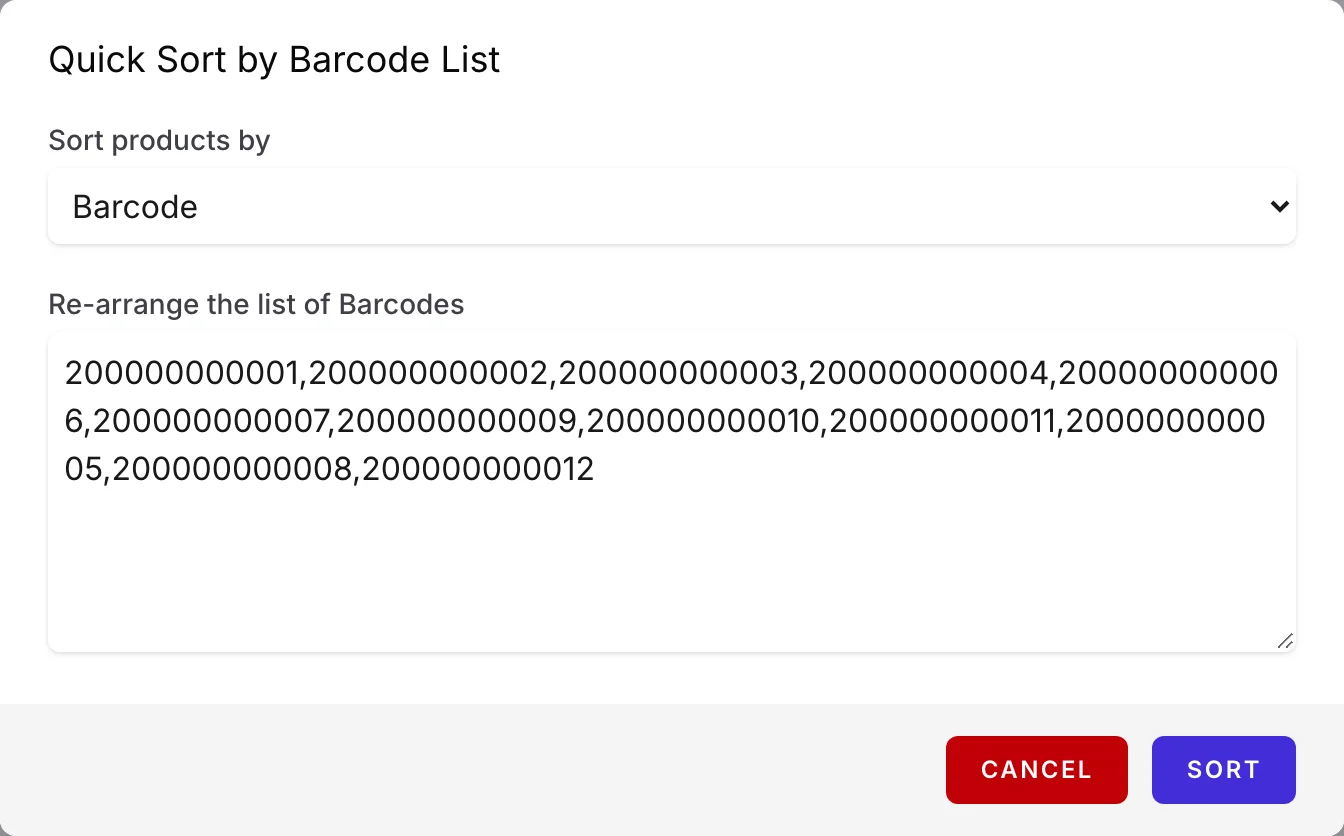
Quick Sort by Barcode / Handle List: paste an ordered, comma-separated list of barcodes or product handles and Magic Sorter reorders the collection to match. Choose the identifier in the Sort products by dropdown; Barcode is the default, and a product with no barcode uses its SKU instead. The list starts filled in with the current order so you can rearrange it in place, and switching the identifier rewrites the list in that format. Products that aren't in your list keep their order, after the ones that are.
Display Options
These change only how products appear in the editor, not your live store.
- Product Columns: choose how many columns the grid uses.
- Out of Stock Products and Not Visible Products: show or hide them in the grid.
The product grid
- Each product is a card you can drag, showing its thumbnail, name, barcode, price and inventory. Drag one card, or select several and drag them together.
- Large collections are split into pages (see Product pagination). Drag-and-drop works across pages.
Make sure your storefront shows your sort
A custom sort only shows when the collection's sort is set to Manually in Shopify. Magic Sorter sets this for you whenever a custom sort runs. If someone changes the collection's sort in Shopify, your custom order stays hidden until the sort next runs.
Troubleshooting and FAQ
I saved a sort but the storefront hasn't changed yet
Sorts are queued and usually apply within about a minute. Wait a moment, then refresh your storefront.
The storefront doesn't match the order in Magic Sorter
Check that the collection's sort is set to Manually in Shopify, or click Run sort now to set it again. See Make sure your storefront shows your sort.
The editor is slow on a huge collection
Turn on pagination in Settings and choose a threshold and page size that suit your catalog. See Product pagination.