
Backups and Snapshots in Magic Sorter for Shopify
What it does
Magic Sorter backs up a collection every time its sort runs, so you can undo a result. You can also save a collection's order as a named snapshot, such as Summer Sale or Christmas, re-apply it whenever you like, and schedule it to apply on a date.
Before you start
- Open the collection's Sort Editor from Sort Products. Its Snapshots and Backups tabs are next to Sort & products.
- How many snapshots and schedules you can keep, and how long backups are kept, depends on your plan. See Plans and limits.
Step-by-step
Undo a sort
-
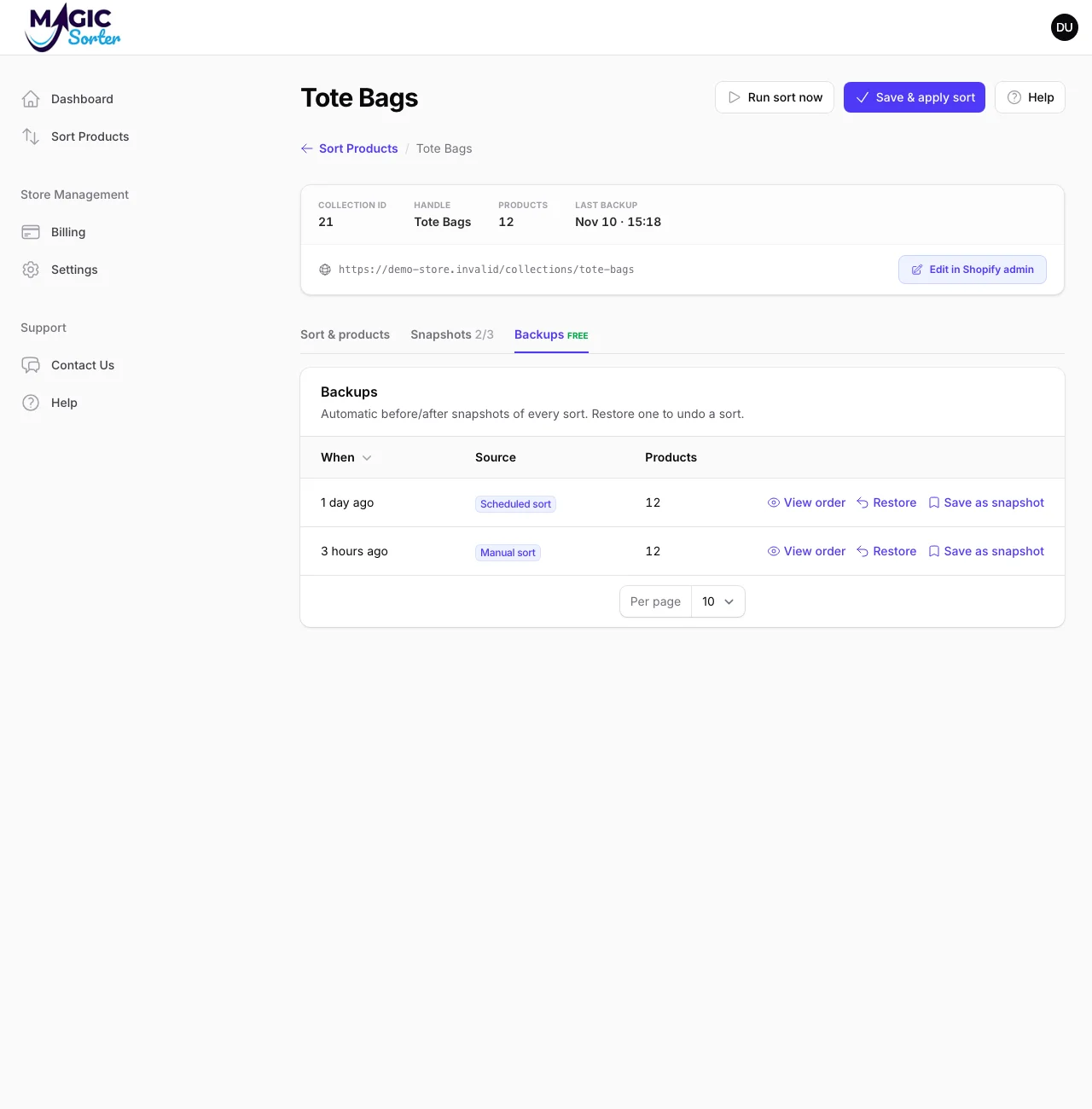
Backups. In the Sort Editor, open the Backups tab. It lists the automatic backups of every sort, with when each was taken.
-
View order. Check a backup's order first if you like.
-
Restore. Click Restore on the backup you want.
To undo just the last run, you can also use Restore last backup on the collection's row in Sort Products.
Note
A backup can't undo a collection's first save in Magic Sorter, because that backup doesn't hold the order from before Magic Sorter.
Save a snapshot
- Arrange the collection. Get the order you want to keep in the Sort Editor.
- More save options. Next to Save & apply sort, open More save options and choose Create snapshot. Give it a name.
You can also save a snapshot from the Backups tab (Save as snapshot), or for several collections at once with the Create snapshot bulk action in Sort Products.
Re-apply or schedule a snapshot
-
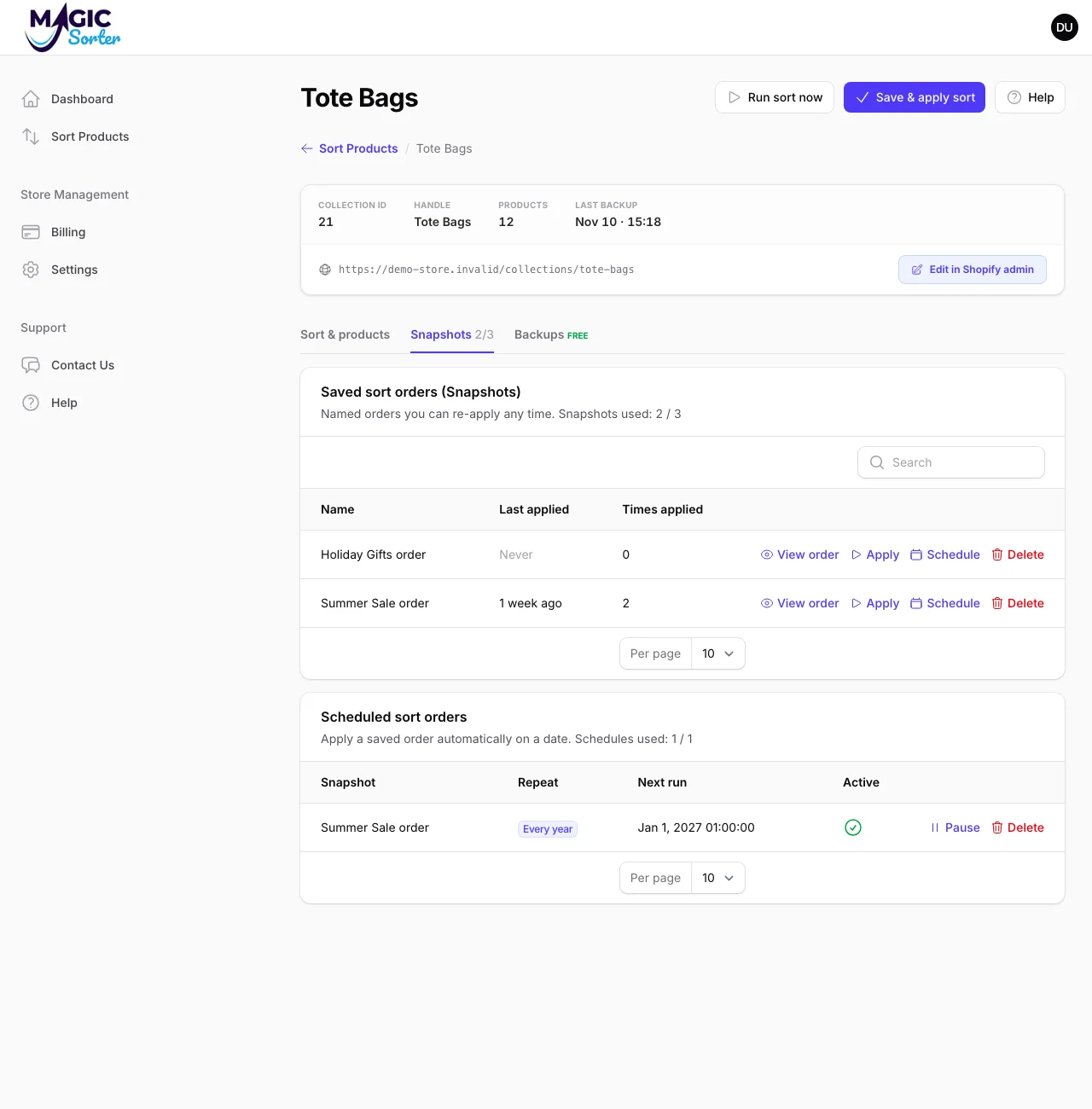
Snapshots. Open the Snapshots tab. Saved sort orders (Snapshots) lists your snapshots, how many times each was applied and when.
-
Apply. Click Apply to put that order back now.
-
Schedule. Or click Schedule, then choose Repeat (Once, Every year, Every month, Every week or Every day), the date and time to Apply on, and the Timezone.
Schedules are listed under Scheduled sort orders, with their next run. Pause a schedule to stop it without deleting it, and Resume it later.
Tip
Save a Black Friday snapshot, then schedule it to apply every year on your sale date. Magic Sorter puts that exact layout back for you each year.
Reference
| What it is | Kept | |
|---|---|---|
| Backup | Taken automatically every time a collection's sort runs | For a number of days and a number per collection, set by your plan |
| Snapshot | A named order you save yourself | Until you delete it; how many you can have per store is set by your plan |
| Scheduled sort | A snapshot set to apply on a date, once or repeating | How many you can have per store is set by your plan |
Troubleshooting and FAQ
I don't like the result of a sort
Use Restore last backup in Sort Products, or restore a backup from the Backups tab. This can't undo a collection's first save.
I can't create another snapshot or schedule
You've reached your plan's limit, and the editor says so. Delete a snapshot or schedule you no longer need, or upgrade. See Plans and limits.