
Missing Data Finder for Shopify
What it does
Missing Data Finder scans your Shopify catalog and flags products, and their variants, that are missing important information or have data that looks wrong. You choose which products to check and which problems to look for, and the tool produces a downloadable report listing every problem it found.
The scan runs in the background. When it finishes, the report is ready to download, and you can have it emailed to you.
Use it:
- Before launching a new sales channel, ad campaign or feed (Google Shopping, marketplaces) where missing fields get products rejected.
- As a regular catalog health check.
- After a bulk import or migration, to confirm nothing was dropped.
- When you suspect pricing mistakes, duplicate SKUs or missing alt text.
Before you start
- Your Shopify store must be connected.
- Decide which products to check: everything, or a narrower set (a collection, or a handle, type, vendor, tag, status or stock level).
- Have an email address ready if you'd like to be told when the report is done.
Step-by-step
-
Open Missing Data Finder. Choose the Missing Data Finder tool from your Shopify tools.
-
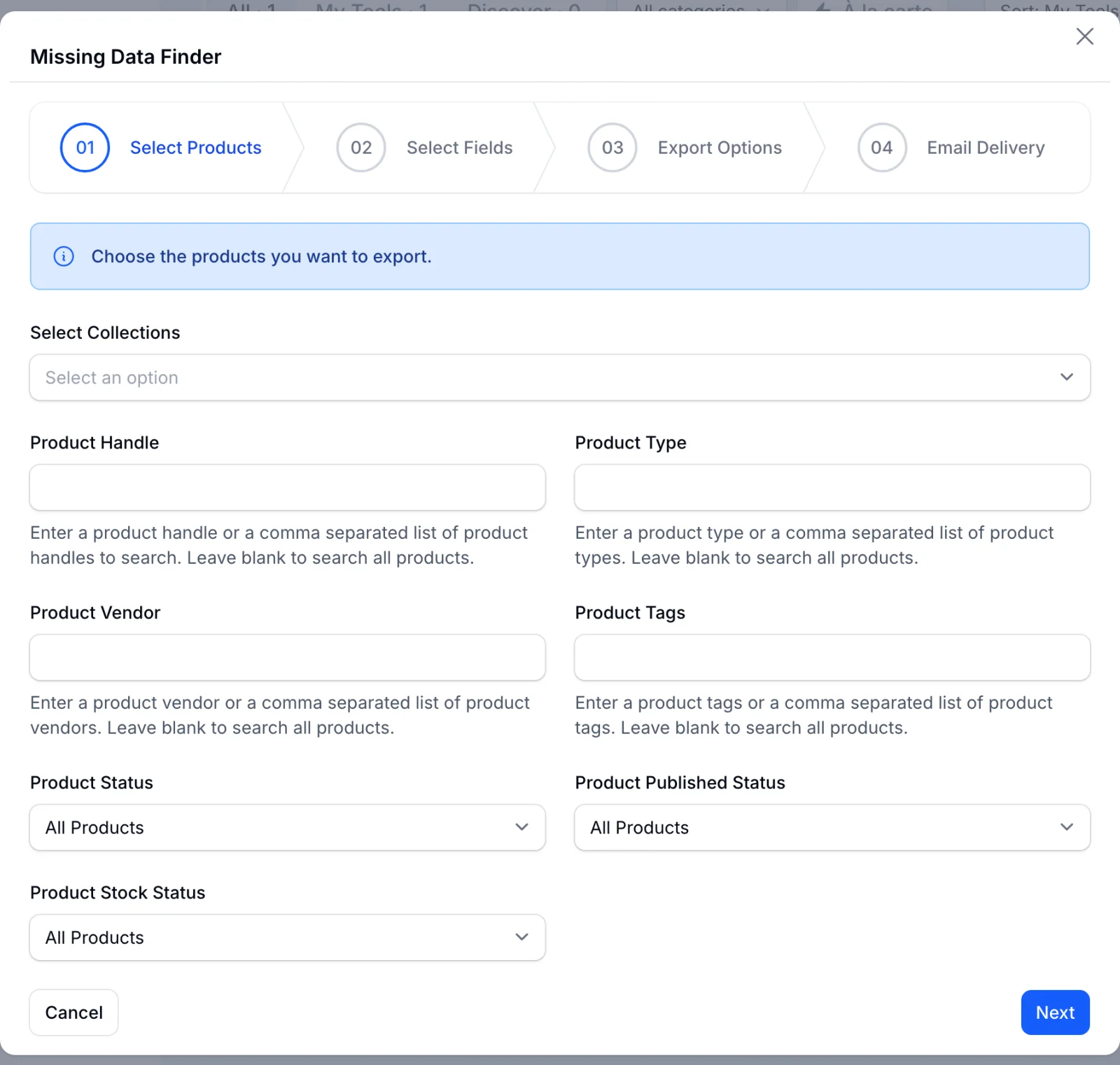
Select Products. Pick a collection in Select Collections, or narrow things down with the filters:
- Product Handle: one handle, or a comma-separated list. Leave blank for all products.
- Product Type: one type, or a comma-separated list.
- Product Vendor: one vendor, or a comma-separated list.
- Product Tags: one tag, or a comma-separated list.
- Product Status: Active, Archived or Draft (all by default).
- Product Published Status: Published or Unpublished (all by default).
- Product Stock Status: Out of Stock or In Stock products (all by default).
Note
When you pick a collection, the other filters are hidden: the scan covers that collection's products.
-
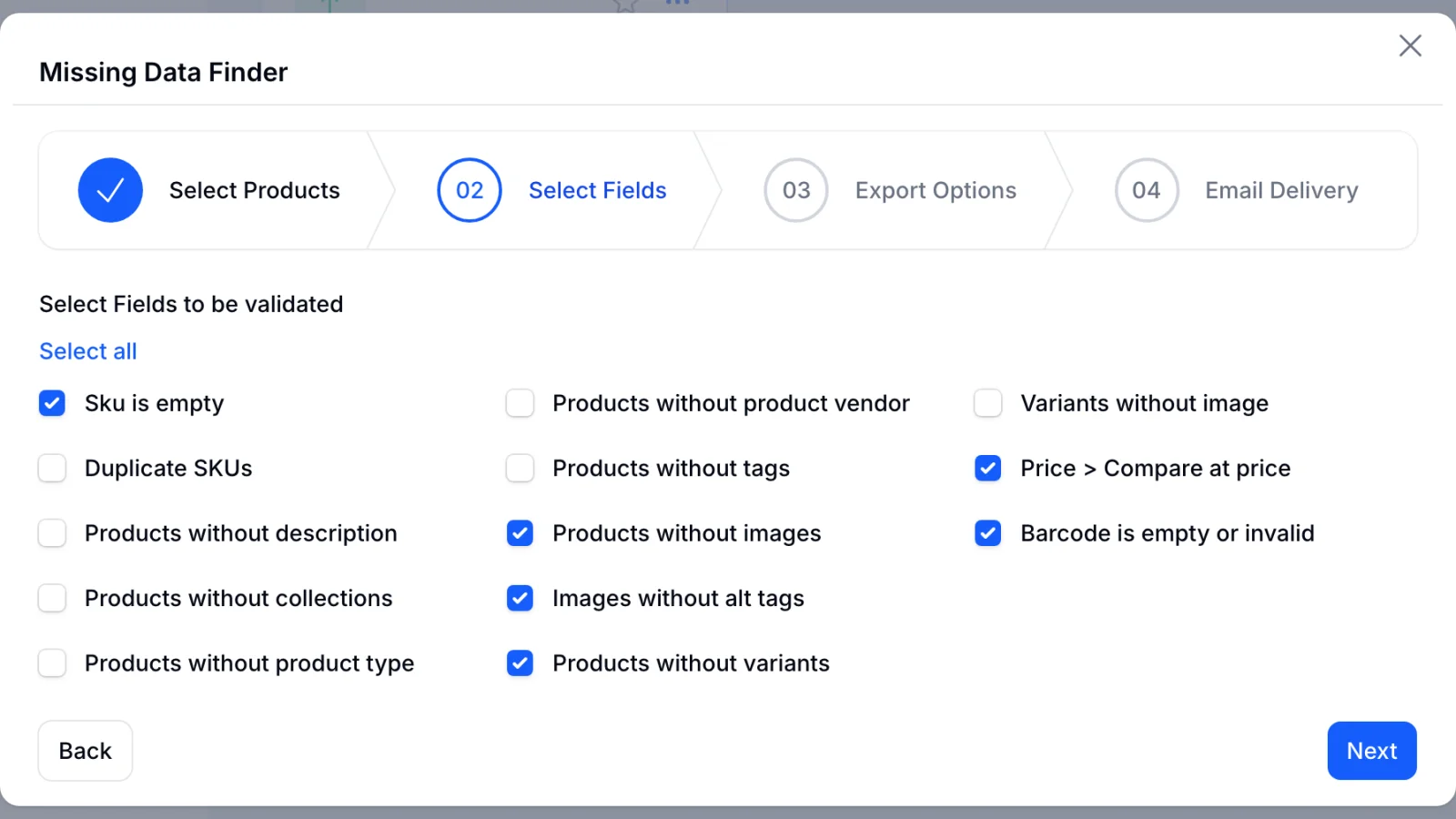
Select Fields. Under Select Fields to be validated, tick the checks you want to run (see the Reference). Tick as many as you like, or select them all at once. A starter set is ticked for you.
-
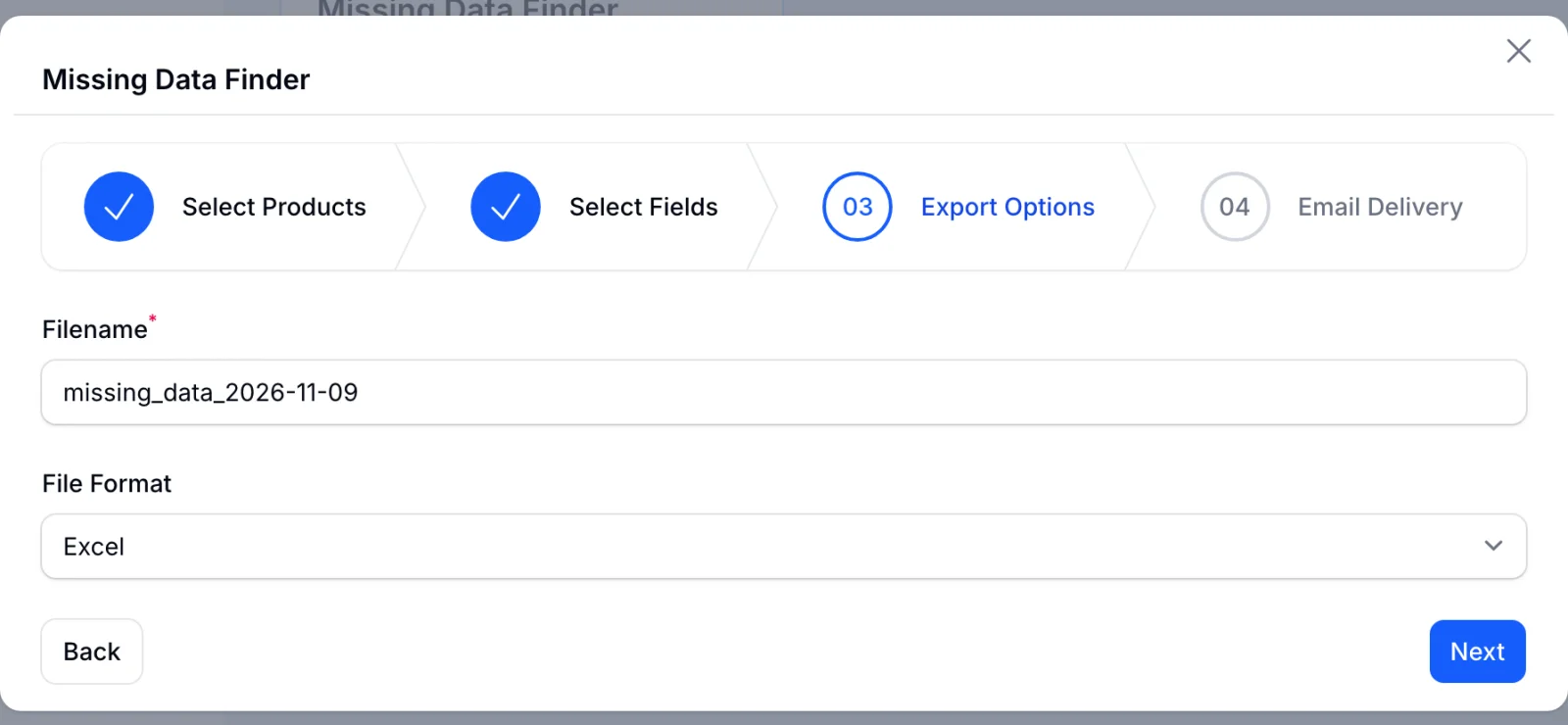
Export Options. Enter a Filename (a name with today's date is filled in for you) and choose a File Format: CSV or Excel (Excel is the default).
-
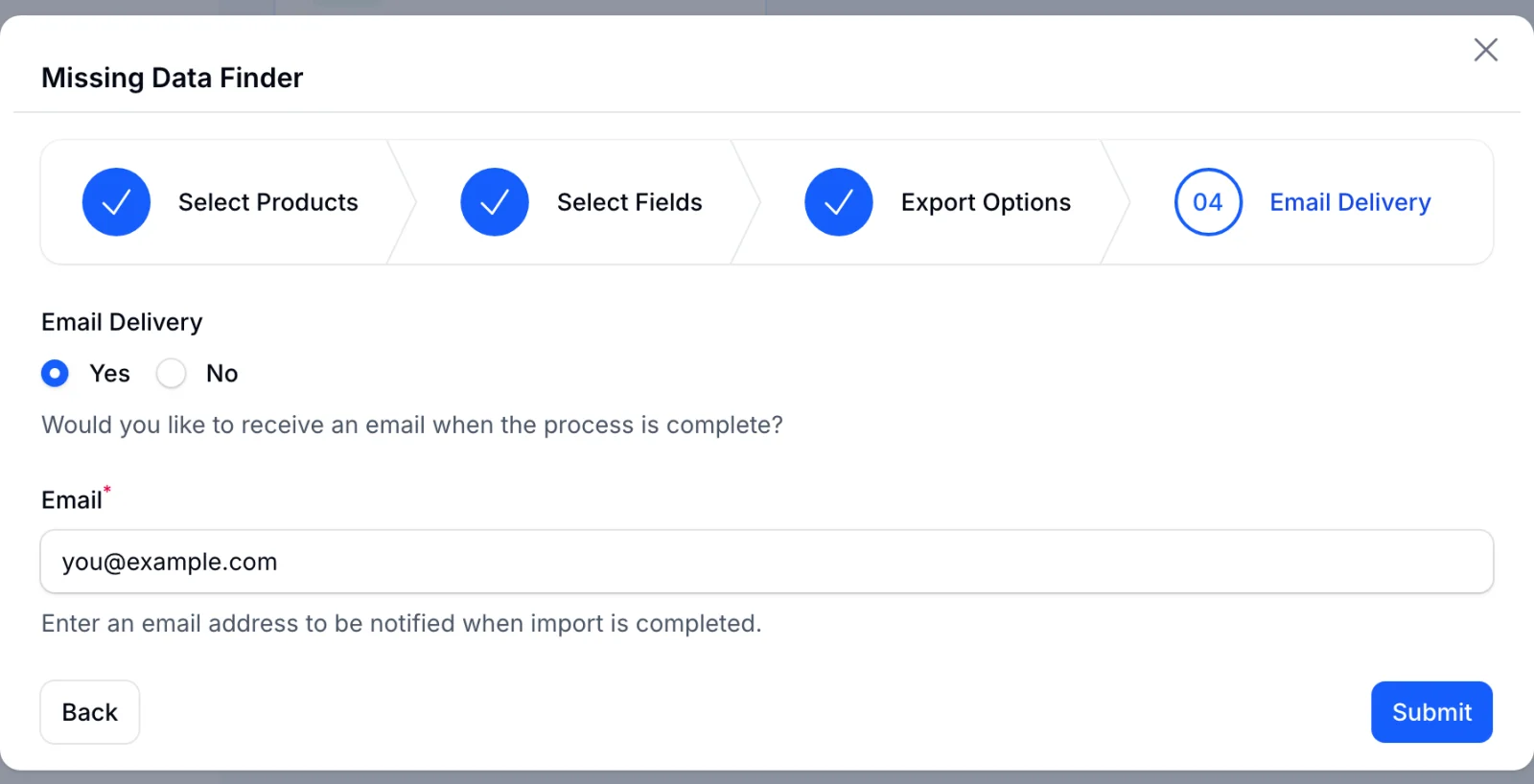
Email Delivery. The download link is emailed to you when the report is ready. Your account email is filled in; change it, or choose No if you don't want the email.
-
Start the scan. It runs in the background, so you don't need to keep the page open.
-
Download your report. Download it from the tool when it's done, or from the link in the email.
Reference
The checks
| Check | What it flags |
|---|---|
| Sku is empty | Variants with no SKU. |
| Duplicate SKUs | The same SKU on more than one variant (ignoring upper and lower case and extra spaces). Every variant that shares the SKU is listed. |
| Products without description | Products with an empty description. |
| Products without collections | Products that aren't in any collection. |
| Products without product type | Products with a blank Product Type. |
| Products without product vendor | Products with a blank Vendor. |
| Products without tags | Products with no tags. |
| Products without images | Products with no featured image. |
| Images without alt tags | Product images with no alt text (important for accessibility and SEO). |
| Products without variants | Products that only have Shopify's default variant, with no options. |
| Price > Compare at price | Variants whose price is higher than their compare-at price, which usually means a pricing mistake. |
| Barcode is empty or invalid | Variants with no barcode. |
For each product, the first 250 variants and the first 250 images are checked.
Report columns
Each problem found is its own row:
| Column heading | What it holds |
|---|---|
handle |
The product's handle. |
variant_title |
The affected variant, when the problem is on a variant. |
sku |
The SKU of the affected variant. |
field |
Which check or field the problem is about. |
additional_info |
Extra detail where there is some: for a missing alt text, the address of the image. |
error |
What's wrong, for example missing, duplicate, or the price and compare-at price that don't fit. |
The report is a CSV or Excel (.xlsx) file, as you chose on the Export Options step.
Troubleshooting and FAQ
I got "No Product Missing Data were found." and no report
No problems were found for the products and checks you chose. That's good news. If you expected results, widen your filters or tick more checks.
I didn't get the email
Check your spam folder, confirm the address on the Email Delivery step, and make sure delivery wasn't turned off. You can still download the report from the tool once it finishes.
The scan is taking a while
Large catalogs take longer. The scan runs in the background, so you can leave the page; you'll be emailed when it's ready unless you turned Email Delivery off.
I only want to check one collection
Pick the collection on the Select Products step. The other filters are hidden, because the collection decides which products are scanned.
I got an API permission error
This usually means the connection to Shopify needs to be authorized again. If it keeps happening, contact us from Contact Us in your dashboard and we'll help you fix it.
Tip
To find just the products or variants with no image, use Product Missing Images Finder.