
Product Missing Images Finder for Shopify
What it does
Product Missing Images Finder scans your Shopify catalog for products or variants that have no image, and produces a downloadable report so you can fix them quickly. Choose whether to check products or variants, narrow down which items to scan, and pick which details to include in the report.
The scan runs in the background. When it finishes, the report is ready to download, and you can have it emailed to you.
Use it:
- Before publishing or advertising your catalog, so customers never land on a product with no photo.
- After a bulk import or migration, to catch items that came across without images.
- When preparing product feeds (Google Shopping, marketplaces) that reject items without images.
- As a regular check to keep your storefront looking complete.
Before you start
- Your Shopify store must be connected.
- Decide whether to check Products or Variants.
- Decide which items to scan: everything, or a narrower set (collection, type, vendor, tag, status, stock, SKU or product ID).
- Have an email address ready if you'd like to be told when the report is done.
Step-by-step
-
Open Product Missing Images Finder. Choose the tool from your Shopify tools.
-
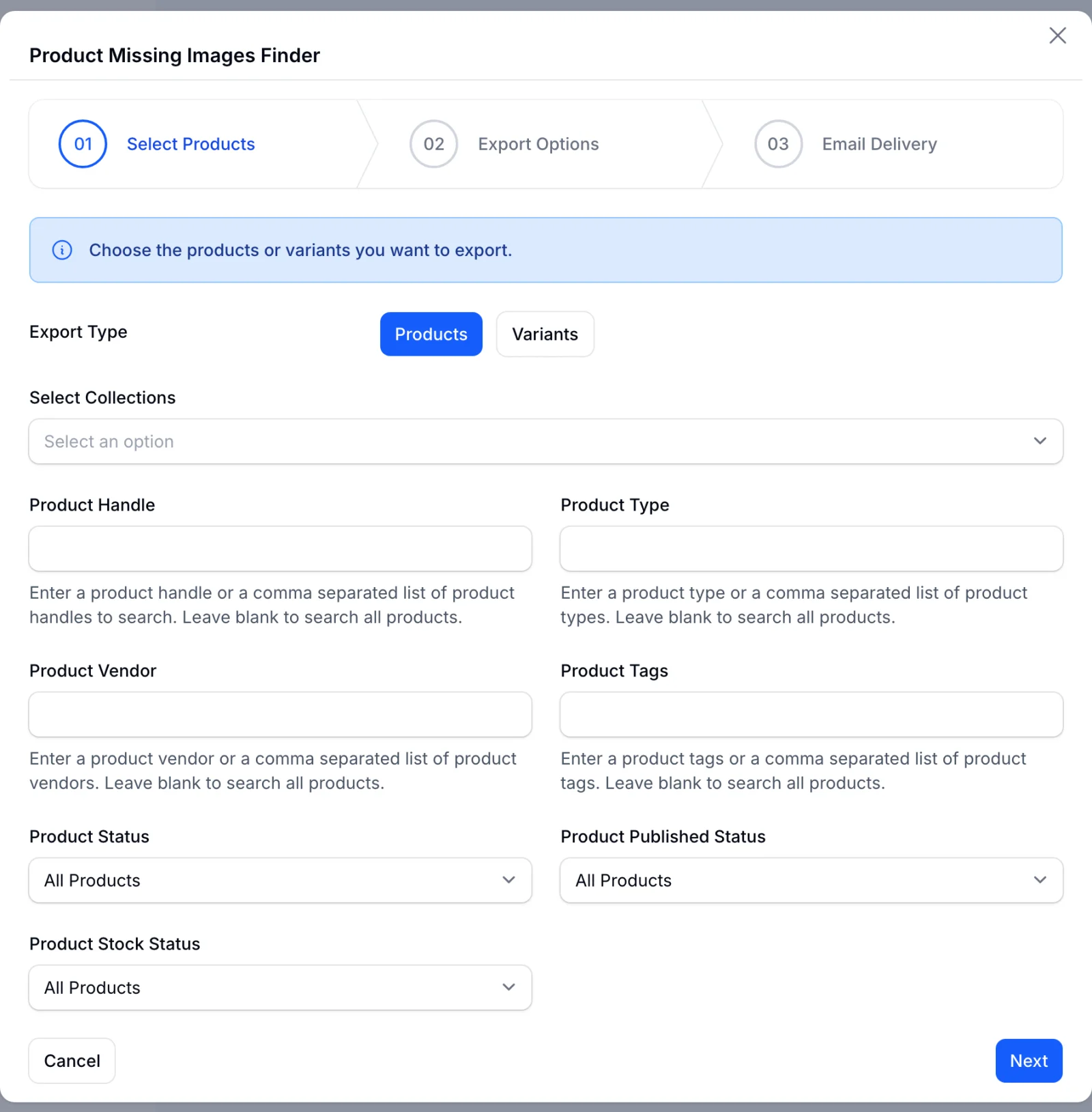
Select Products. First choose an Export Type:
- Products: find products with no image.
- Variants: find variants with no image.
The filters change depending on your choice.
For Products, pick a collection in Select Collections, or use these filters:
- Product Handle, Product Type, Product Vendor and Product Tags: one value or a comma-separated list; leave blank for all.
- Product Status: Active, Archived or Draft.
- Product Published Status: Published or Unpublished.
- Product Stock Status: Out of Stock or In Stock products.
When you pick a collection, the other product filters are hidden.
For Variants, pick one or more collections in Select Collections, or use:
- Product ID: comma-separated product IDs, to scan only those products' variants; blank for all.
- Variant SKU: comma-separated SKUs; blank for all variants.
- Variant Stock Status: Out of Stock or In Stock variants.
- Product Type, Product Vendor and Product Tags: one value or a comma-separated list; blank for all.
- Product Status: Active, Archived or Draft.
- Product Published Status: Published or Unpublished.
-
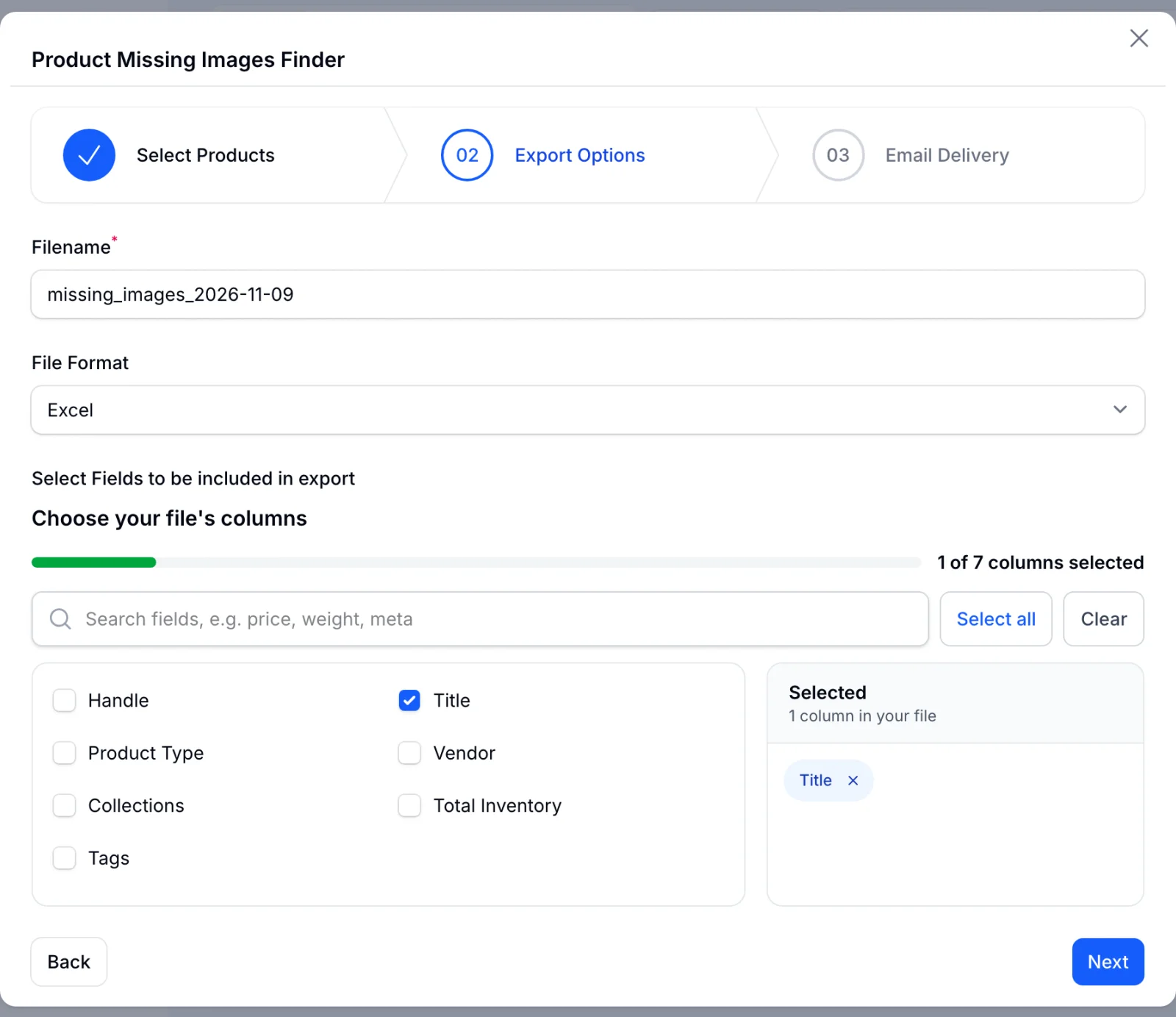
Export Options.
- Enter a Filename (a name with today's date is filled in for you).
- Choose a File Format: CSV or Excel (Excel is the default).
- Tick the columns you want under Select Fields to be included in export. The columns depend on whether you're exporting products or variants (see the Reference). Title is ticked by default.
-
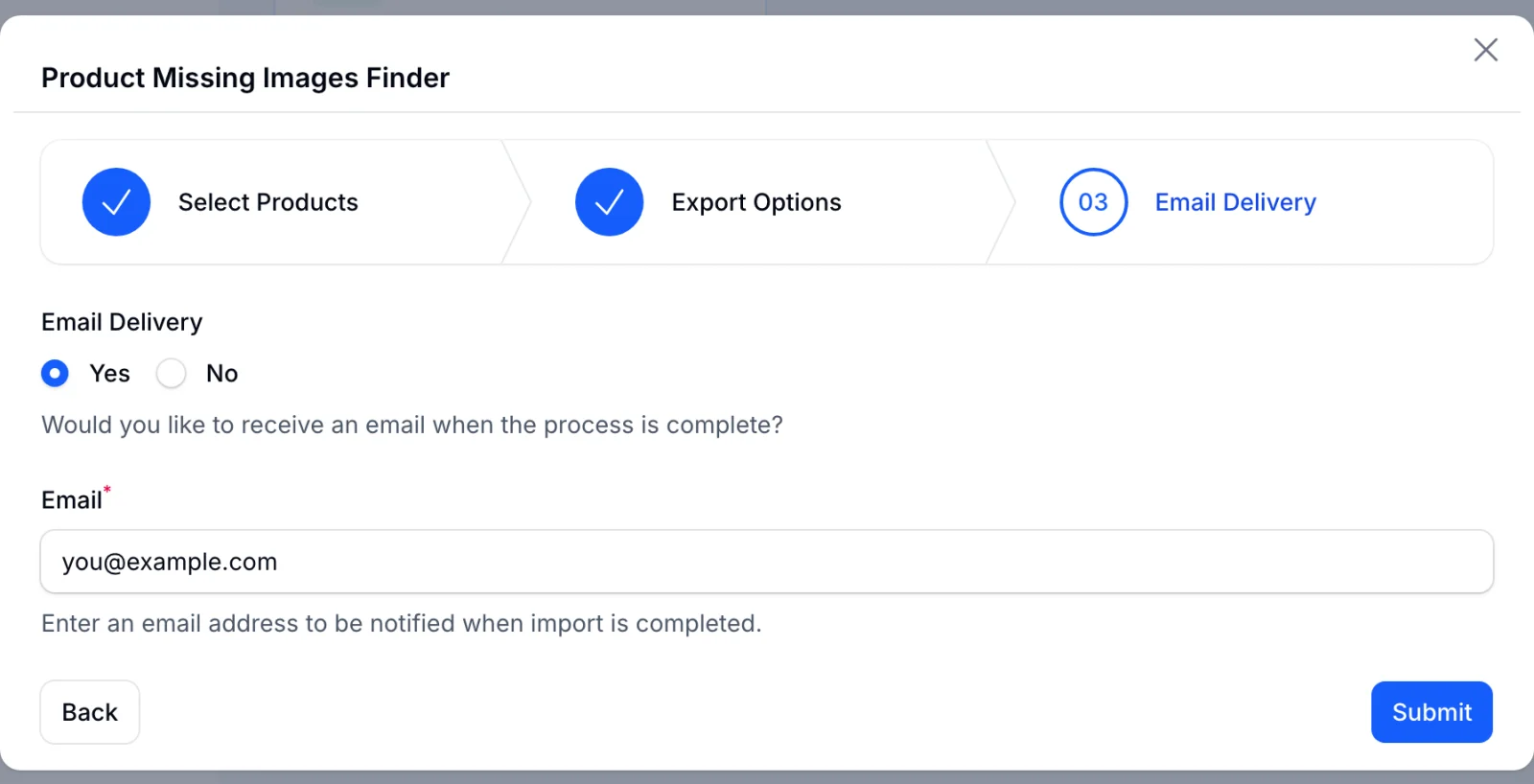
Email Delivery. The download link is emailed to you when the report is ready. Your account email is filled in; change it, or choose No if you don't want the email.
-
Start the scan. It runs in the background, so you don't need to keep the page open.
-
Download your report. Download it from the tool when it's done, or from the link in the email.
Reference
The report lists every product with no media at all, or every variant with no image of its own, among the items matching your filters. Only the columns you tick appear.
When exporting products:
| Field | Column heading | What it holds |
|---|---|---|
| Handle | handle |
The product's handle. |
| Title | title |
The product's title. |
| Product Type | productType |
The product's type. |
| Vendor | vendor |
The product's vendor. |
| Collections | collections |
The handles of the collections the product is in, separated by commas. |
| Total Inventory | totalInventory |
Total stock for the product. |
| Tags | tags |
The product's tags, separated by commas. |
When exporting variants:
| Field | Column heading | What it holds |
|---|---|---|
| SKU | sku |
The variant's SKU. |
| Title | title |
The variant's title. |
| Display Name | displayName |
The variant's full display name. |
| Barcode | barcode |
The variant's barcode. |
| Inventory Quantity | inventoryQuantity |
Stock on hand for the variant. |
| Options | selectedOptions |
The variant's options, for example Size:Large, Color:Blue. |
The report is a CSV or Excel (.xlsx) file, as you chose on the Export Options step.
Troubleshooting and FAQ
I got "No Products Missing Images were found." and no report
Nothing matched: every product (or variant) in your selection already has an image. Widen your filters, or switch between Products and Variants.
Should I check Products or Variants?
Use Products to find listings with no image at all. Use Variants to catch individual variants (sizes, colors) that are missing their own image, even if the product has one.
I didn't get the email
Check your spam folder, confirm the address on the Email Delivery step, and make sure delivery wasn't turned off. You can still download the report from the tool once it finishes.
The scan is taking a while
Large catalogs take longer. The scan runs in the background, so you can leave the page; you'll be emailed when it's ready unless you turned Email Delivery off.
The columns changed when I switched export type
That's expected. Products and variants offer different fields, and switching resets your selection.
I got an API permission error
This usually means the connection to Shopify needs to be authorized again. If it keeps happening, contact us from Contact Us in your dashboard and we'll help you fix it.
Tip
To check for other missing information as well as images, use Missing Data Finder.