
Price List Bulk Pricing Updater for BigCommerce
What it does
Price List Bulk Pricing Updater sets the quantity-break pricing tiers inside your BigCommerce price lists. Price lists give different prices to different customer groups; this tool sets the bulk tiers within those lists from a spreadsheet. Upload a file, match your columns, and the tool updates each price list record to match.
Use it when:
- You run customer-group or wholesale pricing through price lists and want to update quantity breaks in bulk.
- You exported your price list bulk pricing with Export Price List Bulk Pricing, edited it, and want to send it back.
Note
This tool changes tiers inside a price list. To change bulk pricing set directly on the product, use the Bulk Pricing Updater.
Before you start
- The price list must already exist in BigCommerce. Rows naming a price list that isn't found are reported as errors.
- Each SKU must already have a price in that price list before you can add bulk tiers to it. If it doesn't, the row is reported as an error; set a price for it first, for example with the Price List Updater.
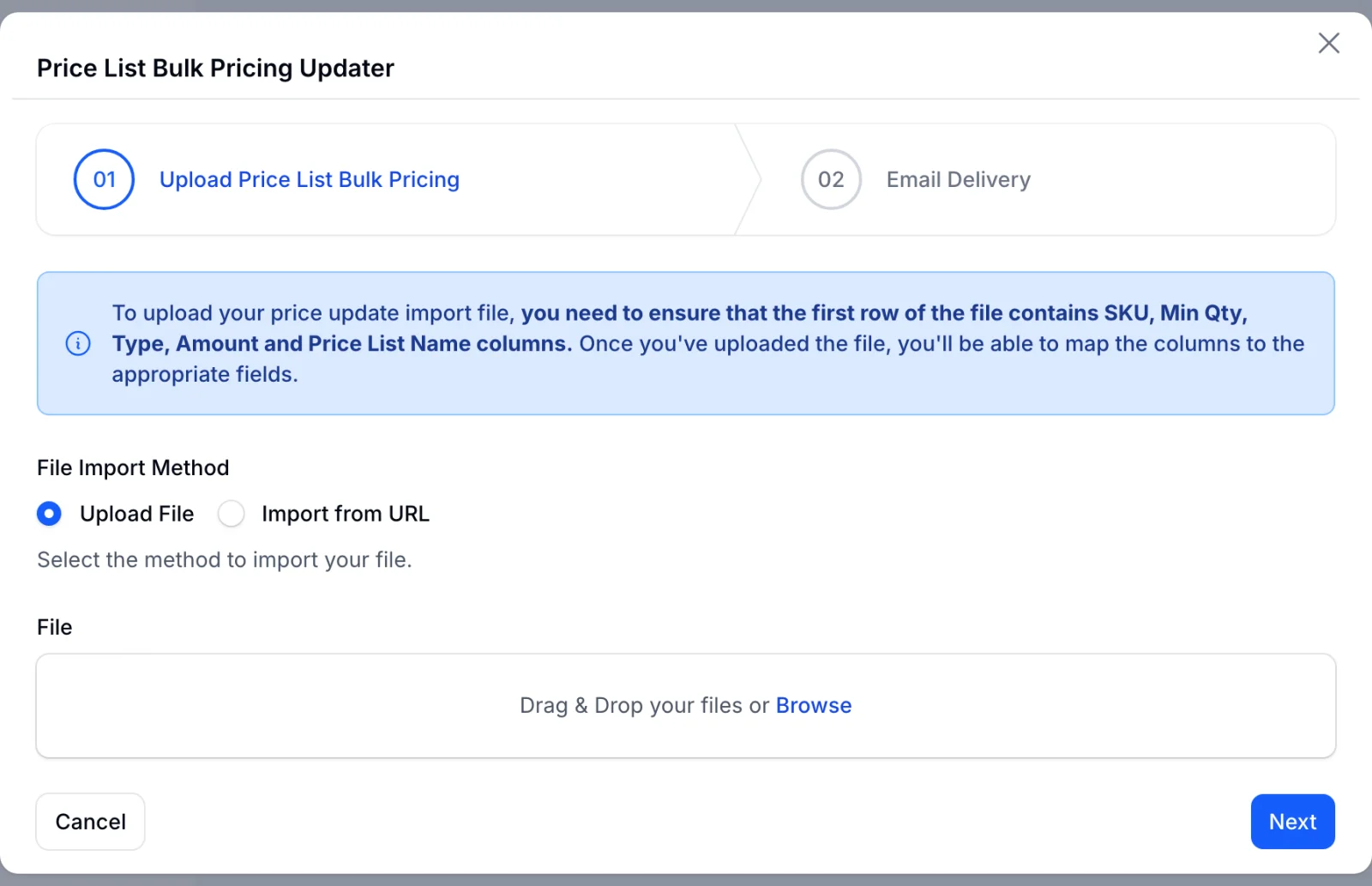
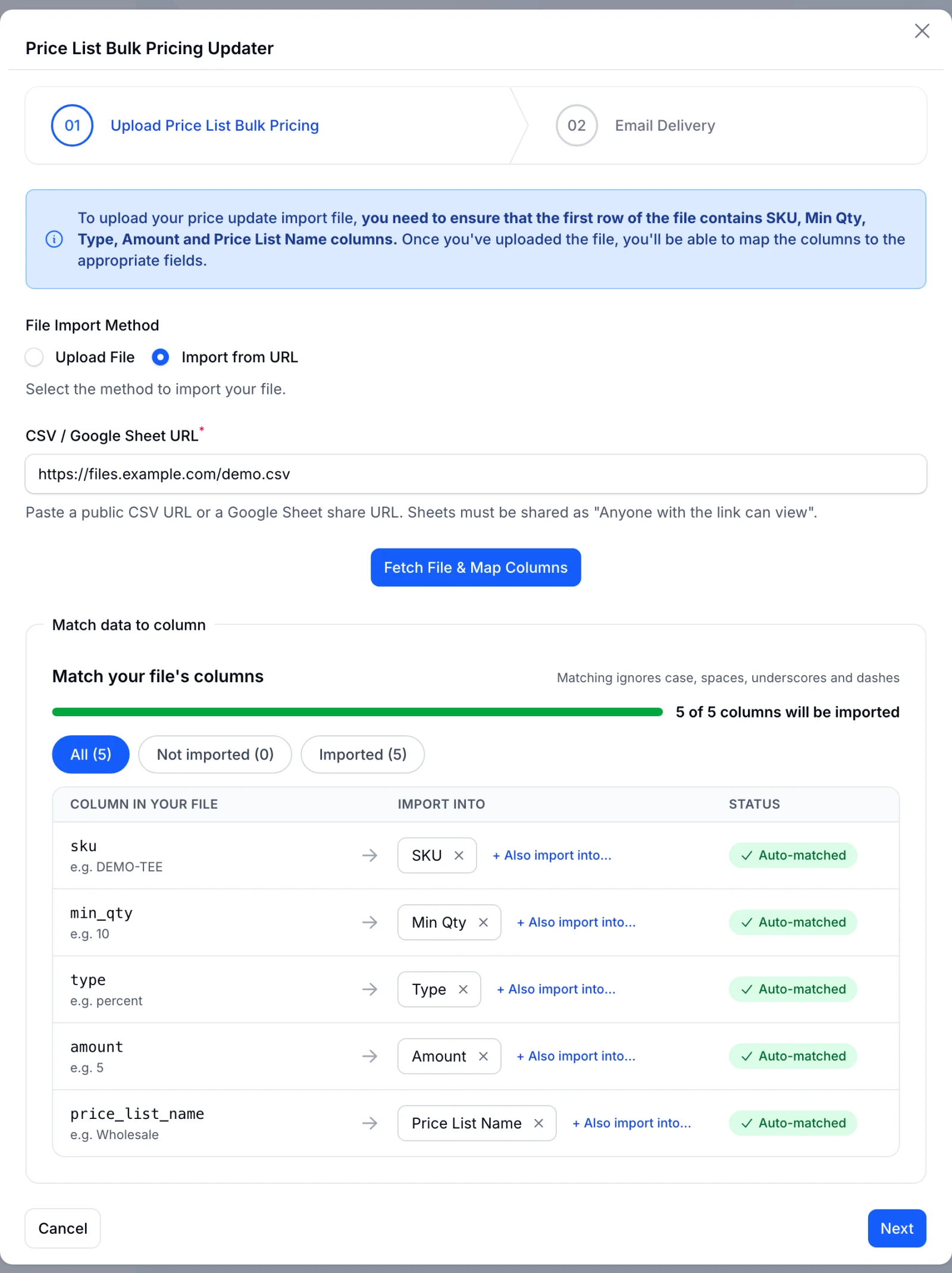
- A CSV or Excel (.xlsx) file, or a link to a CSV file or Google Sheet, whose first row has the column names, including SKU, Min Qty, Type, Amount and Price List Name. Older .xls files aren't supported.
- For each SKU and price list, put all the tiers you want in the file: the file's tiers are what the tool sends.
Step-by-step
-
Open Price List Bulk Pricing Updater. Choose the tool from your dashboard.
-
Upload Price List Bulk Pricing. Choose Upload File or Import from URL and add your file.
-
Match your file's columns. Match your columns to SKU, Min Qty, Type, Amount and Price List Name. Columns with those names are matched for you.
-
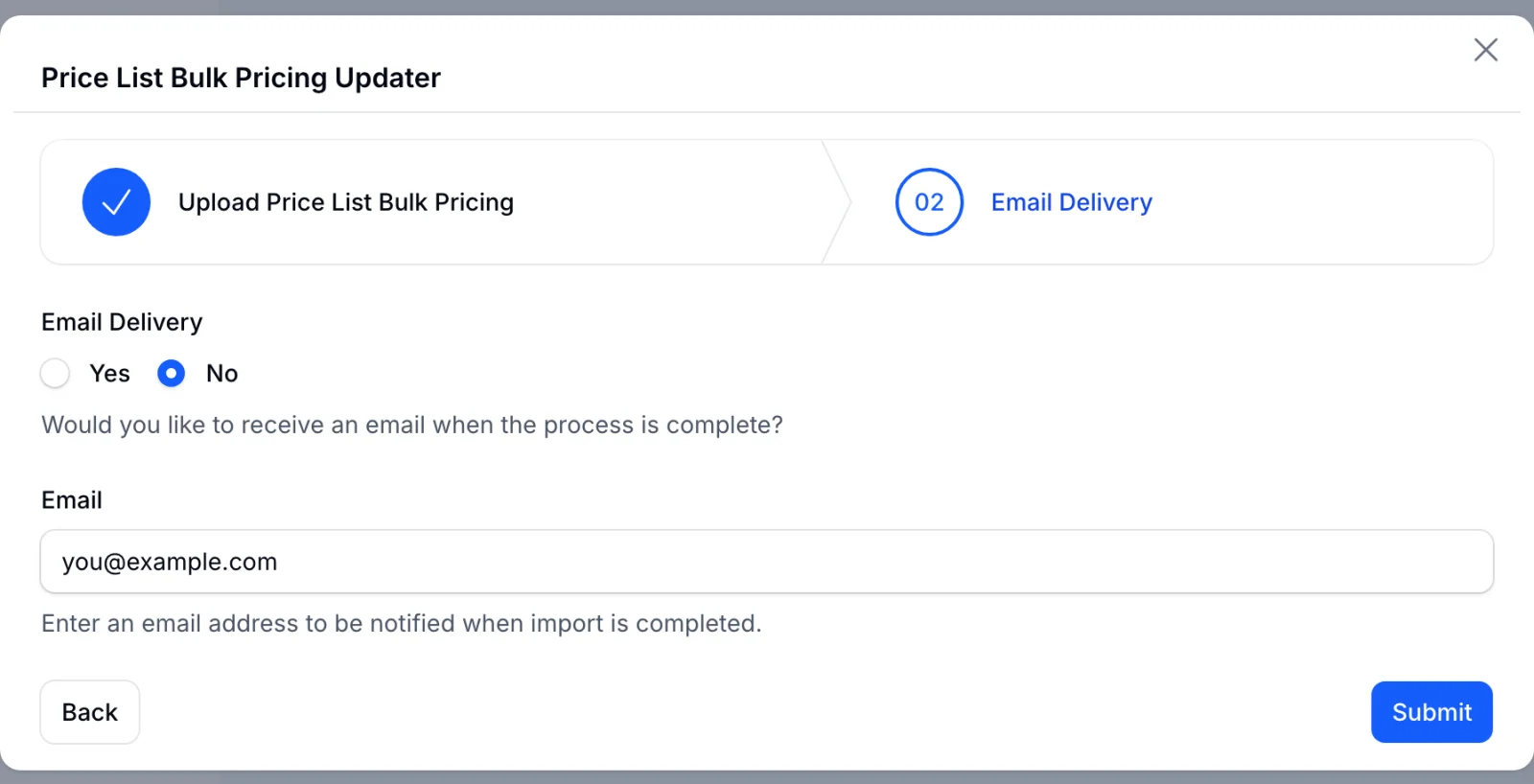
Email Delivery. Choose Yes to get an email when the update finishes; your account email is filled in.
-
Submit. You'll see "Import has been Queued". The update runs in the background. Rows that couldn't be processed are listed under Download Errors on the notification (and in the email, if you chose one).
Reference
All five fields are required.
| Field | Notes |
|---|---|
| SKU | The SKU. Must already have a price in the named price list. |
| Min Qty | A whole number: the quantity where this tier starts. Each tier's maximum is set for you from the next tier's Min Qty. |
| Type | price, percent or fixed, in lower case. BigCommerce defines them as: price, the adjustment amount per product; percent, the adjustment as a percentage of the original price; fixed, the adjusted absolute price of the product. |
| Amount | The tier's value. Currency symbols, commas and spaces are removed for you. Enter delete to leave that tier out. |
| Price List Name | The name of the BigCommerce price list to update. Upper and lower case don't matter. |
How rows combine: rows are grouped by Price List Name, then by SKU, to build each record's set of tiers, ordered by Min Qty. If a SKU's tiers already match what's in BigCommerce, it's left unchanged.
Troubleshooting and FAQ
"Price List … not found in your store"
The Price List Name doesn't match a price list in BigCommerce. Check the name.
"In order to set a bulk price, a default price must first be set for the SKU: …"
That SKU has no price in the price list (or doesn't exist). Set a price for it first, for example with the Price List Updater, then run the update again.
"The selected type is invalid."
Type must be price, percent or fixed, in lower case.
Nothing changed for some SKUs
Their tiers already match what's in BigCommerce.
My file is too large
Your plan may limit how many rows you can import at once. If your file is over the limit, you'll see a message with your plan's maximum. Split the file, or upgrade your plan.
I got a permission error
Your store connection may be missing a permission the tool needs. Contact us from Contact Us in your dashboard and we'll help you fix it.