
Import Categories for BigCommerce
What it does
Import Categories adds new categories or updates existing ones in your BigCommerce store from a spreadsheet. Match the columns in your file to category fields, and the tool sends the changes to your store.
- Rows with an Id update the category with that ID.
- Rows with a blank Id create a new category.
The work runs in the background, so you can close the page after starting it. If any rows can't be saved, an errors file shows exactly what went wrong.
Use it when:
- You're setting up a store and want to add many categories at once.
- You need to bulk-edit categories: rename them, update SEO fields, reorder them and so on.
- You exported your categories with Export Categories, edited them in a spreadsheet, and want to send the changes back.
Before you start
- Prepare a CSV or Excel (.xlsx) file whose first row has the column names. You can also use a link to a CSV file or Google Sheet. Older .xls files aren't supported.
- Include an Id column. Leave the Id blank for categories you want to create; fill it in for categories you want to update.
- Plan your category structure. Use Parent Id to put a category under another one. Leave it blank to put a new category at the top level.
Step-by-step
-
Open Import Categories. Choose the Import Categories tool.
-
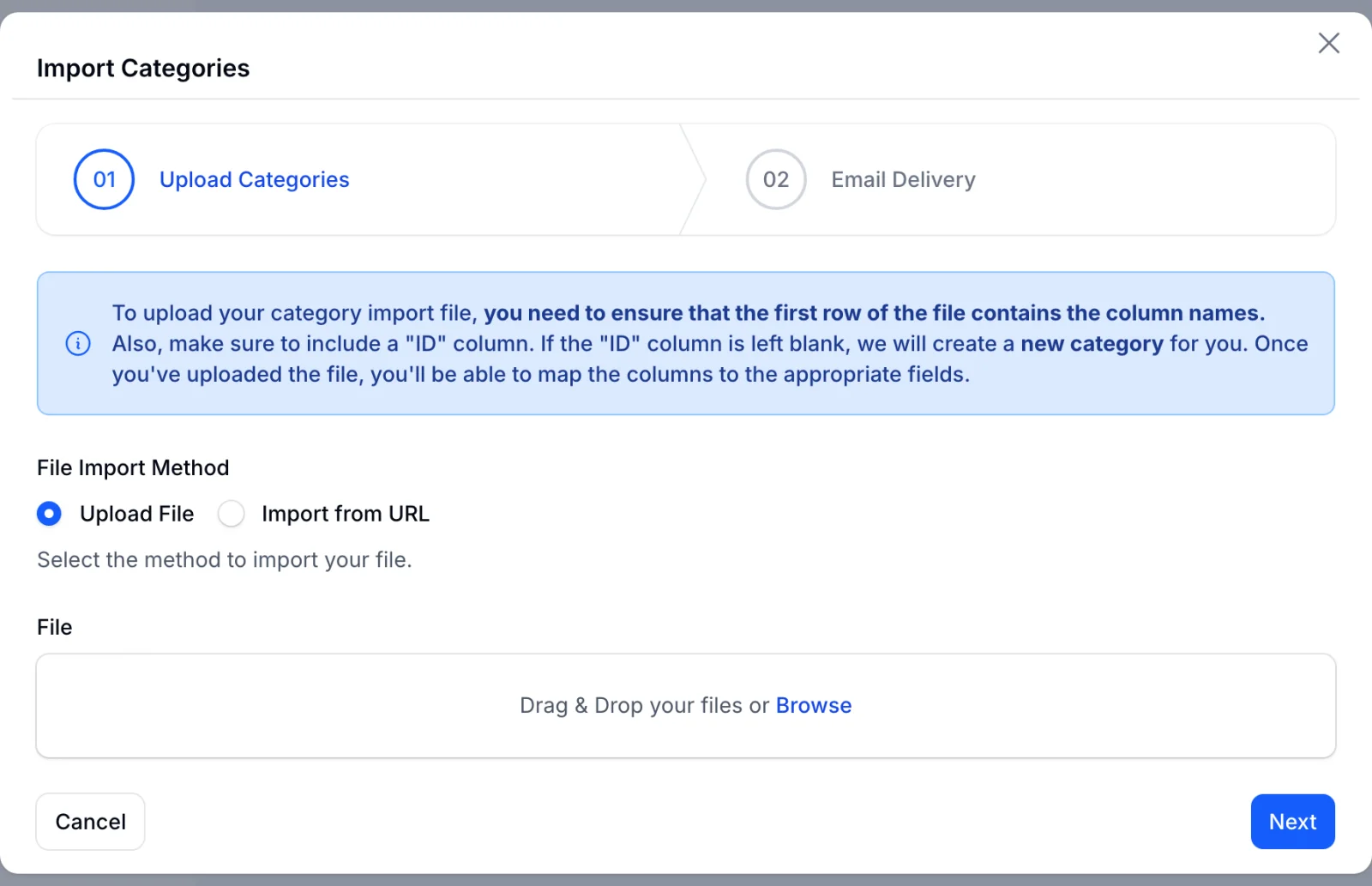
Upload Categories.
- If your store has more than one storefront, choose it in Select Storefront.
- Choose Upload File or Import from URL and add your file. The first row must be your column names.
-
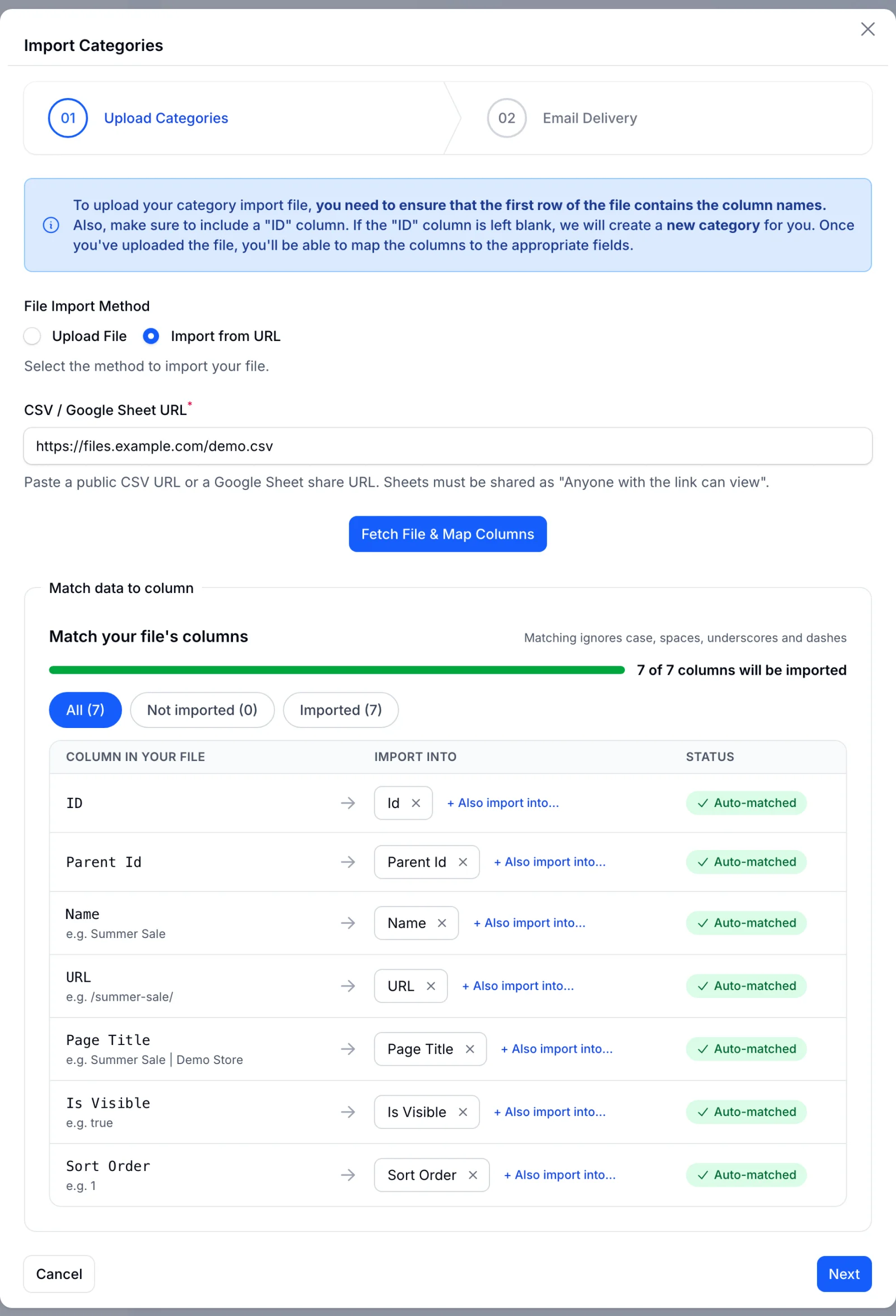
Match your file's columns. Each column in your file is listed with a sample value. Pick the matching category field for each one. Columns named like the fields (for example "Id", "Parent Id", "Name") are matched for you.
-
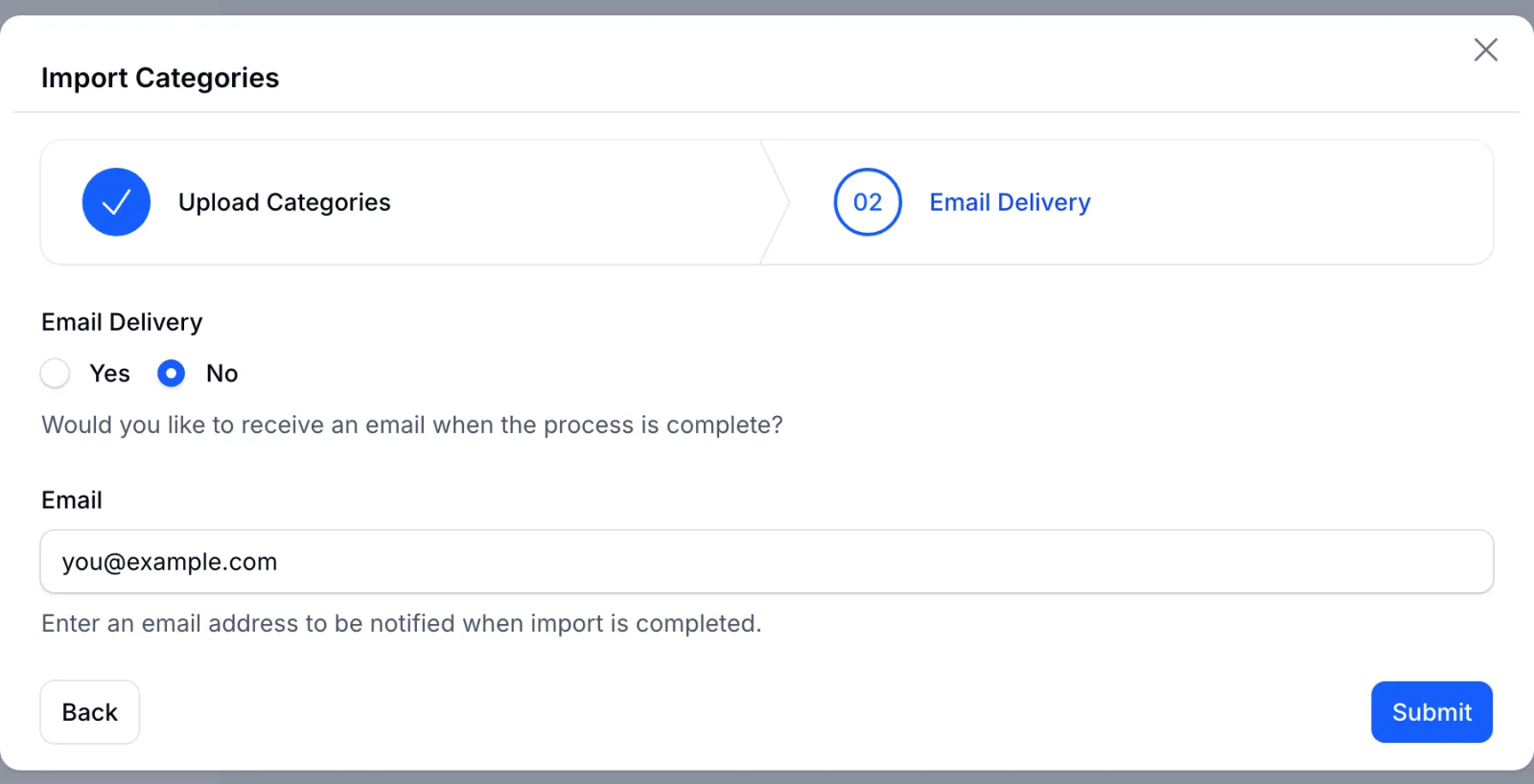
Email Delivery. Choose Yes to get an email when the import finishes; your email is filled in.
-
Submit. You'll see "Import has been Queued". The import runs in the background.
-
Check the result. If some rows failed, choose Download Errors on the notification (or in the email), fix those rows and import just them again.
Reference
All fields are optional, but Id decides whether a row updates a category or creates a new one.
| Field | Notes |
|---|---|
| Id | Blank: create a new category. Filled in: update the category with that ID. |
| Parent Id | The ID of the parent category. Blank puts a new category at the top level of the chosen storefront; on an update, blank leaves the parent as it is. |
| Name | The category name. |
| URL | The category's web address (path). |
| Description | The category description. |
| Page Title | SEO page title. |
| Meta Keywords | Keywords, separated by commas. |
| Meta Description | SEO meta description. |
| Search Keywords | Keywords used by your store's search. |
| Is Visible | true (or yes, 1) shows the category on your storefront. |
| Default Product Sort | One of use_store_settings, featured, newest, best_selling, alpha_asc, alpha_desc, avg_customer_review, price_asc or price_desc. |
| Sort Order | A number above 0 controlling where the category appears among its siblings. |
Clearing a value: to empty Description, Page Title, Meta Keywords, Meta Description or Search Keywords on an existing category, put the word delete in that cell. A blank cell leaves the current value as it is.
Note
Category images aren't handled by this import.
Troubleshooting and FAQ
My import finished but nothing changed
Make sure your first row has the column names, and that you matched your columns to the right fields on the Match your file's columns screen.
Everything created new categories instead of updating
Rows without an Id always create a new category. To update existing categories, put the right Id on each row.
Some rows failed
The errors file lists the rows that couldn't be saved, with an errors column explaining why. Fix those rows and import them again.
How do I empty a field?
Put delete in the cell for that field. This works for Description, Page Title, Meta Keywords, Meta Description and Search Keywords.
My file is too large
Your plan may limit how many rows you can import at once. If your file is over the limit, you'll see a message with your plan's maximum. Split the file, or upgrade your plan.
I got a permission error
Your store connection may not allow changes to categories. Contact us from Contact Us in your dashboard and we'll help you fix it.
Note
New to Your Store Tools? How tools work explains the steps every tool shares, including uploading files and matching your file's columns.