
Export Categories for BigCommerce
What it does
Export Categories pulls your BigCommerce categories into a spreadsheet. Choose which categories to include, pick the fields (columns) you want, and select a file format. The export runs in the background, and you get an email with a download link when it's ready.
Use it to:
- Keep a backup or snapshot of your category structure.
- Bulk-edit categories in a spreadsheet and re-import them with Import Categories.
- Get a list of categories with their SEO fields, visibility, sort order or product counts for review or reporting.
Before you start
- Decide what to export. Export everything, or narrow it down by keyword, specific categories, parent categories or visibility.
- Pick a file format: CSV or Excel.
- Check your email address. The finished file is emailed to you as a download link.
Step-by-step
-
Open Export Categories. Choose the Export Categories tool.
-
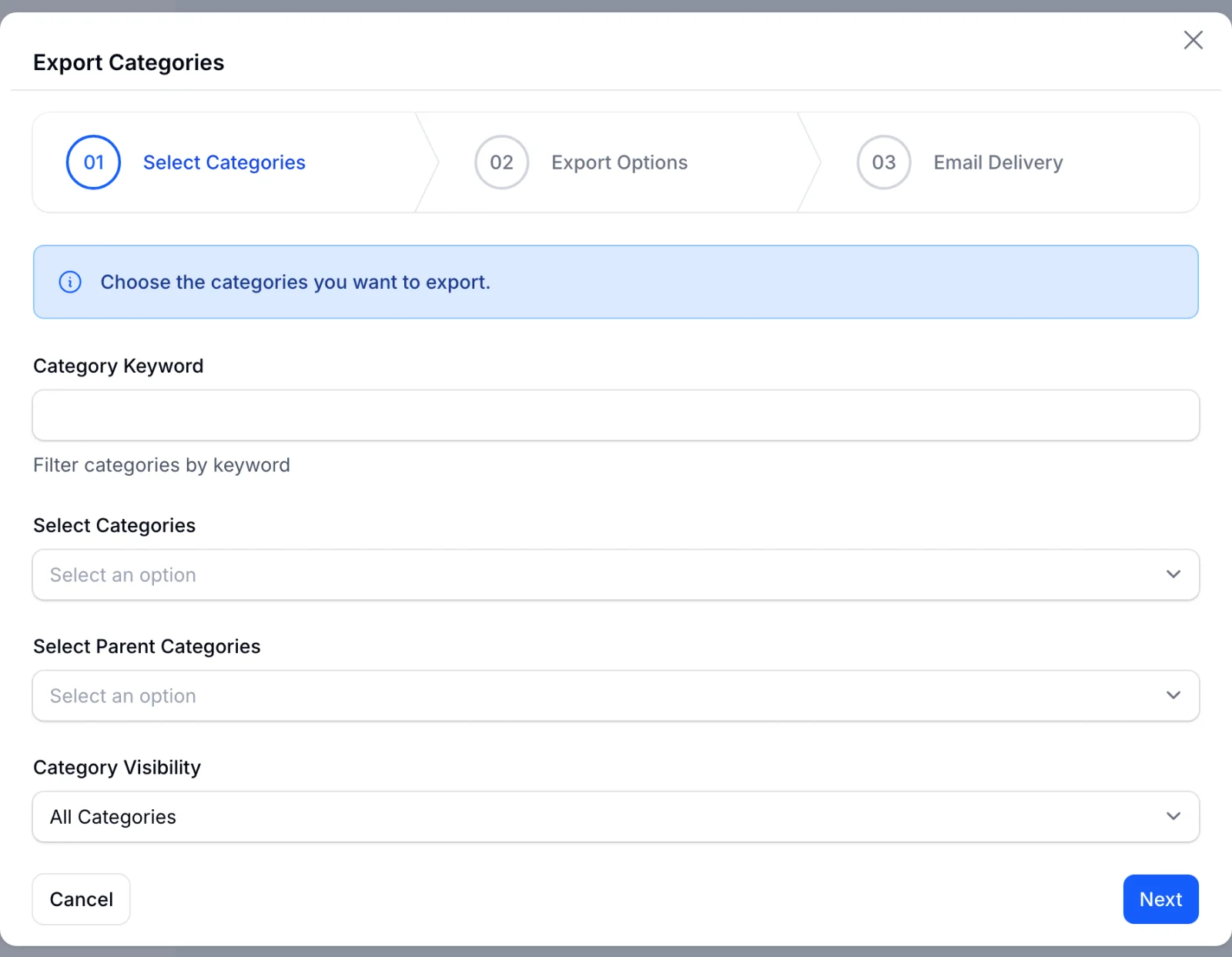
Select Categories.
- If your store has more than one storefront, choose it in Select Storefront.
- Optionally type a Category Keyword to filter the list.
- Optionally choose specific categories in Select Categories, or limit the export with Select Parent Categories.
- Optionally set Category Visibility to Visible or Not Visible, or leave it on All Categories.
-
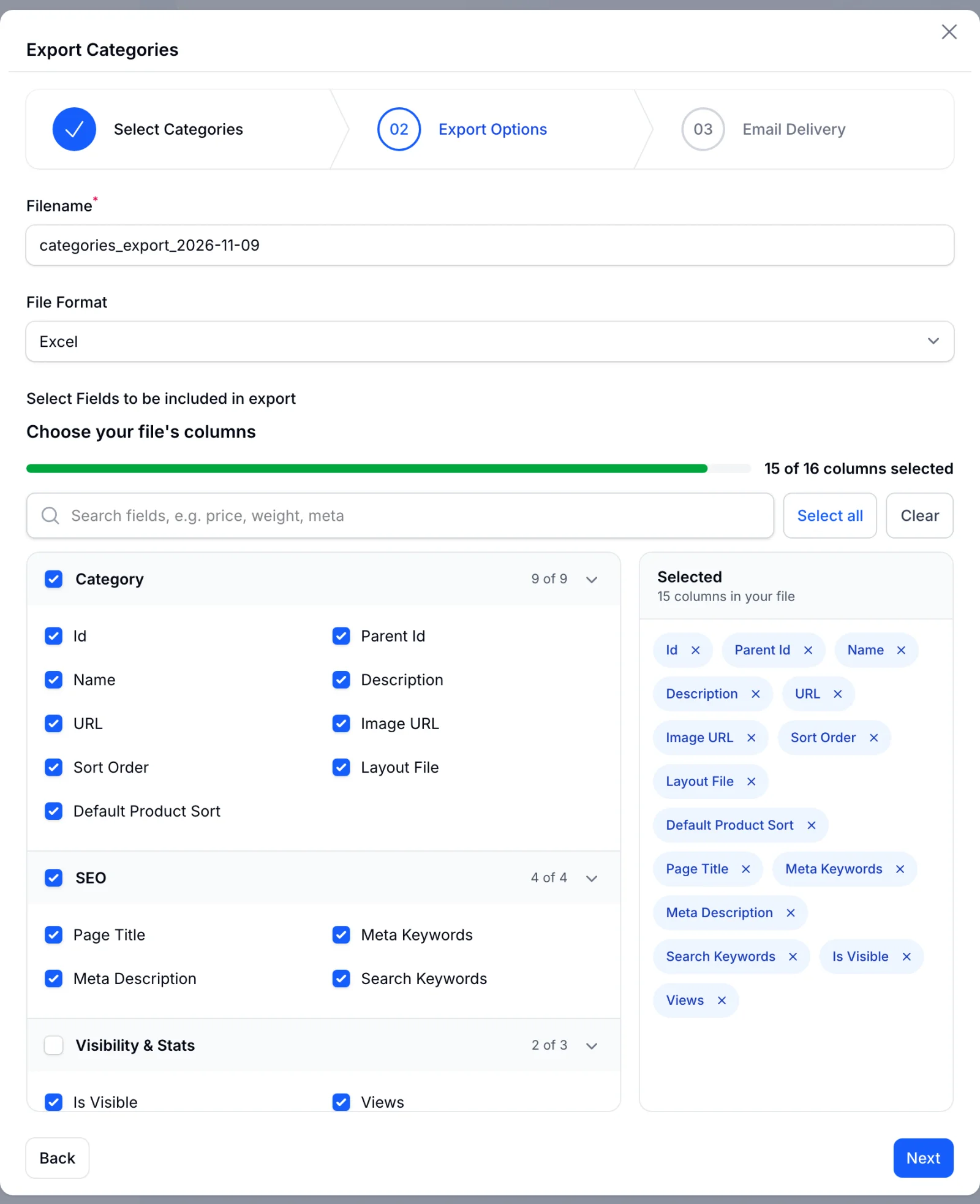
Export Options.
- Enter a Filename (a name with today's date is filled in for you).
- Choose a File Format: CSV or Excel.
- Pick your columns under Select Fields to be included in export. Fields are grouped into sections (Category, SEO, Visibility & Stats) that you can search and select all at once.
-
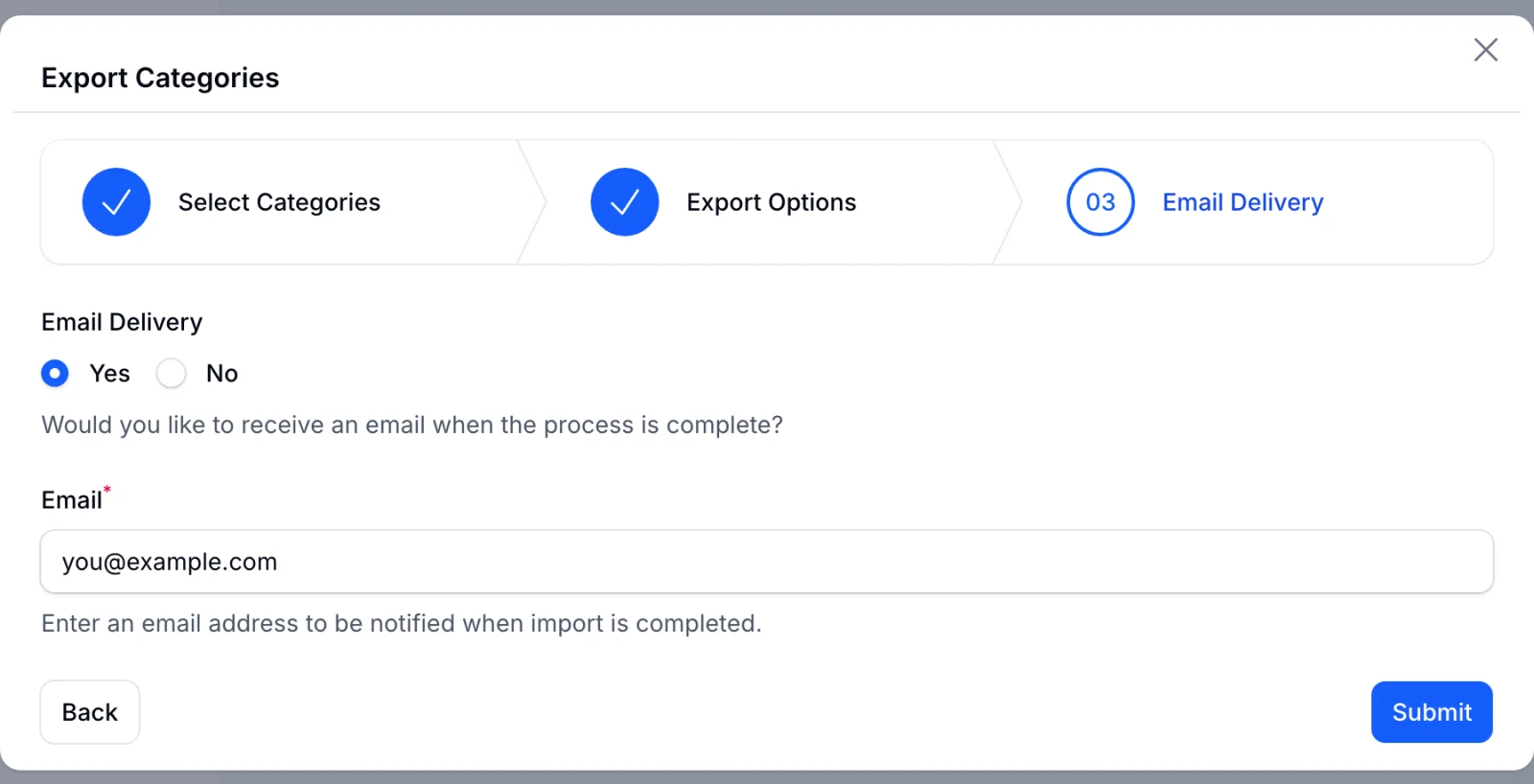
Email Delivery. The download link is emailed to you when the export finishes. Your email is filled in; change it, or choose No if you don't want the email.
-
Start the export. It runs in the background.
-
Download your file. Download it from the tool when it finishes, or from the link in the email.
Reference
Pick any combination of these fields. Every field except Product Count is selected by default. The column heading in the file is shown in the second column.
| Field | Column heading | Notes |
|---|---|---|
| Id | id |
The category's unique ID. |
| Parent Id | parent_id |
The ID of the parent category (0 or blank means top level). |
| Name | name |
The category name. |
| Description | description |
The category description. |
| Page Title | page_title |
SEO page title. |
| Meta Keywords | meta_keywords |
Keywords, joined with commas. |
| Meta Description | meta_description |
SEO meta description. |
| Search Keywords | search_keywords |
Keywords used by your store's search. |
| Sort Order | sort_order |
The category's position among its siblings. |
| Layout File | layout_file |
The template file assigned to the category. |
| URL | url |
The category's web address (path). |
| Image URL | image_url |
Full web address of the category image, when one is set. |
| Is Visible | is_visible |
Whether the category shows on your storefront (true or false). |
| Views | views |
Number of views recorded for the category. |
| Product Count | product_count |
How many products are in the category. Including it looks up each category's products, so the export takes longer. |
| Default Product Sort | default_product_sort |
The default sort order for products in the category. |
Troubleshooting and FAQ
I didn't get my file
Check your spam folder, confirm the email address on the Email Delivery step, and make sure delivery wasn't turned off. You can also download the file from the tool once the export finishes.
My export is taking a long time
Including Product Count makes the tool look up the products in every category, which adds time. Leave it unticked if you don't need it.
I got a permission error
Your store connection may not allow reading categories. If it keeps happening, contact us from Contact Us in your dashboard and we'll help you fix it.
Which format should I pick?
Use Excel to open the file directly in a spreadsheet app, or CSV for a simple, universal format. Either can be re-imported with Import Categories.
Can I export only some categories?
Yes. Use the keyword, category, parent category and visibility filters on the Select Categories step.
Note
New to Your Store Tools? How tools work explains the steps every tool shares, including choosing your file's columns and email delivery.