
Export Product Bulk Pricing for BigCommerce
What it does
Export Product Bulk Pricing pulls the bulk pricing tiers set directly on your products out of BigCommerce and into a spreadsheet. Each quantity-break tier is its own row, so a product with three tiers gives three rows. Only products that have bulk pricing are included.
Use it to back up or audit your product bulk pricing, to review which products have quantity breaks, or to get a correctly shaped file to edit and re-import with the Bulk Pricing Updater.
Note
This export covers bulk pricing set on the product. To export quantity discounts stored in a BigCommerce Price List, use Export Price List Bulk Pricing.
Before you start
- A BigCommerce store connected to Your Store Tools.
- Decide how to narrow the export, or leave the filters blank to export bulk pricing for every product.
Step-by-step
-
Open Export Product Bulk Pricing. Choose the tool from your dashboard.
-
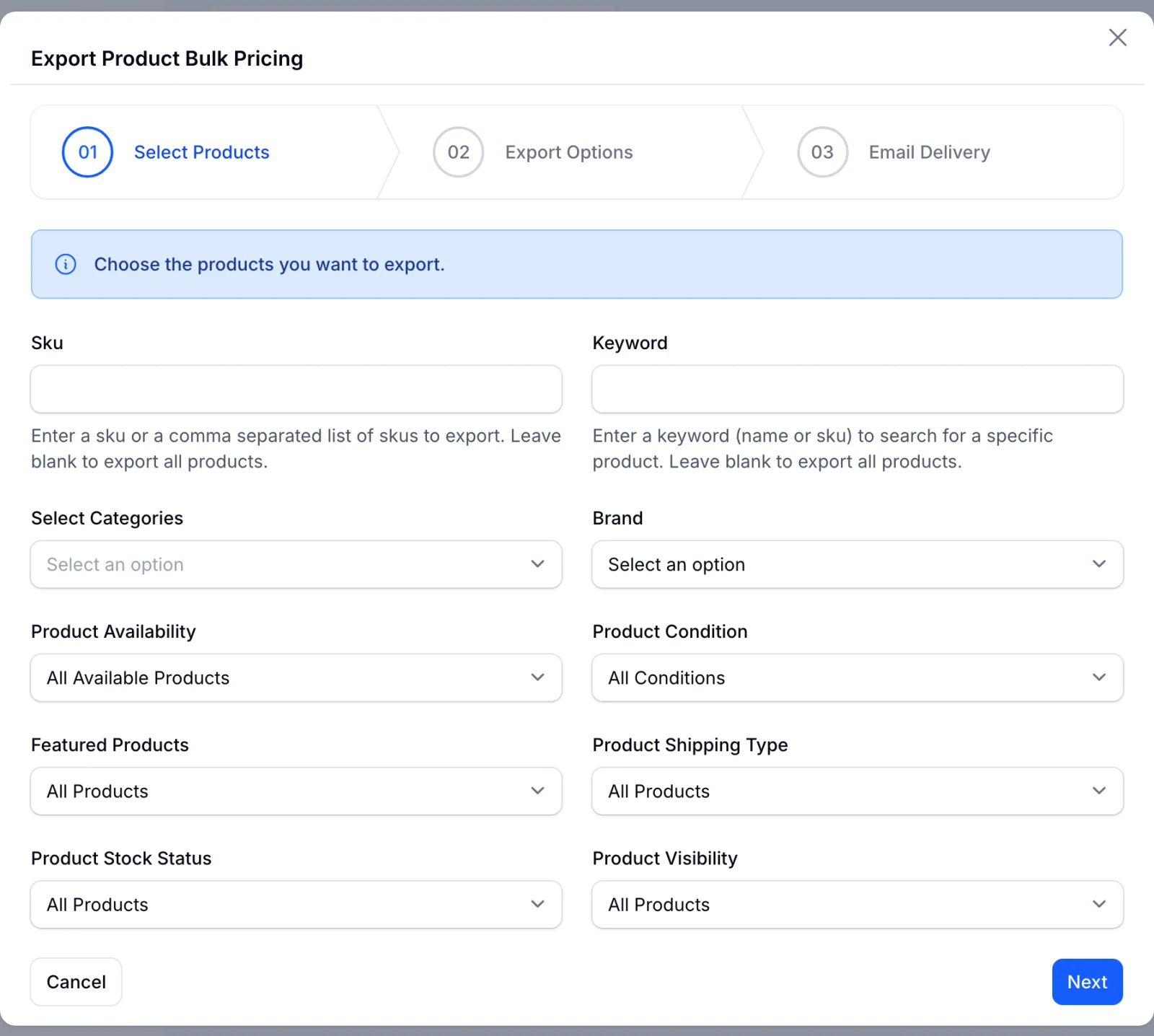
Select Products. Optionally filter which products to include (see the Reference). Leave the filters blank to export everything.
-
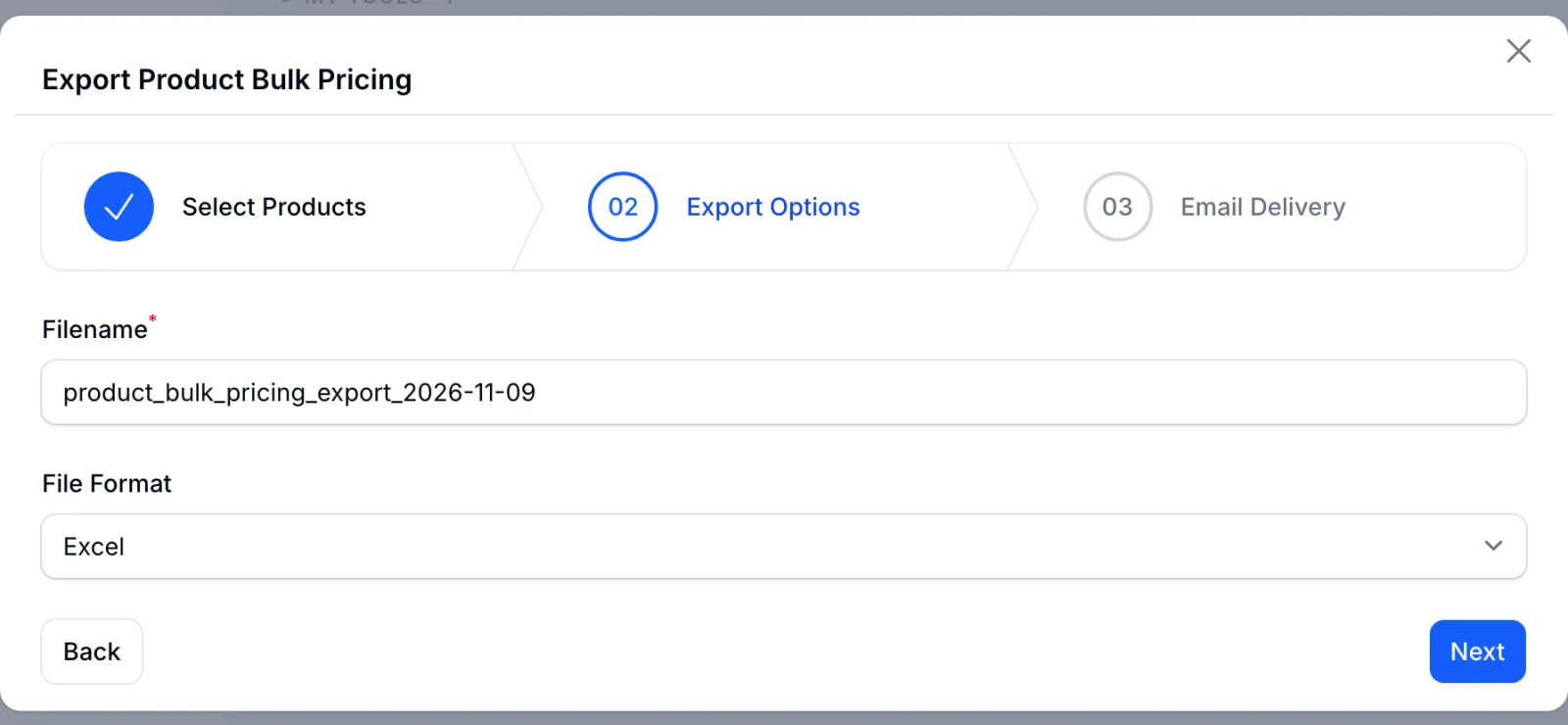
Export Options. Set a Filename (a name with today's date is filled in for you) and choose a File Format: CSV or Excel.
-
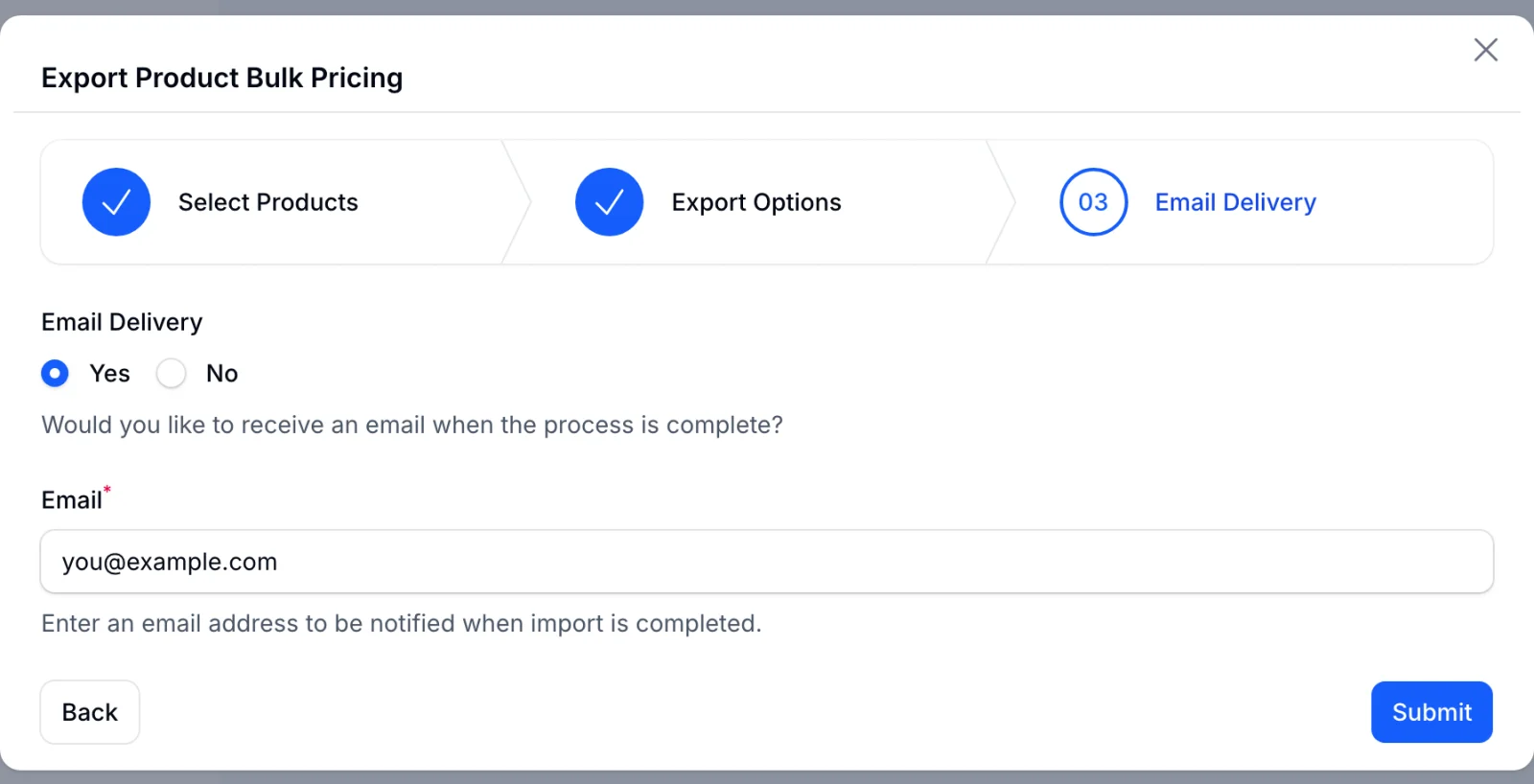
Email Delivery. The download link is emailed to you when the export finishes. Your account email is filled in; change it, or choose No if you don't want the email.
-
Submit. The export runs in the background. When the file is ready, download it from the tool, or from the link in the email.
Reference
Filters on the Select Products step. All are optional.
| Filter | Notes |
|---|---|
| Sku | A single SKU, or a comma-separated list. Blank exports all products. |
| Keyword | Search by product name or SKU. |
| Select Categories | One or more categories. |
| Brand | A single brand. |
| Product Availability | Available, Disabled or Preorder. |
| Product Condition | New, Refurbished or Used. |
| Featured Products | Featured or Not Featured. |
| Product Shipping Type | Free Shipping Products or Paid Shipping Products. |
| Product Stock Status | Out of Stock Products or In Stock Products. |
| Product Visibility | Visible or Not Visible. |
Columns in the file. Every export has these four columns:
| Column heading | What it holds |
|---|---|
sku |
The product's SKU. |
min_qty |
The minimum quantity for the tier. |
type |
How the amount applies: price, percent or fixed. |
amount |
The tier's value. |
This is the shape the Bulk Pricing Updater imports, so you can edit the file and send it straight back.
Troubleshooting and FAQ
A product is missing from the file
Only products with bulk pricing tiers are exported. Products with no bulk pricing are skipped.
I got "No Product Bulk Pricing were found." and no file
None of the products that matched your filters have bulk pricing, or the filters are too narrow. No file is made when nothing matches. Clear the filters and try again.
I didn't get the email or the link
Check your spam folder, confirm the address on the Email Delivery step, and make sure delivery wasn't turned off. You can also download the file from the tool once the export finishes.
I got a permission or API error
This usually means your store connection is missing a permission the tool needs. Contact us from Contact Us in your dashboard and we'll help you fix it.
Note
New to Your Store Tools? How tools work explains the steps every tool shares.