
CopyCat Category Duplicator for BigCommerce (multi-storefront)
Prefer to work inside your store's admin? This tool is also a standalone app: CopyCat Category Duplicator App
Note
This guide is for stores using BigCommerce Multi-Storefront. One storefront only? See CopyCat for single-storefront stores.
What it does
CopyCat creates a copy of an existing BigCommerce category. You pick the storefront and category it lives in, decide where the new one should go (the same storefront or a different one, under a parent category or at the storefront's top level), and CopyCat builds it for you in the background.
When it copies a category, it brings across:
- The category details: name, URL, description, page (meta) title and meta keywords.
- The products assigned to the source category, so the new category isn't empty. When copying to a different storefront, the products are also assigned to that storefront's channel so they appear there.
- The product sort order, when the copy is kept in sync.
- The category image, if you choose to copy it (or upload your own instead).
- The category page banner, if one exists and you choose to copy it.
You can work two ways:
- Copy a single category: copies just the category you pick, with full control over the copy's name, URL, description and meta details.
- Bulk copy a category and all of its subcategories: copies a whole branch (one or more parent categories plus everything beneath them), keeping the parent and child structure. Names, URLs and details for each category in the branch are worked out for you.
You also choose how each copy behaves over time:
- Yes, sync with original category: CopyCat checks the copy every day and updates its products and product sort order to match the original.
- No, just copy the category: a one-time copy that never follows the original afterward.
After you submit, you'll see a confirmation that the category is being created, and it appears on the destination storefront shortly after. View Categories shows everything CopyCat has created, with each one's history.
Use it when:
- You want the same category (and its products) on another storefront without rebuilding it by hand or assigning every product again.
- You want a storefront's category whose products automatically stay in step with the original.
- You need to copy a whole category branch, subcategories included, onto another storefront in one go.
- You're building seasonal or campaign versions of a category ("Summer Sale" from "Clearance").
Before you start
- Make sure you're subscribed. CopyCat is a paid add-on. If you aren't subscribed, the tool card offers a way to subscribe instead of Launch CopyCat.
- Know your source: which storefront the category lives in, which category to copy, and whether you want its whole subcategory structure.
- Decide where the copy goes: the destination storefront, and a parent category, or leave the parent blank to put it at that storefront's top level.
- Decide sync or copy. Choose sync to keep the copy's products updated, or copy for a one-time copy.
- Decide about the image and banner: copy the source category's image, upload a different one, or leave the copy without an image; and whether to copy its page banner. Copying banners needs your store connection to have the BigCommerce Marketing permission.
Step-by-step
-
Launch CopyCat. Open the CopyCat Category Duplicator tool from your dashboard and choose Launch CopyCat.
-
What would you like to do? Choose Copy a single category or Bulk copy a category and all of its subcategories.
-
Select Storefront. Pick the storefront the source category lives in. The category picker and the rest of the form stay hidden until you do. Changing the source storefront later resets the form.
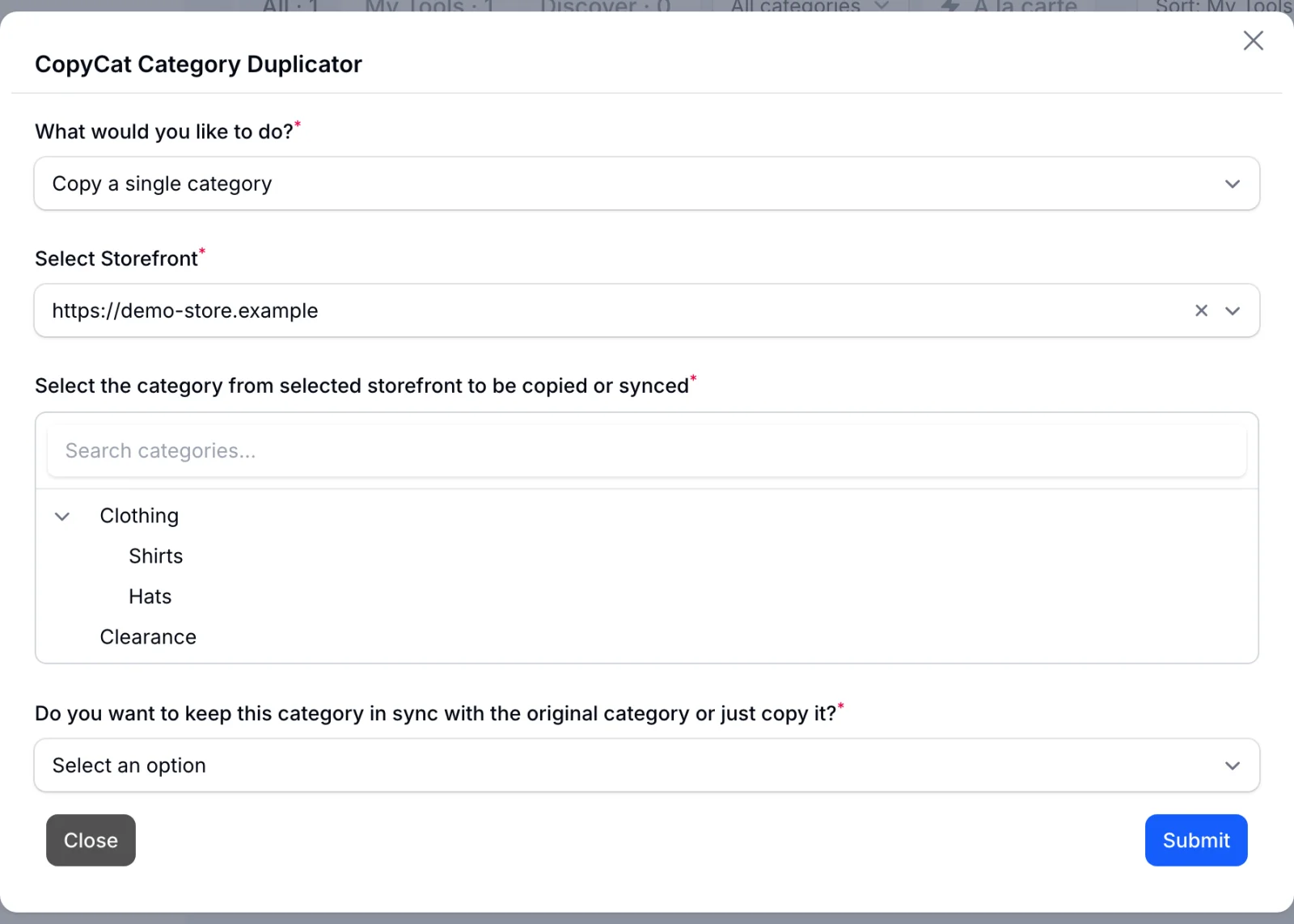
-
Select the category from selected storefront to be copied or synced. The picker is a searchable category tree you can expand and collapse. In bulk mode the field is Select the parent categories from the selected storefront to bulk copy (with all subcategories), and you can tick more than one parent; every subcategory beneath each one is included, and a line under the picker says how many categories will be created.
-
Do you want to keep this category in sync with the original category or just copy it? Choose Yes, sync with original category or No, just copy the category.
-
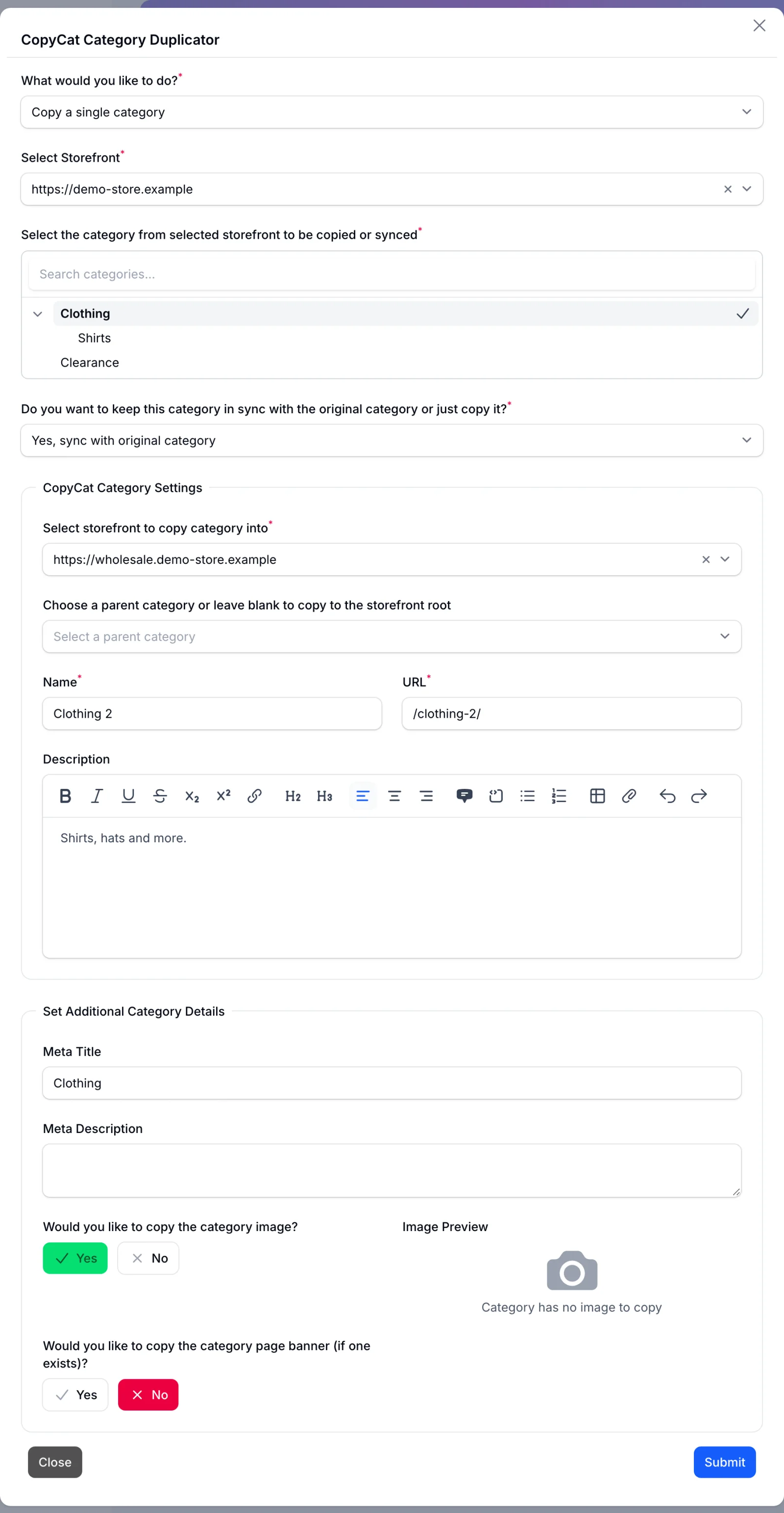
CopyCat Category Settings.
- Select storefront to copy category into: the same storefront, or a different one. The parent category list updates to show that storefront's categories.
- Choose a parent category or leave blank to copy to the storefront root.
- (Single category) Check the Name and URL. CopyCat fills both in from the source and adds a number (for example "Shoes 2" and
/shoes-2/) so they don't clash with the original. When copying to a different storefront there's nothing to clash with, so you can change them back to the original name and URL. - (Single category) Check the Description. It's edited with the HTML editor, or a plain text editor if you've chosen that in Sync Settings.
-
Set Additional Category Details.
- (Single category) Meta Title, filled in from the source, and Meta Description.
- (Single category) Meta Keywords, shown only for one-time copies. Synced copies manage meta keywords for you (see Keeping copies in sync).
- Would you like to copy the category image? Yes (the default) copies the source image and shows a preview; No lets you Upload Category Image instead.
- Would you like to copy the category page banner (if one exists)? Off by default.
-
Submit. You'll see "Created Category Mirror. In process of creating category in the store." The copy is built in the background. Bulk copies say how many categories were queued, and they're created parents first so the structure stays intact.
-
View Categories. See everything CopyCat has made, check each item's History, or jump straight to the category in BigCommerce.
Settings
| Field | Required? | Notes |
|---|---|---|
| What would you like to do? | Yes | Copy a single category or Bulk copy a category and all of its subcategories. |
| Select Storefront | Yes | The storefront the source category lives in. Changing it resets the form. |
| Select the category from selected storefront to be copied or synced | Yes | Searchable category tree. In bulk mode, pick one or more parent categories; all their subcategories are included. |
| Do you want to keep this category in sync with the original category or just copy it? | Yes | Yes, sync with original category keeps the copy's products and sort order updated daily. No, just copy the category is one-time. |
| Select storefront to copy category into | Yes | The destination storefront: the same one or a different one. |
| Choose a parent category or leave blank to copy to the storefront root | No | Searchable, showing the destination storefront's categories. Leave blank to create the copy at the top level. |
| Name | Yes (single category) | Filled in from the source, with a number added to keep it unique. In bulk mode, copies within the same storefront are named "original name Copy", and copies to another storefront keep the original name. |
| URL | Yes (single category) | Filled in from the source, with a number added to the path. In bulk mode, copies within the same storefront get -copy, and copies to another storefront keep the original URL. |
| Description | No (single category) | HTML editor by default; switch to a plain text editor in Sync Settings. |
| Meta Title / Meta Description | No (single category) | Meta Title is filled in from the source category. |
| Meta Keywords | No (single category, copy only) | Only editable for one-time copies; synced copies manage this for you. |
| Would you like to copy the category image? | No | Yes by default, with a preview of the source image. No shows an Upload Category Image field. |
| Would you like to copy the category page banner (if one exists)? | No | Off by default. Needs the BigCommerce Marketing permission on your store connection. |
Keeping copies in sync
Copies made with Yes, sync with original category are checked once a day. Each sync updates the copy's product assignments (including the destination storefront's channel) and product sort order to match the original, and copies the banner if you chose that option.
The copy's name, URL, description and meta details stay as they were set in CopyCat. To change them, choose Edit for the copy in View Categories.
Use Sync Settings to set:
- Sync Daily At: the time of day the daily sync runs.
- Select Category Description Editor: HTML Editor or Text Editor for category descriptions in the CopyCat form.
Two things worth knowing about synced copies:
- To protect your SEO, a synced copy made within the same storefront carries a canonical meta keyword pointing at the original category's URL, so search engines don't treat the two as duplicate content. That's why the Meta Keywords field is only editable for one-time copies.
- Categories set to just copy are never touched again; they stay exactly as created.
The View Categories list
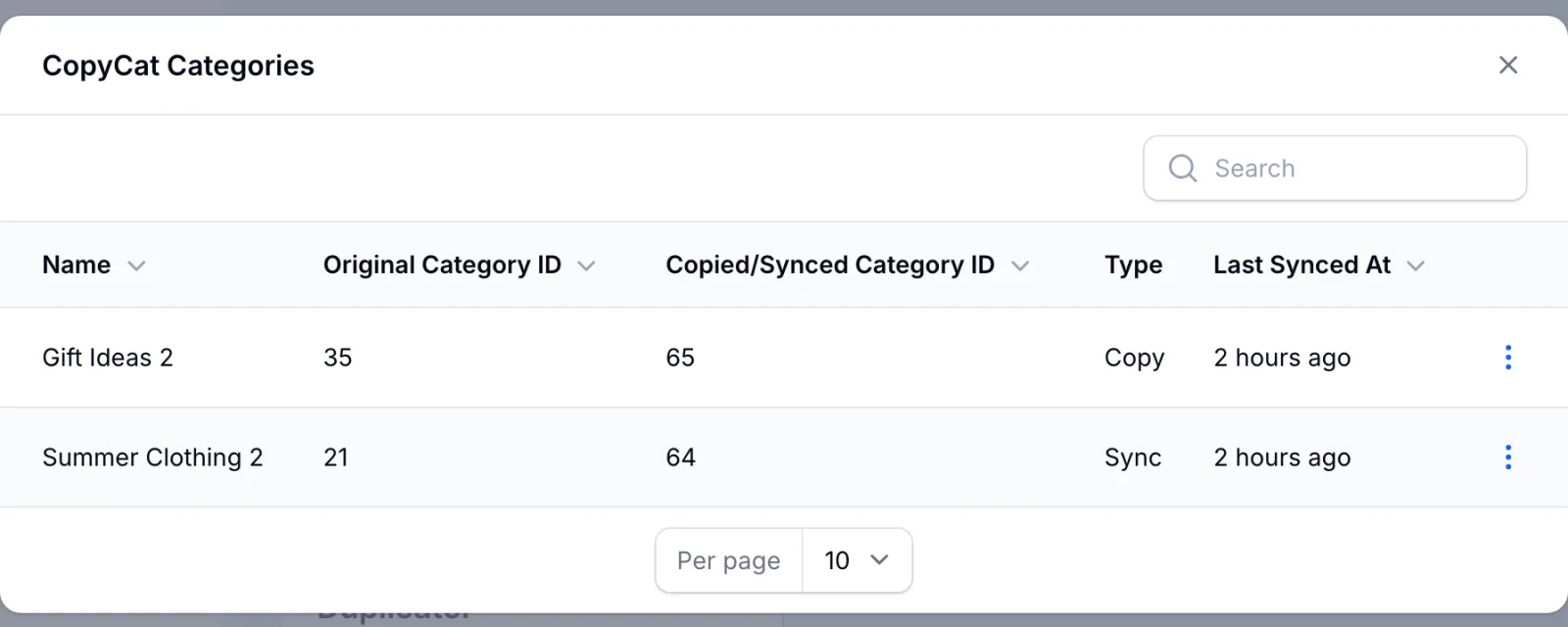
View Categories opens a table of everything CopyCat has created:
| Column | Meaning |
|---|---|
| Name | The copy's name. |
| Original Category ID | The BigCommerce ID of the source category. |
| Copied/Synced Category ID | The BigCommerce ID of the category CopyCat created. |
| Type | Copy (one-time) or Sync (updated daily). |
| Last Synced At | When CopyCat last created or synced it. |
Each row's actions are Edit (open the form again), History (the log of background jobs for this copy), links to edit the copied or original category in BigCommerce or go to the copied category, and Delete. Deleting removes the entry from CopyCat and stops any syncing; it does not delete the category in BigCommerce.
Troubleshooting and FAQ
I don't see the Launch CopyCat button
CopyCat is a paid add-on and you aren't subscribed yet. Use the subscribe or upgrade option on the tool card, then launch the tool.
The new category didn't appear right away
CopyCat creates categories in the background, so there's a short delay. Bulk copies take longer, because they're created one at a time, parents first. Open View Categories and check the item's History.
The name or URL of my copy is slightly different
When you copy within the same storefront, the original name and URL already exist, so CopyCat adds a number to keep them unique, and tries a few more numbers if there's still a clash. For a single category copied to another storefront, you can change the name and URL back to the original before you submit.
My bulk copy stopped partway through
Bulk copies run in order, parents first. If one category fails (for example, its source was deleted during the run), the run stops rather than creating subcategories with no parent. Check History on the failed item, fix the cause, and run the bulk copy again.
My copy isn't updating after I changed the original
Only copies set to sync update, and only their products and product sort order; syncing runs once a day at the time in Sync Settings. A copy entry never updates. If a synced copy shows as inactive, its source or destination category may have been deleted in BigCommerce.
The category image or banner didn't copy
The image only copies when that option is on (or upload your own). A banner only copies if the source category page has one and the option is on, and banner copying needs the BigCommerce Marketing permission.
Products show in the copied category on one storefront but not another
When copying to another storefront, CopyCat assigns the products to that storefront's channel automatically. If a product still isn't visible, check its own channel assignment in BigCommerce.
I got a permission error
CopyCat writes categories (and related products, banners and channel assignments) to your store, so your store connection needs the matching permissions. If it keeps happening, contact us from Contact Us in your dashboard and we'll help you fix it.
Note
CopyCat is also available as a standalone BigCommerce app. See CopyCat app for multi-storefront stores.