
CopyCat Category Duplicator App for BigCommerce (multi-storefront)
This app is also a tool in your dashboard: CopyCat Category Duplicator (multi-storefront) in Your Store Tools
Note
This guide is for stores using BigCommerce Multi-Storefront. One storefront? See the single-storefront app guide.
What it does
This is the app version of CopyCat, installed in your BigCommerce store with its own Dashboard, Billing and Contact Us pages inside your BigCommerce admin.
CopyCat duplicates a BigCommerce category: its name, URL, description, meta details, assigned products, product sort order, category image and, if you choose, its page banner. You can copy:
- a single category, with full control over the copy's destination, name, URL, description, SEO fields, image and banner, or
- one or more categories with all their subcategories, keeping the branch structure.
Each copy is either Sync (checked once a day, so its products and sort order follow the original) or Copy (made once, then yours to edit separately).
On a Multi-Storefront store you choose the source storefront, the destination storefront and the parent category there. When you copy into another storefront, CopyCat also assigns the copy's products to that storefront's channel so they show up there.
The copy form and how copies behave are the same as in the CopyCat tool. See the CopyCat multi-storefront tool guide for every field and what a daily sync updates.
Use it when:
- You only need CopyCat and want it in your BigCommerce admin like any other app.
- You want the same category, or the same category structure, on more than one storefront.
- You want a category to follow another one's products and sort order every day.
- You want to duplicate a whole branch of categories across storefronts.
Before you start
- Install CopyCat Category Duplicator from the BigCommerce App Marketplace. It's a paid subscription: you add your billing details and a payment card during setup, and you can't use the app until setup is finished.
- Know the source storefront and category, the destination storefront and parent category, and whether the copy should sync or be a one-time copy.
- Copying a category's banner needs the BigCommerce Marketing permission on the app's connection.
Step-by-step
-
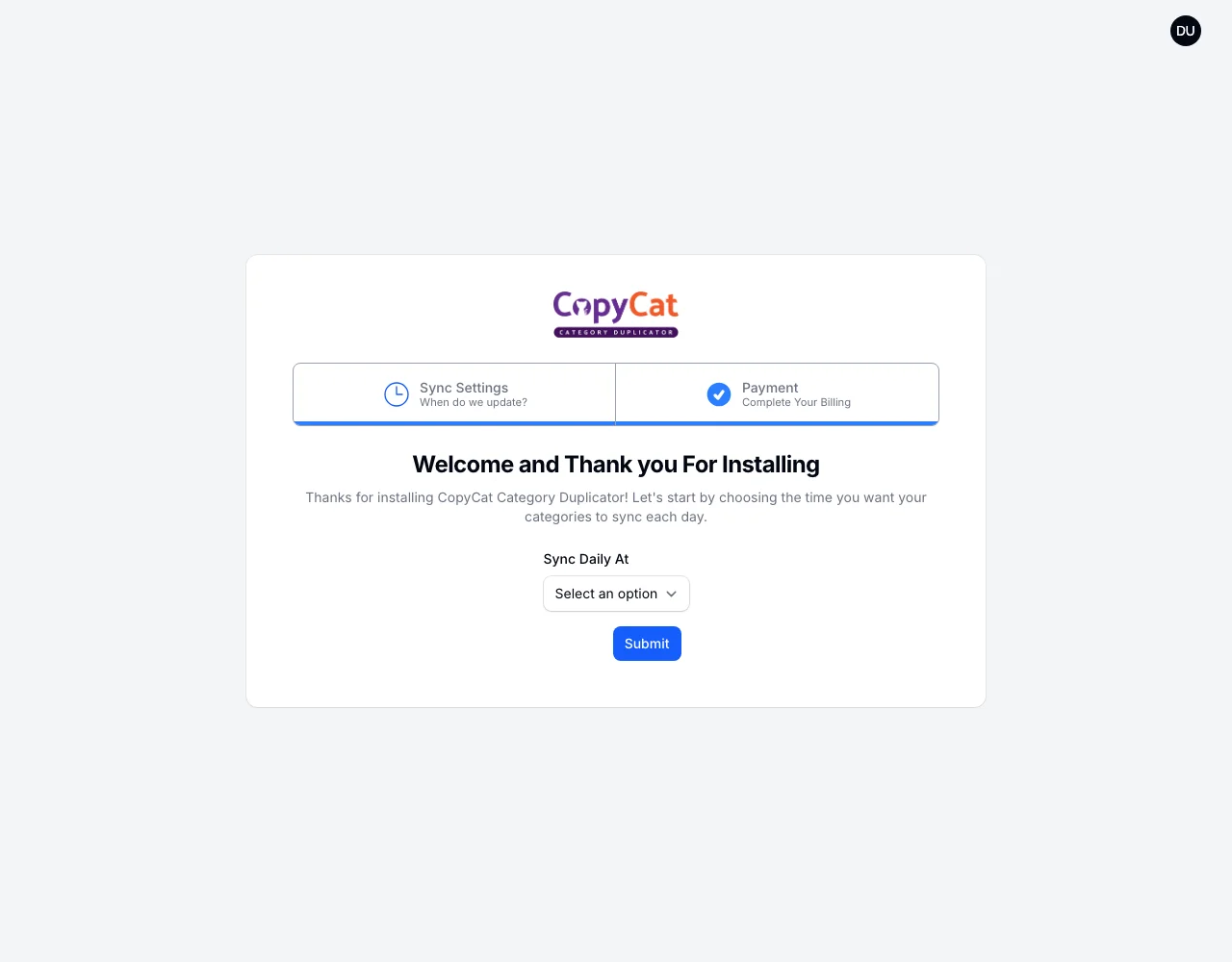
Finish setup. The first time you open the app there are two steps:
- Sync Settings ("When do we update?"): choose Sync Daily At, the time of day synced copies are checked against their originals. You can change it later in Settings.
- Payment ("Complete Your Billing"): enter your Billing Information and Payment Method (a card) to start the subscription.
The Dashboard opens once both are done.
-
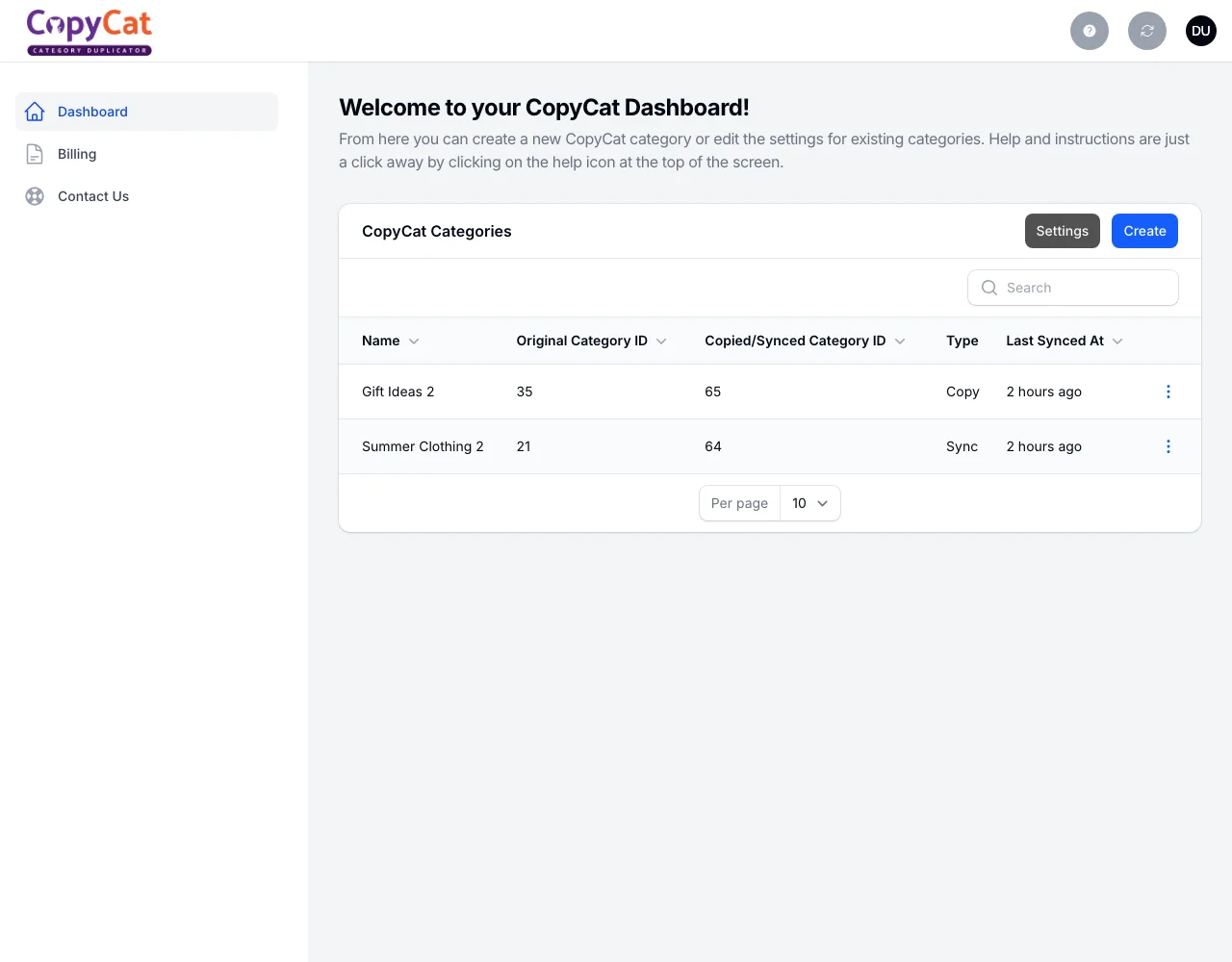
The Dashboard. It opens on "Welcome to your CopyCat Dashboard!" with the CopyCat Categories table: everything CopyCat has made for you.
-
Choose Create. The Create Category window opens.
-
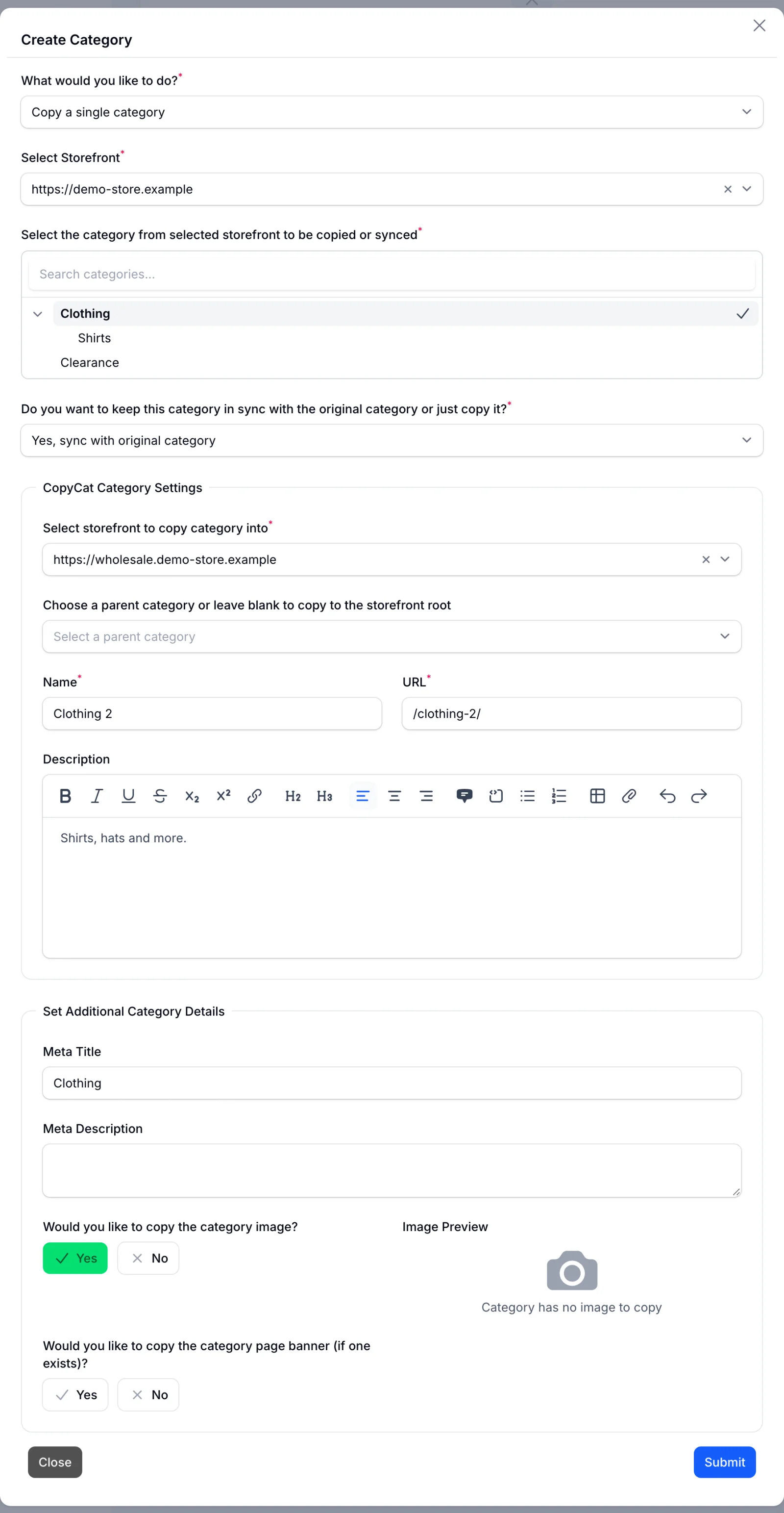
What would you like to do? Choose Copy a single category or Bulk copy a category and all of its subcategories.
-
Choose the source storefront. Pick the storefront the category lives in; the rest of the form appears once you do. Changing the source storefront later resets the form.
-
Select the category from selected storefront to be copied or synced. Pick it from the searchable category tree. In bulk mode, choose one or more parents in Select the parent categories from the selected storefront to bulk copy (with all subcategories); every subcategory beneath them is included.
-
Sync or copy. Answer Do you want to keep this category in sync with the original category or just copy it? with Yes, sync with original category or No, just copy the category.
-
CopyCat Category Settings.
- Select storefront to copy category into: the same storefront or a different one. The parent list updates to show that storefront's categories.
- Choose a parent category or leave blank to copy to the storefront root.
- For a single category, check the Name, URL and Description. CopyCat adds a number to the name and URL so they don't clash with the original. When you copy into a different storefront there's nothing to clash with, so you can change them back.
-
Set Additional Category Details (single category): Meta Title, Meta Description, Meta Keywords (one-time copies only; synced copies manage keywords for you), Would you like to copy the category image? and Would you like to copy the category page banner (if one exists)?
-
Submit. You'll see "CopyCat Category has been created", or for a bulk copy, "Created N category mirrors. In process of creating the categories in the store." The category is built in the background; bulk copies are created parents first so the structure stays intact.
-
Check progress. Watch the table, and choose History in a row's menu to see how its copy or sync went.
Reference
The CopyCat Categories table
| Column | Meaning |
|---|---|
| Name | The copy's name. |
| Original Category ID | The BigCommerce ID of the category that was copied. |
| Copied/Synced Category ID | The BigCommerce ID of the category CopyCat created. |
| Type | Copy (one-time) or Sync (updated daily). |
| Last Synced At | When CopyCat last created or synced it. |
Row actions (the ⋮ menu on each row)
| Action | What it does |
|---|---|
| Edit | Change the copy's settings. |
| History | See each copy or sync run and any errors. |
| Edit Copied Category in BC (or Edit Synced Category in BC) | Open the copy in your BigCommerce admin. |
| Edit Original Category in BC | Open the original in your BigCommerce admin. |
| Go to Copied Category on BC (or Go to Synced Category on BC) | View the copy on your storefront. |
| Delete | Remove the entry from CopyCat and stop syncing it. It doesn't delete the category in BigCommerce. |
Settings (the Settings button above the table)
| Setting | What it does |
|---|---|
| Sync Daily At | The time of day synced copies are checked and updated. |
| Select Category Description Editor | HTML Editor or Text Editor for the description field. |
Troubleshooting and FAQ
The app won't let me past setup
Both setup steps must be finished first: choose a sync time, then enter your billing details and card on the Payment step.
The new category didn't appear right away
Copies are built in the background. Check the table, and the row's History for progress or errors.
My copy isn't updating
Only Sync entries update, once a day at the time in Settings. One-time Copy entries never update on their own.
The name or URL of my copy has a number on it
CopyCat adds a number so the copy doesn't clash with the original. When copying into a different storefront, you can change them back to the original name and URL before you submit.
Products show in the copy on one storefront but not another
When you copy into another storefront, CopyCat assigns the products to that storefront's channel. If a product still doesn't show, check its channel assignment and visibility in BigCommerce.
I changed the source storefront and my choices disappeared
That's expected. Categories belong to one storefront, so changing the source storefront resets the category and the settings that depend on it.
The category banner wasn't copied
Check you chose to copy the banner, and that the app's connection has the BigCommerce Marketing permission.
I deleted an entry, but the category is still in my store
Deleting an entry only removes it from CopyCat and stops syncing. Delete the category in BigCommerce if you don't want it.
I got a permission error
The app may need to be reconnected with your store. If it keeps happening, use the app's Contact Us page and we'll help you fix it.
Where do I get more help?
Choose the help icon at the top of any app screen, or use the app's Contact Us page.