
Options ToolTip for BigCommerce
What it does
Options ToolTip adds helpful details about product options to your product pages without cluttering them. When a shopper hovers over the ToolTip icon next to an option, they see the text you've written for it, so complex options are easier to understand and choose.
Note
Options ToolTip isn't a self-install app. One of our developers installs it after you buy it.
Before you start
- Give Your Store Wizards access to your store so we can install Options ToolTip: Give Your Store Wizards access to your store.
Step-by-step
-
Open Page Builder. In your BigCommerce control panel, go to Storefront > Themes and click Customize. With multi-storefront, go to Channel Manager, choose the storefront Options ToolTip is installed on, and click Edit Theme. See Open Page Builder for screenshots.
-
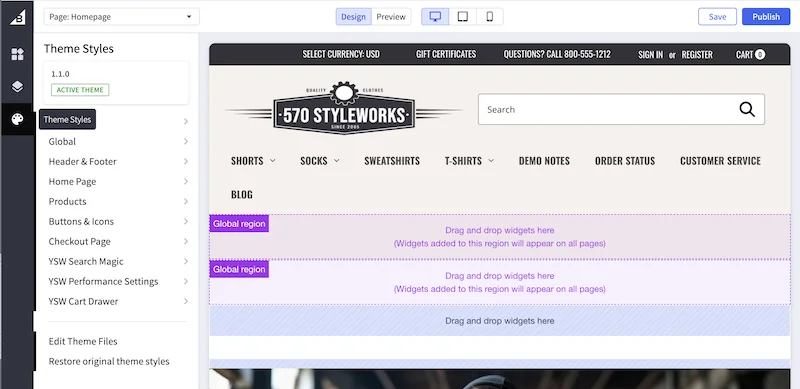
Theme Styles. In the Page Builder navigation bar, click the painter's palette icon to open the Theme Styles menu.
-
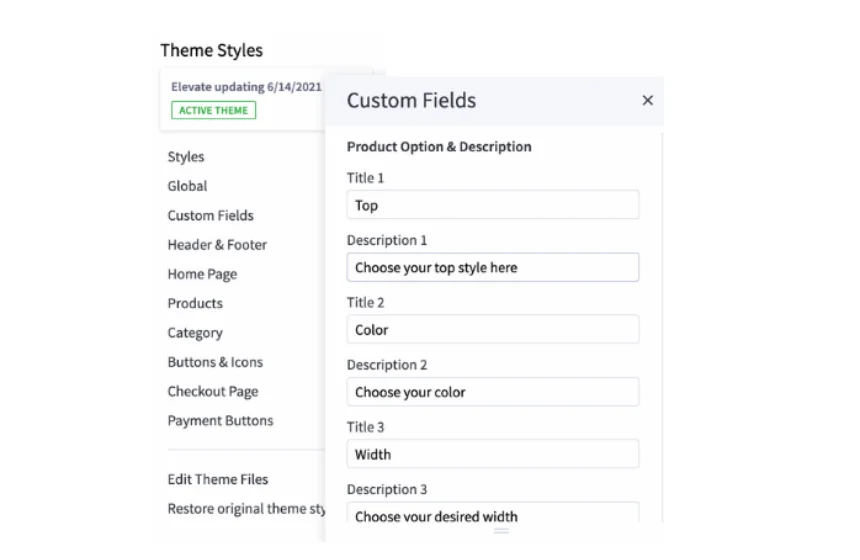
Custom Fields. Click Custom Fields to open the ToolTip settings. Under Product Option & Description, fill in a Title and Description for each ToolTip (see Settings).
-
Save and Publish. Click Save at the top of Page Builder, then Publish when you're ready to make your changes live.
Settings
There are 14 ToolTips by default. If you need more, just ask us.
| Setting | What it does |
|---|---|
| Title 1 through 14 | The name of the product option this ToolTip belongs to. |
| Description 1 through 14 | The text shown when a shopper hovers over the ToolTip icon next to that option. |