
Section and Category Pages in Search Magic for Turbify
What it does
Search Magic can show its filters and sorting on your section (category) pages. The Default Settings apply to every section page. You only need a page of its own for a section whose filters or order should be different.
Adding Search Magic to your section pages is an advanced setup that our team does for you. Email us at help@yourstorewizards.com to arrange it.
Step-by-step
Default settings for all section pages
Open Categories Pages in the menu. The Default Settings box is on the right:
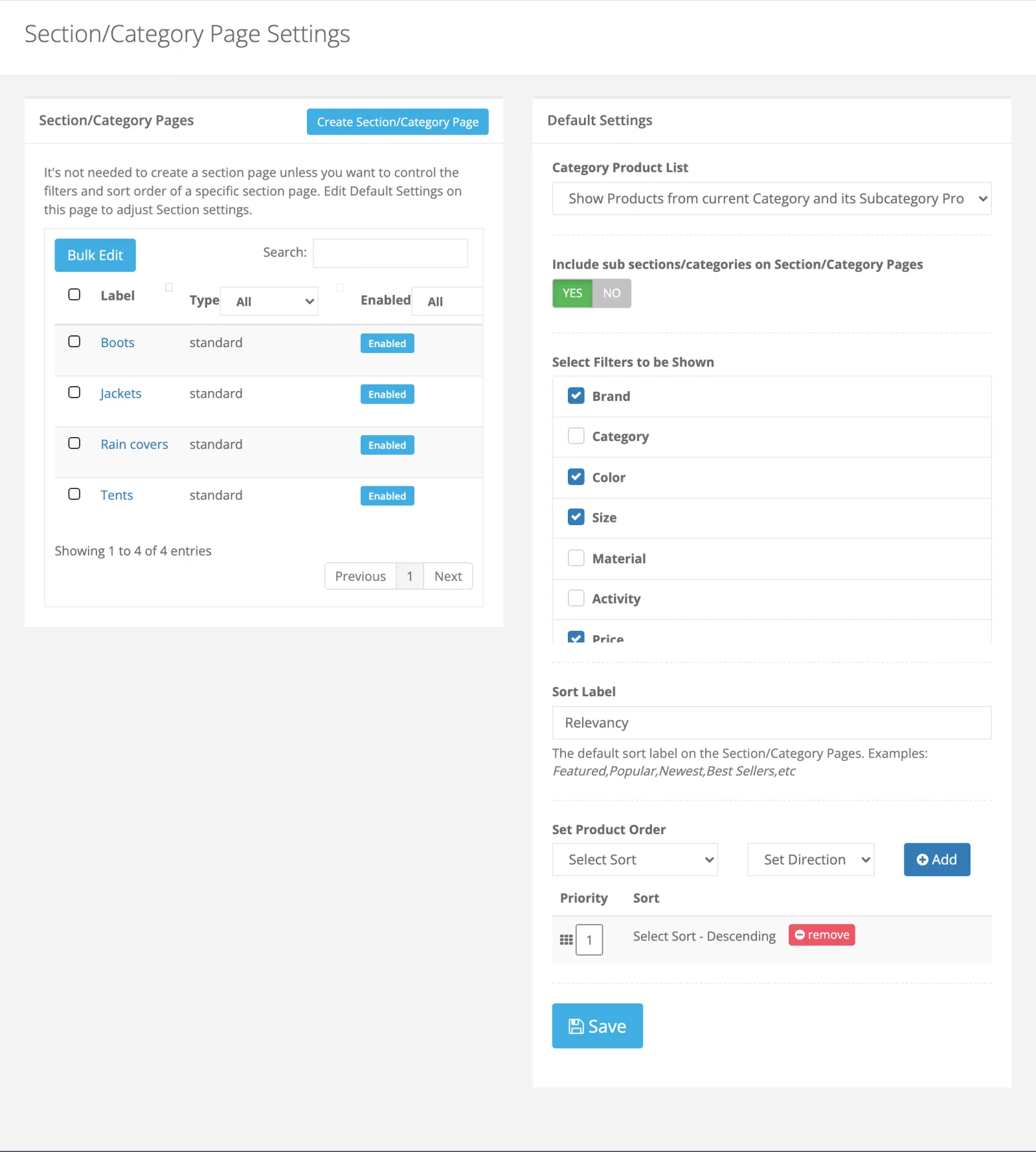
- Category Product List. Which items a section page shows, such as Show Products from current Category and its Subcategory Products.
- Include sub sections/categories on Section/Category Pages. YES or NO.
- Select Filters to be Shown. Tick the filters section pages show.
- Sort Label. The name of the default order, "Relevancy" unless you change it, for example to "Newest".
- Set Product Order. Choose a field and a direction, and click Add. Fields higher in the list take priority; drag them by the handle or change the Priority number. remove deletes one.
- Save. Click Save.
Settings for one section page
-
Create or open it. Click Create Section/Category Page, or click a page's name in the list.
-
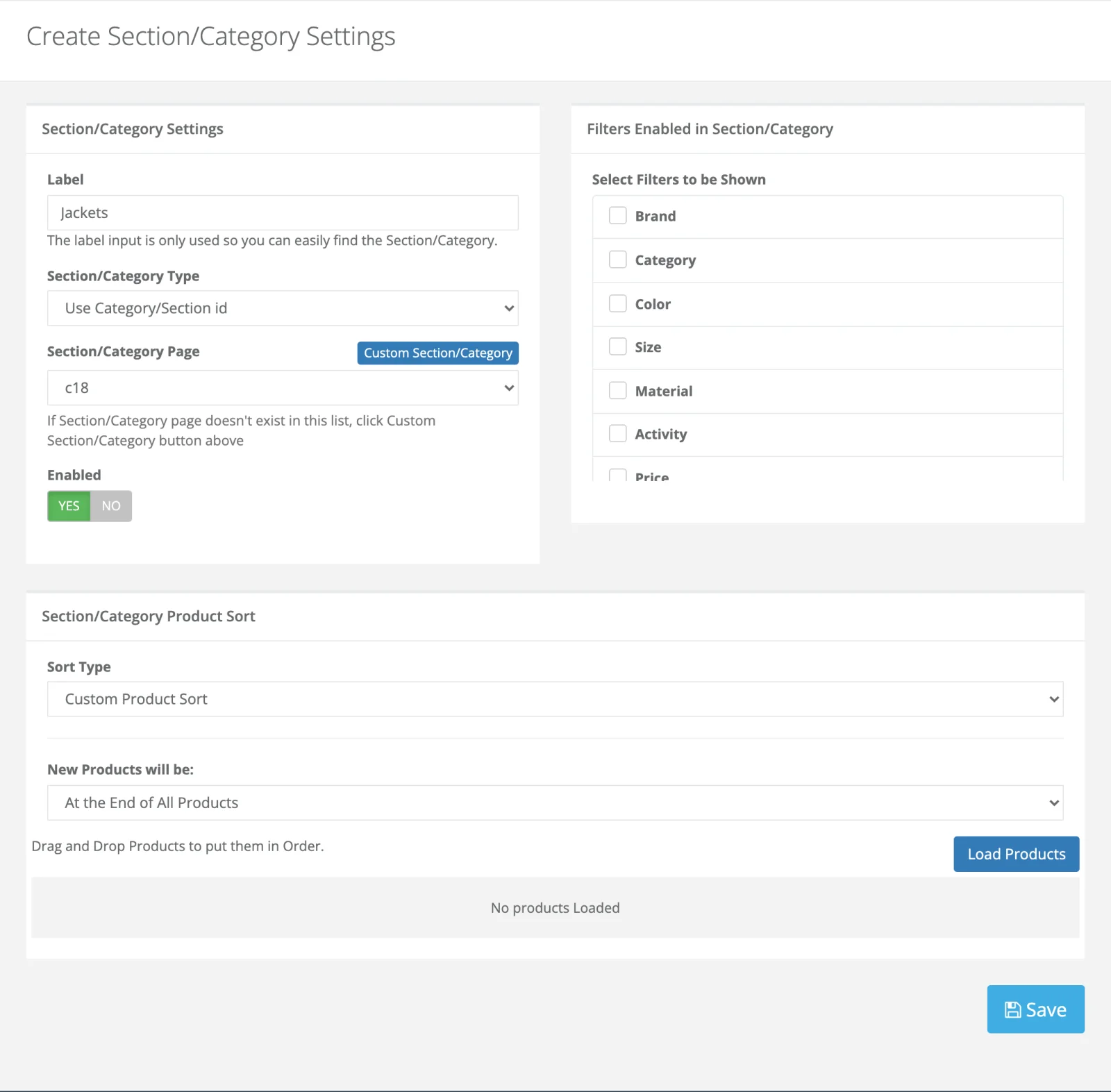
Section/Category Settings. Give it a Label so you can find it, and choose its Section/Category Page. If the page isn't in the list, click Custom Section/Category.
-
Enabled. YES uses these settings on the page.
-
Filters. Under Select Filters to be Shown, tick the filters this page shows.
-
Sort Type. Choose how its items are ordered:
- Sort By Property: by fields, as in Set Product Order above.
- Custom Product Sort: by hand. Choose where New Products will be put (Added Before All Products or At the End of All Products), click Load Products, then drag the items into order.
-
Save. Click Save.
Several pages at once
Tick the pages in the list and click Bulk Edit to change them together.
Questions? Email us at help@yourstorewizards.com.