
Category Pages in Search Magic for BigCommerce
What it does
With category page filtering on, Search Magic can show its filters and sorting on your BigCommerce category pages. You choose which category pages use it, which filters each one shows and how its products are ordered.
New categories are added automatically when your store is indexed. Every new category page starts turned off, so your theme's own listing shows until you enable it.
Before you start
- Enable Category Page Filtering turned on in Store Settings.
- The Search Magic line added to your theme. See Adding category filtering to your theme.
Step-by-step
Settings for new category pages
Open Categories Pages in the app's menu. The Category Settings box on the right sets what new category pages get:
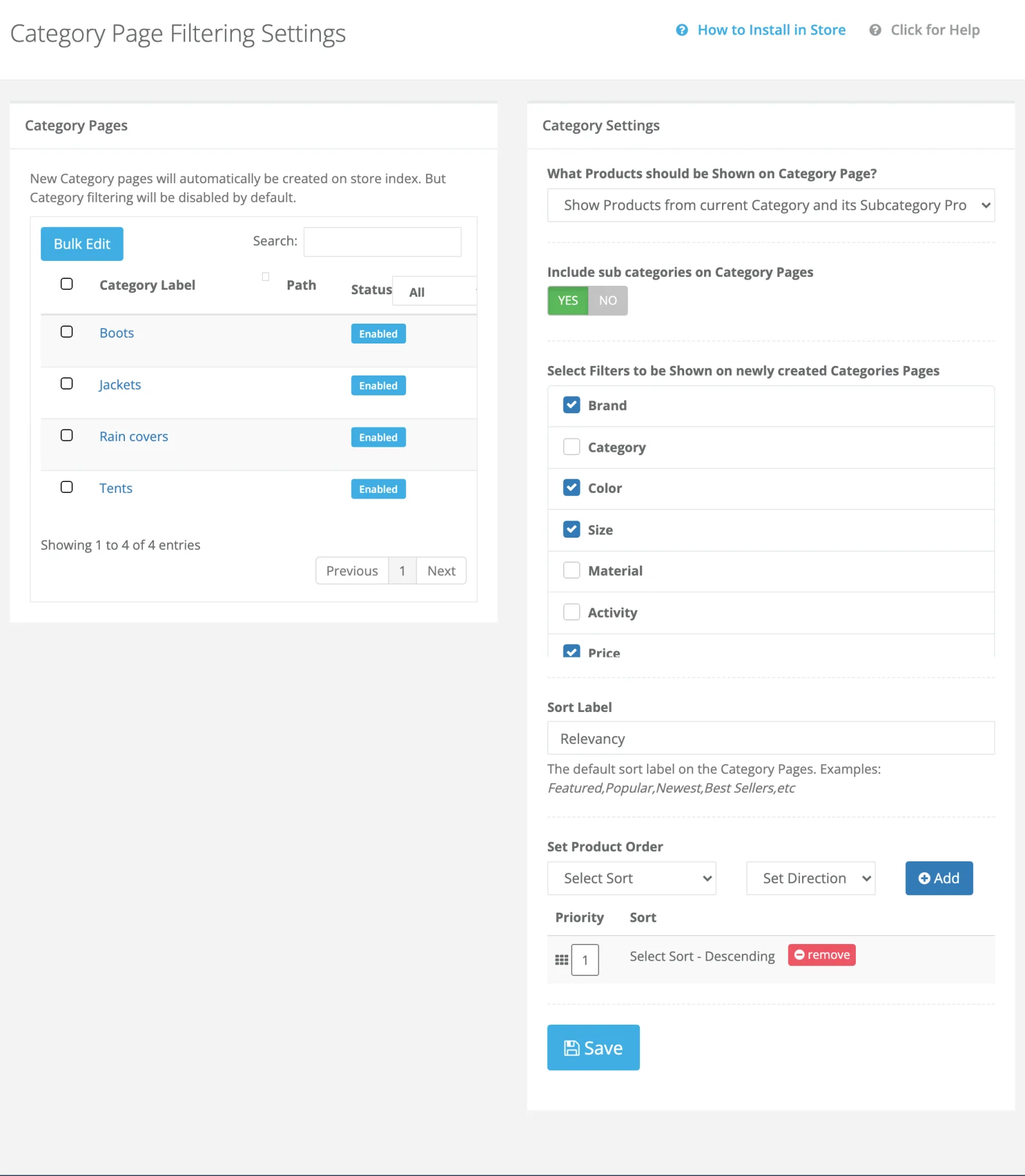
- What Products should be Shown on Category Page? Show Products from current Category only, or Show Products from current Category and its Subcategory Products.
- Include sub categories on Category Pages. YES or NO.
- Select Filters to be Shown on newly created Categories Pages. Tick the filters new pages show.
- Sort Label. The name of the default order, "Relevancy" unless you change it, for example to "Newest".
- Set Product Order. Choose a field and a direction, and click Add. Fields higher in the list take priority; drag them by the handle or change the Priority number. remove deletes one.
- Save. Click Save.
One category page
-
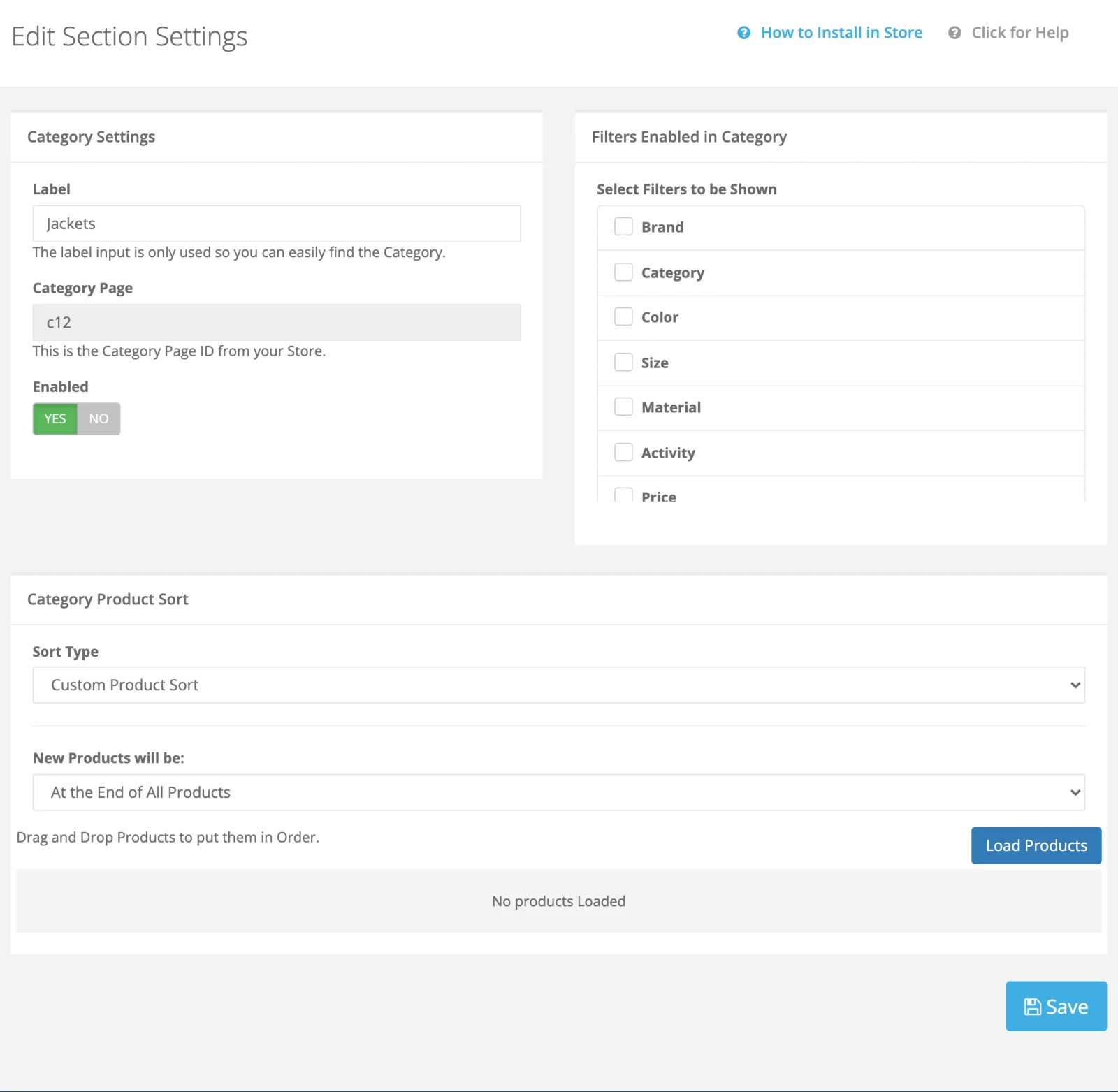
Open it. Click the category's name in the Category Pages list. Use Search to find it.
-
Enabled. YES shows Search Magic on this category page; NO shows your theme's own listing.
-
Filters. Under Select Filters to be Shown, tick the filters this page shows.
-
Sort Type. Choose how its products are ordered:
- Sort By Property: by fields, as in Set Product Order above.
- Custom Product Sort: by hand. Choose where New Products will be put (Added Before All Products or At the End of All Products), click Load Products, then drag the products into order.
-
Save. Click Save.
Several category pages at once
Tick the pages in the list and click Bulk Edit. You can enable the selected categories, or adjust their property sort, in one go.
Troubleshooting and FAQ
A new category doesn't show Search Magic's filters
New category pages start turned off. Open the page and set Enabled to YES.
An enabled category page still shows my theme's products
The Search Magic line is missing from your theme's category template. See Adding category filtering to your theme.
Questions? Email us at help@yourstorewizards.com.