
Adding Category Filtering to Your BigCommerce Theme
What it does
Search Magic can replace the product listing on your category pages with its own, with filters and sorting. For that, your theme's category template needs a place for Search Magic to draw it. This guide adds it.
We can do this for you: email us at help@yourstorewizards.com.
Before you start
- Enable Category Page Filtering turned on in Store Settings.
- Access to your theme in the BigCommerce control panel.
Step-by-step
-
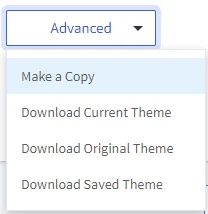
Copy your theme. Go to Storefront → My Themes. On your current theme, click Advanced, then Make a Copy. You'll edit the copy, so your live store isn't affected until you're ready.
-
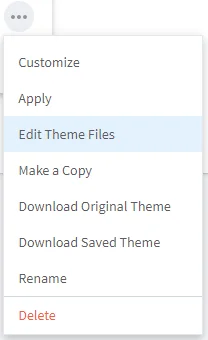
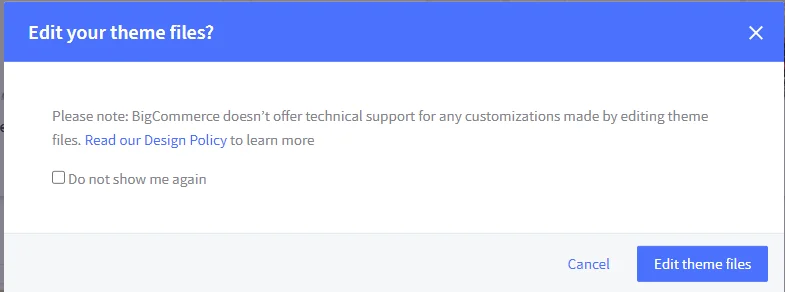
Edit the copy's files. On the copy, click the … icon, then Edit Theme Files. If a message appears, click Edit Theme Files again.
-
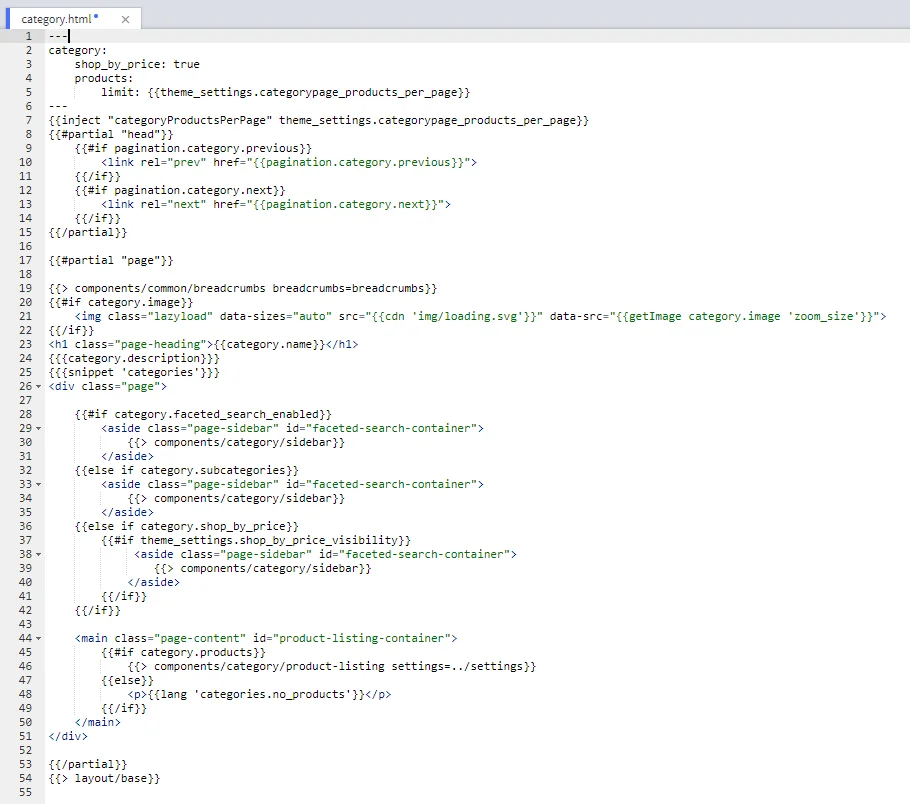
Open the category template. In the theme editor, open templates → pages → category.html.
-
Add the Search Magic line. Inside the page's main
div, add:<div id="search-magic-section" data-category="c{{ category.id }}"></div>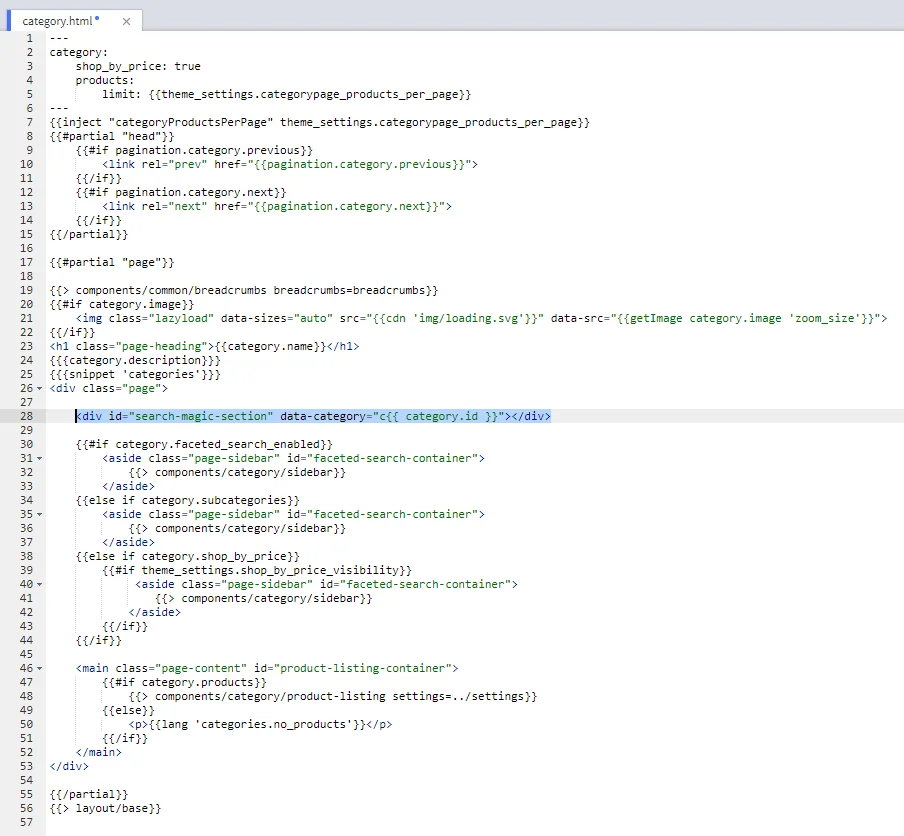
-
Hide theme parts you don't want (optional). Add the class
search-magic-removeto any part of the template that Search Magic should remove from its category pages.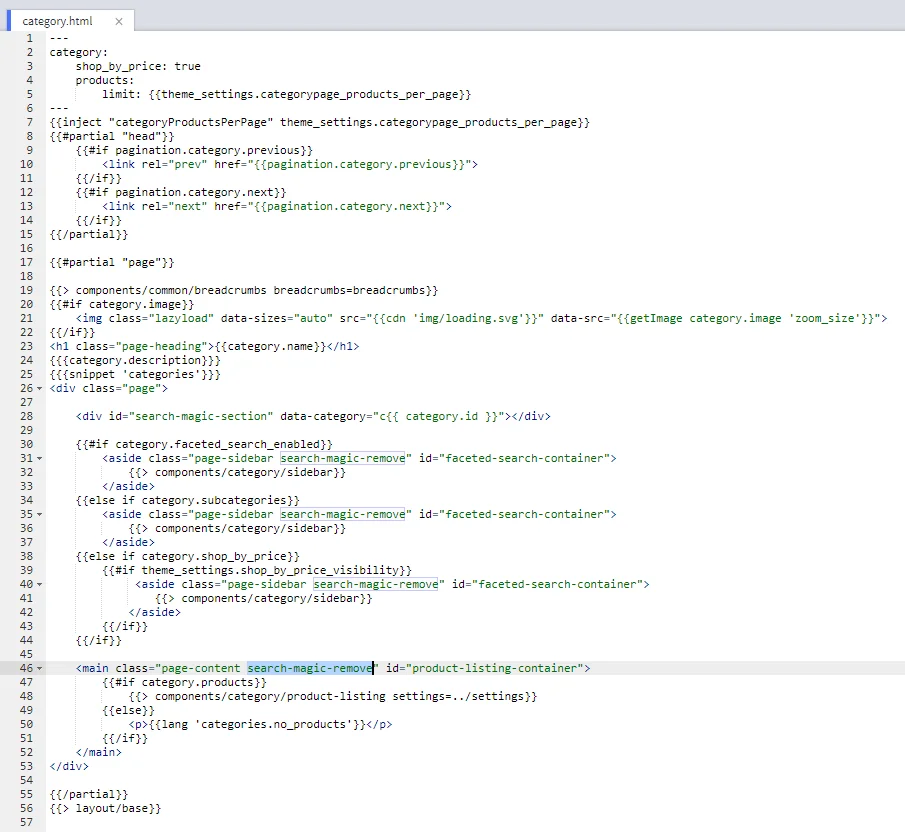
-
Save and apply. Save the file, check the copy, then apply it to your store.
-
Turn pages on. Enable each category page in Search Magic. See Category pages.
Troubleshooting and FAQ
A category page still shows my theme's products
Check that the category page is enabled in Search Magic, and that the line above is in the category.html of the theme your store is using. New category pages start turned off.
Questions? Email us at help@yourstorewizards.com.