
Display Settings in Search Magic for Turbify
Quick info
Choose what your search results page shows, its pagination, how many items per page and the default sort order.
What it does
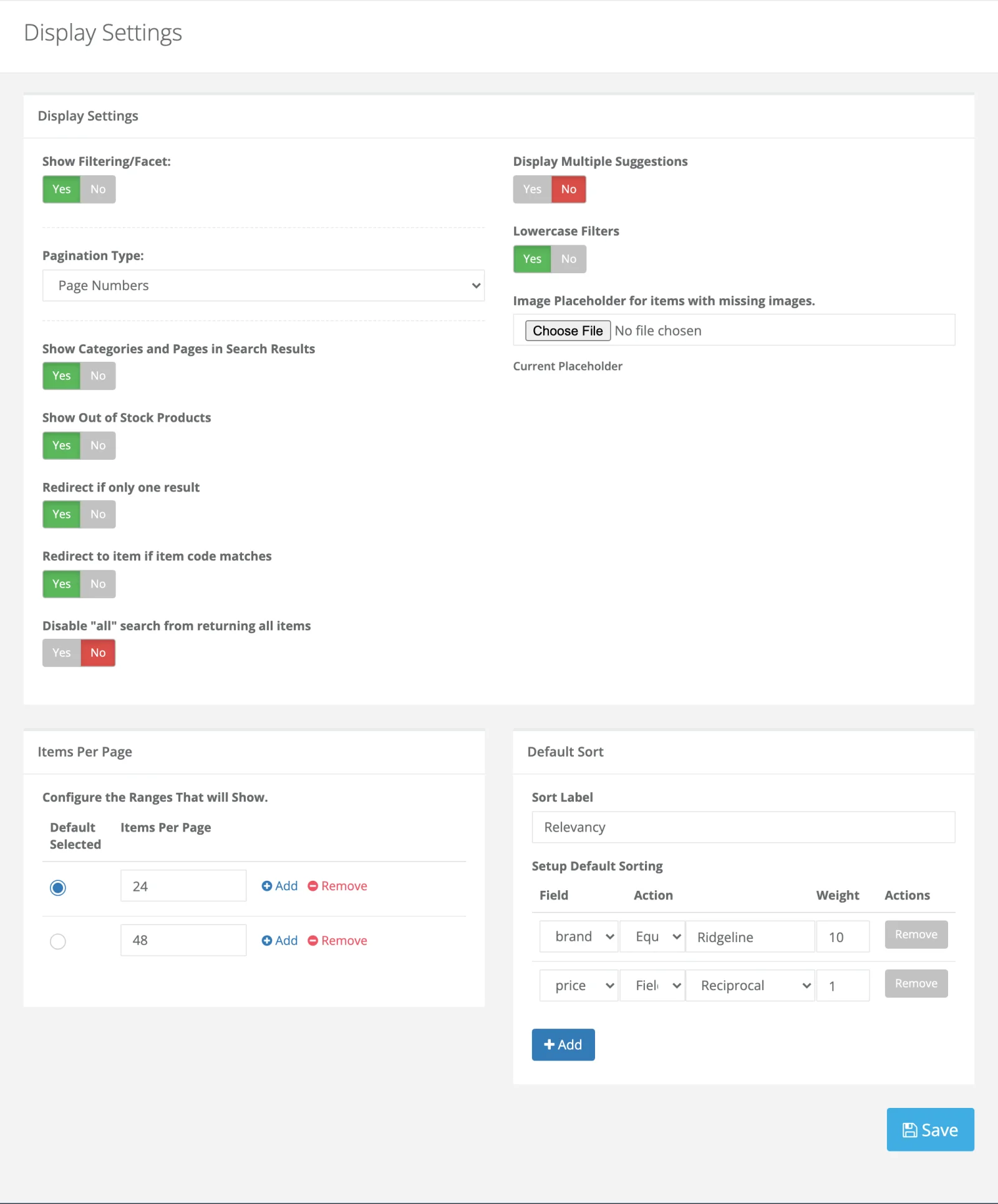
Display Settings decides what shoppers see on your search results page. Open it from Display Settings in the menu, make your changes and click Save.
The look of your results page, its colors and fonts, is set up by our team to match your store. Email us if you'd like it changed.
Settings
Display Settings
| Setting | What it does |
|---|---|
| Show Filtering/Facet | Yes shows filters on your search results and section pages; No hides them. |
| Pagination Type | Page Numbers, or a Show More Button that loads the next items on the same page. |
| Show Categories and Pages in Search Results | Yes shows matching section and information pages in the results as well as items. No shows items only. |
| Show Out of Stock Products | Whether out-of-stock items appear in the results. |
| Redirect if only one result | When a search finds just one item, the shopper goes straight to it. |
| Redirect to item if item code matches | When a search is exactly an item's code, the shopper goes straight to that item. |
| Disable "all" search from returning all items | Stops a search for "all" from listing every item. |
| Lowercase Filters | Yes merges filter values that differ only in capital letters, such as "Usa" and "USA". No keeps them as entered, which suits abbreviations. |
| Image Placeholder for items with missing images | Upload your own image for items that have none. If you don't, a default placeholder is used. |
Items Per Page
The page sizes shoppers can choose. Edit a number to change it, click Add for another option or Remove to delete one, and select Default Selected for the size shown first.
Default Sort
| Setting | What it does |
|---|---|
| Sort Label | The name of the default sort, such as "Relevancy". |
| Setup Default Sorting | Rules that push some items up in the default order. Each rule has a Field, an Action and a Weight; click Add for another rule or Remove to delete one. |
The Action of a default sorting rule is one of:
- Equals: items whose field has the value you enter.
- Field Value: the field's number itself, for numeric fields only, with a modifier: None, Multiply, Square Root or Reciprocal.
- Is Not Empty or Empty: items where the field has a value, or has none.
- Greater Than or Less Than: items whose field is above or below the number you enter.
See How search results are found.
Questions? Email us at help@yourstorewizards.com.