
Display Settings in Search Magic for Shopify
What it does
Display Settings decides what shoppers see on your search results page and how it looks. It has three tabs: Content, Sorting and Layout and Design. Make your changes on any tab, then click Save.
Step-by-step
-
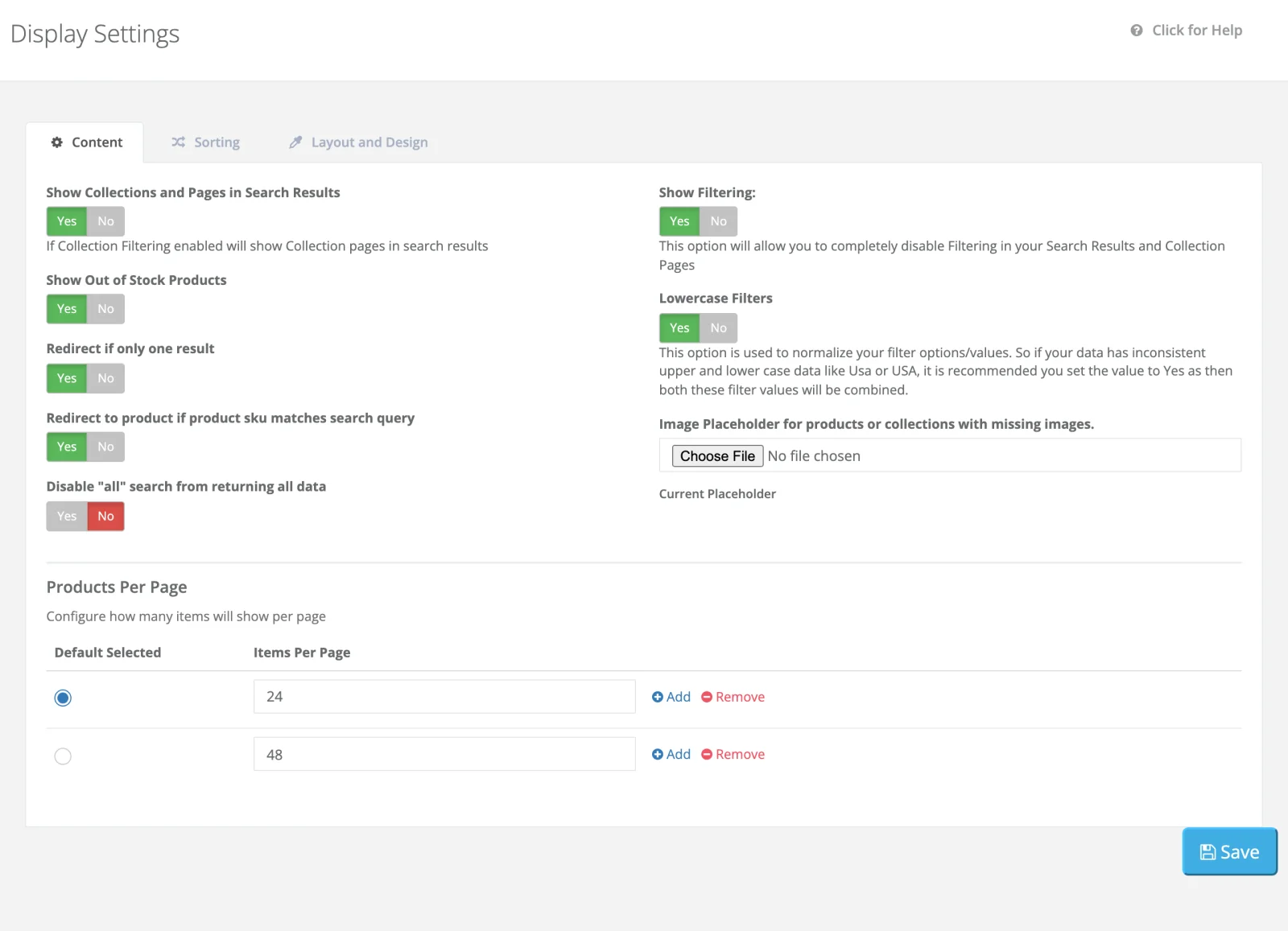
Content. Choose what the results page shows and how many products appear per page.
-
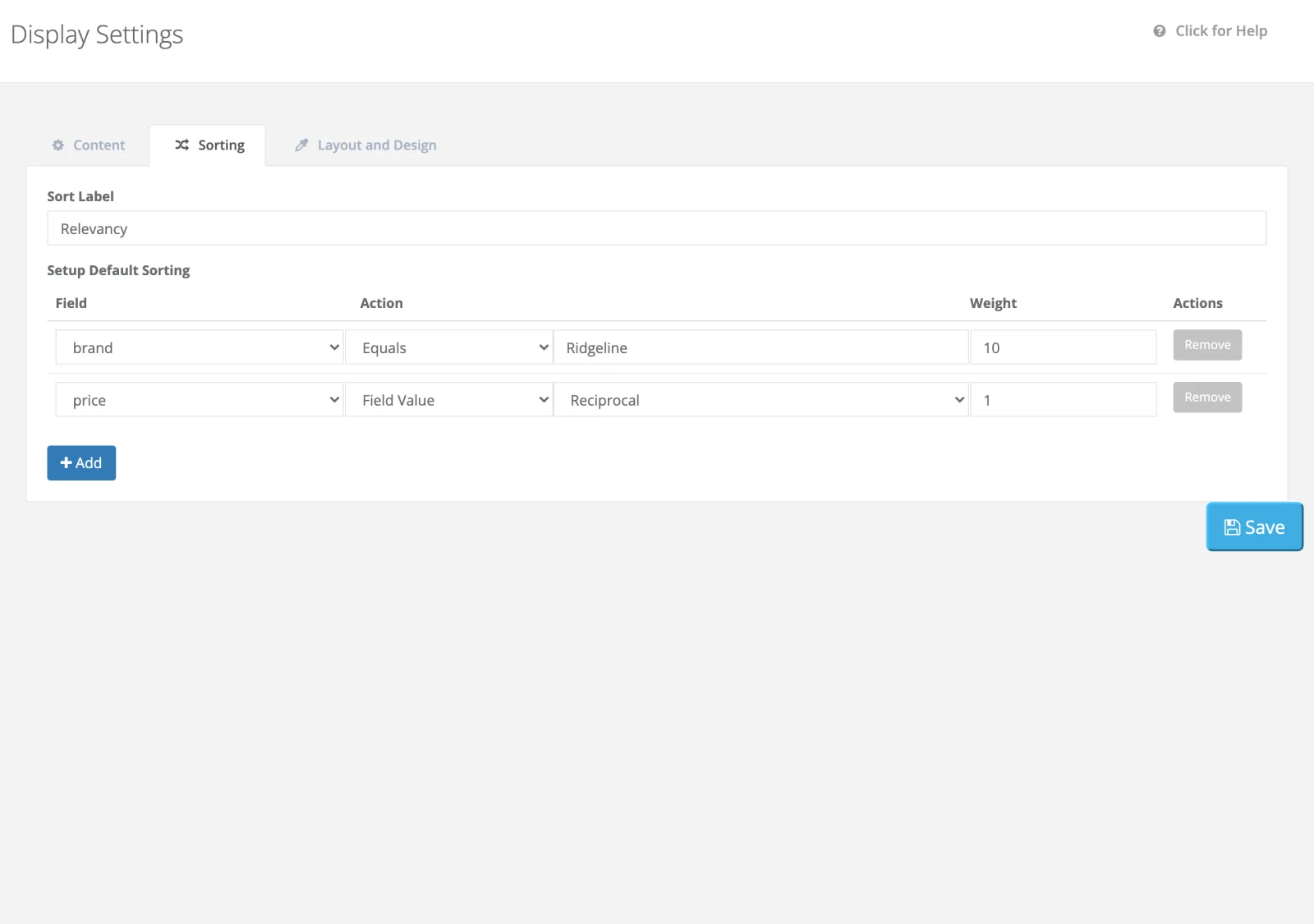
Sorting. Set the default sort label and the rules that order results before shoppers pick a sort.
-
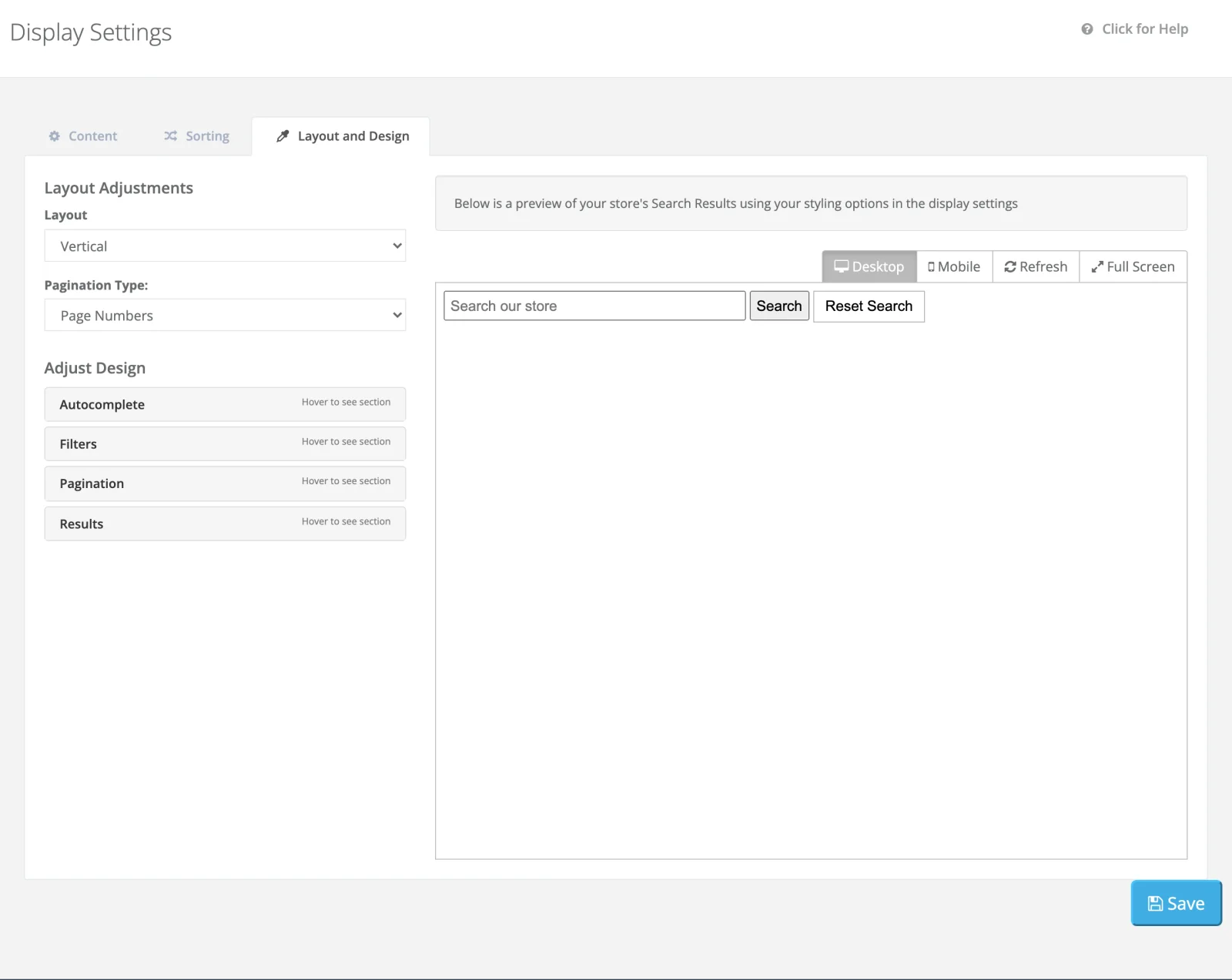
Layout and Design. Choose the filter layout and pagination, and match the colors and fonts to your store. The preview on the right shows your search results with your styling.
-
Save. Click Save.
Settings
Content
| Setting | What it does |
|---|---|
| Show Collections and Pages in Search Results | Yes shows matching collections and pages in the results as well as products. No shows products only. |
| Show Out of Stock Products | Whether out-of-stock products appear in the results. |
| Redirect if only one result | When a search finds just one product, the shopper goes straight to it. |
| Redirect to product if product sku matches search query | When a search is exactly a product's SKU, the shopper goes straight to that product. |
| Disable "all" search from returning all data | Stops a search for "all" from listing every product. |
| Show Filtering | Yes shows filters on your search results and collection pages; No hides them. |
| Lowercase Filters | Yes merges filter values that differ only in capital letters, such as "Usa" and "USA". No keeps them as entered, which suits abbreviations. |
| Image Placeholder for products or collections with missing images | Upload your own image for products or collections that have none. If you don't, a default placeholder is used. |
| Products Per Page | The page sizes shoppers can choose. Edit a number to change it, click Add for another option or Remove to delete one, and select Default Selected for the size shown first. |
Sorting
| Setting | What it does |
|---|---|
| Sort Label | The name of the default sort in the Sort By list, such as "Relevancy". |
| Setup Default Sorting | Rules that push some products up in the default order. Each rule has a Field, an Action and a Weight; click Add for another rule or Remove to delete one. |
The Action of a default sorting rule is one of:
- Equals: products whose field has the value you enter.
- Field Value: the field's number itself, for numeric fields only, with a modifier: None, Multiply, Square Root or Reciprocal.
- Is Not Empty or Empty: products where the field has a value, or has none.
- Greater Than or Less Than: products whose field is above or below the number you enter.
For example, rules for the brand "acme" with a high weight and "nike" with a lower one show acme products first, then nike products, with each group still ordered by relevance. See How search results are found.
Layout and Design
| Setting | What it does |
|---|---|
| Layout | Vertical puts the filters in a column beside the results; Horizontal puts them above. |
| Pagination Type | Page Numbers, or a Show More Button that loads the next products on the same page. |
| Adjust Design | Open Autocomplete, Filters, Pagination or Results to change that part's background, border and fonts. |
Questions? Email us at help@yourstorewizards.com.