
Turning On the Back In Stock Form for Shopify
What it does
The back in stock form is a small sign-up box on your product pages. It appears only when a shopper selects an out-of-stock product or variant. On Shopify, you add it to your theme as an app block in the theme editor; once added, it shows on every product page.
Before you start
- Finish the two setup screens (Welcome and Billing).
- Verify your sending domain in Mail Settings. The form doesn't appear on your storefront until it's verified. See Verify your sending domain.
Step-by-step
Add the app block (Online Store 2.0 themes, such as Dawn)
-
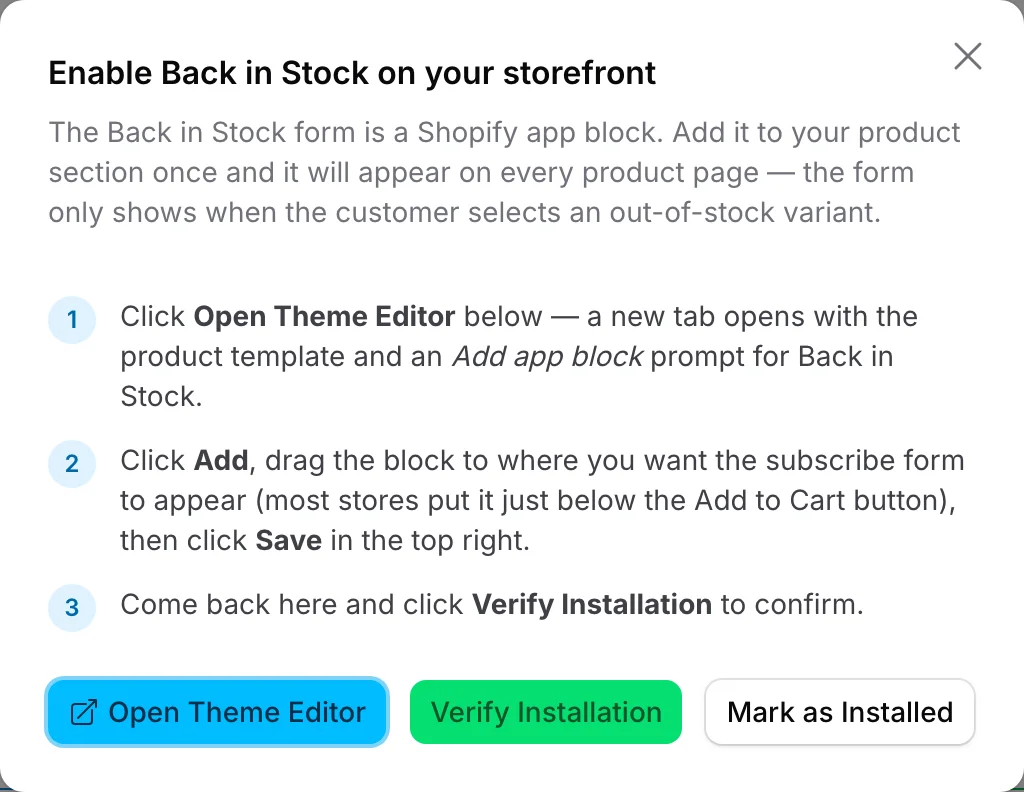
Enable Back in Stock. Click Enable Back in Stock in the app's top bar. The Enable Back in Stock on your storefront window opens and checks your live theme.
-
Open Theme Editor. Click Open Theme Editor. Shopify's theme editor opens in a new tab on your product template, ready to add the app block.
-
Add and save. Click Add, drag the block to where you want the form (most stores put it just below Add to cart), then click Save at the top right of the theme editor.
-
Verify Installation. Back in the app, click Verify Installation. When it works, you'll see "Back in Stock block is on your product page."
Once the form is installed, the top-bar button reads Reinstall / Verify. Use it any time to check the form is still on your theme, for example after changing themes.
Tip
If you've placed the block but the app still can't confirm it, click Mark as Installed to set the status yourself.
Older themes (vintage themes)
If your theme doesn't support app blocks, the window offers two options:
- Switch to a supported theme (recommended). Click Open Themes to manage your themes in Shopify.
- Install via legacy method. Works on any theme, with no theme editing: the app adds the form's script for you. The first time, Shopify asks you to approve one more permission.
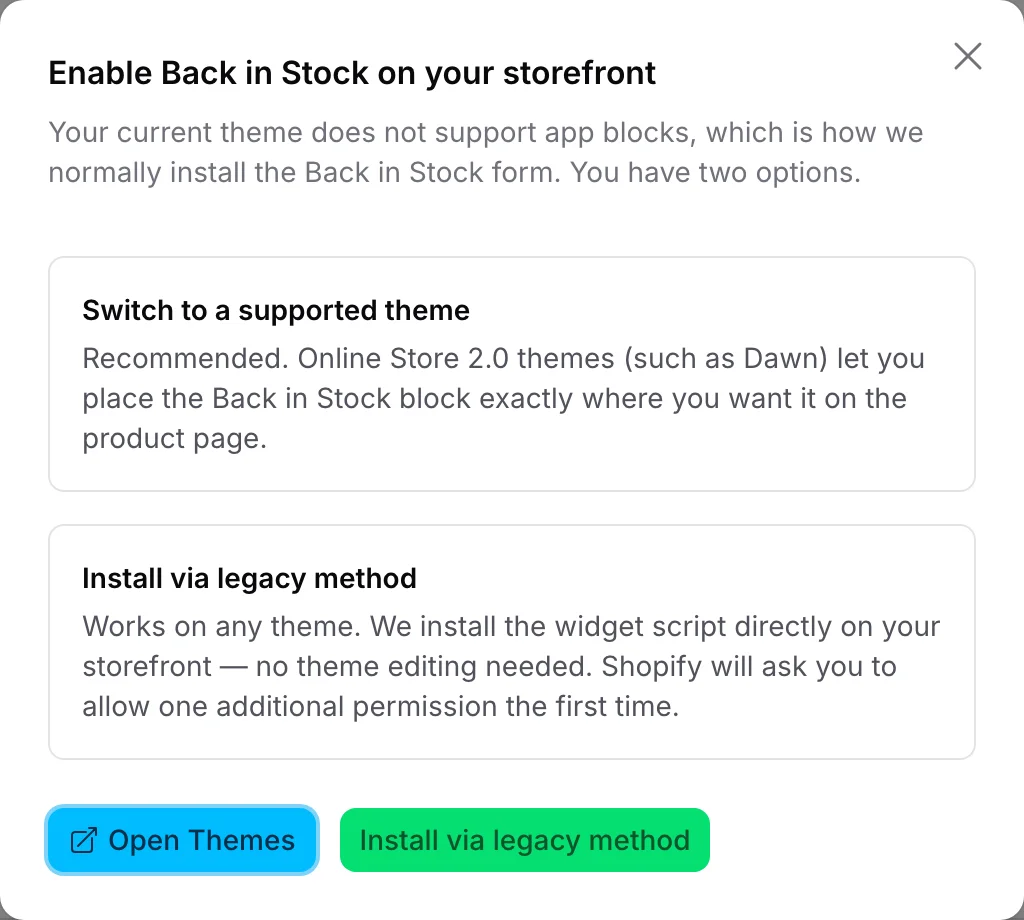
While the legacy install is in use, the window shows a Legacy install active. banner with an Uninstall button. Uninstalling stops the form from loading on your storefront.
Troubleshooting and FAQ
Verify Installation says "Block not detected on your product template."
Open the theme editor, add the Back in Stock block to your product template's product section, click Save, then click Verify Installation again.
The form isn't showing on my product page
- Check your sending domain is verified in Mail Settings.
- The form only shows when the shopper selects an out-of-stock product or variant.
- If you use Wait for the shopper to choose a variant, the form waits until a sold-out variant is picked. See Customizing the subscription form.
- Click the Clear Storefront Cache button (the circular-arrows icon in the top bar), then reload the product page.
Questions? Email us at help@yourstorewizards.com.