
Turning On the Back In Stock Form for BigCommerce
What it does
The back in stock form is a small sign-up box that appears on product pages when the product is out of stock. A shopper enters their email address, and the subscription shows up in your Subscribers list. You turn the form on and off from the button in the app's top bar.
Before you start
- Finish the two setup screens (Welcome and Billing).
- Verify your sending domain in Mail Settings. The form doesn't appear on your storefront until it's verified. See Verify your sending domain.
- You need the store Owner role to see the button.
Step-by-step
One storefront
-
Enable Back in Stock. Click Enable Back in Stock in the top bar. The app adds the form to your storefront, and the button changes to Disable Back in Stock.

-
Check a product page. Open an out-of-stock product on your storefront. The form appears on the page.
-
Disable Back in Stock. To take the form off your storefront, click Disable Back in Stock.
Note
Turning the form off keeps every existing subscription. Shoppers who already signed up are still emailed when the product is back.
Multi-Storefront
If your store uses BigCommerce Multi-Storefront, you choose the storefronts the form appears on.
-
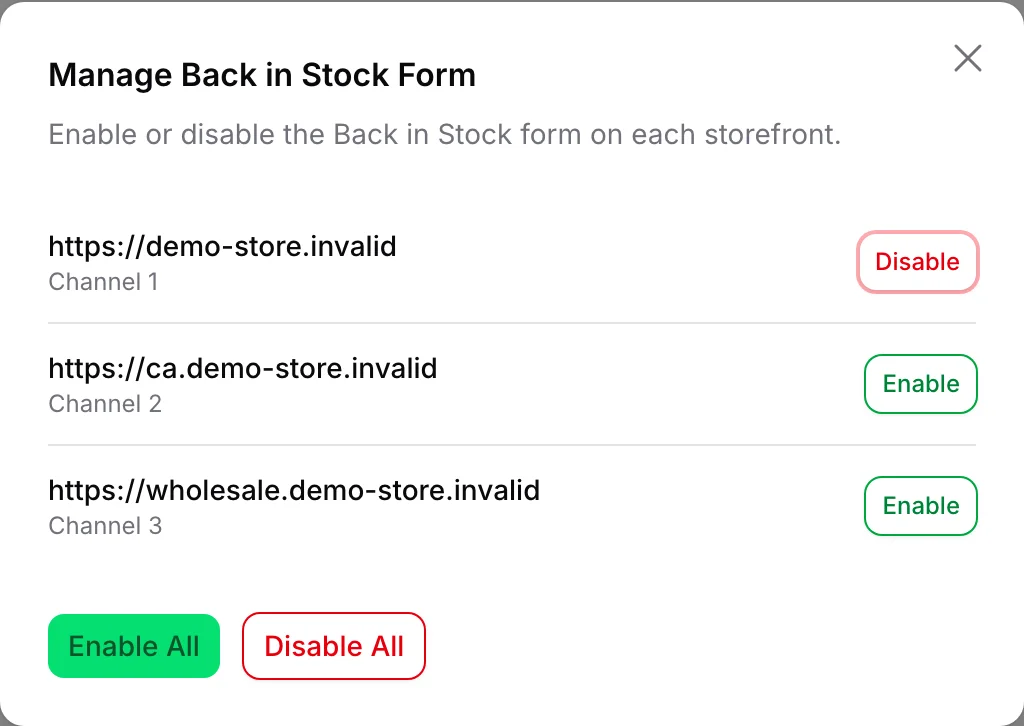
Manage Back In Stock Form. The top-bar button reads Manage Back In Stock Form, with a badge showing how many storefronts have the form (for example
1/3). The badge is green when all storefronts have it, yellow when some do and gray when none do. Click the button. -
Choose storefronts. The window lists each storefront by its address and channel. Click Enable or Disable next to each one, or use Enable All or Disable All.
Troubleshooting and FAQ
I don't see the Enable Back in Stock button
The button only shows once billing is active, and only for users with the store Owner role.
The form is on, but it isn't showing on my product page
- Check your sending domain is verified in Mail Settings.
- The form only shows when the product, or the variant the shopper chose, is out of stock.
- If you use Wait for the shopper to choose a variant, the form waits until a sold-out variant is picked. See Customizing the subscription form.
- Click the Clear Storefront Cache button (the circular-arrows icon in the top bar), then reload the product page.
Questions? Email us at help@yourstorewizards.com.