
Customizing the Back In Stock Email for BigCommerce
What it does
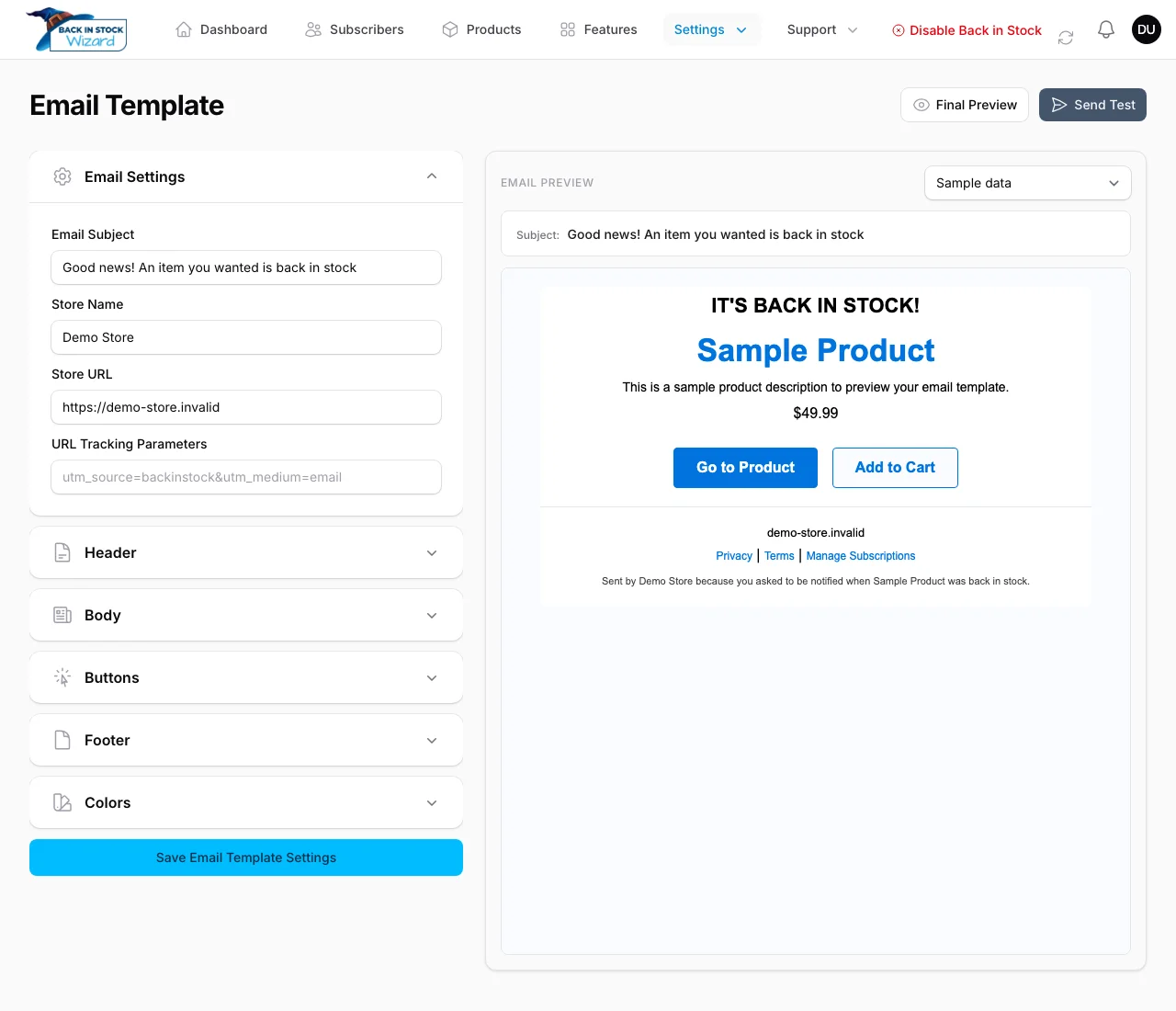
Email Template controls the email a shopper receives when a product they signed up for is back in stock. A live preview on the right updates as you change settings.
Step-by-step
-
Open Email Template. In the menu, go to Settings → Email Template.
-
Preview with a real product. Use the preview's product menu to show the email with one of your own products. It uses sample data until you pick one.
-
Change the settings. Work through the sections described under Settings.
-
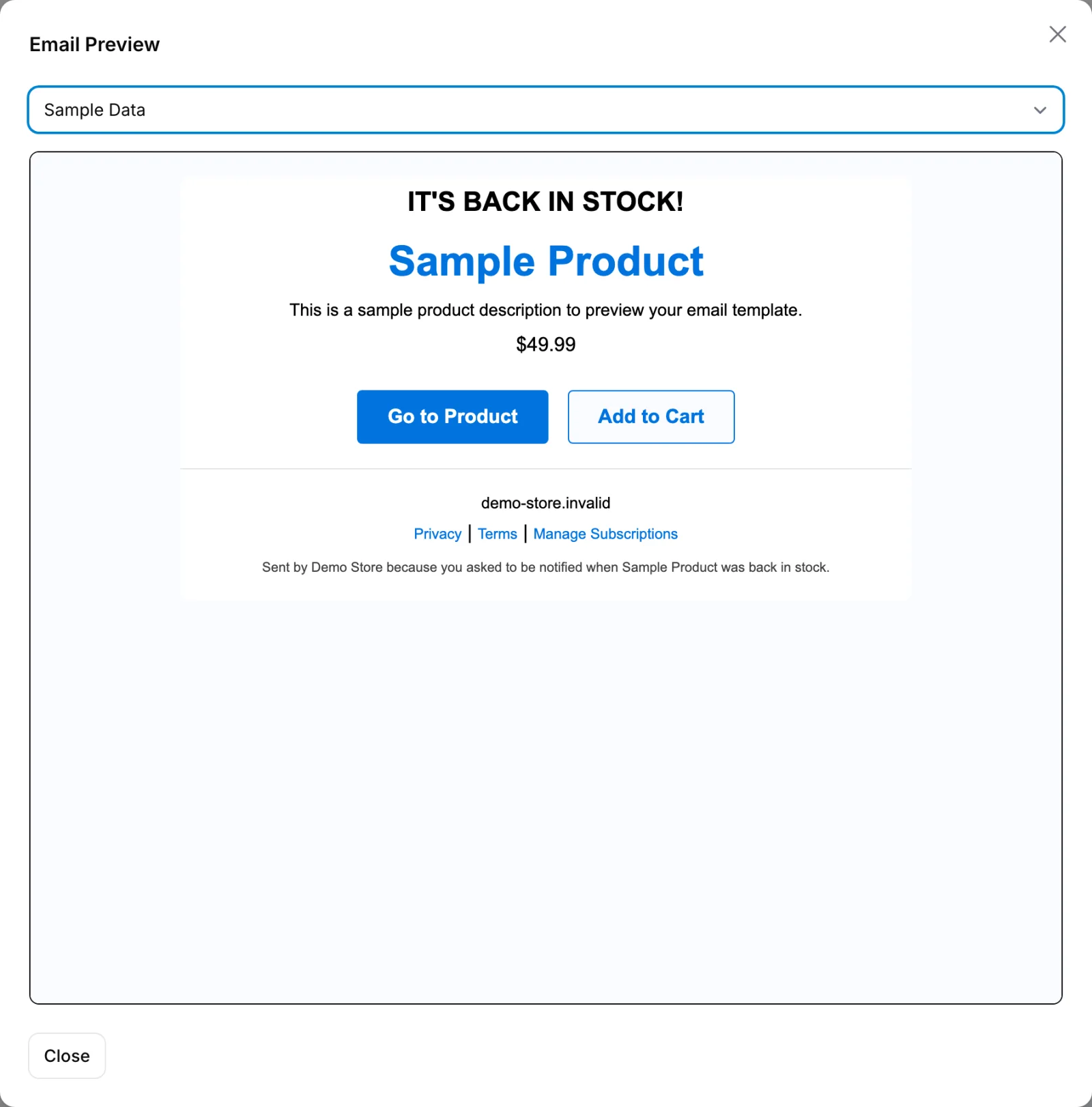
Final Preview. Click Final Preview at the top to see the finished email at full size.
-
Send Test. Click Send Test, enter a Recipient Email and, if you like, choose a Product (or leave it to use sample data). Test emails can only be sent to members of your store team, and up to five an hour.
-
Save. Click Save Email Template Settings.
Settings
Email Settings
| Field | What it does |
|---|---|
| Email Subject | The email's subject line. If it mentions neither the product nor "back in stock", the product's name and "is back in stock" are added to the end when the email is sent (for example "– Canvas Tote Bag is back in stock"). Left empty, the subject is "Your product is back in stock!" |
| Store Name | Your store's name as shown in the email. |
| Store URL | The address every link in the email uses. If you leave off https://, it's added when you save. It must be on your own domain: your storefront domain or your verified sending domain. |
| URL Tracking Parameters | Optional. Added to the links, for example for your analytics. |
Header: Welcome Text with Show Welcome Text, your logo (Upload Logo or Logo URL) with Show Logo, and Custom Text with Show Custom Text. Custom Text keeps the editor's formatting, links to your own domains and images you upload through the editor. Links to other websites become plain text, and other images are removed.
Body
| Setting | What it does |
|---|---|
| Show Product Description | Show the product's description. |
| Description Character Limit | How much of the description to show, from 0 to 500 characters. The default is 120. |
| Show Stock Status | Show the product's stock. |
| Show Price | Show the product's price. |
| Currency Symbol | $, €, £, ¥, A$ or C$. |
Buttons: Show "Go to Product" Button and Show "Add to Cart" Button, each with its own Button Label. Cart Button Action chooses where the cart button goes: Add to Cart (go to cart page) or Buy Now (go to checkout).
Footer
| Field | What it does |
|---|---|
| Footer Display Text | The line at the top of the footer. Leave it blank to show your store URL's domain. |
| Terms & Conditions URL, Terms Link Text | A link to your terms, with its text. |
| Privacy Policy URL, Privacy Link Text | A link to your privacy policy, with its text. |
| Show Manage Subscriptions Link, Manage Subscriptions Link Text | A link where the shopper can see and cancel their back in stock subscriptions. |
Every email also ends with a fixed line, "Sent by your store because you asked to be notified when product was back in stock.", using your store's name as registered with BigCommerce. It can't be edited or hidden, so shoppers always know who sent the email and why.
Colors, in five groups:
- Backgrounds: Email Background and Email Container Background.
- Text: Title, Product Name, Description, and Price & Stock.
- View Item Button: Background, Text and Border.
- Add to Cart Button: Background, Text and Border.
- Footer: Footer Text and Footer Link.
Color pickers that would have no effect are hidden. For example, the Description color hides when Show Product Description is off, and the Footer Link color appears once you add a terms or privacy URL or turn on the Manage Subscriptions link.
Troubleshooting and FAQ
My test email didn't send
Test emails only go to members of your store team, up to five an hour. Check the address belongs to a user on your store, or wait and try again.
The Store URL won't save
It must be a full web address on your own domain: your storefront domain or your verified sending domain.
A link in my Custom Text turned into plain text
Only links to your own domains are kept. Links to other websites are shown as plain text.
Questions? Email us at help@yourstorewizards.com.