
Mail Settings: Verify Your Sending Domain for Shopify
What it does
Back in stock emails are sent from your own domain (for example do-not-reply@yourstore.com), so they carry your brand and land in inboxes. Mail Settings walks you through proving you own the domain by adding a few DNS records.
Important
A verified sending domain is required. Your back in stock form stays off on your storefront, and no notifications are sent, until the domain is verified.
Before you start
- The domain you want emails to come from, usually your store's domain.
- Access to that domain's DNS settings at your domain registrar or hosting provider, or someone who can add records for you.
Step-by-step
-
Open Mail Settings. In the menu, go to Settings → Mail Settings.
-
Add Domain. Enter your domain in Domain Name and click Add Domain.
-
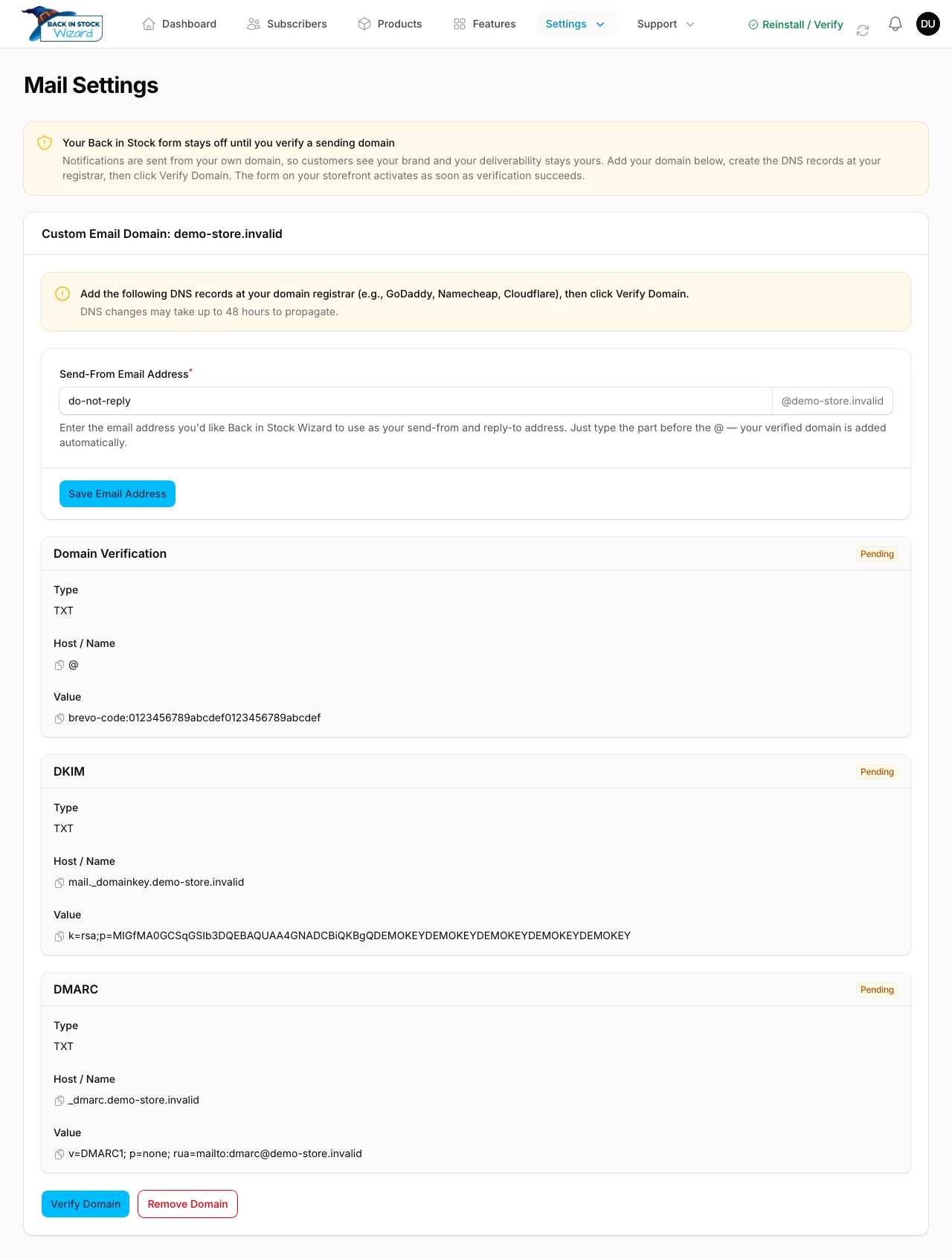
Copy the DNS records. The app lists the records to add: Domain Verification, DKIM and DMARC. Each shows its Type, Host / Name and Value, with copy buttons, and a Pending or Verified badge.
-
Add the records at your DNS provider. Create each record exactly as shown.
-
Verify Domain. Back in the app, click Verify Domain. Once the records are found, the domain is verified and your form can go live.
-
Send-From Email Address. Choose the address emails come from (and replies go to). Type only the part before the
@(for examplenotificationsorhello); your domain is added for you. The default isdo-not-reply. Click Save Email Address. Changing it later doesn't need a new verification.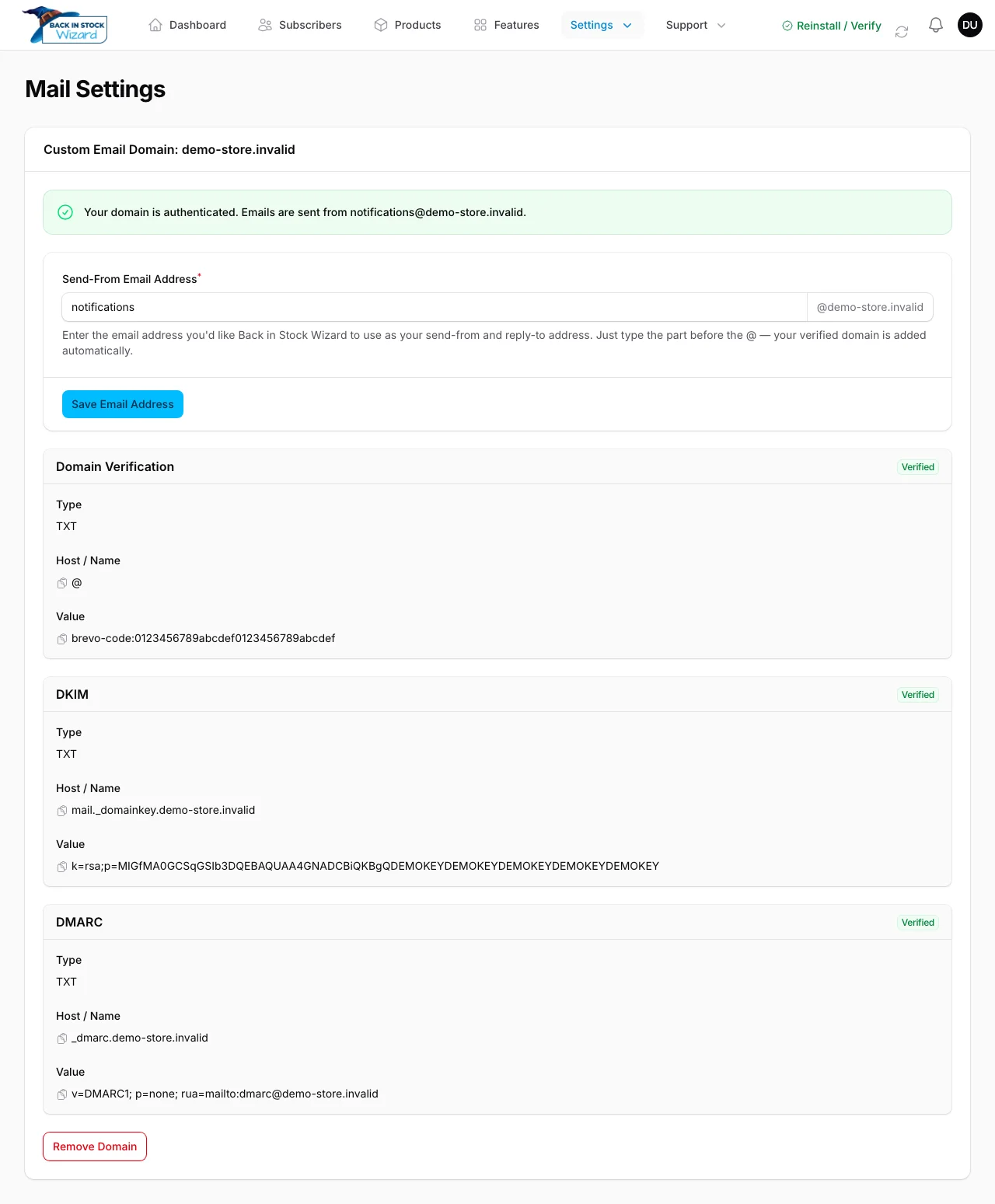
Troubleshooting and FAQ
Verify Domain says the records aren't found
Check each record against the app, character for character, including the host name. DNS changes can take up to 48 hours to appear; wait a while and click Verify Domain again.
Can I change to a different domain?
Yes. Click Remove Domain and confirm, then add the new one. While no domain is verified, your form is off and notifications stop, so verify the new domain straight away.
Do I need to verify again if I change the send-from address?
No. Only the part before the @ changes; your domain stays verified.
Questions? Email us at help@yourstorewizards.com.