
Customizing the Subscription Form for Shopify
What it does
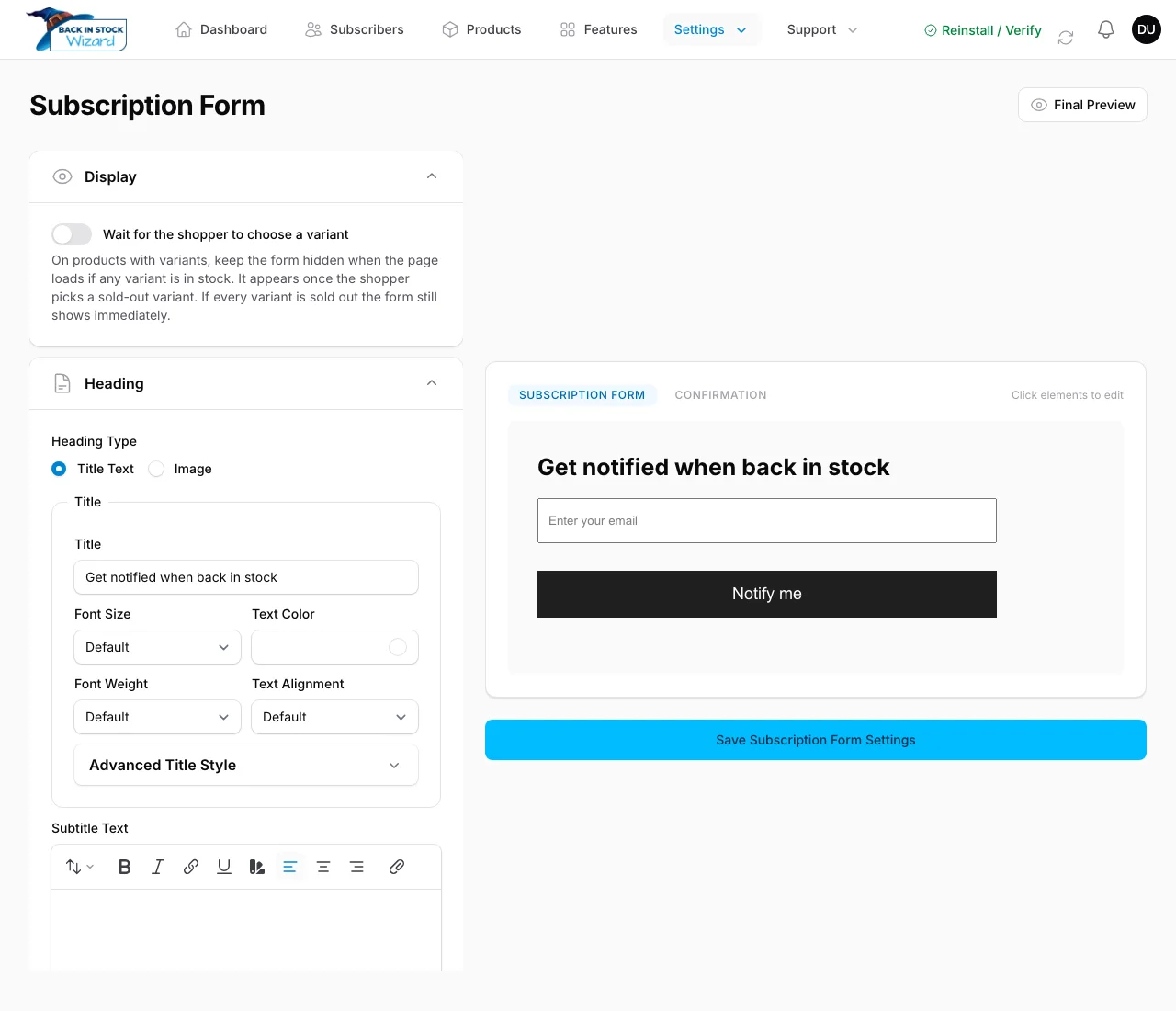
Subscription Form controls how the back in stock sign-up form looks on your product pages, what it says after a shopper signs up, and when it appears on products with variants. Your changes show in the preview as you make them.
Step-by-step
-
Open Subscription Form. In the menu, go to Settings → Subscription Form.
-
Change the settings. Work through the sections under Settings.
-
Final Preview. Click Final Preview to check the finished form.
-
Save. Click Save Subscription Form Settings.
Settings
| Section | What you can change |
|---|---|
| Display | Wait for the shopper to choose a variant (see below). |
| Heading | Heading Type: Title Text or Image. For text, the title and its style (with Advanced Title Style for more control). For an image, Upload Image or Image URL, with its width, fit and maximum height. Also the Subtitle Text under the heading. |
| Input | The style of the email box. |
| Button | The button's text, color and width. |
| Disclaimer | Show Disclaimer and the Disclaimer Text under the form. |
| Confirmation Message | What the shopper sees after signing up: Title, Body Text, Show Subscriber Email, and the title and body styles. |
| Container | A CSS class and inline style for the box around the form. |
| Custom CSS | Your own CSS, for advanced styling. |
Wait for the shopper to choose a variant. On products with variants, this keeps the form hidden when the page loads if any variant is in stock, even when your theme pre-selects a sold-out one. The form appears once the shopper picks a sold-out variant. If every variant is sold out, the form shows straight away. It's on for new stores; if it's off on yours and you want this behavior, switch it on.
Troubleshooting and FAQ
My changes aren't showing on the storefront
Click Save Subscription Form Settings. Then click the Clear Storefront Cache button (the circular-arrows icon in the app's top bar) and reload the product page.
The form shows on a product where some variants are in stock
Turn on Wait for the shopper to choose a variant in the Display section.
Questions? Email us at help@yourstorewizards.com.