
Shopify File Manager
What it does
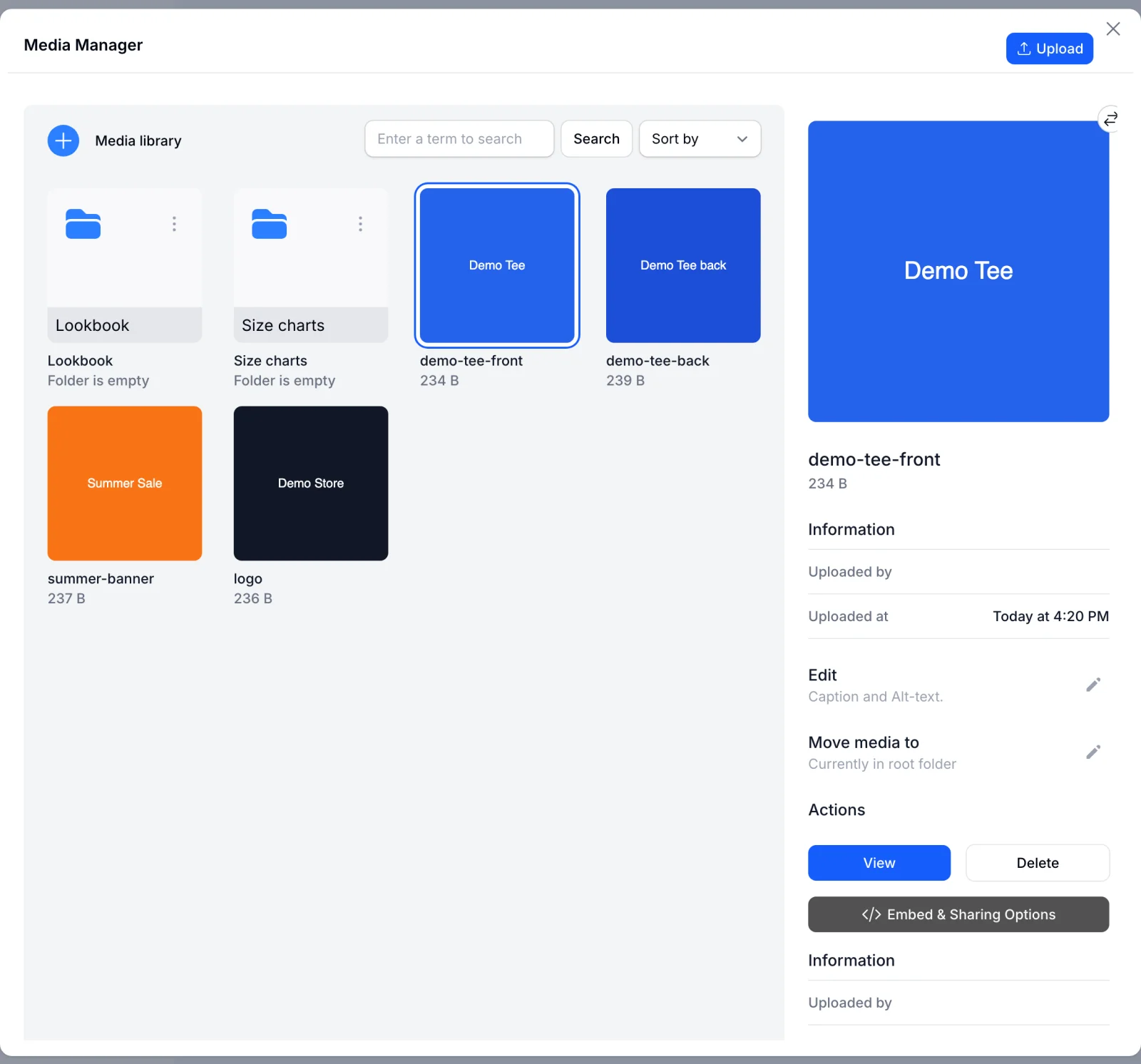
Shopify File Manager gives you a visual media library on top of Shopify Files. Everything you upload is stored on Shopify's own CDN, the same hosting Shopify uses for your theme images, and you manage it all from the Media Manager: organize files into folders, search, edit captions and alt text, and copy ready-made links and embed code for any file.
The standout feature is Embed & Sharing Options: pick a file and copy a direct link or a ready-to-paste HTML snippet, at your choice of size for images, or as a video player (inline or popup) for videos. Use them anywhere you can paste HTML: product descriptions, pages, blog posts or emails.
Use it when:
- You want your images, videos and PDFs in folders instead of one long Shopify Files list.
- You need a link or embed code for a file, sized correctly, without writing HTML or hunting for CDN addresses.
- You want to host PDFs (size charts, manuals, spec sheets) or videos on Shopify's CDN and link to them from your store.
- You manage alt text and captions for your media and want alt text sent to Shopify automatically.
Before you start
- File Manager is a paid add-on. If it isn't active, the tool button reads Subscribe To File Manager; once it's active, it reads Media Manager.
- You need the Manager role (or be the account owner) to upload, edit, move, replace or delete files.
- The tool needs permission to read and write your store's files. The first time you use it, Shopify may ask you to approve the extra Files permission; accept it to continue.
- Your existing Shopify Files are brought into the library automatically when you open the Media Manager, so there's nothing to upload again. Images and videos attached to your products aren't included; manage those in your Shopify catalog.
- Accepted file types: images, videos and PDFs, up to 512 MB each.
Step-by-step
-
Open the Media Manager. Open Shopify File Manager from your tools and choose Media Manager.
-
Upload files. Choose Upload, drop one or more files into the upload box, then choose Save. Nothing is uploaded until you choose Save; a reminder appears if you have files waiting. File names are tidied up (lower case, spaces become dashes) when they're uploaded. New files can take a few moments to finish processing on Shopify.
-
Organize. Create folders, move files between them, rename folders, and use Search and Sort by to find things. Select several files to act on them together.
-
Manage a file. Choose a file to open its details in the sidebar, where you can:
- View it full size in a new tab.
- Edit its Caption and Alt text. Alt text is sent to the file on Shopify when you save.
- Move it to another folder, Replace the file, or Delete it.
-
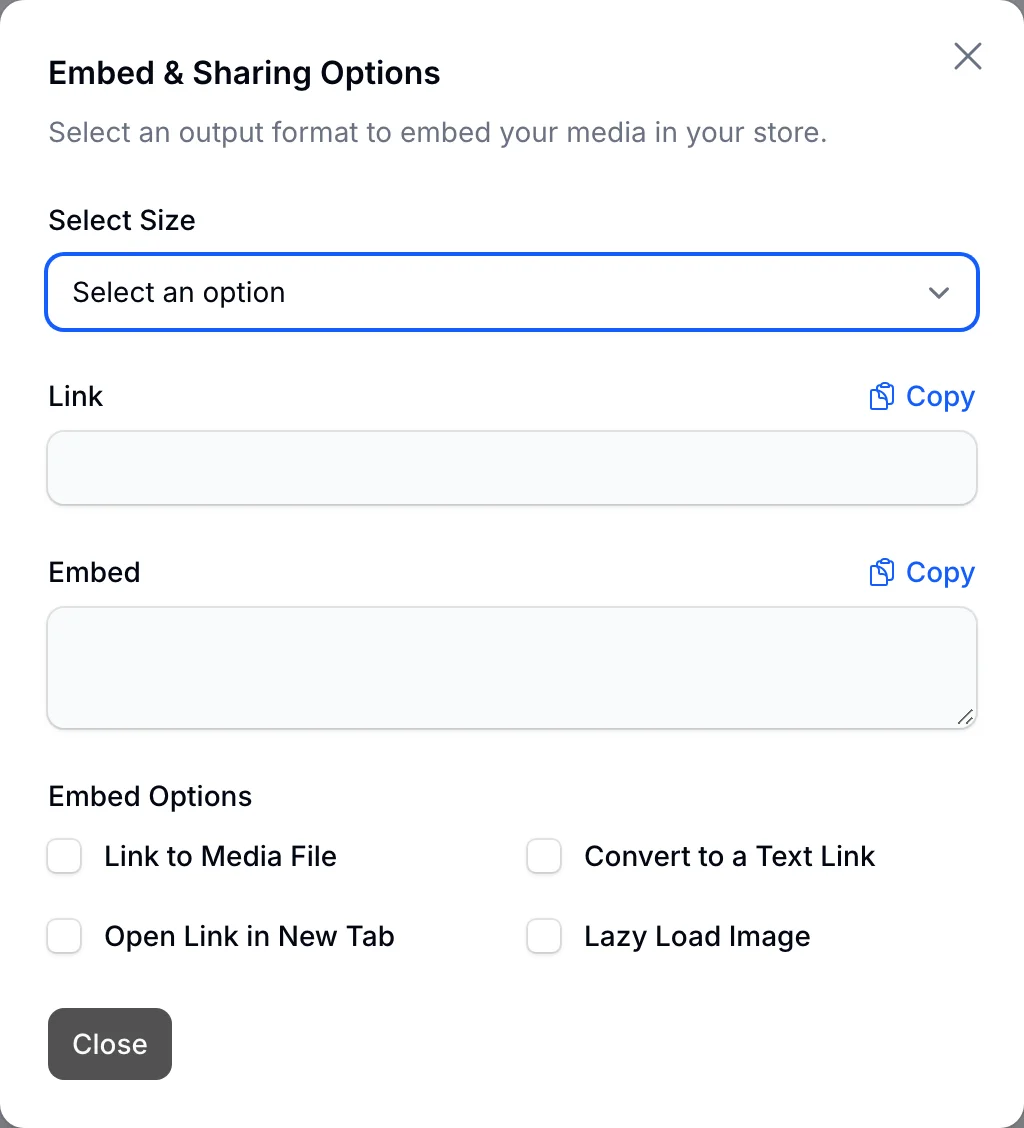
Share or embed. Open Embed & Sharing Options on a file:
- Images and PDFs: choose a size in Select Size (Original, Thumbnail, Medium, Large or Responsive), then copy the Link or the Embed HTML. Under Embed Options you can link to the file, open the link in a new tab, use a text link and lazy-load the image.
- Videos: choose Video Player or Popup Player, set the Width and Height, then copy the Link or Embed code.
- Paste the copied link or HTML wherever you need it: product descriptions, pages, blog posts.
Reference
| Item | Notes |
|---|---|
| Accepted file types | Images, videos and PDFs. |
| File size | Up to 512 MB per file. |
| Where files are stored | Shopify Files (Shopify's CDN), in your store. |
| Image sizes for links and embeds | Original, Thumbnail, Medium, Large and Responsive. |
| Caption | Optional, up to 255 characters. Kept in the library only. |
| Alt text | Optional, up to 255 characters. Sent to the file on Shopify when you save, and updated from Shopify when the library syncs. |
| Folders | Create, rename, move and delete as many as you like. Deleting a folder moves the files inside it up a level; it doesn't delete them. |
Troubleshooting and FAQ
I uploaded files but they're not in the library
Make sure you chose Save after adding files to the upload box: files aren't uploaded until you do.
My new upload has no thumbnail, or its link doesn't work yet
Shopify processes uploads in the background. Most files are ready within seconds, but large videos can take a few minutes. The library fills in the file once Shopify finishes.
My existing Shopify Files don't show up
Your Shopify Files are synced into the library when you open the Media Manager. A large library can take a few moments the first time; a message shows while it syncs, and the grid updates itself when it's done. Images and videos attached to products aren't included, and the library checks for new files at most once an hour, so a file you've just added in Shopify may take a while to appear. Files you delete in Shopify are removed from the library at the next sync.
What happens when I delete a file?
It's deleted from Shopify Files too. Any pages still linking to it will show a broken link, so check before deleting.
What happens when I replace a file?
The new file is uploaded to Shopify and the old one is deleted, so the file gets a new address. Update any links or embeds that used the old one.
I can't upload or edit files
Uploading, editing, moving, replacing and deleting need the Manager role. Ask your account owner to change your role.
Shopify asked me to approve new permissions
That's expected: the tool needs Shopify's read files and write files permissions to manage your media. Approve them to use the tool.
The button says "Subscribe To File Manager"
File Manager is a paid add-on, and yours isn't active yet. Subscribe to turn the tool on.
I got an API permission error
The tool may need to be reconnected with your store. If it keeps happening, contact us from Contact Us in your dashboard and we'll help you fix it.