
llms.txt Generator for BigCommerce
What it does
llms.txt Generator builds and publishes an llms.txt file for your store: a plain-text page at https://your-storefront.com/llms.txt that gives AI assistants (ChatGPT, Claude, Perplexity and others) a clean, structured summary of what you sell. It covers your main categories, featured products, brands, pages, policies and contact details, plus anything you want to say in your own words.
You set up the file in an editor with a live preview, so you always see exactly what will be published. The tool publishes it as a page on your storefront at /llms.txt, hidden from your store's navigation. Publishing again updates the same page, so you can edit and republish as often as you like, or turn on Auto-refresh to regenerate it once a day so it keeps up with your catalog.
On a store with several storefronts, each storefront gets its own llms.txt with its own settings.
Use it when:
- You want AI assistants and AI-powered search to understand and recommend your store accurately.
- You want to choose which categories, products, brands and pages are highlighted, rather than leaving it to whatever a crawler finds.
- You want your shipping, returns and FAQ answers available to AI assistants in a format made for them.
- You run several storefronts and want a tailored
llms.txton each one.
Before you start
- llms.txt Generator is a paid add-on (also included with the Your Store Tools Premium plan). If your subscription isn't active, the button reads Subscribe To Tool; once it's active, it reads Manage Storefronts.
- The tool reads your categories, products, brands, pages and blog posts from BigCommerce, so there's nothing to upload. Store data is kept for up to a day, so very recent catalog changes may take a little while to appear.
- You don't need to create anything in BigCommerce first: the tool creates and looks after the
/llms.txtpage for you. If a page is already at that address, the tool leaves it alone and asks what to do (see the FAQ).
Step-by-step
-
Manage Storefronts. Open llms.txt Generator from your BigCommerce dashboard and choose Manage Storefronts.
-
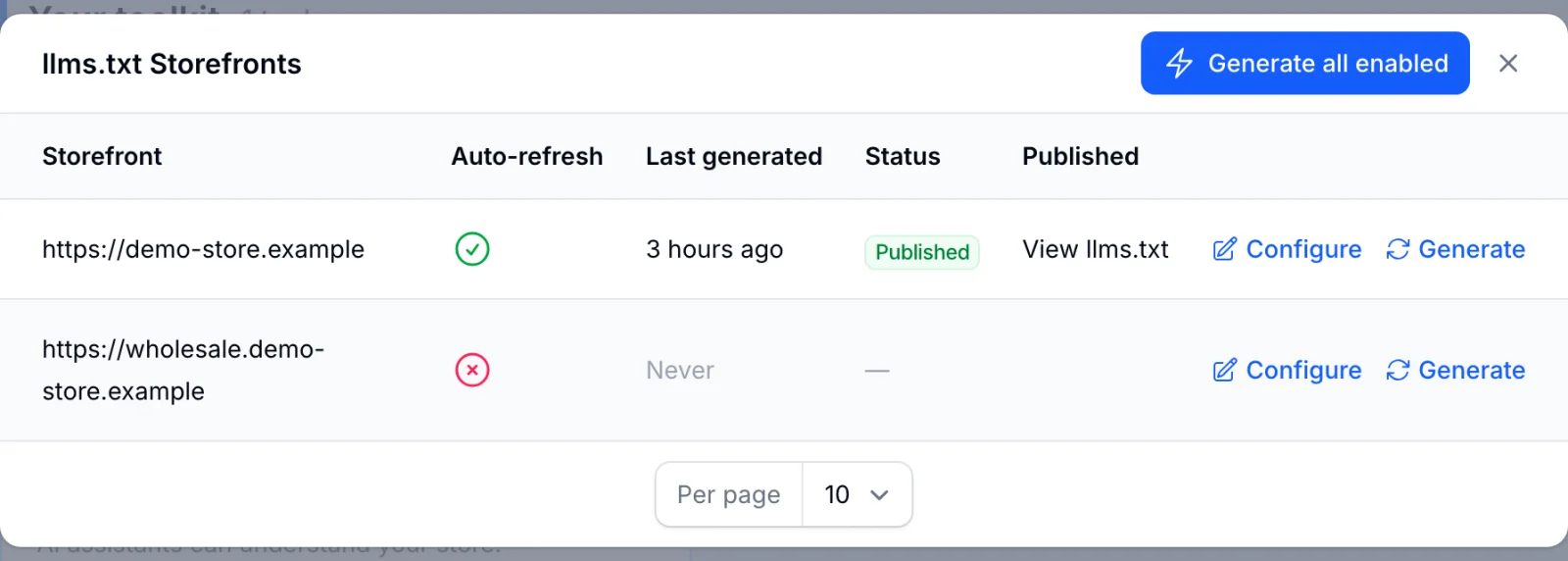
Choose a storefront. Stores with several storefronts see the llms.txt Storefronts table: one row per storefront, showing whether Auto-refresh is on, when the file was last generated, its status, and a View llms.txt link once it's published. Choose Configure on the storefront you want to set up. Stores with one storefront go straight to the editor.
-
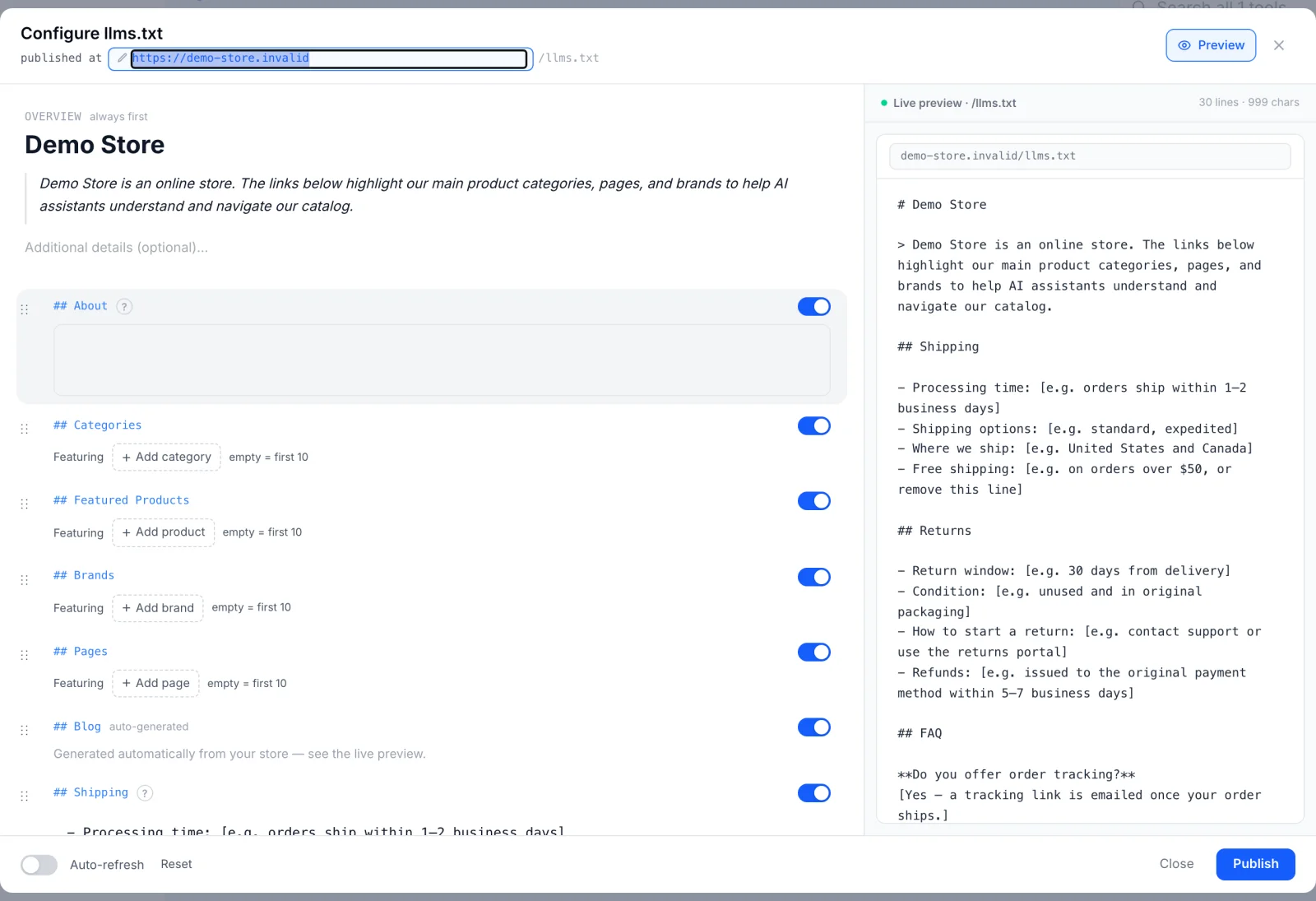
Fill in the overview. In the Configure llms.txt editor:
- Store title (required): starts as your store name.
- Summary: the one-sentence description under the title. It starts with a general sentence about your store; replace it with your own.
- Intro: an optional extra paragraph.
- The storefront address shown at the top (
your-domain.com/llms.txt) is detected for you.
-
Work through the sections (see the Reference). Turn any section off to hide it, drag sections to reorder them, and:
- Written sections (About, Shipping, Returns, FAQ): replace the bracketed placeholder text with your own words. Text you leave as it is gets published as it is.
- Picker sections (Categories, Featured Products, Brands, Pages): search and choose what to feature. Leave a picker empty and the first 10 items are included for you.
- Featured Products searches your whole catalog: type at least two letters of a product name, or a SKU, and choose Search (or press Enter). Before you search, the picker offers your first 25 visible products. Chosen products stay listed above the search box; remove one with the × on its tag. You can feature up to 50 products.
- Automatic sections (Blog, Policies, Contact, Resources): built from your store data, with nothing to fill in.
- Your own sections: choose Add your own section below the list, give it a heading (up to 60 characters), and write whatever you want in it (Markdown works, including links). Drag it anywhere, turn it off like any other section, or remove it with the bin icon. You can add up to 10.
-
Preview. Use the Preview toggle any time to see the exact file that will be published. Sections with nothing in them are left out of the file.
-
Auto-refresh (optional). Turn on Auto-refresh and pick a time of day, in your store's timezone. The file regenerates once a day at that hour, so new products, categories and blog posts flow through without you publishing again.
-
Publish. The storefront shows Processing… while the file is generated (this can take a minute), then Published. Use View llms.txt, or visit
/llms.txton your storefront, to see the live file.
To start again, Reset puts every section back to the starting template, removes your own sections and clears your picker choices. Nothing changes on your storefront until you publish.
Reference
The file always starts with your title, summary and intro. Below that, these sections are available, all optional, in whatever order you arrange them:
| Section | Type | What goes in it |
|---|---|---|
| About | Written | What you sell, who you serve and what makes you different: your range, specialties and any guarantees. Starts empty. |
| Categories | Picker | Featured categories from your category tree. Empty: the first 10. |
| Featured Products | Picker | Hand-picked visible products, up to 50. Empty: the first 10. |
| Brands | Picker | Featured brands. Empty: the first 10. |
| Pages | Picker | Featured content pages (visible pages only). Empty: the first 10. |
| Blog | Automatic | Up to 10 of your published blog posts. |
| Shipping | Written | Processing time, shipping options, regions you ship to and any free-shipping threshold. Starts with a template to complete. |
| Returns | Written | Return window, condition requirements, how to start a return and refund timing. Starts with a template to complete. |
| FAQ | Written | Common questions such as order tracking and how to contact support. Starts with a template to complete. |
| Policies | Automatic | Links to your pages whose names mention privacy, terms, returns, refunds, shipping or warranty. |
| Contact | Automatic | Your store's email, phone, address and currency from your BigCommerce settings. |
| Resources | Automatic | Links to your sitemap and storefront search. |
| Your own sections | Written | Anything else worth telling AI assistants: wholesale terms, sizing advice, service areas. Up to 10, each with its own heading. |
Limits: store title up to 255 characters, summary up to 500, intro up to 1,000. Your own sections: heading up to 60 characters and text up to 5,000.
Troubleshooting and FAQ
The status shows "Failed"
Hover over the Failed badge in the storefronts table to see why; the reason is also shown at the top of the editor. The two most common causes are a page already at /llms.txt and a permission problem, both covered below.
It says my storefront already has a page at /llms.txt
Some stores already have a page at that address, made by hand or as part of the storefront's setup. The tool never overwrites a page it didn't create, so it stops and tells you which page is in the way. Open Configure, then choose Fix this next to the storefront address:
- Edit it in BigCommerce: go straight to that page to rename, hide or delete it.
- View the page: see what's on it first.
- Use this page: hand it to the tool, so publishing replaces its contents from then on.
It says BigCommerce already has a page named llms.txt
Rename or delete that page in BigCommerce (Storefront → Web Pages), then publish again.
It says BigCommerce refused the request because the app is missing the Content permission
Reconnect the app with "Content: modify" access, then publish again. If it keeps happening, contact us from Contact Us in your dashboard and we'll help you fix it.
There's no "View llms.txt" link for my storefront
The link appears after the first successful publish. If you've just published, wait for the status to change from Processing… to Published.
I deleted the llms.txt page in BigCommerce by mistake
No problem: the next publish (yours or Auto-refresh) creates it again.
Auto-refresh isn't updating my file
Auto-refresh is set per storefront. Open Configure for that storefront and check the toggle is on and a time is chosen. To publish right away, choose Generate on the storefront's row; Generate all enabled runs every storefront that has Auto-refresh turned on.
The preview or published file doesn't show a product or category I just added
Store data is kept for up to a day. Give it some time, or check again after the next Auto-refresh. Product search isn't delayed, so a new product can be found in the Featured Products picker straight away.
A product I search for doesn't come back
Search covers visible products only, so hidden products won't appear. Long lists of results are capped; if you see the note to refine your search, add another word or search by SKU.
I want different content on each storefront
You already have it: each storefront has its own settings, sections and schedule.