
WebDAV File Manager for BigCommerce
Prefer to work inside your store's admin? This tool is also a standalone app: WebDAV File Manager App
What it does
WebDAV File Manager is a file browser for your BigCommerce store's WebDAV storage. WebDAV is the file storage BigCommerce gives every store, holding things like product images, downloadable files, theme assets and documents.
Instead of installing a desktop WebDAV program, you connect your store once and manage those files here. Everything happens live: there's no background job and no emailed results. When you upload or change a file, you see the result straight away.
The tool has three parts:
- Media Manager: a visual library for uploading and organizing images, PDFs and video, with folders and a details panel for each item.
- File Library: a full file explorer over your WebDAV storage, with a folder tree, breadcrumbs, uploads, new folders and files, rename, delete, download, image previews, a text editor and links to files.
- WebDAV Settings: where you enter and update your connection details.
Use it when:
- You want to upload images or other files to your store without a separate program.
- You need to find, rename or reorganize files already in your storage.
- You want to make a quick edit to a text file, such as a CSS or data file, without downloading and re-uploading it.
- You need a link to a file to paste into a product description or page.
Before you start
- WebDAV File Manager is a paid add-on. If it isn't active, the tool button reads Subscribe To WebDAV File Manager; once it's active, it reads Media Manager.
- You need your store's WebDAV credentials from your BigCommerce control panel: the WebDAV path, username and password. The settings screen links to instructions for finding them.
- If you haven't entered credentials yet, the tool opens the settings screen first.
Step-by-step
-
Connect: WebDAV Settings. The first time you open the tool, or any time from WebDAV Settings in the tool's menu, enter:
- WebDAV Path: the full WebDAV address from BigCommerce, usually ending in
/dav. - WebDAV Username and WebDAV Password from BigCommerce.
- Use CDN URL: on to start with. Media Manager links then use BigCommerce's CDN address instead of the WebDAV address.
Choose Submit. You'll see "WebDav Settings Updated".
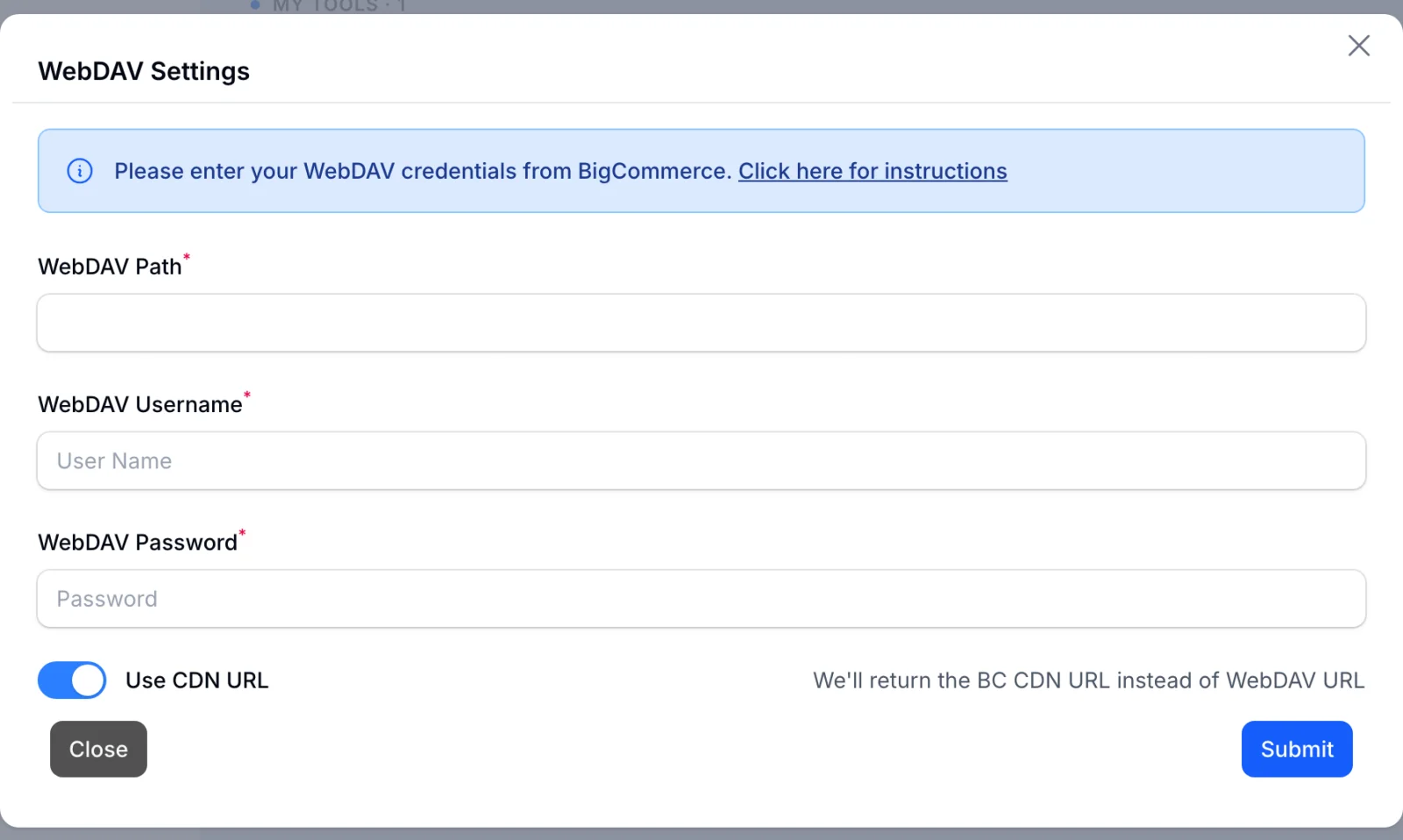
- WebDAV Path: the full WebDAV address from BigCommerce, usually ending in
-
Work visually: Media Manager. Choose Media Manager. Browse your media as a grid organized into folders. Choose Upload to add images, PDFs or video, and select an item to see its details.
-
Full control: File Library. Choose File Library from the tool's menu.
- Move around with the folder tree on the left, the breadcrumbs across the top, or by opening folders in the list. The list shows Name, Size, Type and Date, with folders first.
- Use the toolbar: Go up, Refresh, Upload files, New folder, New file, Rename (select one item), Delete (select one or more) and Fullscreen.
- Click a file to select it, Ctrl/⌘-click to select several, and double-click to preview.
- Right-click an item for Open (folders) or Preview (files), Edit, Download, Copy URL, Rename and Delete.
-
Upload and edit files. Upload files opens a drop box: drag files in or pick several at once. They go into the folder you're viewing and replace any files with the same name. New file creates an empty file and opens it in the editor; Edit opens an existing text file in the same editor. Choose Save to write your changes to your store.
Reference
| Item | Notes |
|---|---|
| Files you can browse | Everything in your WebDAV storage can be browsed, downloaded, renamed and deleted. |
| Upload limits | No file-type or size limit on uploads by default. |
| Images you can preview | JPG, JPEG, PNG, GIF, SVG, WEBP and BMP. |
| Files you can edit | TXT, CSV, HTML, CSS, JS, JSON, XML, MD, LOG, YML and YAML. |
| Other files | Open in a new browser tab when you preview them. |
| Hidden files | Files whose names start with a dot, such as .htaccess, aren't listed. |
Troubleshooting and FAQ
The tool keeps sending me to settings
It needs valid WebDAV credentials first. Open WebDAV Settings, enter your WebDAV Path, Username and Password from BigCommerce, and choose Submit.
My files won't load, or I get a connection error
Check the WebDAV Path, Username and Password against what BigCommerce shows in your control panel; one wrong character stops the connection. Enter them again in WebDAV Settings. Use the instructions link on that screen if you need help finding them.
A file I just added elsewhere isn't showing
Folder listings are kept for about 30 seconds to keep browsing fast. Wait a moment, then choose Refresh.
"Some files could not be uploaded."
One or more files were skipped; the rest uploaded normally. Try the skipped files again.
I deleted a folder by mistake. Can I get it back?
No. Deleting a folder removes it and everything inside it from your WebDAV storage, and there's no undo. Read the delete confirmation carefully.
When will I get an email with my results?
You won't. This tool is interactive: everything happens live in the window, with no background job or email.
I see "Subscribe To WebDAV File Manager"
The add-on isn't active for your store yet. Subscribe to turn it on, then open the tool again.