
URL Redirect Uploader for BigCommerce
What it does
URL Redirect Uploader adds URL redirects to your BigCommerce store in bulk from a spreadsheet. A redirect sends anyone who visits an old address straight to a new one, so shoppers and search engines never land on a broken page. BigCommerce serves these as permanent 301 redirects.
Upload a file, match its columns to the two fields (the old path and the new destination), and the tool creates a redirect for every row. The work runs in the background, and you can choose to get an email when it's finished. Any rows that can't be processed are listed in an errors file so you can fix them and upload them again.
If a redirect already exists for an old path, uploading it again updates it to point at the new destination, so it's safe to run again.
Use it when:
- You changed product, category or page addresses and want shoppers and search engines to follow them.
- You moved to BigCommerce from another platform and need to map hundreds or thousands of old links to new ones.
- You're cleaning up broken links and want to redirect them in one go instead of one at a time in BigCommerce.
Before you start
- Make sure the first row of your file has the column names (headings). The tool reads them so you can match them to fields.
- Include two columns: the old path (the address you're redirecting from) and the new destination (where visitors should go). Both are required.
- The old path is the part of the address after your domain, for example
/old-product. If you paste a full address likehttps://yourstore.com/old-product, only the path is kept. - The new destination can be a path on your store (such as
/new-product) or a full address on another site (such ashttps://example.com/page). - Use a CSV or Excel (.xlsx) file, or a link to a CSV file or Google Sheet. Older .xls files aren't supported.
Step-by-step
-
Open URL Redirect Uploader. Choose the tool from your BigCommerce tools.
-
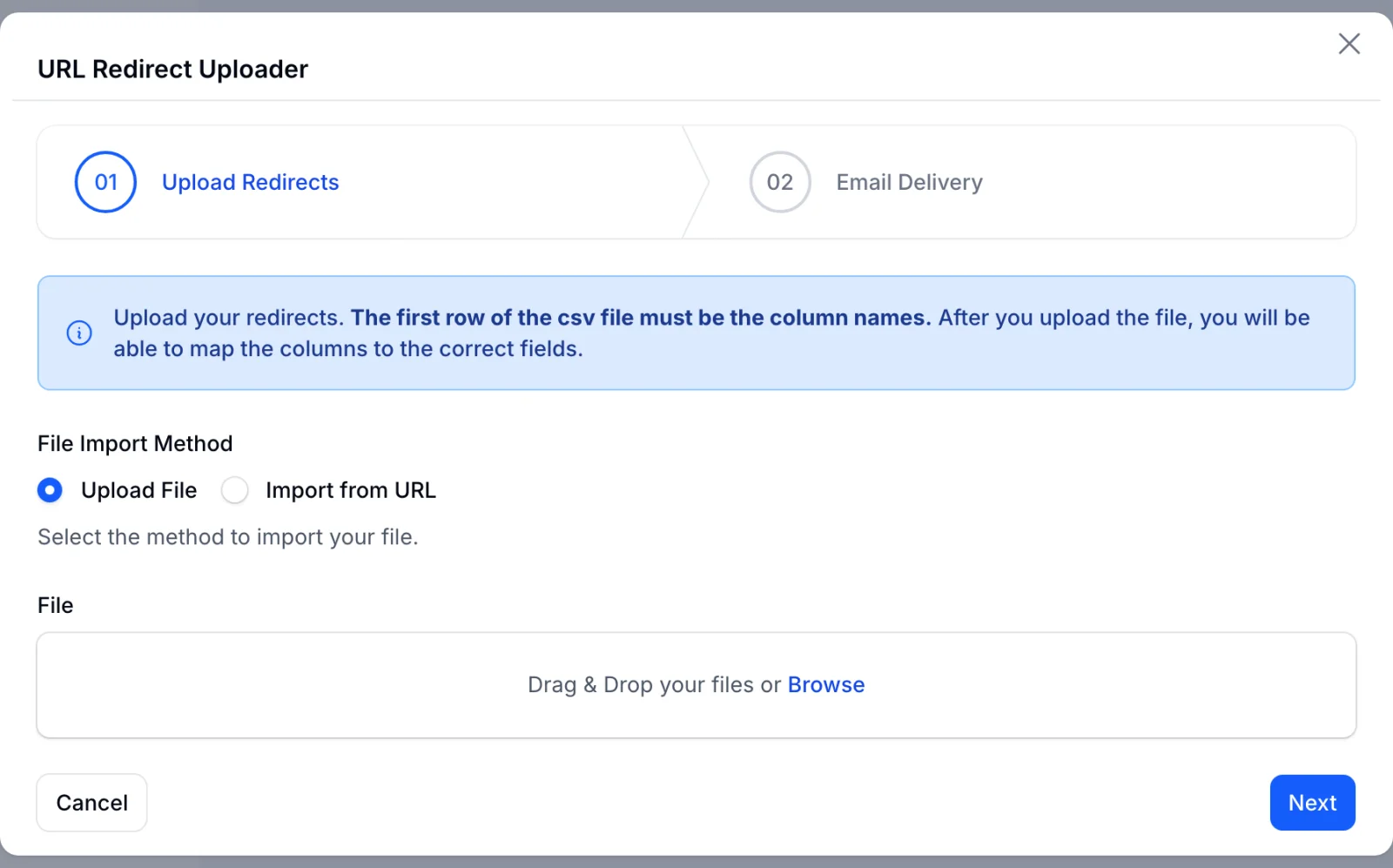
Upload Redirects. If your store has more than one storefront, choose it in Select Store Front for Redirects; single-storefront stores skip this. Then choose Upload File or Import from URL and add your file.
-
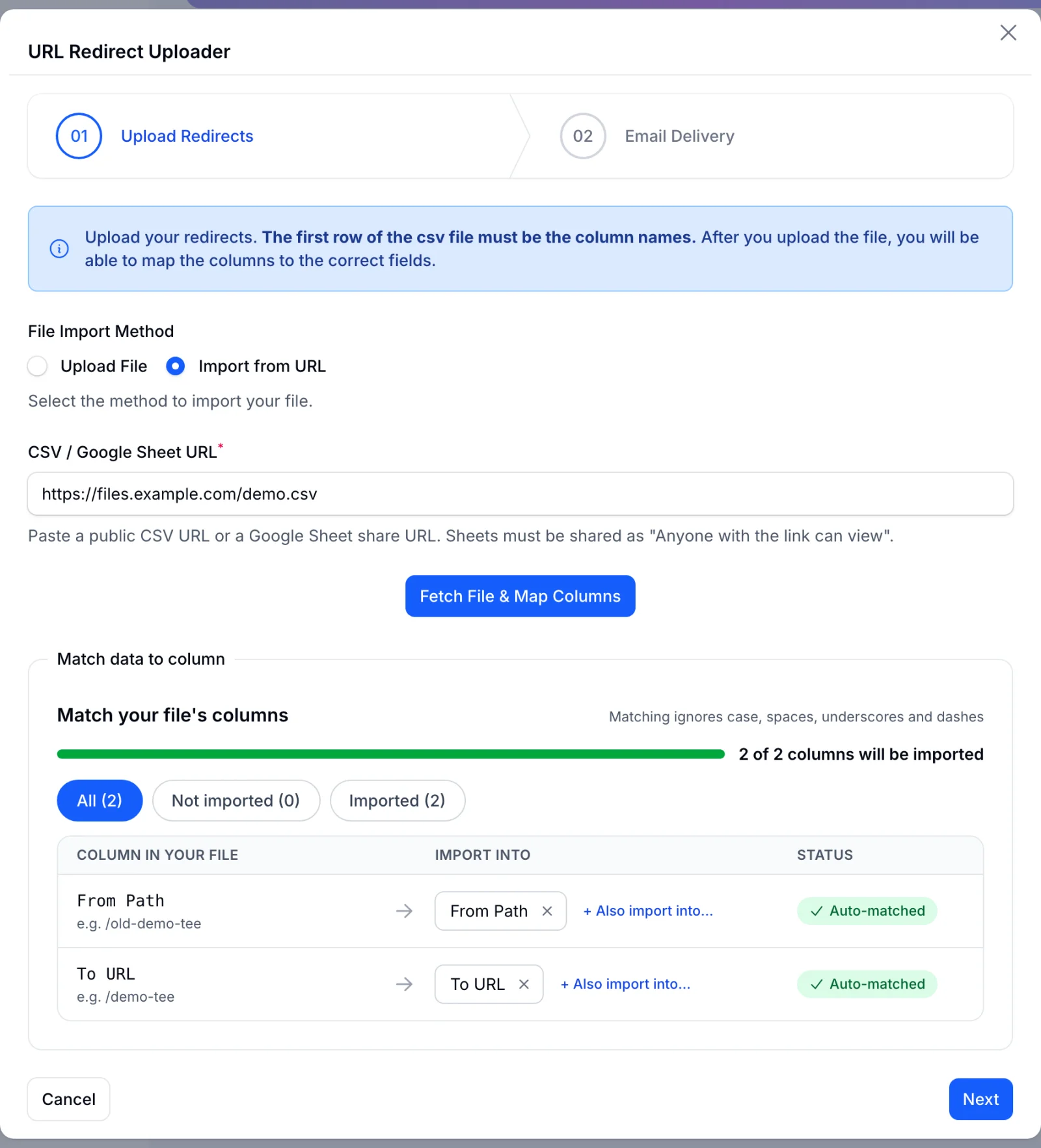
Match your file's columns. Match your old-address column to From Path and your destination column to To URL. Both are required. Columns named "From Path" and "To URL" are matched for you.
-
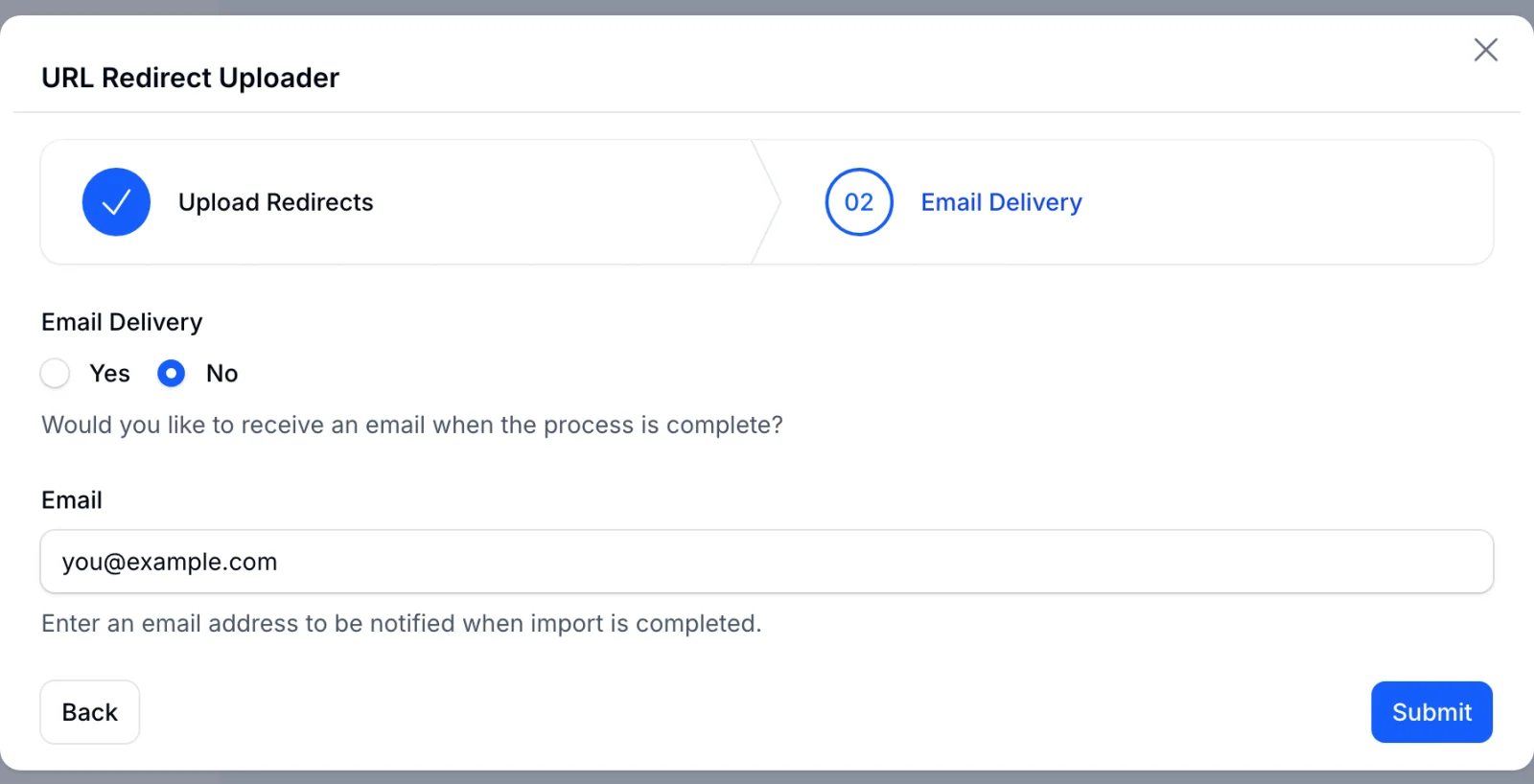
Email Delivery. Choose Yes to get an email when the upload finishes, and check the email address.
-
Submit. You'll see "Import has been Queued". The upload carries on in the background even if you close the page.
-
Check the result. If any rows had problems, choose Download Errors on the notification (or in the email) to see what needs fixing.
Reference
| Field | Your column | Required? | Notes |
|---|---|---|---|
| From Path | The old address | Yes | The path being redirected, for example /old-product. Full addresses are accepted: only the path after your domain is used (anything after a ? is dropped), and a leading slash is added for you. |
| To URL | The new destination | Yes | Where visitors go. A path on your store (for example /new-product; a leading slash is added for you) or a full address starting with http:// or https://, which is kept as it is. |
Each redirect is created on the storefront you chose on the first step. Stores with one storefront use it automatically.
Troubleshooting and FAQ
A row says "The from path field is required." or "The to url field is required."
That row is missing one of the two values. Every redirect needs both an old path and a new destination. Fill in the blank cell and upload those rows again. Rows where both cells are empty are skipped.
The tool can't read my columns
Make sure the very first row of your file has the column names, then upload it again.
Do I need my domain in the old path?
No. The path after your domain is enough, for example /old-product. If you paste a full address, the tool keeps just the path.
Can the new destination be on another website?
Yes. A To URL that starts with http:// or https:// is kept exactly as entered. Anything else is treated as a path on your own store.
Will uploading the same redirects again create duplicates?
No. Uploading a redirect for a path that already has one updates it instead.
My file is too large
Your plan may limit how many rows you can import at once. If your file is over the limit, you'll see a message with your plan's maximum. Split the file, or upgrade your plan.
I got an API permission error
Your store connection may be missing a permission the tool needs. Contact us from Contact Us in your dashboard and we'll help you fix it.
Note
New to Your Store Tools? How tools work explains the steps every tool shares, including uploading files and matching your file's columns.