
Import Rules for BigCommerce
What it does
Import Rules updates the complex rules on your BigCommerce products from a spreadsheet. Product rules are what BigCommerce uses to adjust a product's price, weight, purchasing status and more, based on the combination of options (modifiers) or variants a shopper chooses. For example: "if Size = Large and Color = Red, add $5 and 2 lb."
Upload a file, match its columns to the fields, and the tool applies your changes to each product. For each row it can:
- Create a new rule for a product.
- Update an existing rule, when you include its Rule Id.
- Delete a rule, when you mark the row to delete and include its Rule Id.
Each product is found by its SKU, and each rule is defined by the combination of options and/or variant SKUs you list. The work runs in the background, and you can choose to get an email when it's finished. Rows that can't be processed are listed in an errors file so you can fix them and upload them again.
Use it to:
- Add or change price or weight adjustments across many products at once.
- Turn rules on or off, or make them "stop" rules, in bulk.
- Turn purchasing on or off (with an optional message) for particular option combinations.
- Remove a batch of rules quickly.
Export Rules is a good companion: export your current rules, edit the file, then import it back.
Before you start
- Import Rules is a paid add-on. If it isn't active for your store, the tool card offers a way to subscribe.
- The products must already exist in BigCommerce; rules attach to existing products.
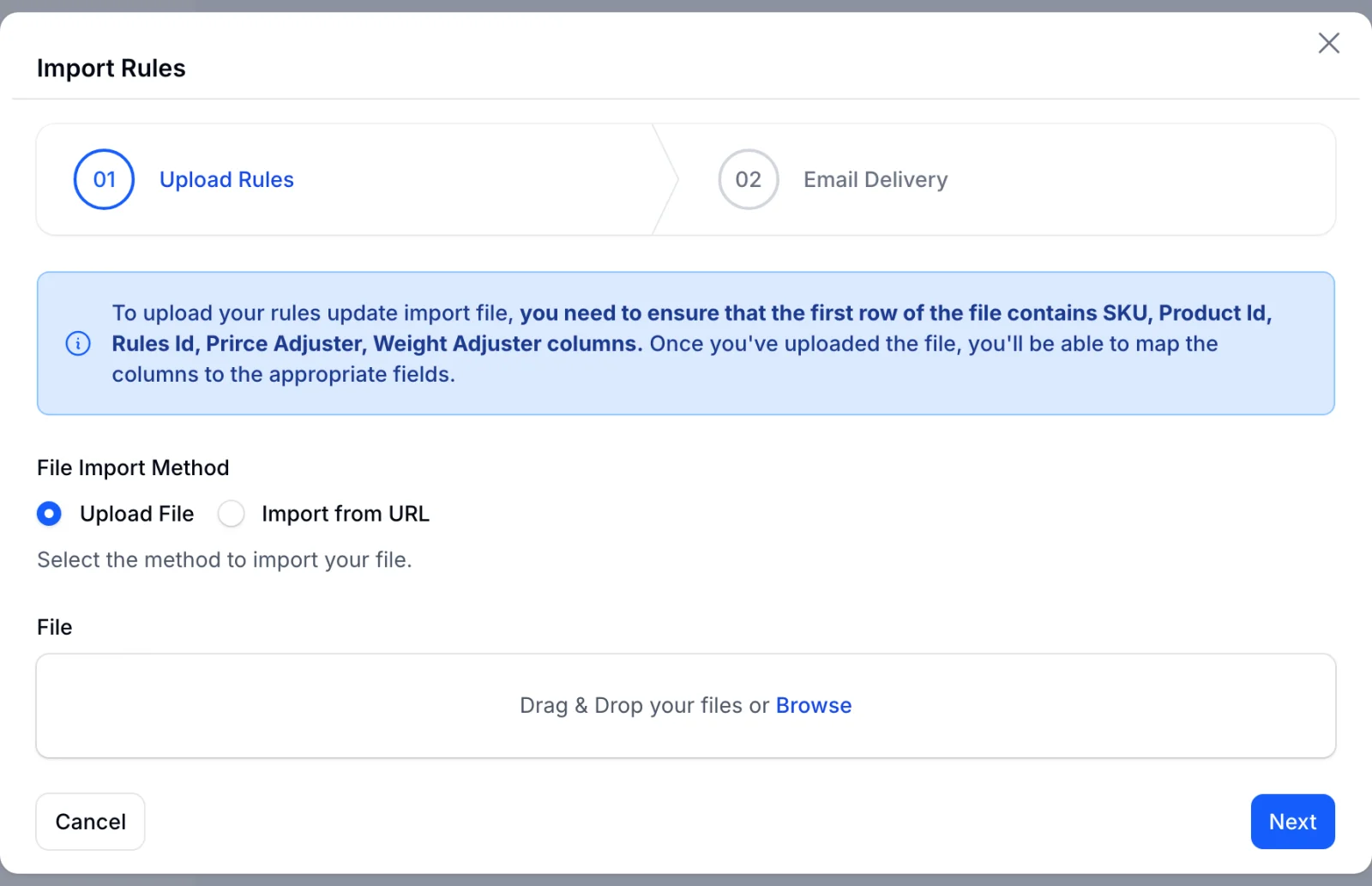
- Make sure the first row of your file has the column names, including a SKU column so each row can be matched to a product.
- For option-based rules, the option names and values in your file must already exist on the product. For variant-based rules, the variant SKUs must already exist.
- Use a CSV or Excel (.xlsx) file, or a link to a CSV file or Google Sheet. Older .xls files aren't supported.
Step-by-step
-
Open Import Rules. Choose the tool from your BigCommerce tools.
-
Upload Rules. Read the note on screen, then choose Upload File or Import from URL and add your file.
-
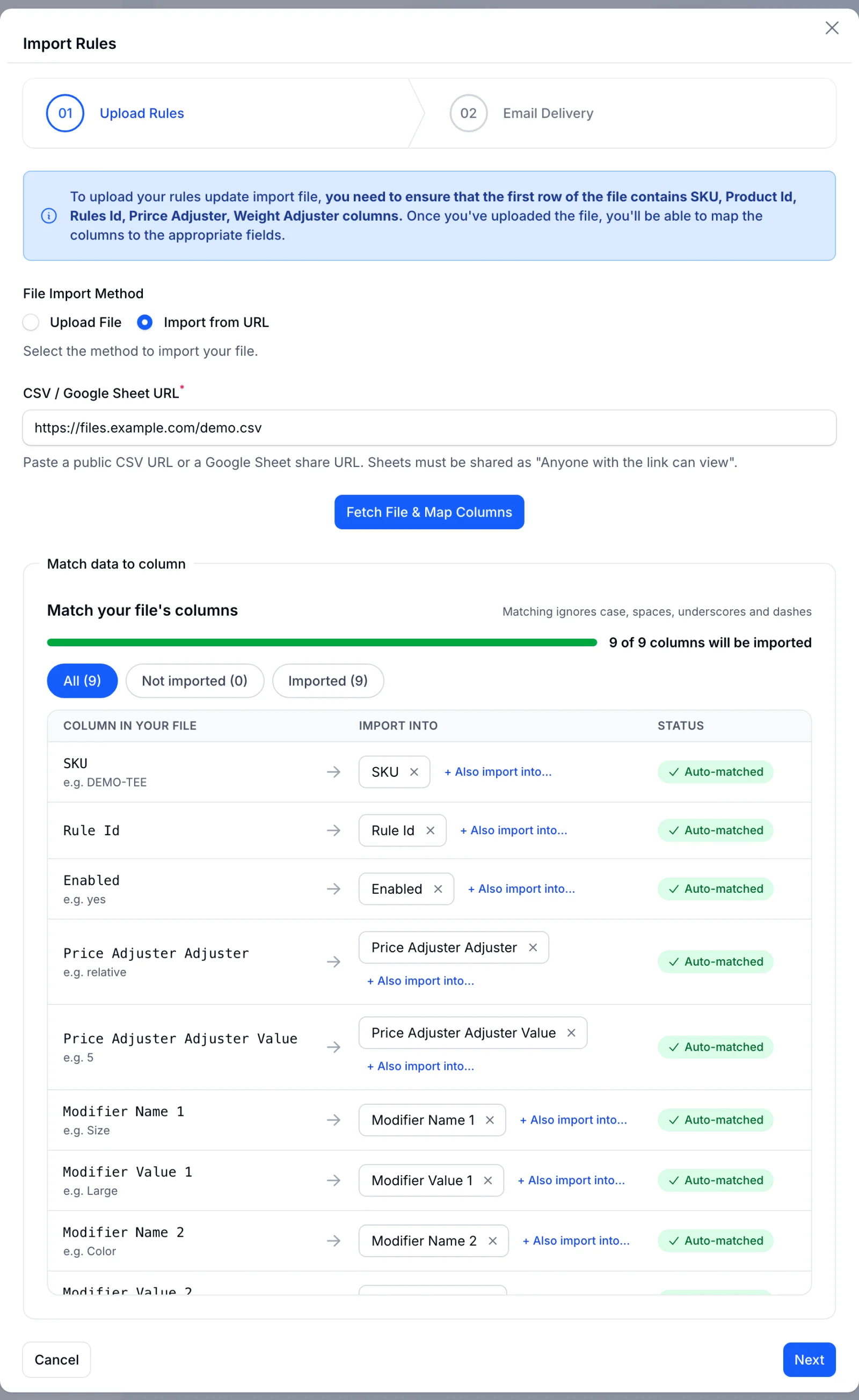
Match your file's columns. Pick the matching field for each column in your file; columns named like the fields are matched for you. At minimum, match your SKU column to Sku.
-
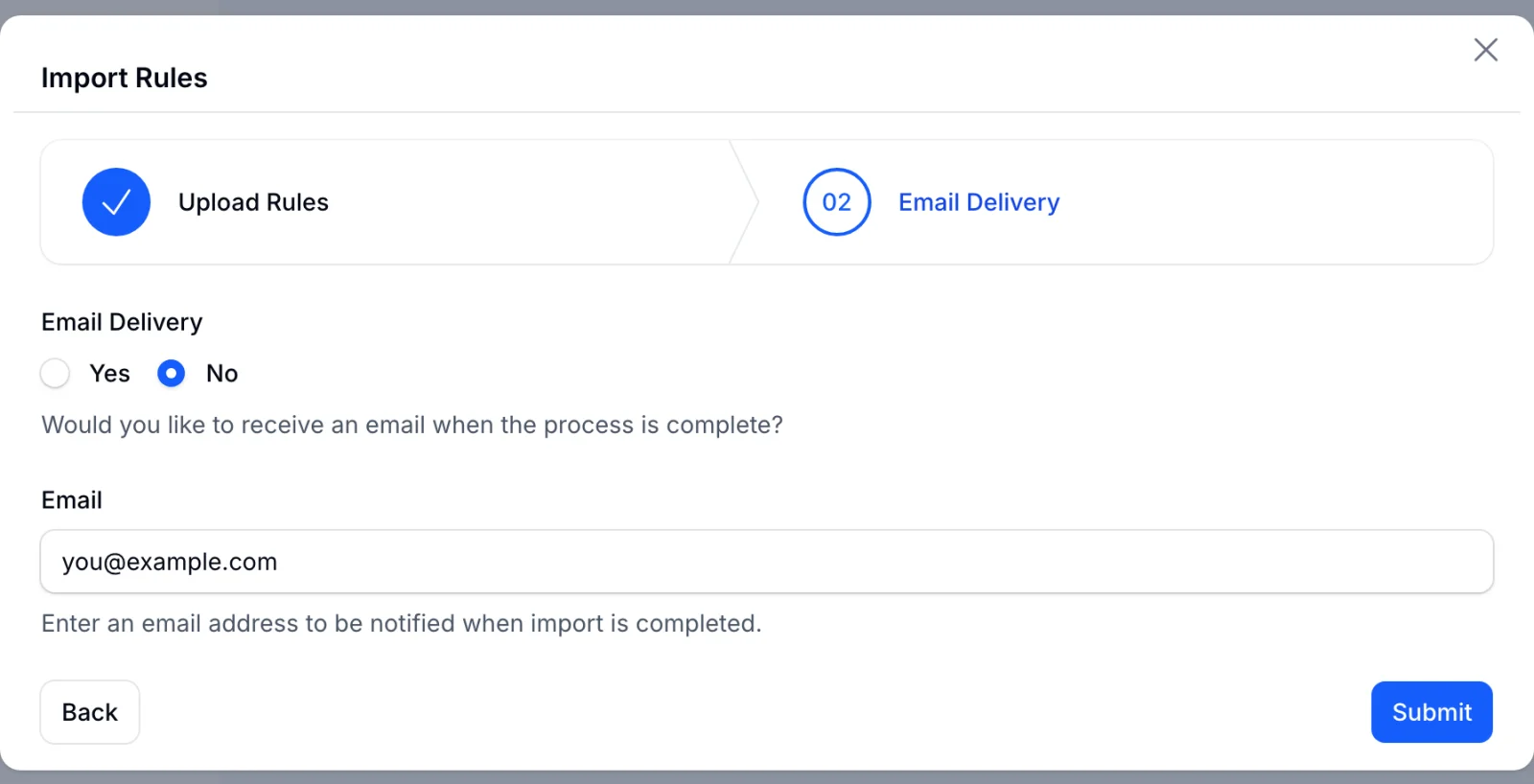
Email Delivery. Choose Yes to get an email when the import finishes, and check the email address.
-
Submit. You'll see "Import has been Queued". The import runs in the background.
-
Check the result. If any rows had problems, choose Download Errors on the notification (or in the email) to see what needs fixing.
Reference
Include only the columns for the rules you're changing.
| Field | Required? | Notes |
|---|---|---|
| Sku | Yes | The product's SKU. Used to find the product the rule belongs to. |
| Rule Id | No | Include it to update or delete a rule. Leave it blank to create a new rule. |
| Sort Order | No | A number. The order in which rules apply. |
| Enabled | No | Yes or no. Whether the rule is active. |
| Stop | No | Yes or no. Makes it a "stop" rule. |
| Delete | No | Yes to delete the rule. Needs the Rule Id. |
| Purchasing Disabled | No | Yes or no. Turns purchasing off for the matching combination. |
| Purchasing Disabled Message | No | The message shoppers see when purchasing is off. If you fill this in and leave Purchasing Disabled blank, purchasing is turned off. |
| Price Adjuster Adjuster | No | How the price is adjusted: relative (an amount) or percentage. |
| Price Adjuster Adjuster Value | No | A number: the amount of the price adjustment. |
| Weight Adjuster Adjuster | No | How the weight is adjusted: relative or percentage. |
| Weight Adjuster Adjuster Value | No | A number: the amount of the weight adjustment. |
| Modifier Name 1–20 | No | An option name that defines the rule, such as "Size". Matched to the option's display name, ignoring upper and lower case. |
| Modifier Value 1–20 | No | The option value paired with the same-numbered Modifier Name, such as "Large". Required whenever its Modifier Name is filled in. |
| Sku 1–20 | No | A variant SKU that defines the rule instead of an option name and value. |
Yes and no values: y, yes, true, t or 1 mean yes; n, no, false, f or 0 mean no.
How conditions work: for each numbered slot (1 to 20), give either a Modifier Name and Modifier Value or a variant Sku, not both. A new rule needs at least two conditions in total (two option pairs, two variant SKUs, or a mix).
Price or weight: a new rule needs a price adjustment or a weight adjustment (both the type and the value columns), unless you set Enabled, Stop or Purchasing Disabled to yes, or you're updating an existing rule by its Rule Id.
Troubleshooting and FAQ
A row says "SKU … not found in BC."
The SKU in that row doesn't match a product in your store. Check the SKU and upload the affected rows again.
A row says a product modifier or variant SKU wasn't found
The option name, option value or variant SKU you listed must already exist. Create or correct the option or variant in BigCommerce first, then upload the row again.
A row says "Modifier Name … is given but Modifier Value … is empty."
Modifier Name and Modifier Value go together. If you fill in one, fill in the other with the same number. Also, don't put a Modifier Name and a Sku in the same numbered slot; choose one.
A row says "Rules Id is required to delete the rule."
To delete a rule, set Delete to yes and include the rule's Rule Id, so the tool knows which rule to remove.
A row says "Need at least two valid modifiers or two variant skus."
A new rule needs at least two valid conditions. If you meant to update an existing rule, include its Rule Id.
A row says "Either Price Adjuster or Weight Adjuster is required."
A new rule needs a price or weight adjustment, with both the adjuster type and value filled in, unless it only sets Enabled, Stop or Purchasing Disabled.
The tool can't read my columns
Make sure the very first row of your file has the column names, including SKU. Upload it again after fixing the heading row.
I got an API permission error
Your store connection may be missing a permission the tool needs. Contact us from Contact Us in your dashboard and we'll help you fix it.
Note
New to Your Store Tools? How tools work explains the steps every tool shares, including uploading files and matching your file's columns.