
Export Rules for BigCommerce
What it does
Export Rules exports the complex rules on your BigCommerce products to a spreadsheet. Product rules are what BigCommerce uses to adjust a product's price, weight, purchasing status and more, based on the combination of options (modifiers) or variants a shopper chooses. A complex rule is one that depends on two or more options or variants.
Choose which products to include, pick a file name and format (CSV or Excel), and the tool builds the file in the background. When it's ready, download it from the tool or from the link emailed to you. The file uses the same columns as Import Rules, so you can edit it and import it straight back.
Use it to:
- See the complex price and weight rules across your catalog.
- Edit rules in a spreadsheet before bulk changes, then re-import them.
- Audit or share your current rule setup.
- Back up your complex rules before making changes.
Note
Rules based on a single option or variant aren't included in this export.
Before you start
- Decide which products you want rules for. Export everything, or narrow it down by SKU, category, brand, availability, condition, featured status, visibility, shipping type or stock status.
- Check you're working in the right store.
Step-by-step
-
Open Export Rules. Choose the Export Rules tool from your BigCommerce tools.
-
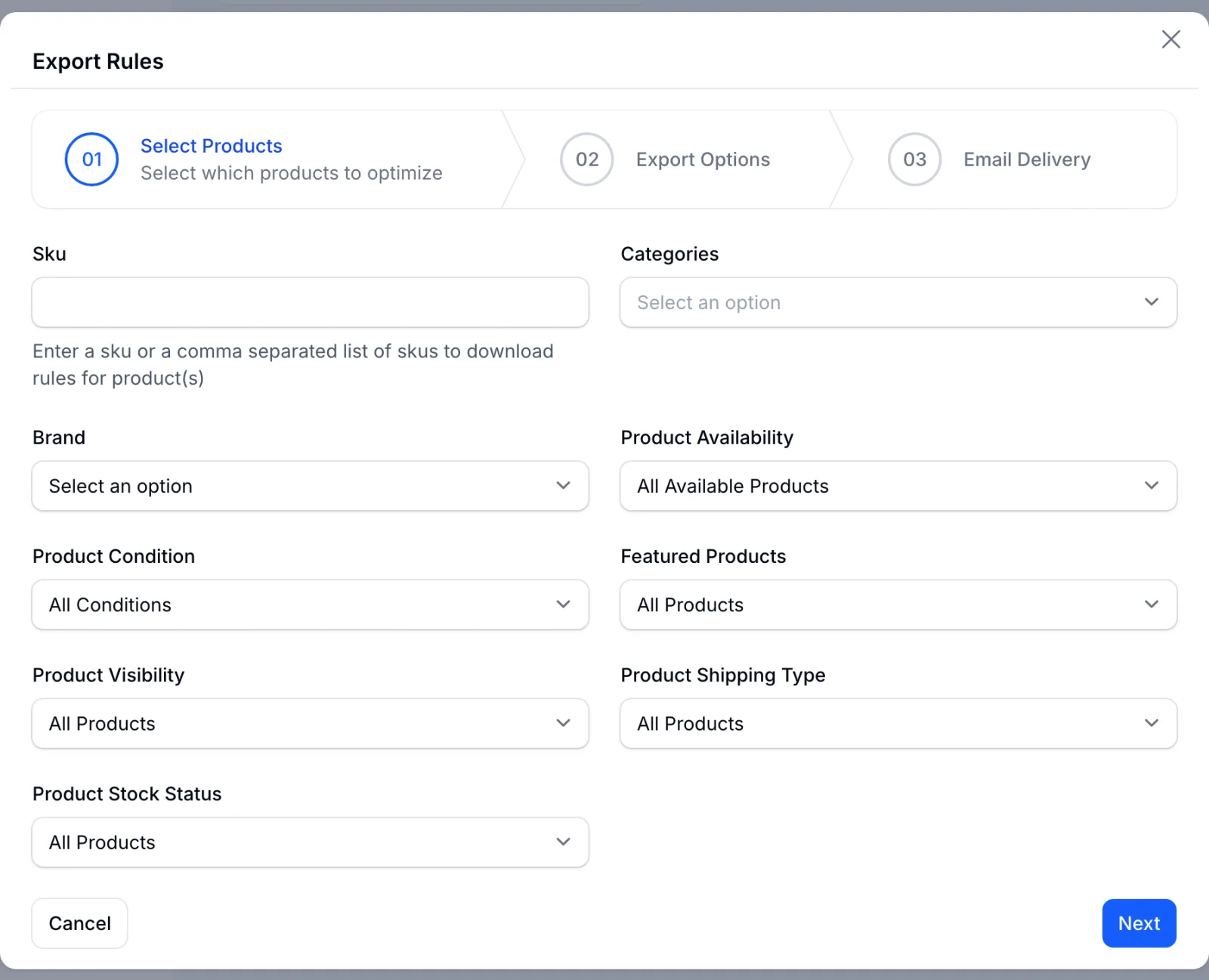
Select Products. Narrow down which products to include, or leave the filters empty to include all:
- Sku: a SKU, or a comma-separated list of SKUs.
- Categories: one or more categories.
- Brand: a brand.
- Product Availability: Available, Disabled or Preorder.
- Product Condition: New, Refurbished or Used.
- Featured Products, Product Visibility, Product Shipping Type and Product Stock Status: further optional filters.
-
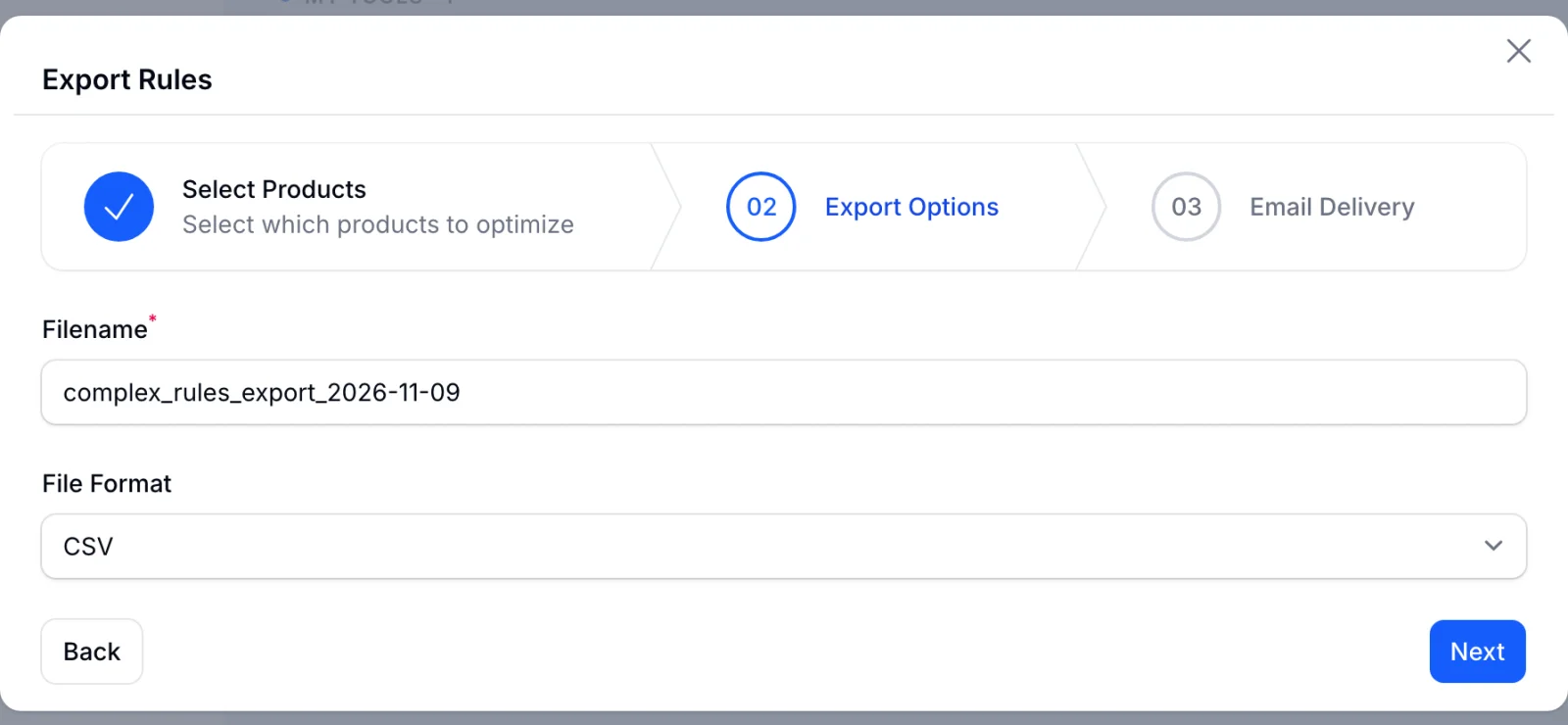
Export Options. Set a Filename (a name with today's date is filled in for you) and choose a File Format: CSV or Excel.
-
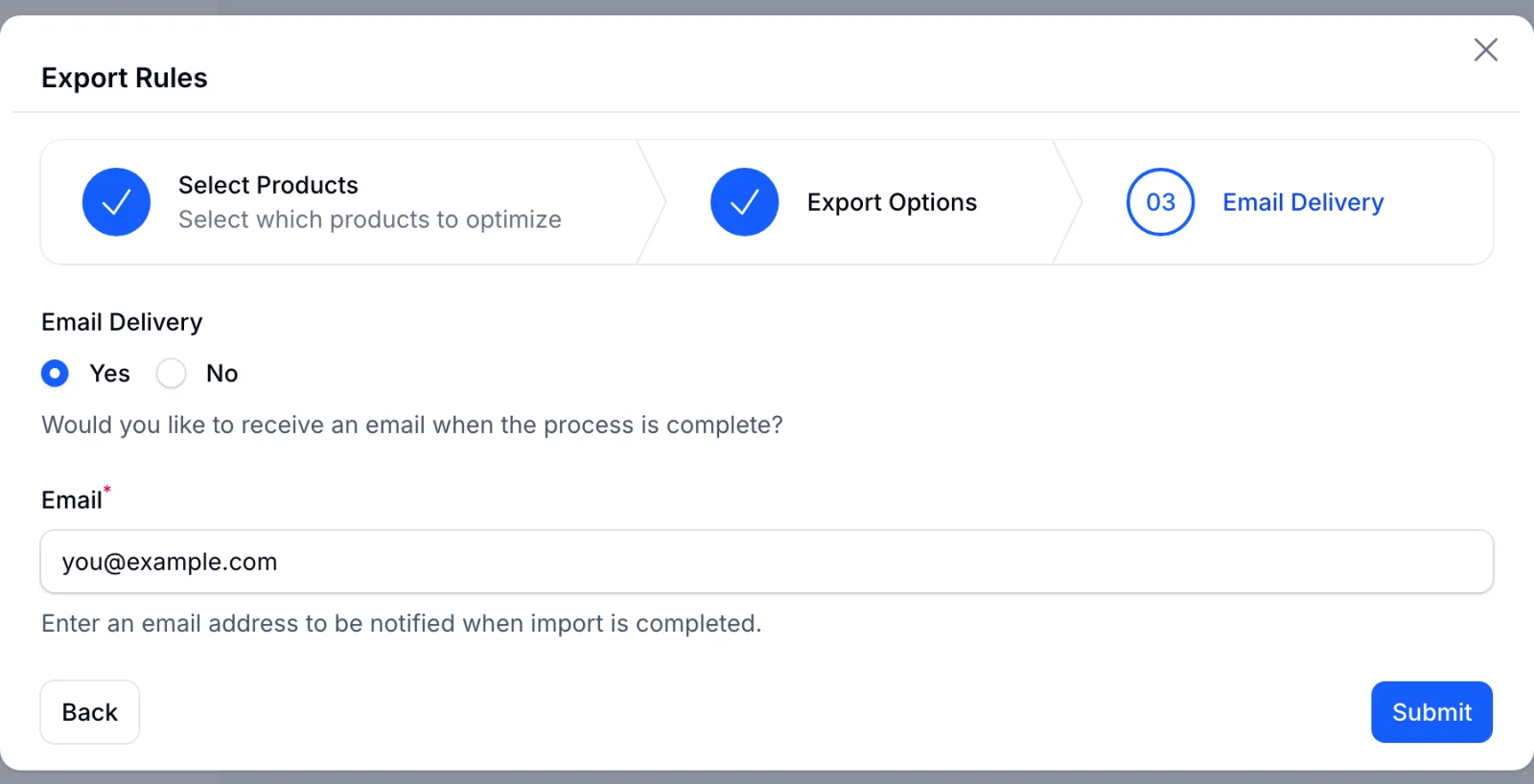
Email Delivery. The download link is emailed to you when the export finishes. Your account email is filled in; change it, or choose No if you don't want the email.
-
Submit. You'll see "Export has been queued". The file is built in the background.
-
Download your file. Download it from the tool when it's ready, or from the link in the email.
Reference
File formats: CSV, or Excel (.xlsx).
The file has these columns, in this order. It's the layout Import Rules expects, so an exported file can be edited and imported again.
| Column heading | What it holds |
|---|---|
sku |
The product's SKU. |
rule_id |
The rule's ID in BigCommerce. |
sort_order |
The order in which the rules apply. |
enabled |
true or false: whether the rule is active. |
stop |
true or false: whether it's a "stop" rule. |
delete |
Always blank in the export. Put y here to delete the rule when you import the file again. |
purchasing_disabled |
true or false: whether purchasing is turned off for the matching combination. |
purchasing_disabled_message |
The message shown when purchasing is turned off. |
price_adjuster_adjuster |
How the price is adjusted: relative or percentage. |
price_adjuster_adjuster_value |
The amount of the price adjustment. |
weight_adjuster_adjuster |
How the weight is adjusted: relative or percentage. |
weight_adjuster_adjuster_value |
The amount of the weight adjustment. |
modifier_name_1, modifier_value_1, sku_1 … up to _20 |
One set of three columns per condition, up to 20. A condition is either an option name and value (for example "Size" and "Large") or a variant SKU. |
Troubleshooting and FAQ
Where's my file?
The export runs in the background, so it isn't downloaded straight to your browser. When it finishes, download it from the tool, or use the link in the email. If the email doesn't arrive, check your spam folder, confirm the address on the Email Delivery step, and make sure delivery wasn't turned off.
My export is empty or smaller than expected
Check your filters on the Select Products step. Filters such as SKU, category, brand, availability or stock status narrow the products included. Also remember that only rules with two or more conditions are exported.
Can I edit this file and put it back?
Yes. The export uses the columns Import Rules reads, so you can edit the file and import it to update, create or delete rules.
CSV or Excel: which should I pick?
Either works. CSV is the most widely supported; Excel gives you a single .xlsx workbook.
I got a permission or API error
This usually means your store connection is missing a permission the tool needs. Contact us from Contact Us in your dashboard and we'll help you fix it.